Easy Tech Tuts
How to Remove Estimated Taxes in Shopify Checkout, Delete Tax Included Easily 2026
By Impran M NLast checked against official docs
Some Shopify merchants find that customers see "tax included" or an estimated tax line at checkout, and in POS, even when tax collection is supposed to be off. The confusion comes from two separate controls: the tax region settings that decide whether Shopify calculates tax at all, and the checkout wording, which can keep referencing tax even after collection is turned off. Shopify doesn't have a single switch that hides the "Estimated tax" line outright; this guide covers both controls, working from the actual admin screens involved.
01Open Settings in your Shopify admin
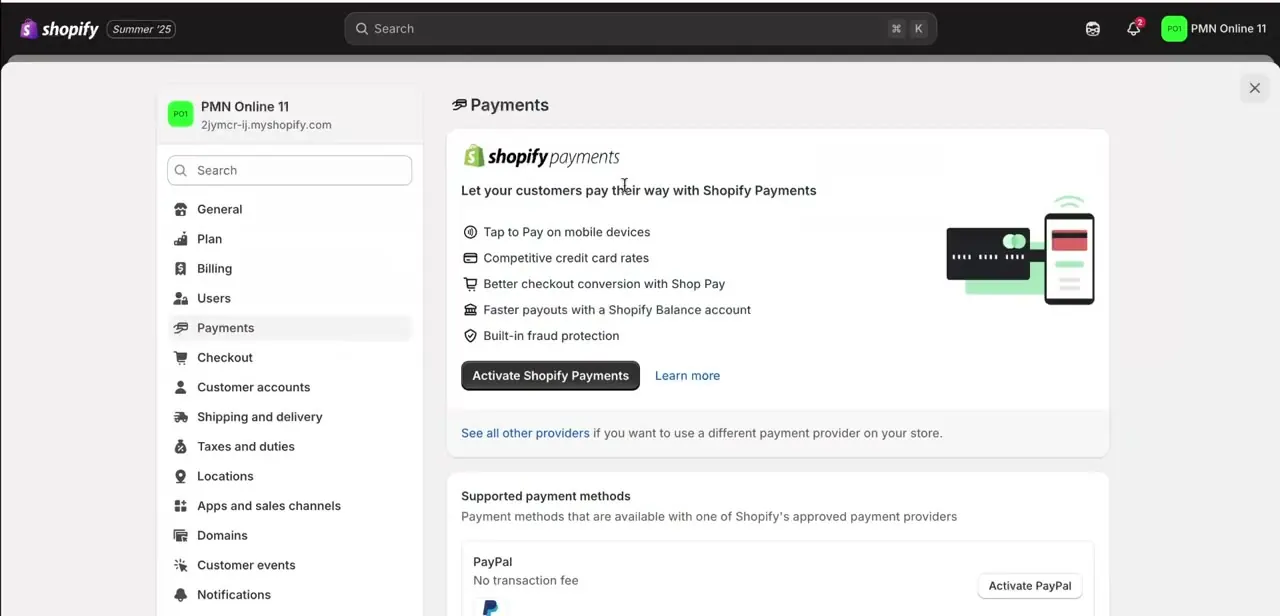
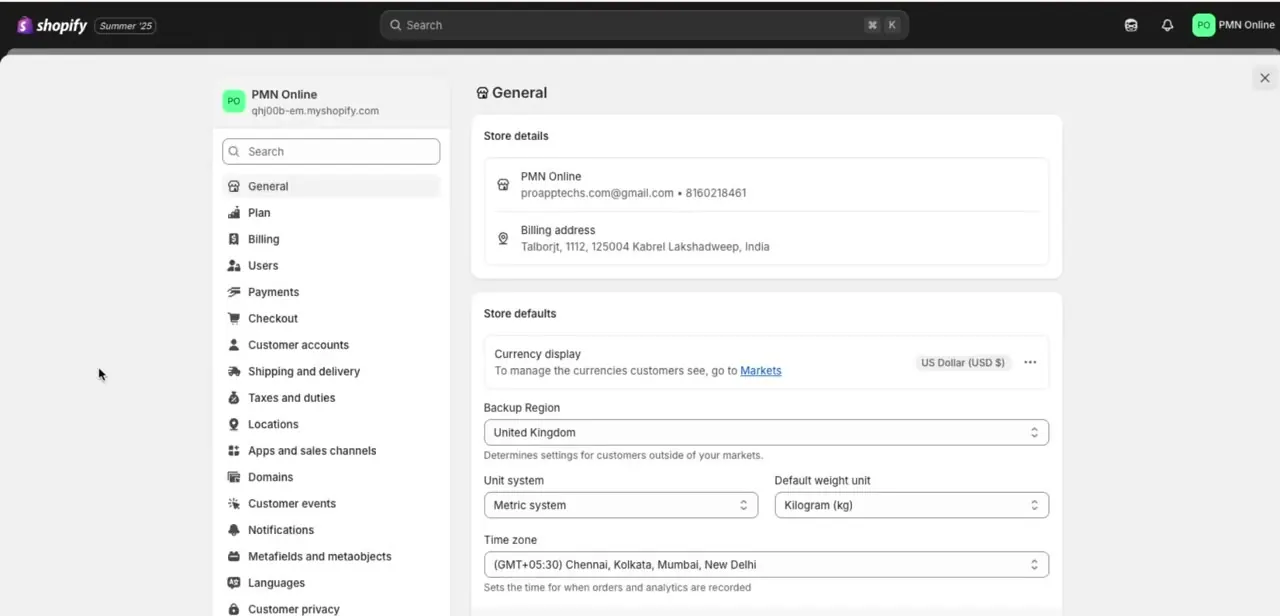
From your Shopify admin, open Settings to reach the General page, which lists your store details, billing address, currency, and regional defaults. The full settings list runs down the left side: Payments, Checkout, Customer accounts, Shipping and delivery, and Taxes and duties, which is the one this task needs. The tax-collection control and the checkout-wording control live in different places: Taxes and duties for one, the theme editor for the other.
02Review your tax regions
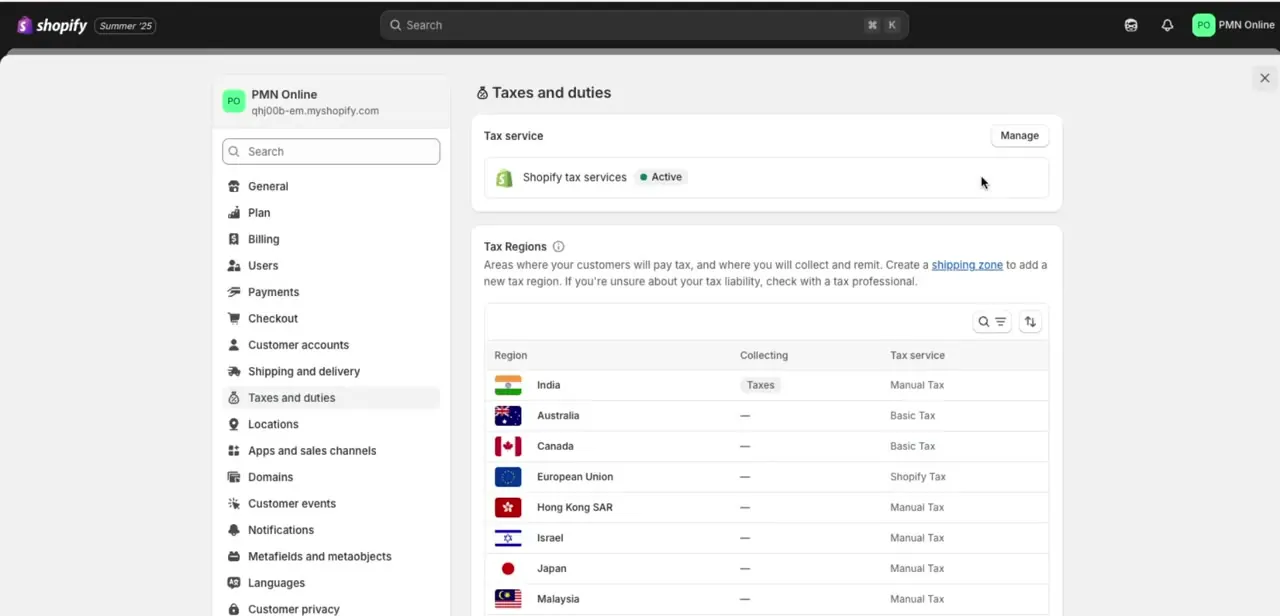
Click into Taxes and duties to see the Tax Regions table, listing every country or region alongside whether it's currently collecting tax and which tax service handles the calculation, such as Manual Tax, Basic Tax, or Shopify Tax depending on the region. If a region shows an active tax service but you don't want to charge tax there, this table is where you correct it. A region showing a dash under Collecting isn't charging tax at all, which is the state you're aiming for anywhere estimated tax shouldn't appear.
03Turn off tax collection for the relevant region
Click into the specific region, say your home country if it's the one showing active tax collection, and switch its tax service off or clear its rate settings depending on what's configured. Save the change before moving on. The wording fix in the next step only changes the label; it doesn't stop Shopify from calculating a real tax amount if collection is still switched on somewhere in this table.
04Edit the checkout's tax wording
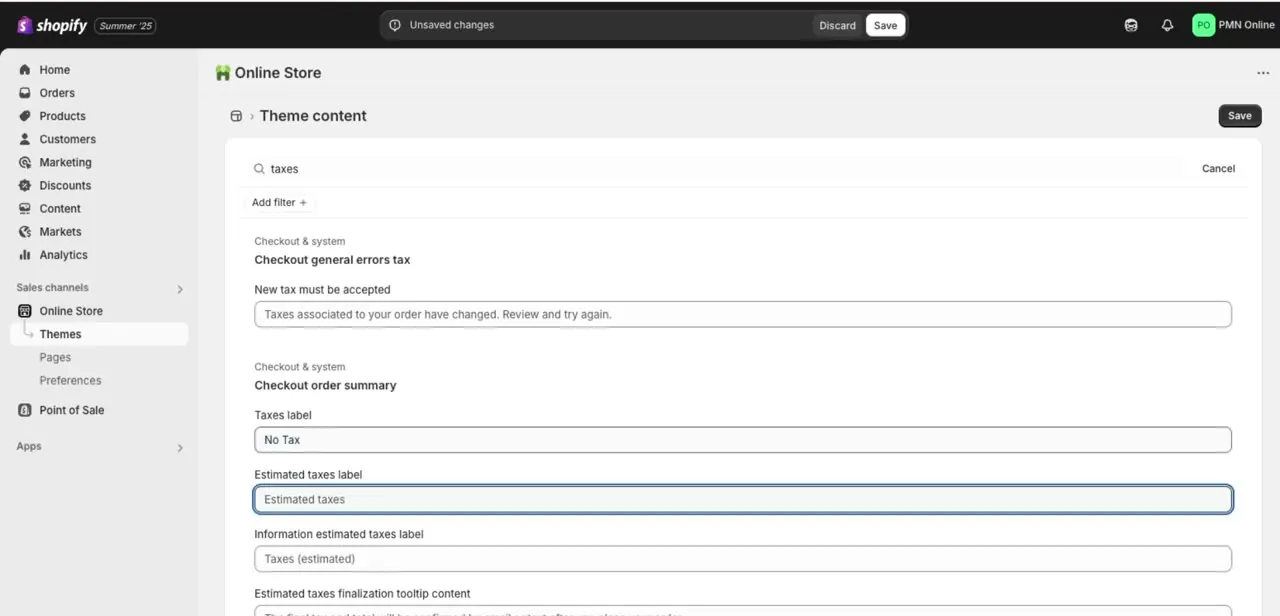
Go to Online Store, then Themes. Click the three-dot menu next to your published theme and choose Edit default theme content, then open the Checkout & system category and search "tax." This surfaces every piece of checkout text tied to tax, including fields like Taxes label, Estimated taxes label, and Information estimated taxes label under Checkout order summary. Before editing, the Estimated taxes label field typically still reads "Estimated taxes," which is exactly the wording customers see even when no tax is being charged at all.
05Replace the labels and save
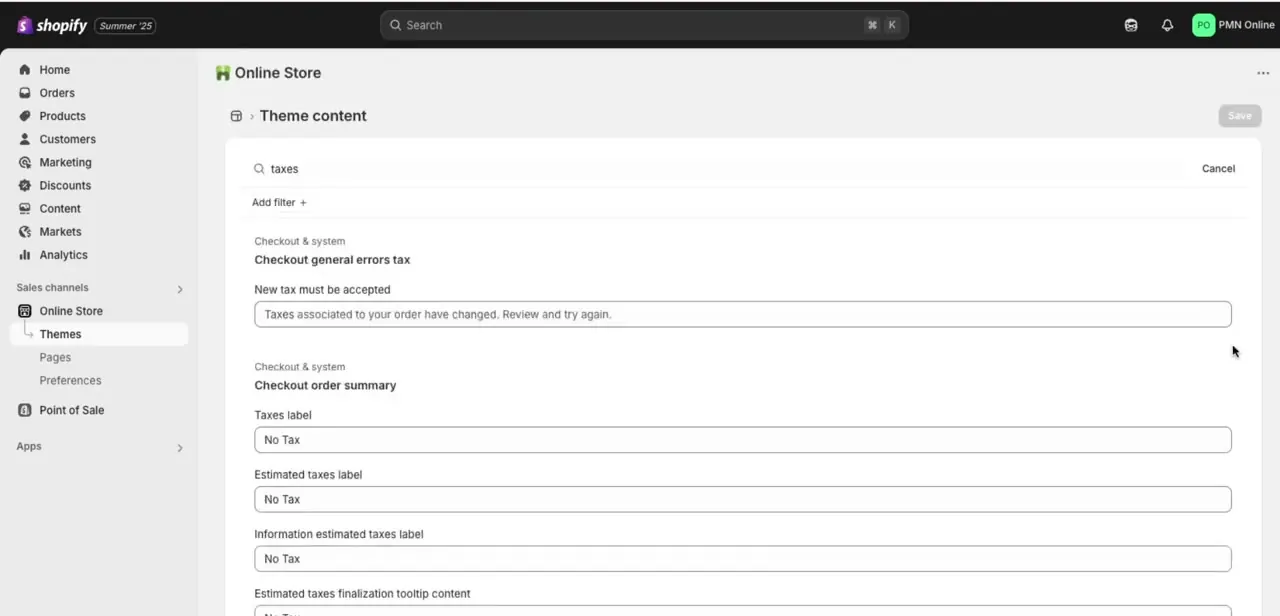
Edit each relevant field, Taxes label, Estimated taxes label, and Information estimated taxes label, to something accurate, like "No Tax," so the checkout summary stops implying an amount is being calculated. Click Save once all three are updated. This step is purely cosmetic text; it won't change what a customer is charged, but it removes confusing wording for stores that genuinely don't collect any tax.
06Test both checkout and POS
Run a test order through your online storefront and, separately, a test sale through Shopify POS if you use it in person. Both need checking, since tax settings and theme wording apply to each channel on its own; fixing the online checkout doesn't automatically clean up what a POS terminal shows. If an estimated duties or import-tax figure still appears at checkout after this, that's a separate control, under Settings, then Taxes and duties, then Duties and import taxes, not the sales-tax region setting from step 2.
When it doesn't work
The theme content label was changed but checkout still shows a real tax amount
Why: Editing "Estimated taxes label" only changes the wording. Tax is still calculated and charged if collection is switched on for that region in Taxes and duties.
Fix: Confirm the region shows no active tax service in the Tax Regions table; the label edit is cosmetic, and step 3's setting is the one that actually stops the charge.
An estimated duties or import-tax figure still shows even after taxes are off
Why: Duties and import taxes are controlled separately, under Settings, Taxes and duties, then Duties and import taxes, then Manage, then Countries/regions.
Fix: Uncheck the relevant countries there; it's a different list from the Tax Regions table used for sales tax.
POS still shows the old wording or tax line
Why: Theme content changes apply to the online checkout; POS pulls its own tax display separately.
Fix: Run a test sale on the POS terminal itself after making changes rather than assuming an online-checkout fix carries over.
Frequently asked questions
Why does Shopify show "tax included" even if I don't charge tax?
Usually because a tax service is still active for that region in Taxes and duties. The checkout wording keeps referencing tax until both the region setting and the theme content label are updated.
Does this affect POS as well as online checkout?
Yes. Tax settings apply across both channels, so check and test both separately to fully remove the estimated tax.
Will removing taxes affect my tax reporting?
It can. Confirm with your accountant or check local tax requirements before turning off tax collection entirely in the Tax Regions table.
Can I remove tax for specific products only?
The Tax Regions table controls collection by region, not by product, but individual product pages have their own tax toggle for product-level exceptions.
Does editing the theme content labels change how much customers are charged?
No. Changing a label like "Estimated taxes" to "No Tax" only updates the wording shown at checkout. Actual tax calculation is controlled separately in Taxes and duties.
Is there a single setting that hides the "Estimated tax" line entirely?
Not according to Shopify's own documentation. The estimate is shown by design so customers see a close figure before their card is authorized. You can stop actual tax collection in Taxes and duties and separately reword what checkout calls it, but there's no toggle that removes the concept outright.
Sources and last check
The tax-region control and the theme-content wording control were checked against Shopify's official Help Center in September 2026. The article previously described the wording-edit path as Online Store > Themes > Theme content; the correct entry point is the three-dot menu on a theme, then Edit default theme content, then the Checkout & system category. Duties and import taxes were added as a separate, commonly confused control after confirming they sit under their own setting rather than the sales-tax Tax Regions table.
About the author

Impran M N
I've been hooked on technology for as long as I can remember — especially the new tools and AI apps that seem to land every other week. Easy Tech Tuts is where I write up whatever I've just worked out: I do the task in the real product, record the screen, and turn it into the guide I wish I'd found first.