Easy Tech Tuts
How to Know if Your Shopify Store is Live Easily 2026
By Impran M NLast checked against official docs
New Shopify sellers often finish setup and still aren't sure whether anyone else can see their store. This guide covers the checks that confirm your store is genuinely live: reading the real signals in your admin dashboard, confirming your theme's Live status directly in the theme editor, and then verifying your domain, product visibility, and checkout so nothing blocks a customer who finds you. Running through these before you announce your store means you find gaps before a customer does.
01Check your admin Home dashboard for real activity
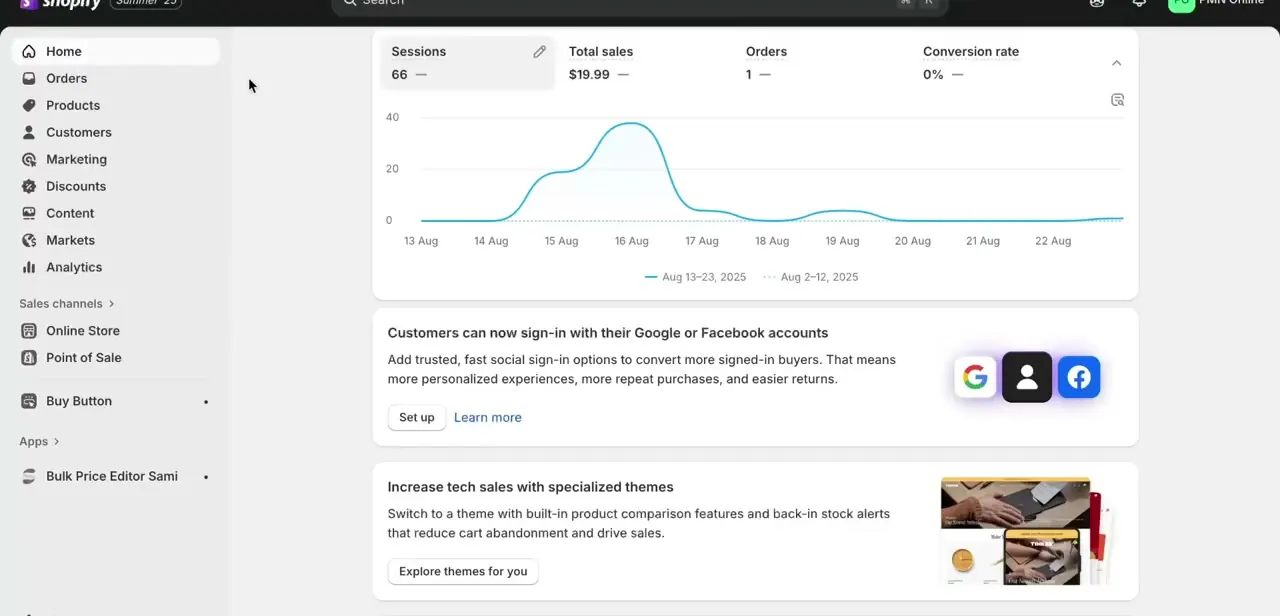
Your Shopify admin Home page shows Sessions, Total sales, Orders, and Conversion rate for the last 30 days, with a chart plotting sessions day by day. Seeing any nonzero session count here, even a small one, is meaningful: it means real visitors are reaching your storefront, which only happens if the store is published and reachable. A flat chart at zero across every day is your first warning sign that something upstream, like password protection or a broken domain, is blocking traffic before it ever gets counted.
02Open Online Store > Themes and check your current theme
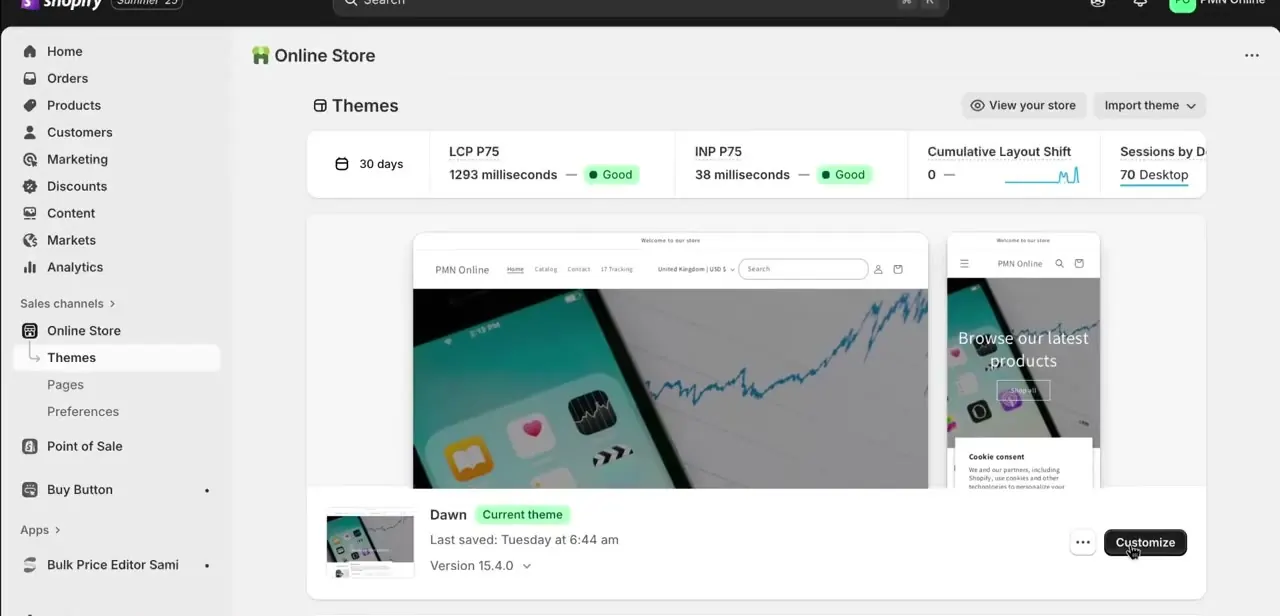
From the left sidebar, go to Sales channels > Online Store > Themes. This page lists your published theme, labeled "Current theme", along with the store's three Core Web Vitals over the last 30 days: LCP (Largest Contentful Paint), INP (Interaction to Next Paint), and Cumulative Layout Shift, each marked "Good" in a healthy store. If you see a theme here with a Customize button next to it, that confirms an active theme is assigned to your storefront and not an unfinished setup with nothing published.
03Confirm the Live badge in the theme editor
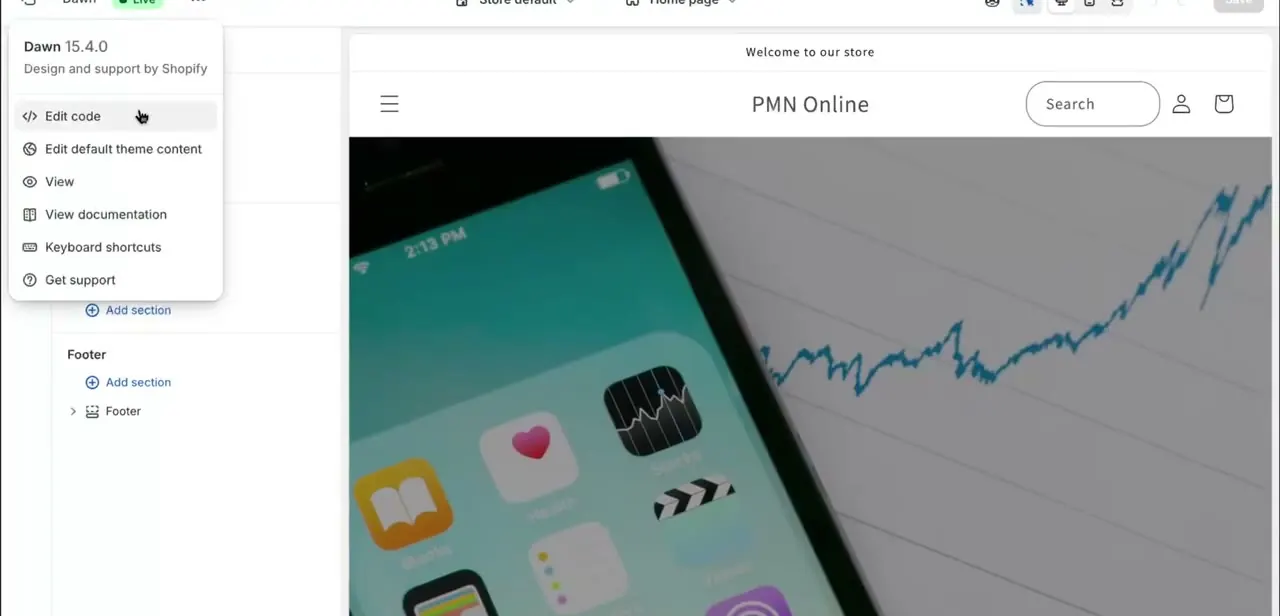
Click Customize on your current theme to open the theme editor, and look at the top-left corner next to the theme name. A green "Live" badge next to "Dawn 15.4.0" (or whatever theme you're running) is direct confirmation that this is the theme customers see when they visit your store right now, not a draft or an unpublished variant. If that badge instead reads "Draft" or is missing, customers are not seeing this theme, no matter how finished it looks in the editor.
04Rule out password protection, then test your domain from outside
Before anything else, check Online Store > Preferences for a "Restrict access with a password" setting. Shopify puts every new store into private mode automatically when you sign up, and it stays that way until someone turns it off, so a fully finished store can still be invisible to the public.
With that ruled out, open your custom domain in a browser on a different device or network than the one you built the store on; a phone on mobile data works well. You're checking that the domain resolves to your storefront instead of a Shopify placeholder page, a parking page from your registrar, or nothing at all, which can happen while DNS records are still propagating after connecting a domain.
05Verify your products are visible, not just created
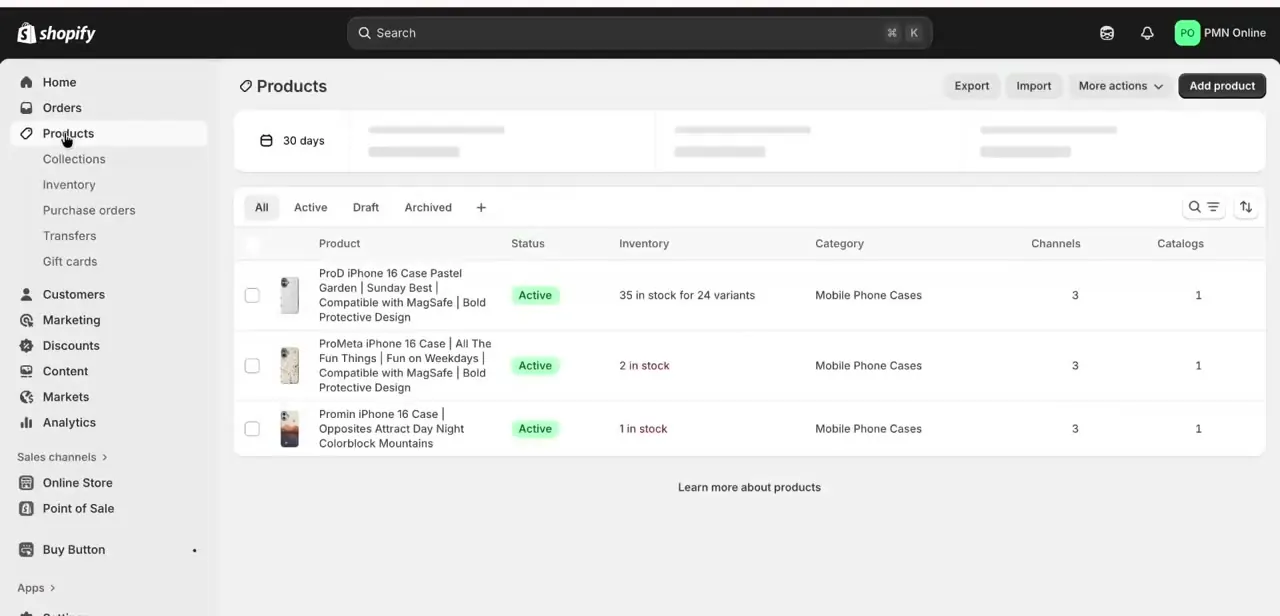
Back in the admin, open Products and check that the items you want customers to buy show an Active status and are assigned to the Online Store sales channel. A product can exist in your catalog and still be invisible to shoppers if it's left in Draft status or was never added to that channel, both common gaps after a bulk import or a rushed initial setup.
06Run a test order to confirm checkout works
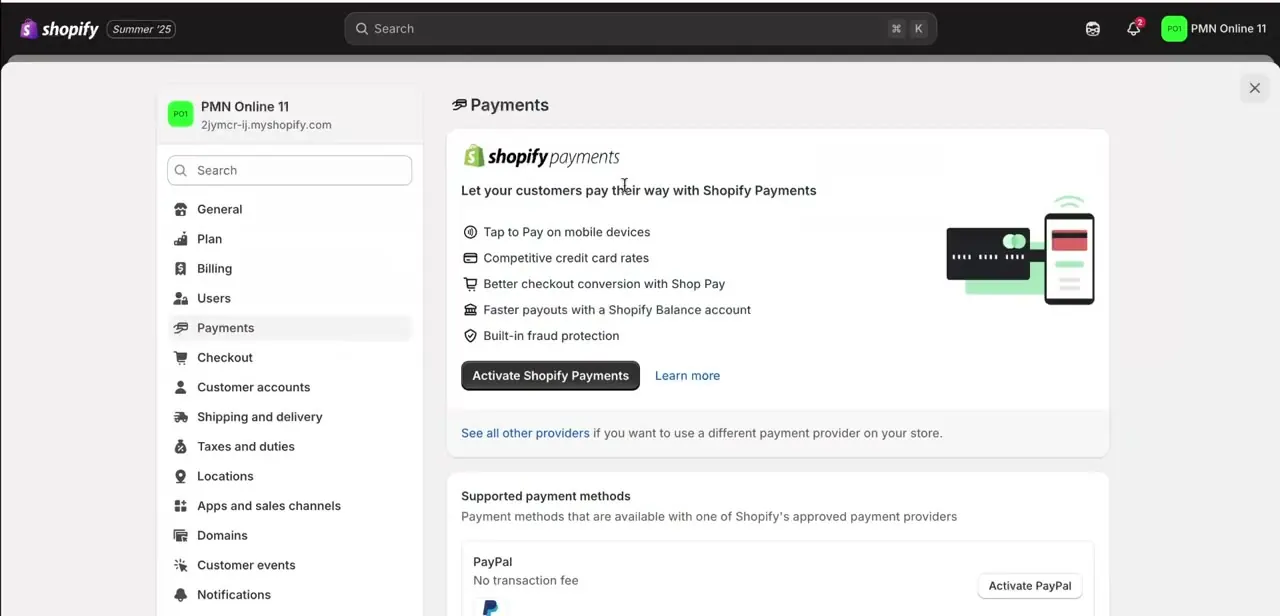
In Settings > Payments, either turn on test mode for Shopify Payments if that's your provider, or deactivate your live provider and select Test payment gateway from the list of other providers. Either option lets you run a full order through checkout using fake payment details, with no card charged and no real money moving.
Placing one order this way catches problems the earlier checks can't: a misconfigured payment provider or a checkout step that only fails once someone tries to pay for real. Remember to switch test mode back off afterward, since customers can't complete real orders while it's on.
When it doesn't work
Every visitor lands on a password entry page instead of the storefront
Why: Shopify sets new stores to private mode by default when you first sign up, and it stays on until you turn it off.
Fix: Go to Online Store > Preferences, turn off "Restrict access with a password" under store access, and save.
The custom domain shows a placeholder, a registrar parking page, or nothing at all
Why: The domain was never fully connected in Settings > Domains, or DNS records haven't finished propagating.
Fix: Recheck the connection status in Settings > Domains. Propagation can take a few hours and occasionally up to 48.
A product doesn't show up on the storefront even though it's in the admin
Why: The product's status is Draft, or it was never added to the Online Store sales channel.
Fix: Open the product, set Status to Active, and confirm Online Store is checked under its sales channels.
A test order won't go through in Settings > Payments
Why: A live payment provider is still active and expects a real card, or no provider is selected at all.
Fix: Deactivate the live provider first, then choose Test payment gateway from the other-providers list, or enable Shopify Payments test mode if that's what the store uses.
Frequently asked questions
Why does my Shopify store show a password page to visitors?
Shopify puts every new store into private mode automatically when you register, so unless you've turned that off in Online Store > Preferences, visitors hit a password page instead of your storefront, even if everything else is configured correctly.
How do I know if my domain is properly connected?
Open your custom domain on a device or network you haven't used to edit the store, and confirm it loads your actual storefront instead of an error page or a Shopify placeholder.
How long does it take for a newly connected domain to start working?
Usually a few hours. DNS changes can occasionally take up to 48 hours to propagate fully, so a domain that fails the outside-device test right after connecting isn't necessarily broken.
How can I tell if my theme is live?
Open Online Store > Themes and click Customize on your current theme. A green "Live" badge next to the theme name in the top-left corner of the editor confirms customers are seeing that exact theme right now.
Can I check if my store is live without making a real purchase?
Yes. Settings > Payments lets you turn on test mode (for Shopify Payments) or switch to the Test payment gateway, either of which lets you run a full checkout without charging a real card.
My products aren't showing up on the storefront. Why?
Almost always the product's status is Draft, or it hasn't been added to the Online Store sales channel. Both are fixable from the product's page in Products.
Sources and last check
Click paths and screens come from a walkthrough recorded in 2025. The private-mode default, the theme editor's Live/Draft labeling, the three Core Web Vitals shown on the Themes page, the Home page's default metrics, and the test-order options in Settings > Payments were re-checked against Shopify's official Help Center in September 2026. No step was factually wrong; the Themes-page screenshot also showed a Cumulative Layout Shift score the original draft omitted, so that's now mentioned alongside LCP and INP.
About the author

Impran M N
I've been hooked on technology for as long as I can remember — especially the new tools and AI apps that seem to land every other week. Easy Tech Tuts is where I write up whatever I've just worked out: I do the task in the real product, record the screen, and turn it into the guide I wish I'd found first.