Easy Tech Tuts
How to Fix Inventory Not Tracked Shopify & Learn to Stop Tracking Easily 2026
By Impran M NLast checked against official docs
Seeing "Not tracked" next to a location in Shopify's inventory panel throws a lot of store owners, especially when they expected to see a quantity and a low-stock warning instead. It isn't a bug.
It's a per-product setting that's simply switched off. This guide shows where that setting lives on the product page, what it looks like in both states, and how to decide which products should actually have stock counts turned on versus left open-ended.
01Start from your Shopify admin home
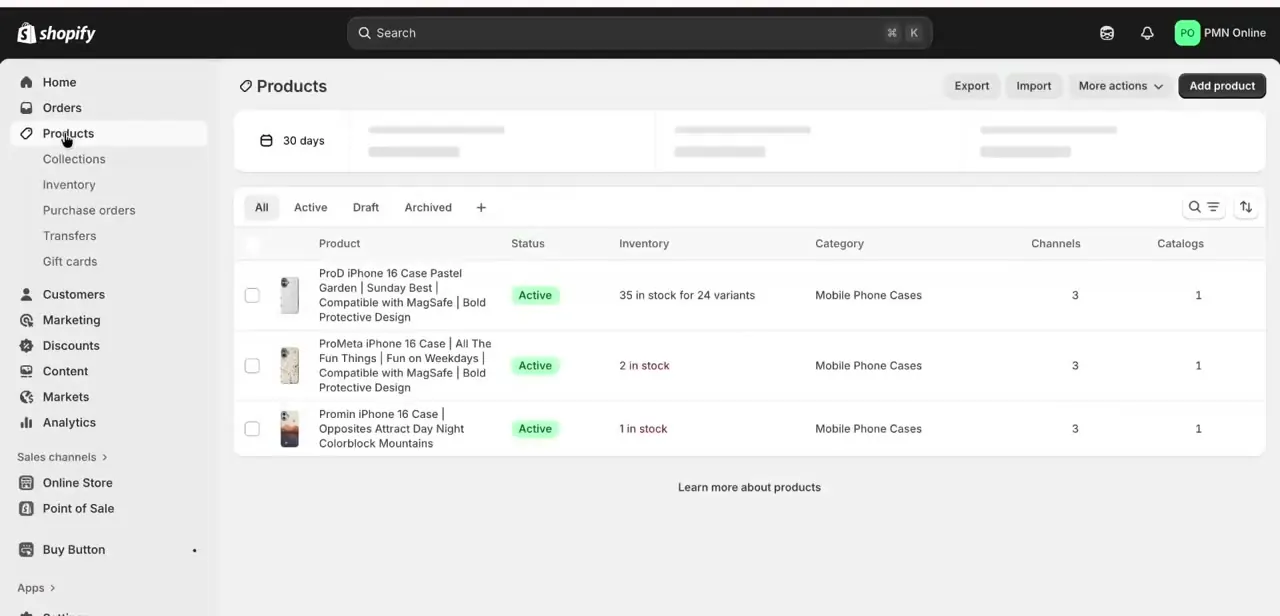
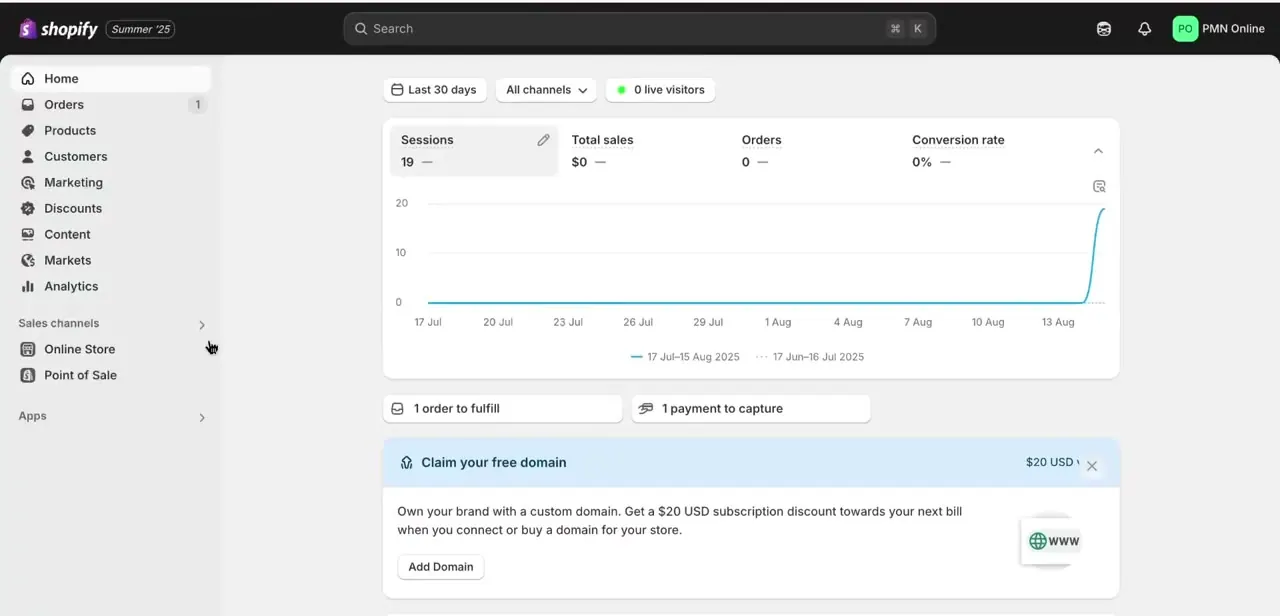
Log in and land on the admin Home screen, which summarizes sessions, orders, and payments for the last 30 days. Inventory settings don't live here, but it's the fastest route to Products in the left-hand menu. It's also worth a glance on its own: an order sitting in "1 order to fulfill" is often the moment someone notices a product sold with zero stock left, which is exactly the untracked-inventory scenario this guide covers.
02Open the product that's showing the issue
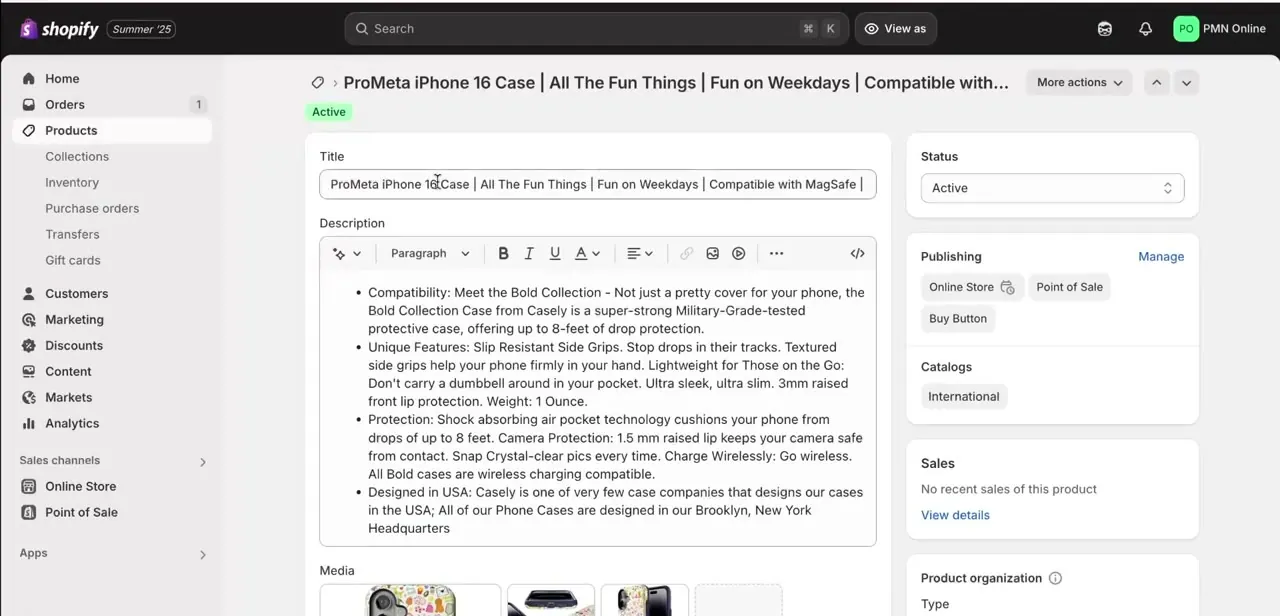
From Products, click into the specific listing. In this example it's a phone case product with its title, description, and media already filled in. Scroll down past pricing to the Inventory section, the block that controls whether Shopify counts stock for this product, separate from pricing, shipping weight, or the description editor above it.
03Recognize the untracked state
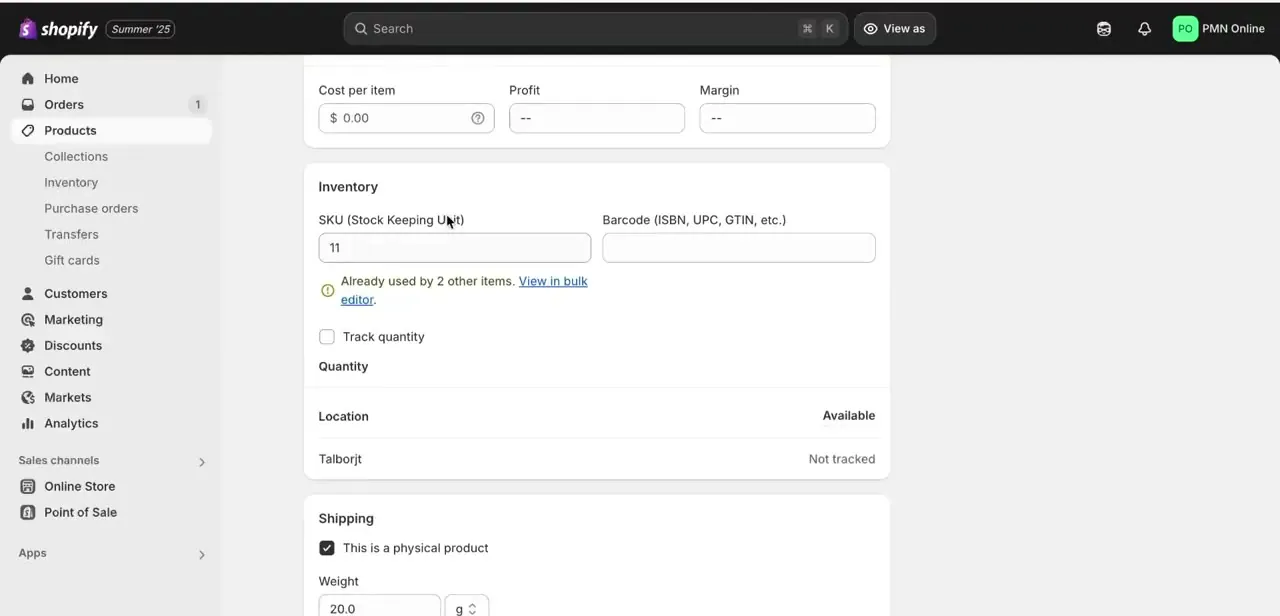
In the Inventory section, an unchecked Track quantity box is the whole story: no quantity field appears, and under Location the store simply reads "Not tracked" instead of a number. Store owners often find products sitting in this state after an import or a duplicated listing, without anyone deliberately choosing it. If a product should be showing stock counts and isn't, this checkbox is the first thing to check.
04Turn on tracking and set your quantity behavior
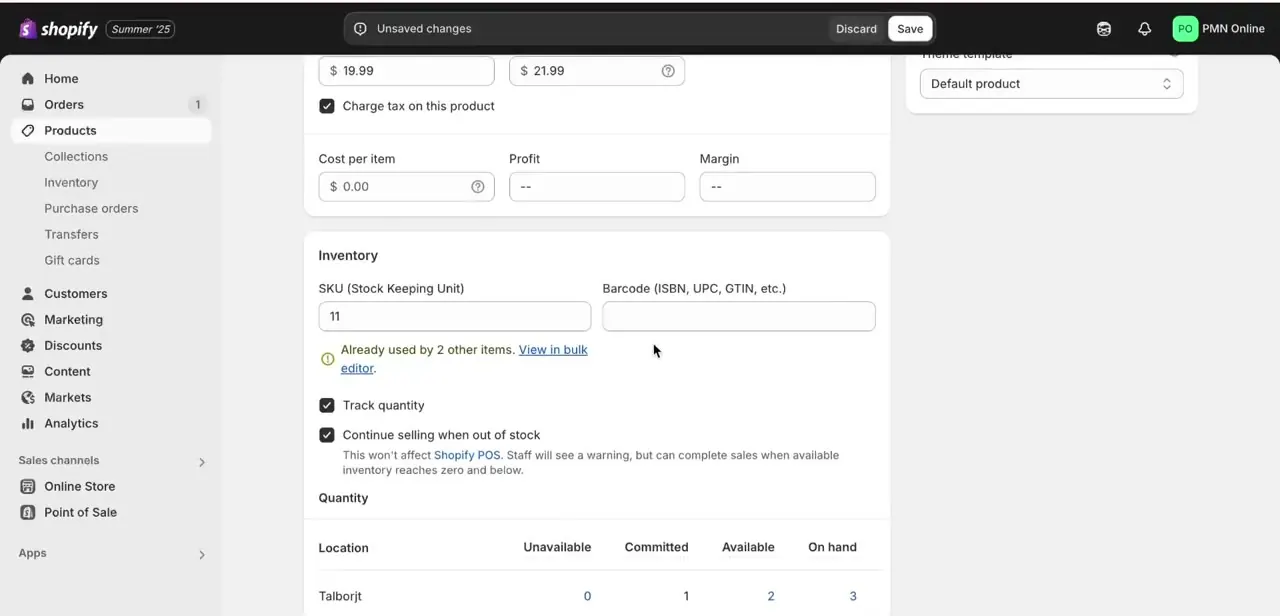
Check Track quantity and the panel expands into a quantity table, broken down by location. Ticking the box doesn't pull in a stock count from anywhere: every location starts at zero until you type in the number you actually hold there.
A second checkbox, Continue selling when out of stock, appears right below; leave it off if the product should go unavailable at zero, or check it to keep taking orders that get fulfilled once more stock arrives. Shopify's documentation notes this setting doesn't apply to Shopify POS: in-store staff will still see a warning on a zero-stock item, but they can complete the sale anyway.
05Decide what should stay untracked, then check the rest of your catalog
Not every product needs a stock count. Digital downloads, made-to-order items, and services have no physical inventory to run out of, so leaving Track quantity off for them is correct, not a mistake to fix.
Once the toggle makes sense to you, a pass through the full product list is worth doing: watch for products that sell out instantly with no warning, or, the opposite problem, limited items that never seem to go unavailable. Both point back to this same Inventory section, set the wrong way for what the product actually is.
When it doesn't work
Track quantity is on but Available still shows 0
Why: Turning tracking on doesn't import a stock count from anywhere. Every location starts at zero until the on-hand number is entered manually.
Fix: Open each location row under Inventory and type in the quantity actually held there.
A product reads out of stock online even though there's stock somewhere
Why: Online orders fulfill from one designated location. If that location shows 0 while a different location holds the stock, the product stays unavailable online no matter how Continue selling when out of stock is set.
Fix: Move or add inventory to the location assigned to fulfill online orders, and confirm that location has online fulfillment turned on.
Shopify POS still sells an item marked out of stock
Why: Continue selling when out of stock only governs the online store. Shopify's own documentation states POS staff can complete a sale on a zero-stock item regardless of this setting; they just see a warning first.
Fix: This is expected POS behavior, not a tracking bug. Train staff to read the warning before confirming a sale that shouldn't go through.
Frequently asked questions
Why does Shopify say a product's inventory isn't tracked?
Tracking was never turned on for that product or variant, so Shopify isn't counting stock levels or triggering sold-out states for it.
Should I track inventory for every product?
Not necessarily. Physical stock items usually benefit from tracking, while digital products or made-to-order items are often better left untracked.
Will turning off inventory tracking let customers order out-of-stock items?
Yes. Untracked products stay purchasable no matter how many exist, which is the point for unlimited-availability items.
Can I turn inventory tracking back on after disabling it?
Yes, at any time from the product's Inventory section. Turning it back on starts the count at zero for every location, so re-enter the actual quantity before saving.
Why does a product show out of stock even though another location has units?
Shopify fulfills online orders from a specific location. Stock sitting at a different location that isn't set to fulfill online orders won't count toward what's available online.
Does Continue selling when out of stock apply to in-person POS sales?
No. It only affects the online store. Shopify POS staff can already sell a zero-stock item; they get a warning first but can still complete the sale.
Sources and last check
Click path and screens come from a recorded walkthrough of a single product's Inventory section. Re-checked against Shopify's official Help Center in September 2026, which confirmed the POS behavior as originally described and added two things the walkthrough didn't cover: that a newly tracked location starts at zero rather than an imported count, and the multi-location fulfillment gap that leaves a product reading out of stock online.
About the author

Impran M N
I've been hooked on technology for as long as I can remember — especially the new tools and AI apps that seem to land every other week. Easy Tech Tuts is where I write up whatever I've just worked out: I do the task in the real product, record the screen, and turn it into the guide I wish I'd found first.