Easy Tech Tuts
How To Fix Domain Error In Shopify, Needs Attention, DNS Server Error in Custom Website Easily 2026
By Impran M NLast checked against official docs
A red "Needs Attention" badge next to your custom domain in Shopify means customers may be hitting a broken connection instead of your store, and the cause is almost always sitting in your domain registrar's DNS settings, not in Shopify itself. This guide walks through reading Shopify's own diagnosis of the problem, understanding the two most common A record mistakes it flags, and fixing them at the registrar so the domain reconnects.
01Open Domains in your Shopify admin
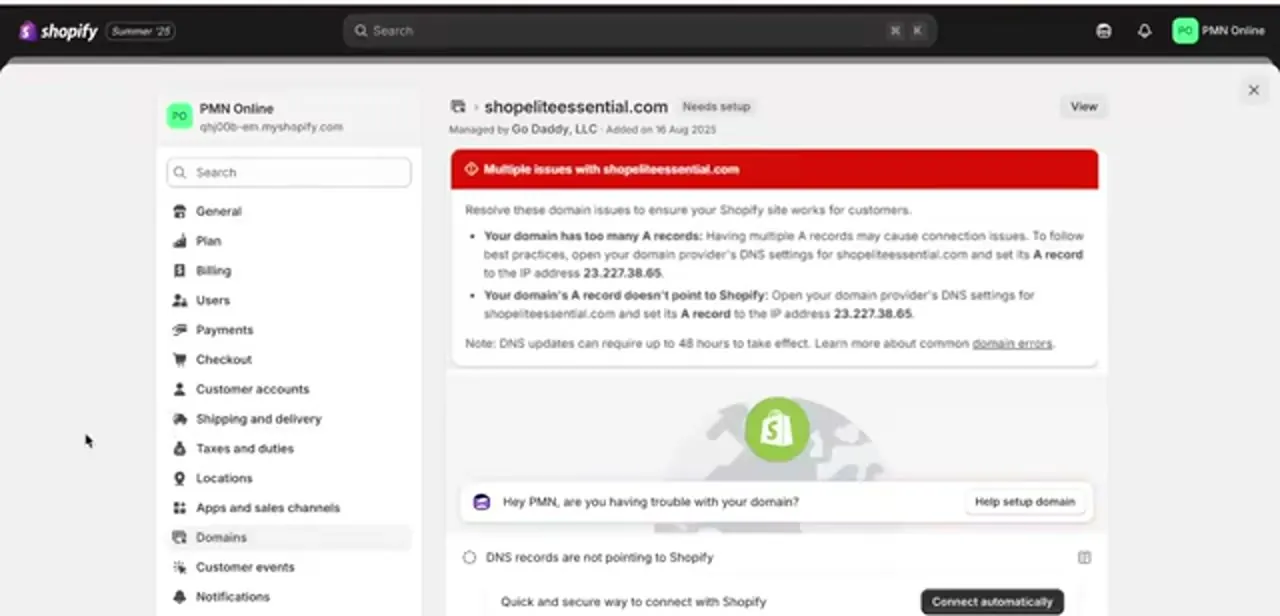
From Shopify admin, go to Settings then Domains, and click into the domain showing a problem. You'll land on a page named after the domain, with a status tag next to it (Needs setup or Needs Attention), plus who the domain is managed by and when it was added. This detail page tells you precisely what's wrong instead of leaving you to guess.
02Read the specific error Shopify reports
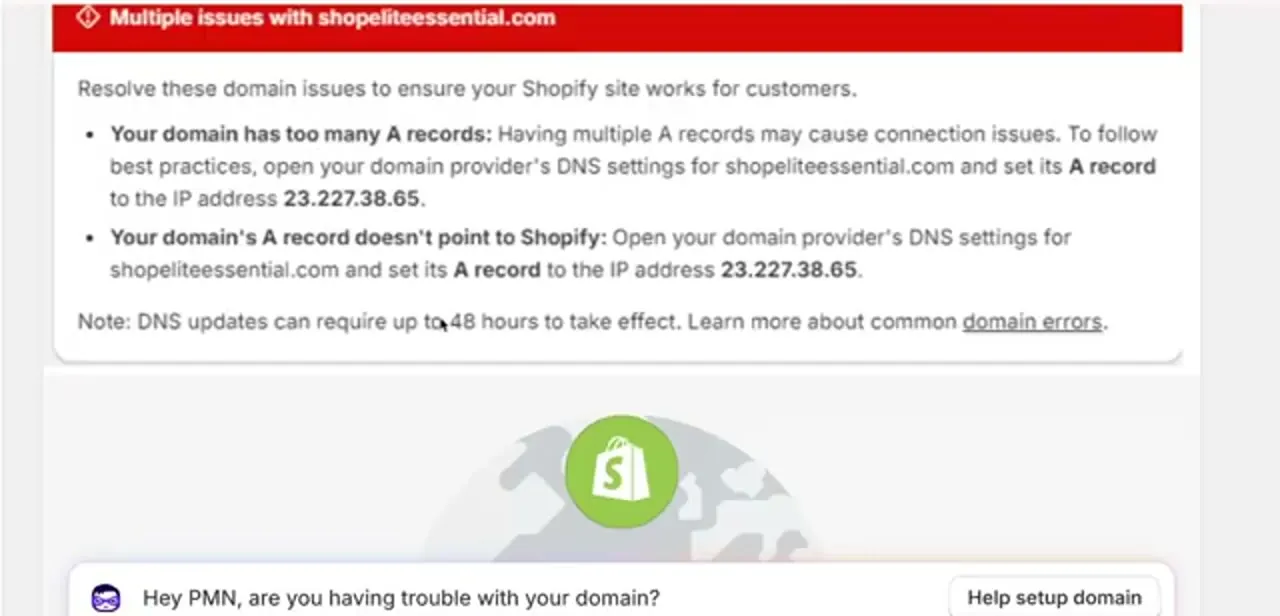
The red banner spells out the exact issue rather than a vague error code. Two messages appear together most often: "Your domain has too many A records," meaning more than one A record exists and they conflict, and "Your domain's A record doesn't point to Shopify," meaning the current A record points somewhere else.
Both come with the IP address Shopify wants the A record set to. Shopify's own documentation notes 23.227.38.65 is the default value here, but your banner can legitimately show a different address with a different host ID — use whatever your own error message displays, not a number copied from elsewhere.
03Log in to your domain registrar
The fix happens outside Shopify, at whichever company you registered or manage the domain through: GoDaddy, Namecheap, Cloudflare, or another provider. Find the DNS management section for that domain, usually labeled DNS Records, DNS Management, or Zone Editor. If you've edited DNS before, the layout will look familiar; it's the same place you'd set up email records or point the domain anywhere else.
04Delete extra A records and set the correct one
Look through the existing A records for the domain. More than one is the "too many A records" issue, so delete every A record except the one you're about to correct.
Set the remaining record's value to the exact IP address shown on your Shopify error banner, using @ or the root domain as the host field depending on your registrar's convention. Stray A records left in place cause intermittent failures where the store loads sometimes and not others, since browsers can pick either address.
05Check for an automatic connection option
If your registrar is one Shopify integrates with directly, such as GoDaddy, Cloudflare, or IONOS, the domain page offers a Connect automatically option that updates the DNS records for you without touching the registrar's own dashboard. Check for this before doing the manual edit; it removes the risk of a typo in the IP address entirely. For registrars outside that list, the manual A record fix above is the normal path, not a fallback for something gone wrong.
06Save changes and wait for propagation
Save the DNS changes at the registrar, then be patient. Shopify's own note on the domain page states DNS updates can take up to 48 hours to fully take effect, though many changes propagate faster in practice. Check back on the same Domains page periodically; once the records are picked up, the Needs Attention badge and the red banner clear on their own, with nothing further to click inside Shopify.
When it doesn't work
Shopify reports "too many A records"
Why: A leftover A record from a previous host or a parking page is still present alongside a newer one, and the two conflict.
Fix: Delete every A record on the domain except a single one set to the exact IP shown on your Shopify error banner.
The IP address Shopify wants doesn't match 23.227.38.65
Why: 23.227.38.65 is Shopify's commonly cited default, but Shopify's own documentation confirms a domain can be assigned a different, equally valid address.
Fix: Use the exact value shown on your own domain's error banner rather than a fixed number from a guide.
There's no Connect automatically option on the domain page
Why: Automatic connection only works for the specific registrars Shopify has a direct integration with, such as GoDaddy, Cloudflare, and IONOS.
Fix: This is expected for other registrars, not a sign anything's broken. Use the manual A record edit at your registrar instead.
Frequently asked questions
Why does my Shopify domain say "Needs Attention"?
Usually the A record at your registrar doesn't match what Shopify expects: either it points to the wrong IP address, or there's more than one A record set for the domain. Shopify's own error banner names which one applies.
Does this work for domains bought outside Shopify?
Yes. This fix applies to third-party domains managed through registrars like GoDaddy, Namecheap, or Cloudflare; you update the A record in that registrar's DNS settings, not inside Shopify.
What IP address should my A record point to?
Use the exact address shown on your own domain's error banner inside Shopify admin. It's usually 23.227.38.65, but Shopify can issue a different valid address, so treat your own banner as the source of truth.
How long does it take for the fix to work?
Shopify states DNS updates can take up to 48 hours to fully propagate, though many changes are picked up within a few hours in practice.
Will changing my A record affect my email?
It shouldn't, since email typically runs on separate MX records. Double-check your registrar's DNS list before deleting anything, so you're only removing extra A records and not MX or other unrelated entries.
Sources and last check
Click path and screens come from a walkthrough recorded in 2025. The A record value, the too-many-A-records error, the automatic-connect registrar list, and the 48-hour propagation window were re-checked against Shopify's official Help Center in September 2026. The note that Shopify's A record can validly differ from 23.227.38.65 was added from that same check.
About the author

Impran M N
I've been hooked on technology for as long as I can remember — especially the new tools and AI apps that seem to land every other week. Easy Tech Tuts is where I write up whatever I've just worked out: I do the task in the real product, record the screen, and turn it into the guide I wish I'd found first.