Easy Tech Tuts
How to Fix Alternate Page with Proper Canonical Tag Shopify Error Easily 2026
By Impran M NLast checked against official docs
Opening Google Search Console to a wall of 'Alternate page with proper canonical tag' warnings is alarming until you know what the label means, and on a Shopify store it usually isn't the emergency it looks like. This guide breaks down why Shopify generates these alternate URLs, shows where to check the canonical tag on a real page, and walks through cross-checking it against Google's own selected canonical before you decide anything needs fixing.
01Read the warning correctly
Open the issue in Search Console and you'll see a card labeled 'Alternate page with proper canonical tag,' with a note that these pages simply aren't indexed or served on Google, not that anything is broken. Google's own help documentation describes this status as a page that correctly points to another page as canonical, and states plainly: the canonical page is indexed, so there is nothing you need to do. A large affected-page count next to this label, sometimes in the tens of thousands, looks dramatic but is often just Shopify's routing doing what it's designed to do.
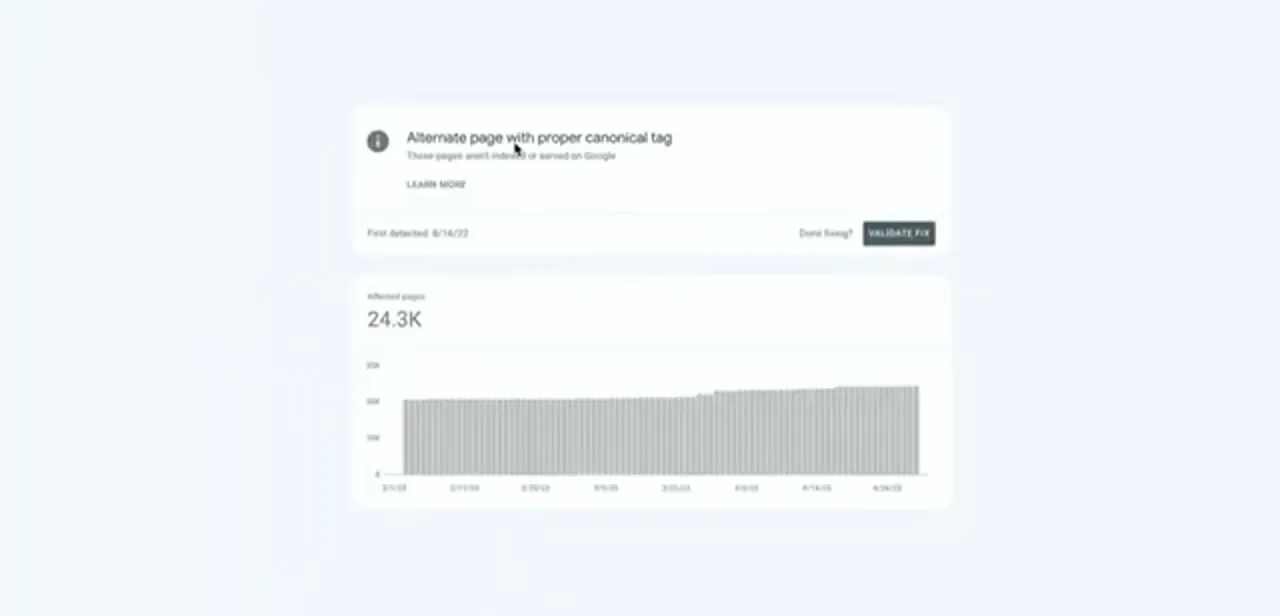
02Understand why Shopify creates alternate URLs
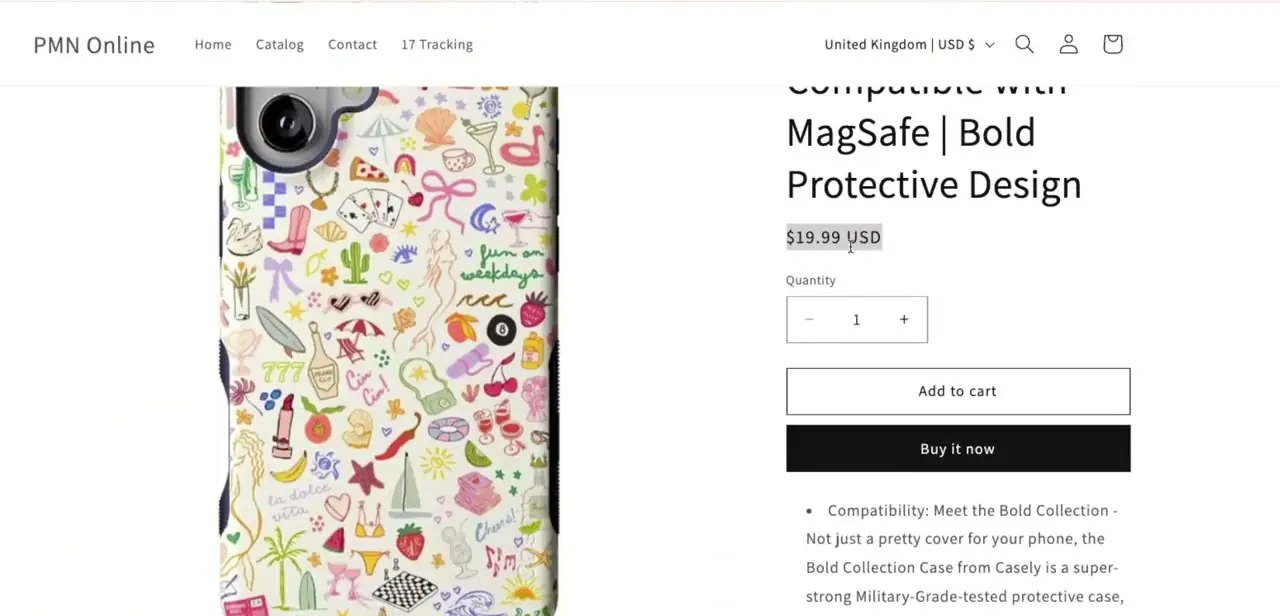
Shopify generates more than one URL for the same product on purpose. A product can be reached directly, through a collection page, or through a collection with filters and sorting applied, and each path produces a slightly different URL for the identical item.
Browsing a Catalog page and toggling its filter and sort controls shows the pattern directly: each combination is its own URL. Shopify adds a canonical tag to every one of them pointing back to a single main URL instead of letting search engines treat each variant as separate content, which is exactly the mechanism the warning is reporting.
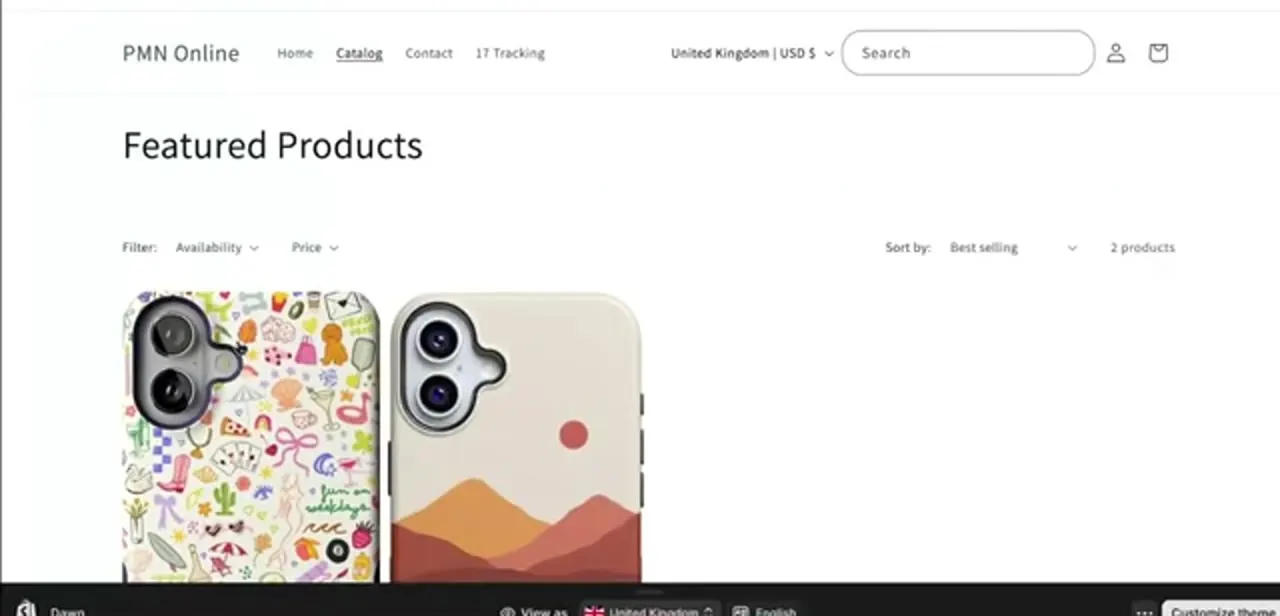
03Check the canonical tag in the page source
To confirm this is working as intended on your own store, open one of the flagged URLs and view its page source. In the head section, look for a line like link rel="canonical" pointing to your store's domain and the clean version of that URL. If the href matches the primary product or collection URL you'd expect customers to land on, the tag itself is set up correctly.
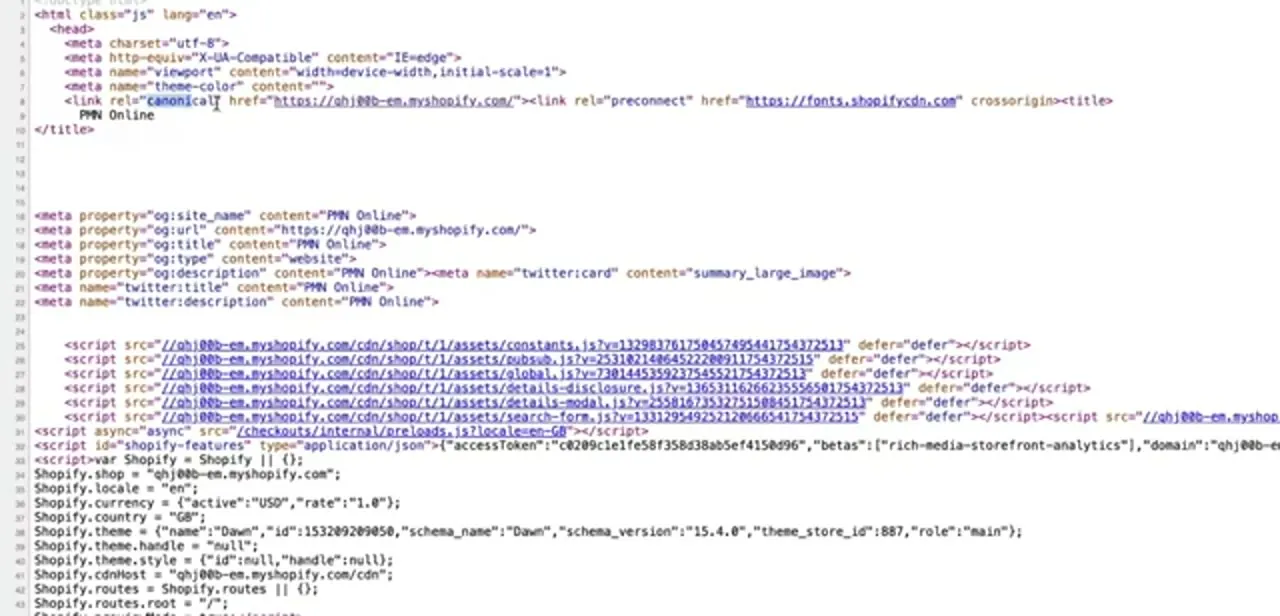
04Cross-check with the URL Inspection tool
Viewing your own canonical tag only tells you what you declared. Google's documentation for this report also recommends checking what it calls the Google-selected canonical — the URL Google actually treats as authoritative, which can occasionally differ from the one you tagged.
Paste the flagged URL into Search Console's URL Inspection tool and compare the two values it shows: User-declared canonical and Google-selected canonical. When they match your expected primary URL, the warning is informational. When Google has picked a different page, that mismatch is the actual thing worth investigating, not the warning label itself.
05Check for theme customizations that could break this
Shopify's default setup handles canonical tags correctly out of the box, so if the two values from the previous step genuinely disagree, custom theme code is the likely cause. Look through recent edits to theme.liquid or template files for a hardcoded canonical tag, a duplicate meta tag, or logic overriding Shopify's automatic output. A third-party SEO app is the second most common cause of a canonical tag pointing somewhere it shouldn't.
06Decide whether action is needed, then validate
If the canonical tags and the Google-selected canonical both point to the correct primary URLs, there's nothing to fix. Search Console will keep showing this label as long as the URL pattern exists, and that's expected, ongoing behavior rather than an unresolved issue. If you did find and correct a genuine misconfiguration, use the Validate fix button on the issue page so Google recrawls the affected URLs.
When it doesn't work
User-declared canonical and Google-selected canonical don't match
Why: Google's crawler disagreed with the canonical tag on the page, often because of thin or near-duplicate content, internal links pointing at the non-canonical version, or a signal elsewhere (like a sitemap entry) pointing at a different URL.
Fix: Check the URL Inspection tool for the specific reason Google gives, then strengthen the signals toward the URL you want as canonical: internal links, sitemap entries, and the tag itself should all agree.
The affected-page count keeps growing
Why: New filter and sort combinations get crawled as customers use them, so the count of alternate URLs naturally increases as the catalog and traffic grow.
Fix: This isn't itself a problem to solve. Confirm a sample of the new URLs still canonicalize correctly rather than trying to drive the count to zero.
A specific page's canonical tag points to the wrong URL
Why: Custom code in theme.liquid, a duplicate meta tag, or a third-party SEO app overriding Shopify's default canonical output.
Fix: Search theme files for a hardcoded canonical tag or duplicate meta tag, and check any installed SEO app's settings for a conflicting override.
Frequently asked questions
Is the canonical tag notice always a problem?
No. It usually confirms a duplicate or filtered URL correctly points to another page as its canonical version, which is how Shopify's product and collection routing is designed to work.
Does Shopify set canonical tags automatically?
Yes. Shopify adds a canonical link tag to product, collection, and filtered pages by default, which is what generates this Search Console label in the first place.
How do I know if it's actually a problem on my store?
Use the URL Inspection tool and compare the User-declared canonical to the Google-selected canonical for a flagged URL. If they match the primary URL you'd expect, it's informational; if they don't, that mismatch is worth investigating.
Can theme customization cause canonical tag issues?
Yes. Custom code in theme.liquid, a duplicate meta tag, or a third-party SEO app can override or conflict with Shopify's default canonical output.
Will this affect my store's search rankings?
In most cases, no. Google's own documentation describes this status as expected behavior once the canonical is confirmed correct, not a ranking penalty.
Sources and last check
Click path and screens come from a walkthrough recorded in 2025. The meaning of the 'Alternate page with proper canonical tag' status and the recommendation to compare it against Google's own selected canonical were re-checked against Google Search Console's official Help Center in September 2026; that check is what added the URL Inspection step this guide previously lacked.
About the author

Impran M N
I've been hooked on technology for as long as I can remember — especially the new tools and AI apps that seem to land every other week. Easy Tech Tuts is where I write up whatever I've just worked out: I do the task in the real product, record the screen, and turn it into the guide I wish I'd found first.