Easy Tech Tuts
How to Create Image Slider in Shopify Dawn Theme, Make Carousel Easily 2026
By Impran M NLast checked against official docs
A homepage that opens with a static single image feels flat compared to one that rotates through a few strong visuals. An image slider gives room to introduce a new collection, promote a sale, and showcase a bestseller in the same slot above the fold, without asking the visitor to scroll first.
Dawn already ships a native Slideshow section: Add section, choose Slideshow, and it's there, no app or code required. What Dawn's version doesn't offer is much design flexibility: no custom animations, limited control over mobile layout, and a fixed set of settings.
That gap is why a lot of stores add a page builder app instead. This guide covers both: setting up Dawn's own Slideshow section first, then when and how to reach for a page builder like EComposer if the native version isn't enough.
01Start from your Shopify admin home
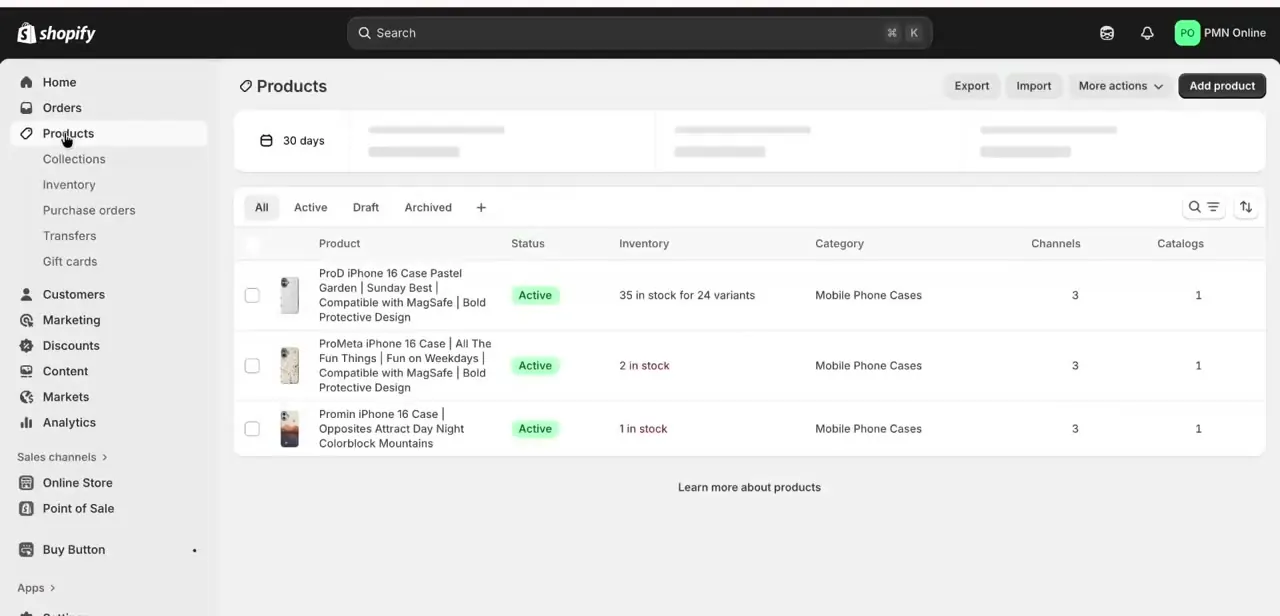
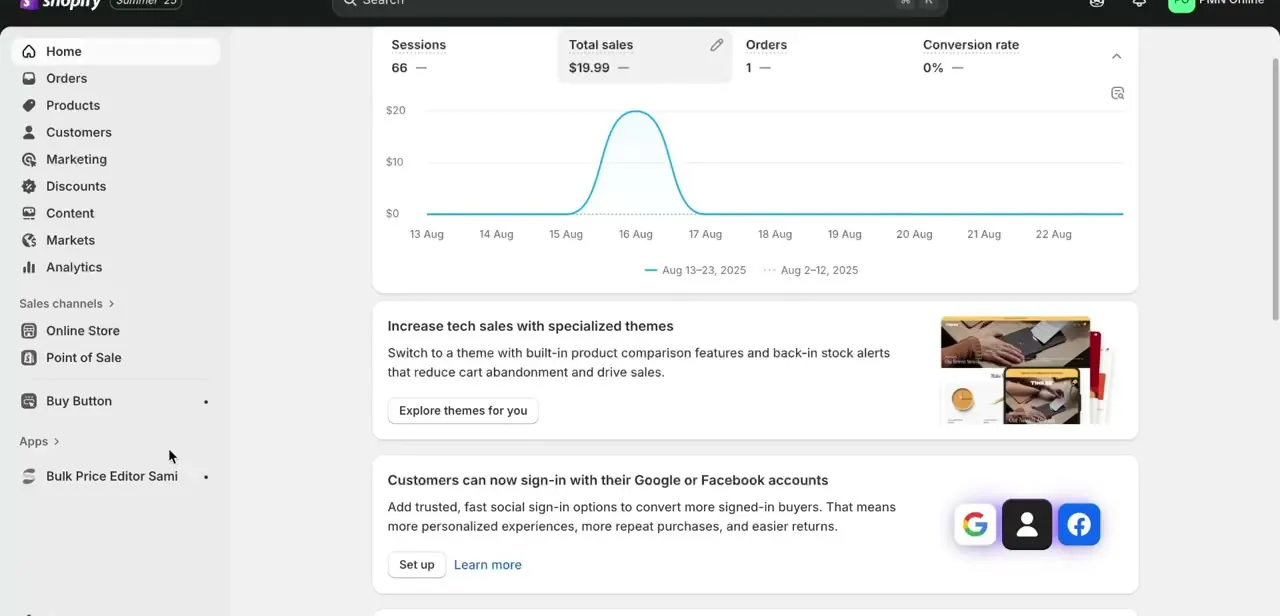
Log in to the store and land on the admin Home screen, where the left sidebar lists Home, Orders, Products, Customers, Marketing, and the rest of the core sections, with Sales channels and any installed apps grouped further down. The slider itself isn't a setting on this screen. It lives inside Online Store > Themes for Dawn's own version, or inside an installed page builder app if the store uses one.
02Add Dawn's built-in Slideshow section first
From Online Store > Themes, click Customize, then Add section on the home template and choose Slideshow. Dawn adds it with a Slide block already in place; add more with Add block, and set each slide's image, heading, and button individually.
Once a second Slide block is added, Dawn automatically inserts a Slideshow controls block, the arrows and dots visitors use to navigate manually. That block can be restyled or hidden, but not deleted; it's a required part of the section once there's more than one slide. This native section is free and needs nothing installed, which makes it the first thing to try before reaching for an app.
03Reach for a page builder when Dawn's own section isn't enough
Dawn's Slideshow covers the basics but not much beyond them: no custom animations, no transition styles beyond the default, and limited control over how it reflows on mobile. A page builder app fills that gap.
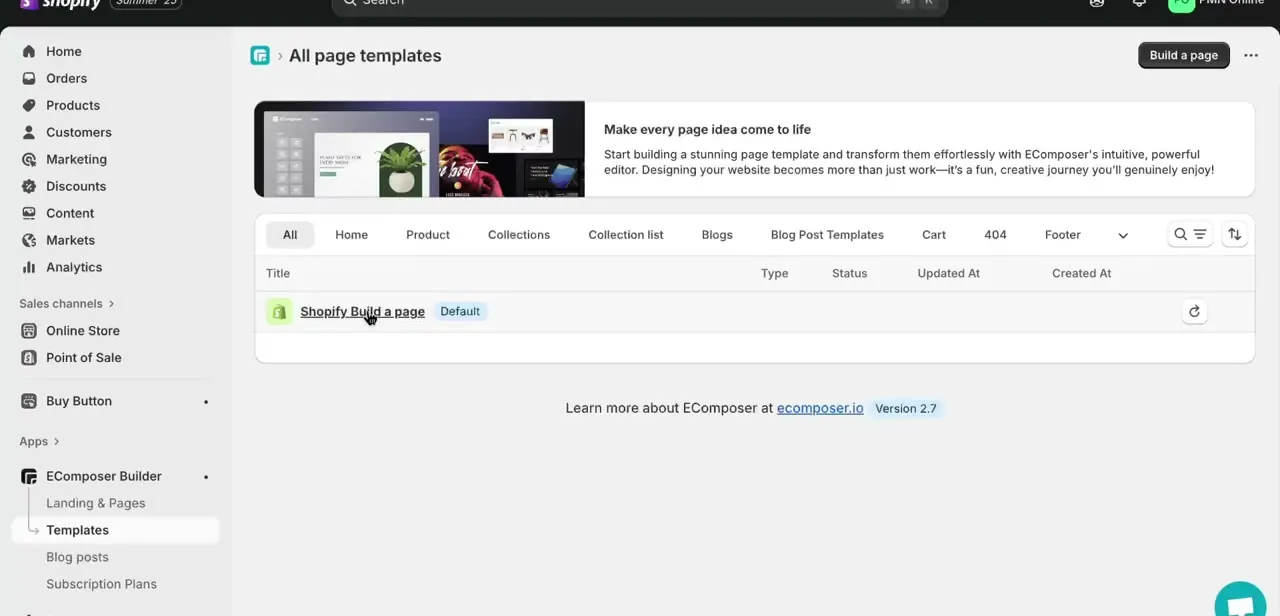
This walkthrough uses EComposer, installed under Apps in the sidebar, which opens into its own page template manager separate from Dawn's theme editor. EComposer's free plan allows one live page or section at a time, with five more saved as drafts. A store already using its one free live section elsewhere needs a paid tier, starting around $19 to $25 a month, before it can publish a second one.
04Configure the slider inside the builder
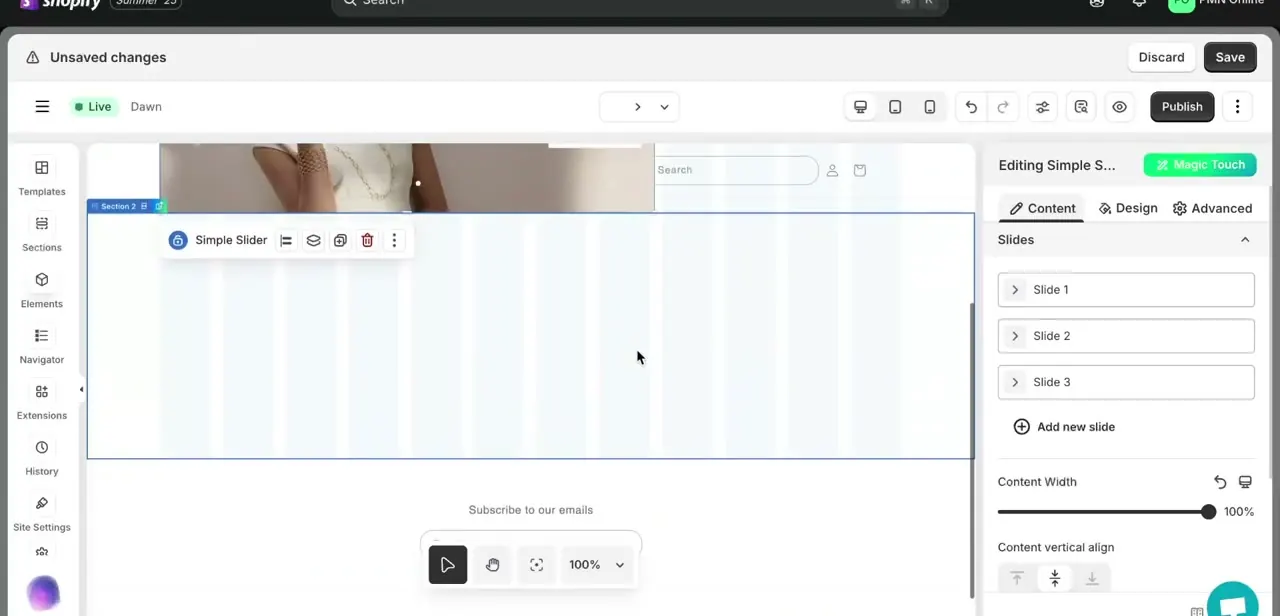
Inside the template editor, add a slider element (labeled Simple Slider in EComposer) and drop it where it should sit on the page. Its settings panel opens on the right with a Slides list; a fresh slider starts with a few placeholder slides and an Add new slide button.
Click into each slide to set its image, headline, and button link. The same panel has a Content Width slider and a Content vertical align control, which decide how much of the screen the slider fills and whether text sits at the top, middle, or bottom.
05Upload and arrange your images
For each slide, upload a banner-sized image, not a product thumbnail, and keep every slide at the same dimensions. Slides of different heights cause a visible jump on every transition, since the section resizes to fit whichever image is showing.
Keep the images visually consistent in tone and color, and put the strongest image first since that's what loads before the slider starts moving. Drag slides to reorder them, and delete any placeholder you don't end up using.
06Set autoplay, and keep it navigable
Both Dawn's own section and page builder sliders offer an autoplay toggle with a delay in seconds, and a choice between slide and fade transitions. If there's a call-to-action button on a slide, disable autoplay or extend the delay so it doesn't move on before someone finishes reading.
Dawn's autorotating slideshow has a documented accessibility gap: screen readers can lose their place mid-rotation because the slide changes while someone is still reading it, and there's no automatic pause when a screen reader's virtual cursor enters the section. Keeping autoplay slow, or off entirely on a slide with important text, avoids trapping assistive-technology visitors inside a moving carousel.
07Preview on mobile before you publish
Switch the editor's preview to mobile width and check every slide again. Text that fits comfortably on desktop often gets cramped or overlaps the image on a phone screen, and it's common to find a headline that needs shortening.
Confirm the slider still loads quickly on mobile, since a heavy, unoptimized image can slow the whole homepage down on a cellular connection. Once it looks right in both views, save and publish so the slider goes live.
| Dawn's native Slideshow | Page builder app (e.g. EComposer) | |
|---|---|---|
| Cost | Free, included with the theme | Free tier capped at 1 live section; paid plans from about $19/month |
| Where it's edited | Online Store > Themes > Customize | The app's own template editor, separate from the theme customizer |
| Design control | Basic: image, heading, button, autoplay, transition | Content width, alignment, more layout elements |
| Setup needed | Add section, done | Install the app, then build the section inside it |
When it doesn't work
A second slide added arrows and dots I didn't ask for
Why: Dawn automatically inserts a Slideshow controls block once a section has two or more slides.
Fix: Restyle or hide the controls block to match the design. It can't be deleted while there's more than one slide.
Slides visibly jump or shift during transitions
Why: The slide images don't share the same dimensions, so the section resizes as it moves between them.
Fix: Crop every slide to the same aspect ratio before uploading.
The page builder won't let a second slider go live
Why: EComposer's free plan allows only one live page or section at a time.
Fix: Unpublish or replace the existing live section, or move to a paid plan.
Screen reader visitors report getting stuck on the slideshow
Why: An autorotating slideshow can change slides while a screen reader is still reading the current one, with no automatic pause.
Fix: Slow the autoplay delay, or turn it off on any slide carrying text someone needs time to read.
Frequently asked questions
Does Dawn come with a slideshow already, or do I need an app?
Dawn ships its own Slideshow section. Add section > Slideshow in the theme customizer adds it with no app or code needed. An app is only necessary for more design control than that section offers.
Why would I use a page builder app if Dawn already has a slider?
Dawn's version is basic: image, heading, button, autoplay, and a transition choice. A page builder adds things like adjustable content width and vertical alignment that Dawn's own settings don't expose.
Is EComposer free?
There's a free plan, but it allows only one live page or section at a time. A second one needs a paid tier, starting around $19 to $25 a month.
Why did navigation arrows appear automatically when I added a second slide?
Dawn adds a Slideshow controls block automatically once there are two or more slides. It can be restyled or hidden, but not removed.
Is an autoplaying slideshow accessible?
Not automatically. Shopify's own Dawn repository documents screen readers losing their place when slides rotate mid-read. Slowing autoplay or disabling it on text-heavy slides reduces that risk.
Will the slider work well on mobile devices?
Check it in the editor's mobile preview before publishing either way. Text and buttons that look fine on desktop sometimes need resizing to sit correctly on a small screen.
Sources and last check
Screens for the page builder path come from a walkthrough recorded in 2026, which shows EComposer specifically, identified from its own on-screen branding rather than assumed. The claim that Dawn has no built-in slideshow was checked against Shopify's official Help Center in September 2026 and found incorrect: Dawn ships its own Slideshow section, so this guide now covers that as the first, free option before the page builder route. The Slideshow controls block behavior comes from the same Help Center page, the screen reader accessibility gap comes from Shopify's own Dawn repository on GitHub, and EComposer's pricing was checked against its official pricing page.
About the author

Impran M N
I've been hooked on technology for as long as I can remember — especially the new tools and AI apps that seem to land every other week. Easy Tech Tuts is where I write up whatever I've just worked out: I do the task in the real product, record the screen, and turn it into the guide I wish I'd found first.