Easy Tech Tuts
How to Connect Your FedEx Account to Shopify with MultiParcels Easily 2026
By Impran M NLast checked against official docs
Shopify's built-in shipping doesn't include FedEx as a native carrier option on every plan, so a multi-carrier app is the usual workaround: it sits between your store and carriers like FedEx, and rates, labels, and tracking flow through one dashboard instead of Shopify's own. The app most people know by this route is MultiParcels, and the App Store listing you'll land on now shows a different name on the page itself.
This guide covers finding that listing, connecting your store, and where the FedEx account gets added once the app is installed. Worth reading the free-plan limits before assuming this costs nothing at any volume.
Before you start
- A Shopify store on a plan that supports installing apps from the Shopify App Store
- An existing FedEx account with your own negotiated rates; the app connects to a FedEx account you already have and doesn't create one for you
01Start from your Shopify admin
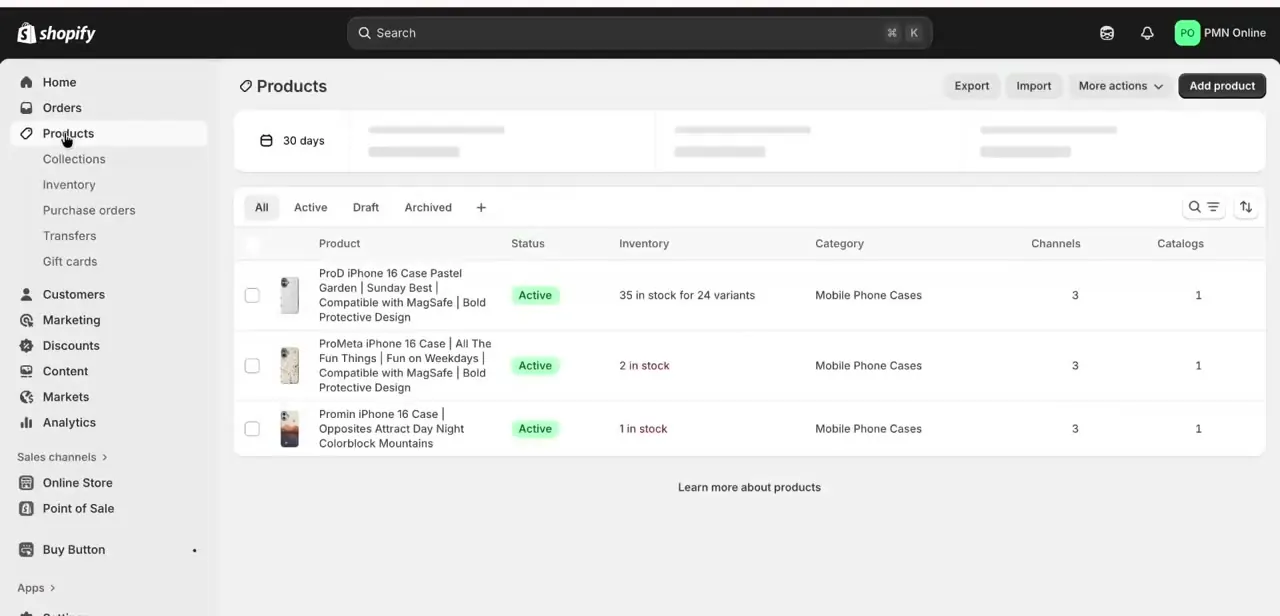
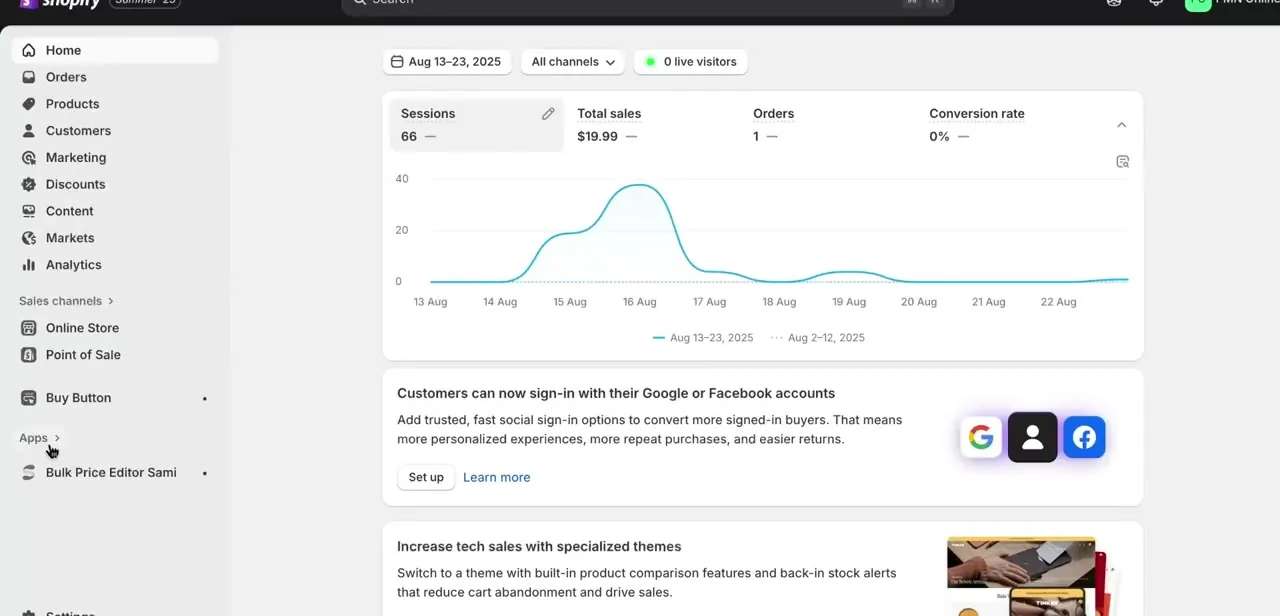
Log into your Shopify admin and land on the Home dashboard, with the left-hand navigation: Orders, Products, Customers, Marketing, Discounts, Content, Markets, Analytics, and Apps further down. Installed apps also show up in this sidebar, check here first for any shipping app already running that might conflict with a second one.
02Search the Shopify App Store, and expect a different name on the listing
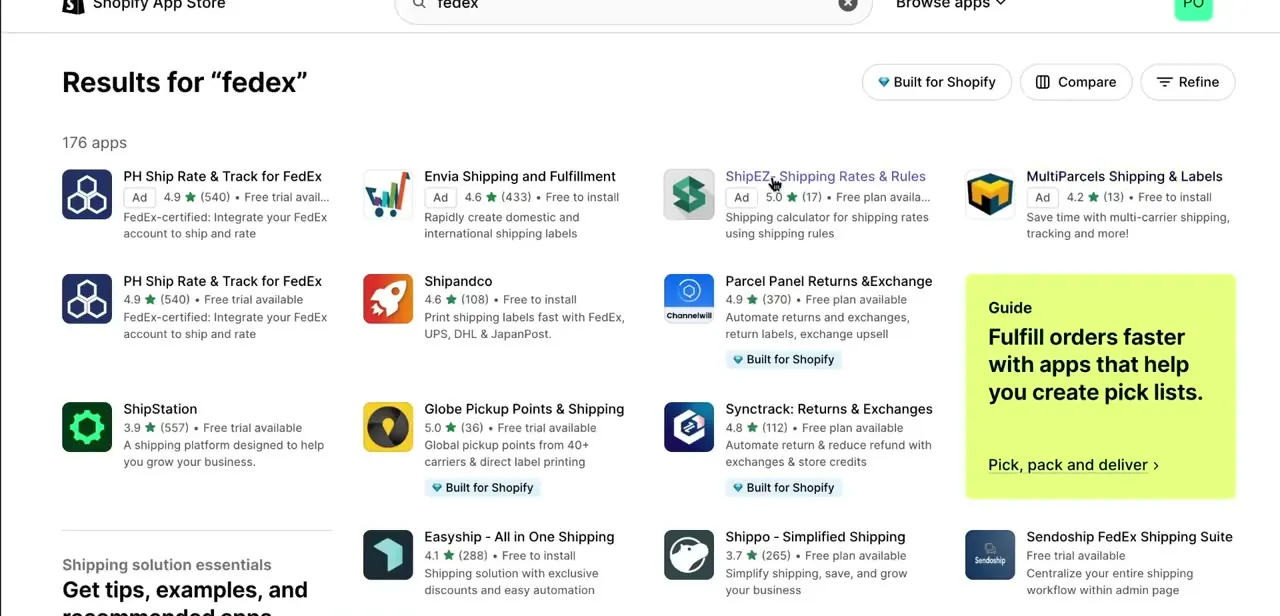
From Apps, browse or search the Shopify App Store for "fedex" or "multiparcels." The app built by MultiParcels, LTD is on the store today under the listing title NoParcels Shipping & Labels, even though the URL still ends in /multiparcels-shipping-and-labels and the vendor's own support site is still branded MultiParcels Help Center. If a search for "MultiParcels" alone doesn't surface it, search "NoParcels" instead; it's the same app and the same company.
The results page also returns FedEx-specific apps and general multi-carrier platforms like ShipStation and Shippo. This one is worth picking specifically when you want a single dashboard that can grow past FedEx alone, not a FedEx-only tool.
03Install the app and connect your Shopify store
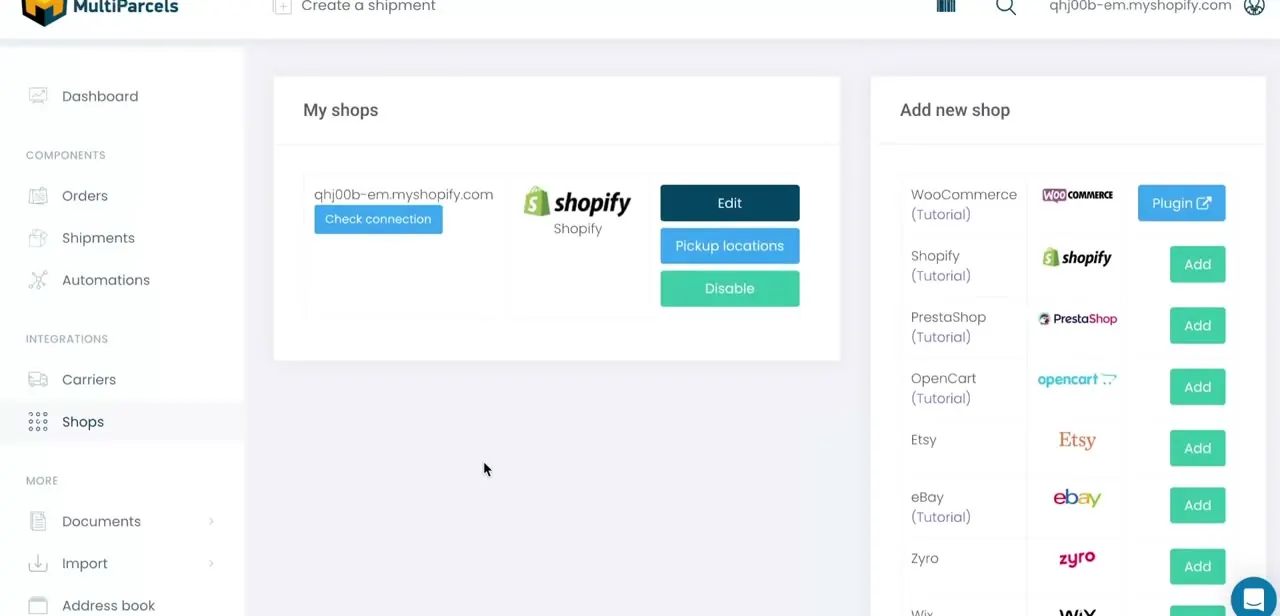
After installing, the app opens its own dashboard outside the Shopify admin. Under Integrations in the left sidebar, the Shops section holds your store connection: a My shops panel lists each connected store by its myshopify.com address, with Edit, Pickup locations, Disable, and a Check connection button to confirm the link is live. An Add new shop panel sits alongside it, listing other platforms the app can connect to: WooCommerce, PrestaShop, OpenCart, Etsy, eBay, and more.
04Add your FedEx account under Carriers
Once your store is connected, the FedEx account itself gets added under Carriers, a separate menu item in the same Integrations section as Shops. This is where the app asks for your FedEx account details so it can pull live rates and generate labels using your negotiated pricing instead of generic public rates.
FedEx is one of roughly two dozen carriers the platform lists, alongside UPS, DHL, DPD, and several regional postal services. Keep Shops and Carriers separate in your head: Shops is your storefront, and Carriers is who ships the package.
05Choose which FedEx services show at checkout
With FedEx connected, go into shipping settings to pick which specific FedEx services (ground, express, international, and so on) customers see as options at checkout. Narrowing this list to the services you use keeps checkout simple instead of listing every FedEx service tier that exists.
06Generate labels and confirm tracking syncs back to Shopify
Once an order comes in on Shopify, it flows through to the app's Orders and Shipments sections, where you generate a FedEx label directly instead of logging into a separate FedEx portal; Automations can apply rules to new orders once volume grows past handling each one by hand. After a label prints and the package ships, check that the tracking number and fulfillment status sync back to the original Shopify order. That round trip is the point of routing FedEx through an app instead of handling it separately.
When it doesn't work
Searching "MultiParcels" in the Shopify App Store doesn't return the app you expected
Why: The listing was renamed NoParcels Shipping & Labels on the App Store page, while the underlying company and its support documentation are still branded MultiParcels.
Fix: Search "NoParcels" instead, or go directly to apps.shopify.com/multiparcels-shipping-and-labels, which still resolves to the same listing.
The app starts charging after a period of free use
Why: The free tier is capped at 30 shipments a month, not unlimited; going over that moves you onto per-label billing.
Fix: Check your monthly shipment count against the free-tier cap on the app's own pricing page before relying on it at higher volume.
Frequently asked questions
Do I need an existing FedEx account?
Yes. The app connects to a FedEx account you already have under its Carriers section — it doesn't create a new FedEx business account for you.
Why does the app show up as NoParcels instead of MultiParcels?
The Shopify App Store listing was renamed to NoParcels Shipping & Labels. It's the same app, built by the same company (MultiParcels, LTD), at the same listing URL. The support site and platform still use the MultiParcels name internally.
Is it free to use at any shipping volume?
No. The free plan covers up to 30 shipments a month. Beyond that, the paid tier charges per label generated instead of a flat fee, so cost scales with how much you ship.
Can I use multiple carriers alongside FedEx?
Yes. Carriers and Shops are separate sections in the dashboard, so you can connect FedEx plus other carriers, and even connect stores from other platforms like WooCommerce or Etsy alongside Shopify.
Will shipping labels generate automatically for new orders?
Not by default. You typically create labels from the Orders or Shipments section. The Automations feature can apply rules to speed this up once order volume is high enough that doing it by hand stops being practical.
Sources and last check
Click path and screens come from a walkthrough recorded in August 2026. In September 2026 the app's current name, carrier list, and pricing were re-checked against the Shopify App Store listing and the vendor's own noparcels.com. That check surfaced the MultiParcels-to-NoParcels rename and the 30-shipment free-tier cap, neither of which the article previously mentioned.
About the author

Impran M N
I've been hooked on technology for as long as I can remember — especially the new tools and AI apps that seem to land every other week. Easy Tech Tuts is where I write up whatever I've just worked out: I do the task in the real product, record the screen, and turn it into the guide I wish I'd found first.