Easy Tech Tuts
How to Connect Paystack to Shopify, Add & Fix Paystack Not Showing in Shopify Easily 2026
By Impran M NLast checked against official docs
For store owners in Nigeria, Ghana, Kenya, Rwanda, Cote d'Ivoire, and South Africa, Paystack is often the most practical payment gateway to offer because it handles local currencies and payment channels that global processors don't cover well. This guide walks through adding Paystack in Shopify admin, connecting it with the right API keys from your Paystack dashboard, the extra fee Shopify charges for using it instead of Shopify Payments, and what to check when it doesn't show up as an option.
Before you start
- A Paystack merchant account, ideally past the pending-review stage since a pending account can't process live transactions
- A Shopify store with its country/region set in Settings, General to one of the markets Paystack serves
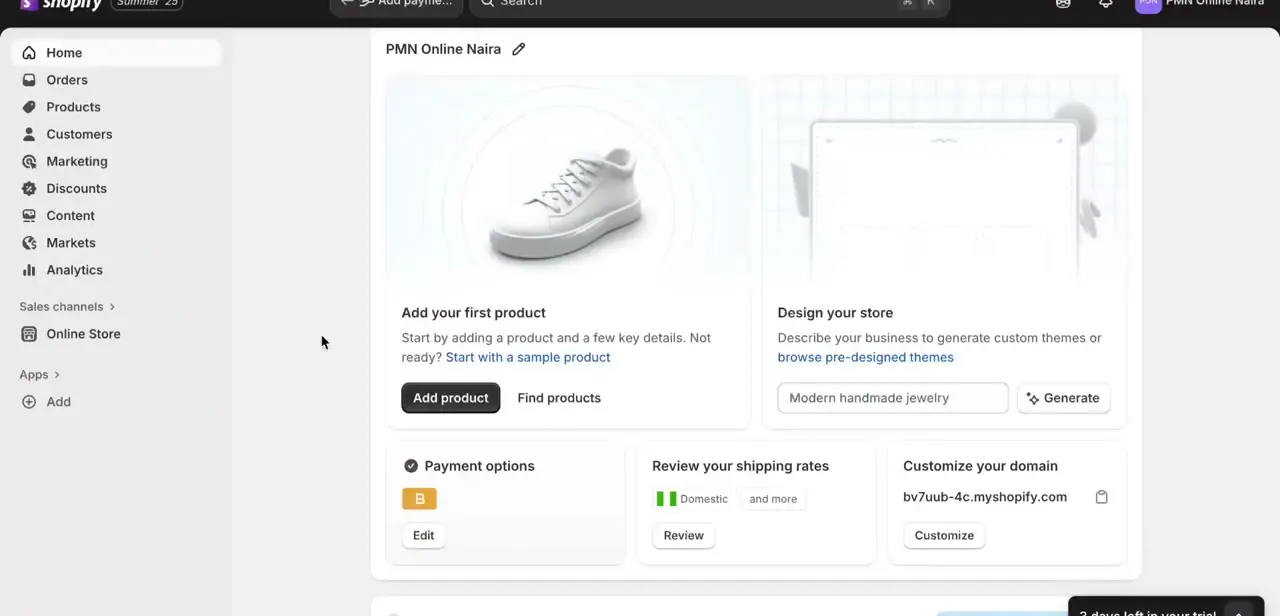
01Open Payments settings and add Paystack
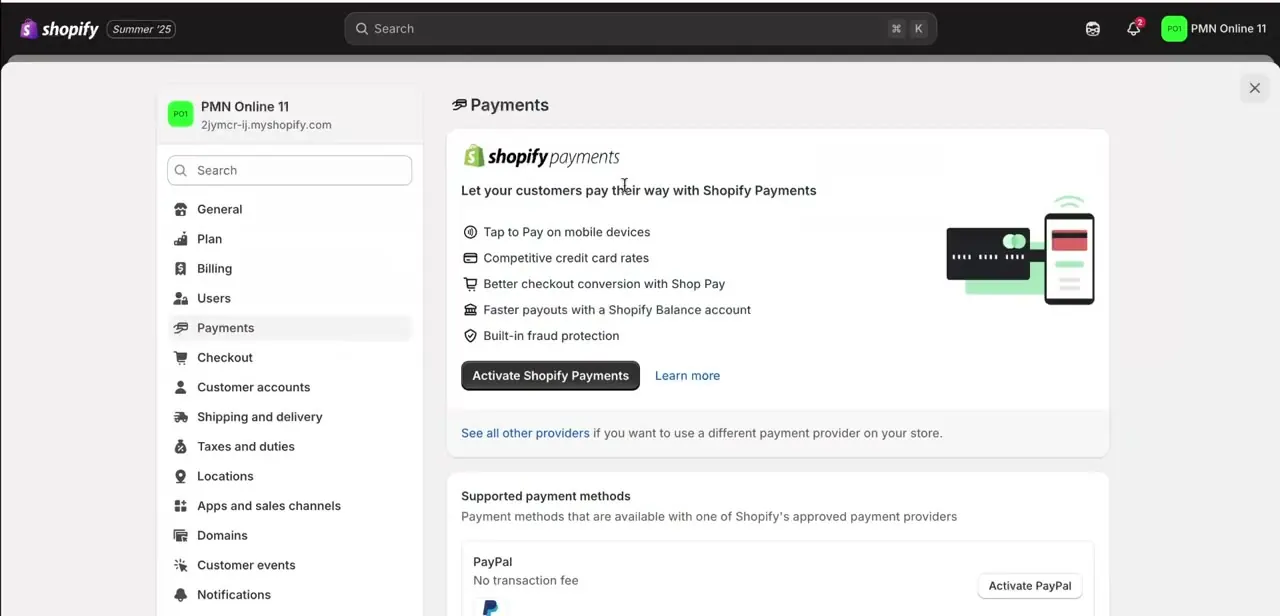
Log into your store's admin and go to Settings, then Payments. In the Additional payment methods section, select Add payment methods, then search by provider and choose Paystack from the results. This replaces the older flow of scrolling straight to a provider list on the Payments page; Shopify moved provider discovery behind this search step, so if a walkthrough or screenshot shows Paystack sitting directly in a list, that's the pre-redesign admin, not a different product.
02Review the Paystack page and activate it
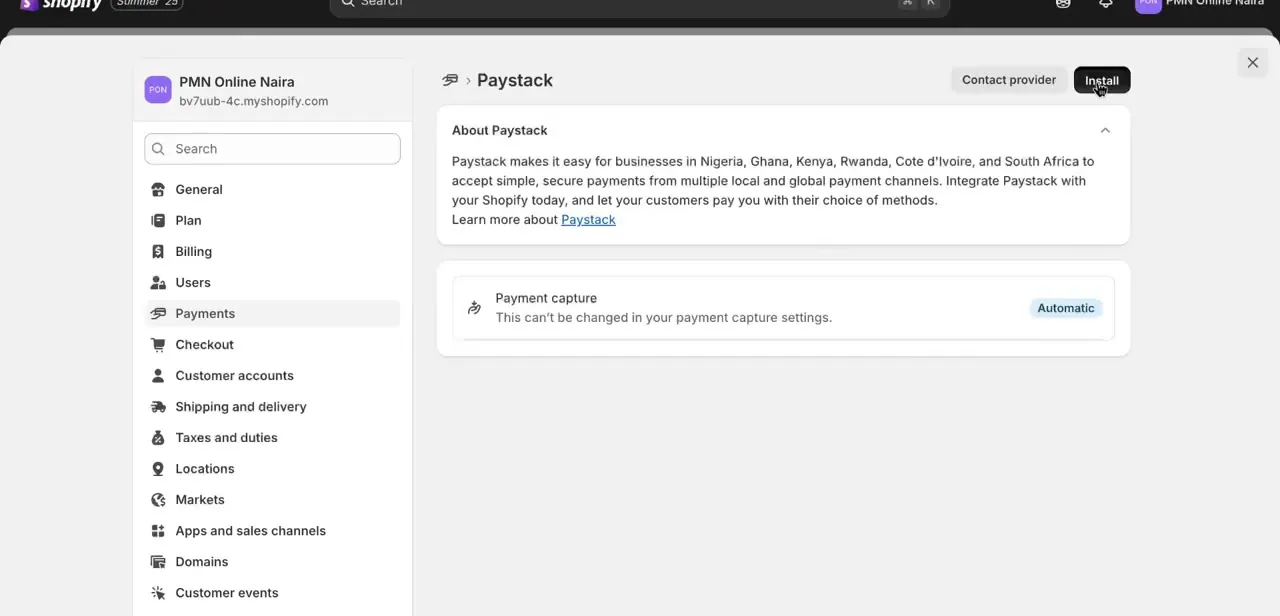
The Paystack page describes what it does: making it easy for businesses in its supported countries to accept payments from local and global channels, with Payment capture fixed to Automatic and not editable from this screen. Click the button in the top-right corner to add Paystack as a candidate payment method on your store.
Shopify's current documentation calls this button Activate; the screenshot below, captured from an earlier recording, shows it labelled Install. Both take you to the same next screen, so the wording change doesn't affect the steps that follow.
03Connect your account with API keys
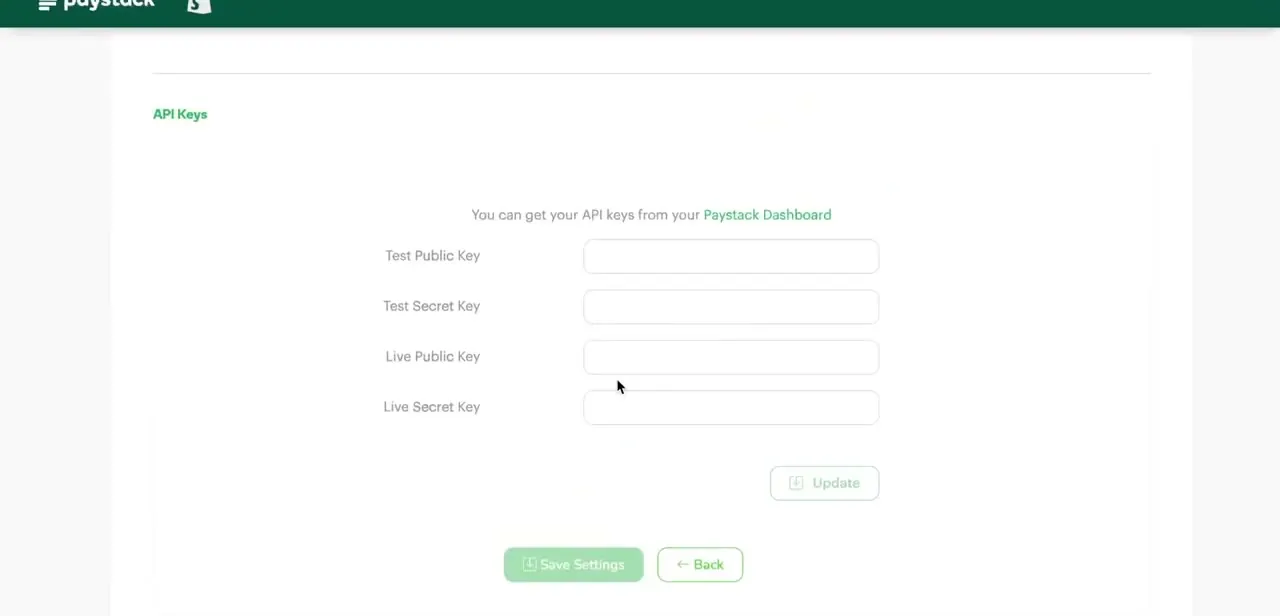
This opens Paystack's own configuration screen, hosted by Paystack rather than Shopify, asking for your API keys: Test Public Key, Test Secret Key, Live Public Key, and Live Secret Key. All four come from your Paystack Dashboard's API Keys & Webhooks page.
Copy each one over exactly; a swapped test/live pair is a common setup mistake that causes payments to fail silently in one mode while appearing to work in the other. Save the settings, then finish activating Paystack for checkout from the Shopify side.
04Fix Paystack not showing in your provider list
If Paystack never turned up in step one's search, check two things. First, your store's country/region in Settings, General: Shopify's own troubleshooting guidance says the third-party provider list is filtered by that setting, and Paystack is scoped to the African markets it operates in.
Second, whether a different credit card payment provider is already active: Shopify allows only one active credit card provider at a time, so an existing gateway has to be deactivated before Paystack (or anything else) can take its place. This isn't a plan restriction; every plan can run a third-party provider, just at a different added fee (see the cost note above).
05Confirm your Paystack account is fully activated
A Paystack account still under business verification can connect and accept test payments but won't process live transactions, which looks identical to a broken Shopify connection from the storefront side. Log into Paystack directly and confirm the account status shows fully activated, not pending review, before assuming the fault is on Shopify's end.
06Test a transaction before going live
Using the Test Public Key and Test Secret Key, place a test order through your storefront checkout and confirm it completes and shows up correctly in both Shopify Orders and the Paystack Dashboard. Only rely on the Live keys once that test transaction has cleared cleanly on both sides.
When it doesn't work
Paystack doesn't appear when searching by provider
Why: The store's country/region in Settings, General isn't one of the markets Paystack serves; Shopify's provider list is filtered by that setting.
Fix: Check Settings, General and confirm the store address matches a country Paystack supports (Nigeria, Ghana, Kenya, South Africa, Rwanda, or Cote d'Ivoire).
Trying to activate Paystack does nothing, or an error mentions another provider
Why: Shopify allows only one credit card payment provider active at a time. A different third-party gateway, or Shopify Payments itself if it's your primary processor, is already occupying that slot.
Fix: Deactivate the current credit card provider in Settings, Payments first, then activate Paystack.
Payments appear to process but nothing shows in the Paystack Dashboard
Why: The store is running on the Live keys while Paystack's business verification is still pending, or the Live and Test key pairs were swapped during setup.
Fix: Confirm the Paystack account shows fully activated rather than pending, and re-check that Live keys are in the Live fields and Test keys in the Test fields.
Frequently asked questions
Why isn't Paystack showing up as a payment option in Shopify?
Almost always the store's country/region setting in Settings, General: Paystack only appears for stores set to Nigeria, Ghana, Kenya, Rwanda, Cote d'Ivoire, or South Africa. The other common cause is a different credit card provider already occupying Shopify's one-active-provider slot.
Do I need a Paystack business account?
Yes. An active, verified Paystack merchant account with valid API credentials is required before connecting it to Shopify; a pending account can run test payments but not live ones.
Does Shopify charge anything extra for using Paystack instead of Shopify Payments?
Yes, on top of Paystack's own processing fee. Shopify adds a third-party provider fee to every order: 2% on Basic, 1% on Shopify/Grow, 0.6% on Advanced, and 0.2% on Plus, per Shopify's published pricing.
Can I use Paystack alongside Shopify Payments?
Shopify Payments isn't available in all the countries Paystack serves, so many stores in those markets run Paystack as their only credit card provider rather than pairing the two. Shopify permits only one active credit card provider at a time regardless.
What's the difference between the test and live API keys?
Test keys let you place and verify transactions without moving real money; live keys process actual customer payments. Mixing them up is a common reason a store looks connected but doesn't take real payments.
Sources and last check
Click paths and screenshots come from a walkthrough recorded before Shopify's Payments settings redesign. Re-checked against Shopify's and Paystack's official documentation in September 2026: the provider-discovery flow has moved behind an Add payment methods search (this guide's screenshots predate that and still show the old Install button, noted inline), the one-active-credit-card-provider rule replaced the original guide's vaguer 'plan restriction' explanation, and the third-party transaction fee percentages were added from Shopify's published pricing page. The Paystack-supported-country list was left as in the original walkthrough; it matches Paystack's publicly known market list but wasn't re-confirmed against a fetched Paystack page (paystack.com/countries returned an access error during this check).
- Shopify Help Center: Activating additional payment methods (official)
- Shopify Help Center: Configuring third-party payment providers (official)
- Shopify Help Center: Troubleshooting payment gateways (official)
- Shopify Help Center: Cost of Shopify Payments, incl. third-party provider fees (official)
- Shopify pricing page, third-party provider fee by plan (official)
- Paystack support: How to set up Paystack on Shopify (official)
About the author

Impran M N
I've been hooked on technology for as long as I can remember — especially the new tools and AI apps that seem to land every other week. Easy Tech Tuts is where I write up whatever I've just worked out: I do the task in the real product, record the screen, and turn it into the guide I wish I'd found first.