Easy Tech Tuts
How To Change Search Icon To A Search Bar In Shopify, Small icon to big Bar Easily 2026
By Impran M NLast checked against official docs
Many Shopify themes, Dawn included, only show a small magnifying-glass icon in the header, so a customer has to click it and wait for a modal before typing anything. This guide shows where that icon lives in the theme's code, the exact line rendering it, and what to change so a full search field sits in the header by default. It's a code edit, not a theme-setting toggle, so knowing exactly where to look saves scrolling through header.liquid by hand — and Shopify's own documentation has a warning about editing this file directly that's worth reading before touching anything.
Before you start
- Comfort reading HTML and basic Liquid — Shopify's own docs recommend this before editing theme code directly, and suggest hiring a Shopify Partner if you're not
01See what you're starting with
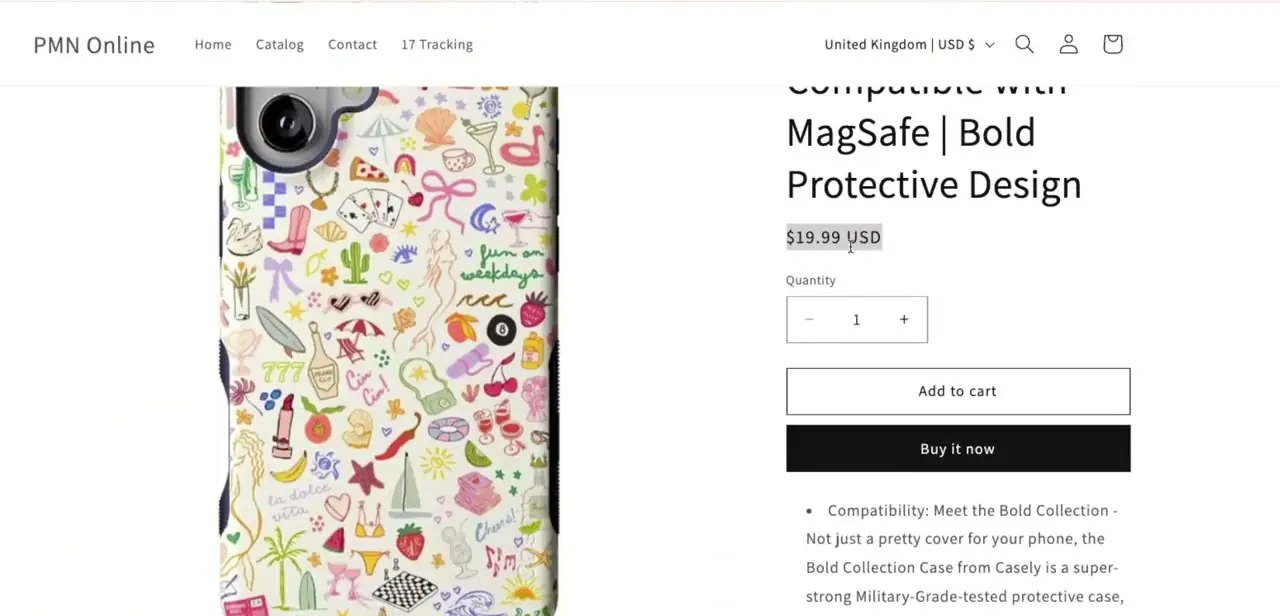
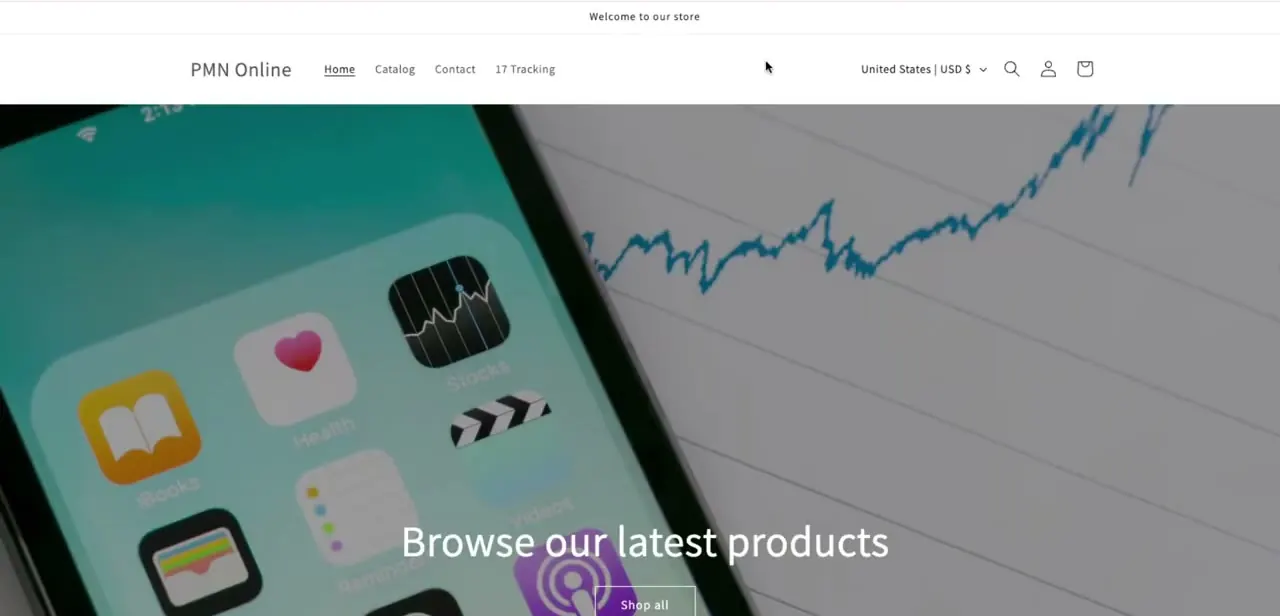
On a default Dawn theme, the storefront header shows the logo, navigation links, a country/currency selector, and a small magnifying-glass search icon on the right. Customers click that icon to open a search modal instead of typing directly into a visible field. Everything else in the header stays put; only the search element gets swapped for something bigger and always visible.
02Duplicate the theme before editing anything
Shopify's own documentation recommends duplicating a theme before editing its code, specifically so there's a backup copy to revert to if something breaks. From Online Store → Themes, use the "..." menu on the live theme and choose Duplicate first, then make the code change on the duplicate.
Publish it once you've confirmed the search bar works. Shopify also notes that if a theme update lands while custom code changes are incompatible with it, those code changes get removed from the updated copy — one more reason not to edit the theme you're currently publishing from directly.
03Open the code editor and find the header-search render tag
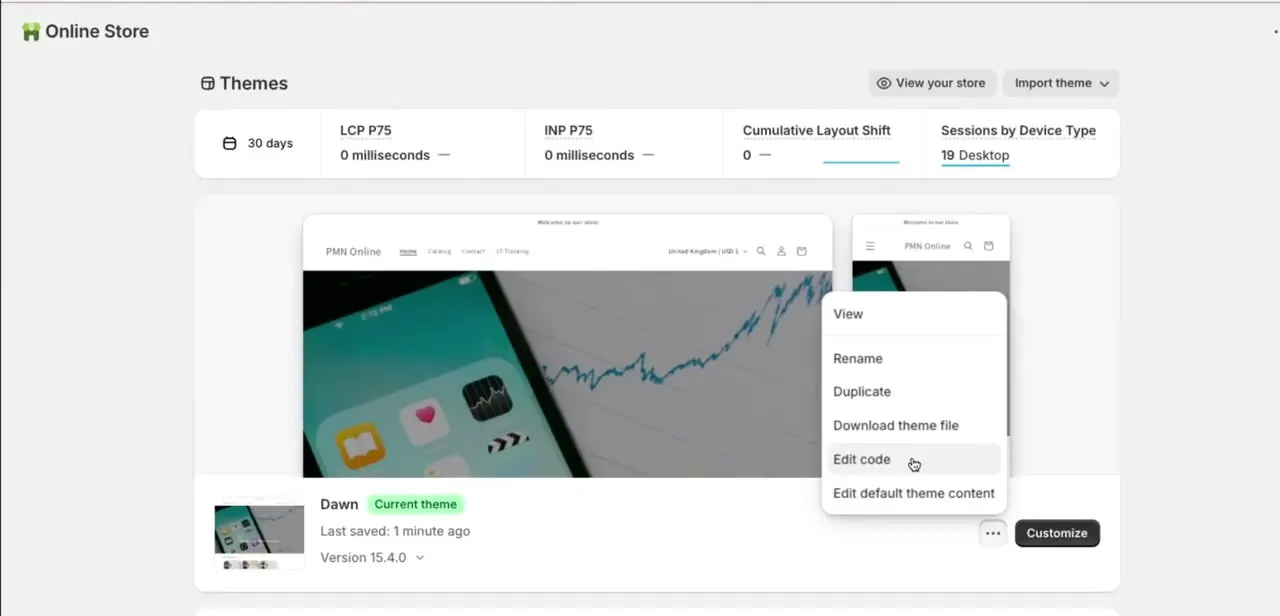
From Shopify admin, go to Online Store → Themes, find the theme card, and click the "..." menu next to Customize. Choose Edit code to open the raw theme files rather than the visual customizer, since this change isn't available as a toggle.
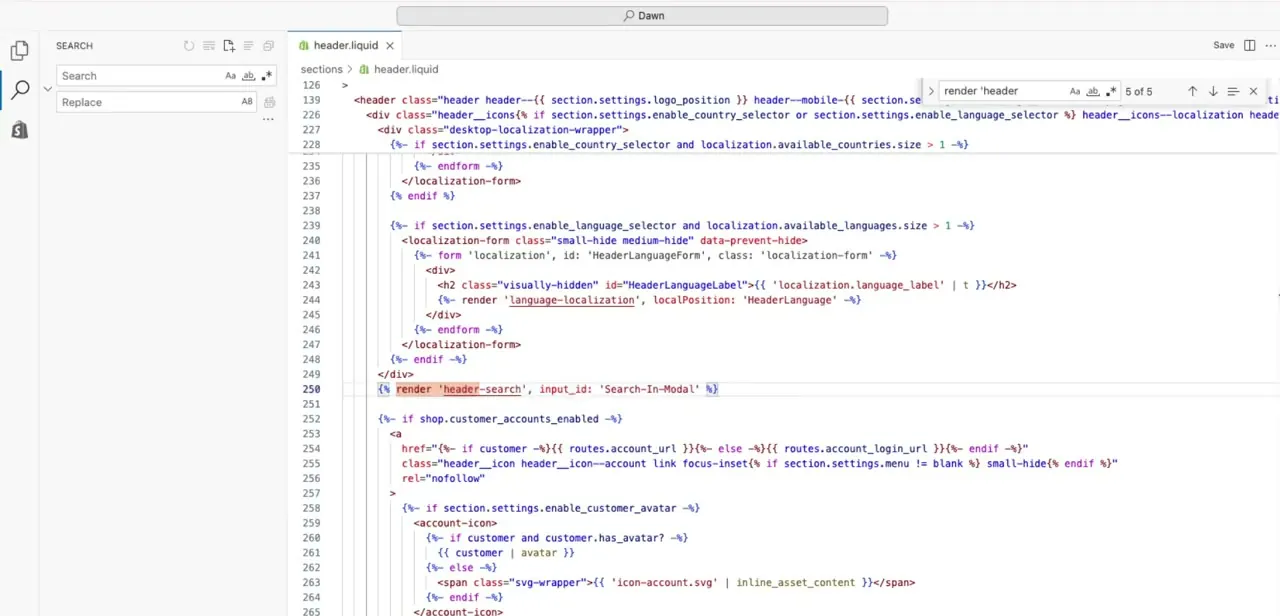
Inside the editor, open header.liquid from the sections folder and search the file for "header-search" — on the Dawn theme version checked for this guide (15.4.0), that turns up the line `{% render 'header-search', input_id: 'Search-In-Modal' %}`. This single line is the hook for the whole feature: it's what swaps in the icon-triggered modal, and it's the piece to replace or wrap with your own markup for a persistent visible bar instead.
04Swap in the search bar markup
Replace the icon-only render with markup for a visible input field and submit button, styled to sit inline in the header instead of popping a modal. Dawn's exact class names and layout can shift between theme versions, so work from a known-good snippet rather than writing the HTML from scratch, and paste it into the same spot the original render tag occupied so the header's flexbox layout doesn't shift around it. Save the file — Shopify's code editor autosaves changes on the duplicate theme, but nothing reaches the live storefront until that duplicate is published.
05Adjust the styling for desktop and mobile, then confirm search still works
A search bar sized for desktop will often overflow or crowd the logo and cart icon on mobile widths, so check the header at a phone-sized viewport specifically. Dawn's header uses a small-hide/medium-hide class pattern for responsive elements, worth reusing rather than inventing new breakpoints, since it keeps the search bar's behavior consistent with the rest of the header.
Before publishing, use the theme preview to click into the new bar and run an actual search, confirming it returns real product results rather than just looking right. It's easy to get the visual part correct while accidentally breaking the form's action or input name — a search bar that looks great but returns nothing is worse than the small icon it replaced.
When it doesn't work
The header layout shifted or broke after pasting the new markup
Why: The replacement markup wasn't dropped into the exact spot the original render tag occupied, so the header's existing flexbox layout no longer wraps it the same way.
Fix: Undo the change (or revert to the duplicated theme's original copy) and paste the new markup in the same position the render 'header-search' line held.
A later theme update wiped out the search bar change
Why: Shopify's own documentation states that theme updates remove code changes incompatible with the update, and a direct edit to header.liquid falls into that category.
Fix: Re-apply the change after updating, or move the customization into a separate snippet file, which Shopify notes theme updates leave untouched.
The new search bar looks right but returns no results
Why: The visual markup was copied without preserving the original form's action or input name, so submissions no longer hit Shopify's search endpoint correctly.
Fix: Compare the new form's action and input name/id against the original header-search snippet, and test a real search in theme preview before publishing.
Frequently asked questions
Will this work with any Shopify theme?
The general approach applies broadly — find the header search render tag and replace it with visible input markup — but exact code and file locations vary by theme, so Dawn's specific line and snippet names won't match every theme exactly.
Do I need coding experience to make this change?
Shopify's own documentation recommends knowing HTML and CSS, with a basic understanding of Liquid, before editing theme code directly. Without that, its guidance is to hire a Shopify Partner instead.
Will editing header.liquid directly risk breaking my live store?
Only if you edit the theme you're currently publishing from. Shopify's documentation recommends duplicating the theme first specifically so there's a backup to revert to if something goes wrong.
Can I revert back to the small icon later?
Yes — since the change lives in header.liquid, restoring the original render 'header-search' line brings back the icon-only modal.
Where exactly is the code I need to edit?
Online Store → Themes → Edit code, inside the sections folder's header.liquid file. Search the file for "header-search" to jump to the relevant line.
Sources and last check
The header-search render tag and its exact line were confirmed against Dawn's own header.liquid source in September 2026 (theme version 15.4.0), matching what the recording's screenshots show. The duplicate-first recommendation, the note about theme updates removing incompatible code changes, and the HTML/Liquid prerequisite were added from Shopify's official help documentation on editing theme code, none of which the previous version of this guide mentioned.
About the author

Impran M N
I've been hooked on technology for as long as I can remember — especially the new tools and AI apps that seem to land every other week. Easy Tech Tuts is where I write up whatever I've just worked out: I do the task in the real product, record the screen, and turn it into the guide I wish I'd found first.