Easy Tech Tuts
How to Bulk Edit Prices in Shopify, Decrease or Increase by a Percentage on All Products Easily 2026
By Impran M NLast checked against official docs
Changing prices one product at a time in Shopify works fine for a handful of items, but it falls apart the moment you're running a storewide sale or adjusting margins after a supplier cost change. Shopify's own tools can move many prices at once, but neither the built-in bulk editor nor a CSV import will do the percentage math for you; a percentage change that recalculates itself is a third-party app's job.
This guide covers all three paths: the free built-in bulk editor for flat changes, a CSV export/reimport for a percentage you calculate yourself, and a pricing app's Create task screen (using Bulk Price Editor Sami) for a percentage the app calculates. It also covers what to check before applying a change to your whole catalog, since that kind of change is hard to reverse cleanly if something's set up wrong.
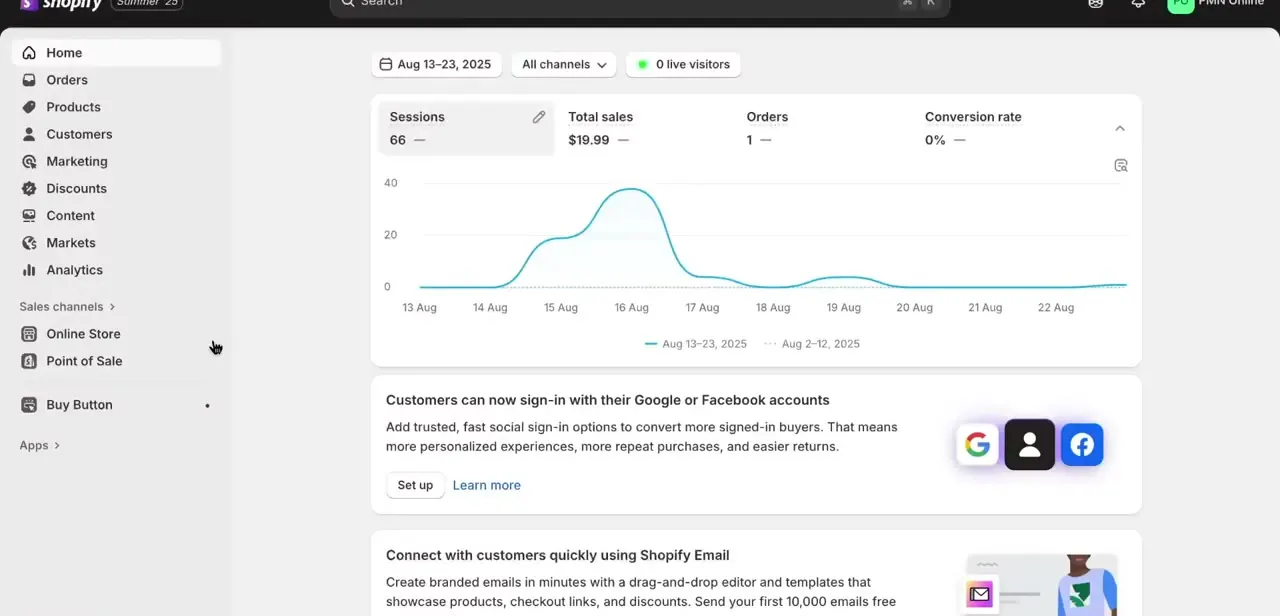
01Start from your Shopify admin home
The admin home screen gives a quick read on recent sessions, total sales, and orders before you touch anything, plus the left-hand navigation used throughout: Products is where individual items and their prices live, while Discounts and Content sit nearby but aren't the same thing as bulk price editing.
02Use the built-in bulk editor for flat, one-off changes
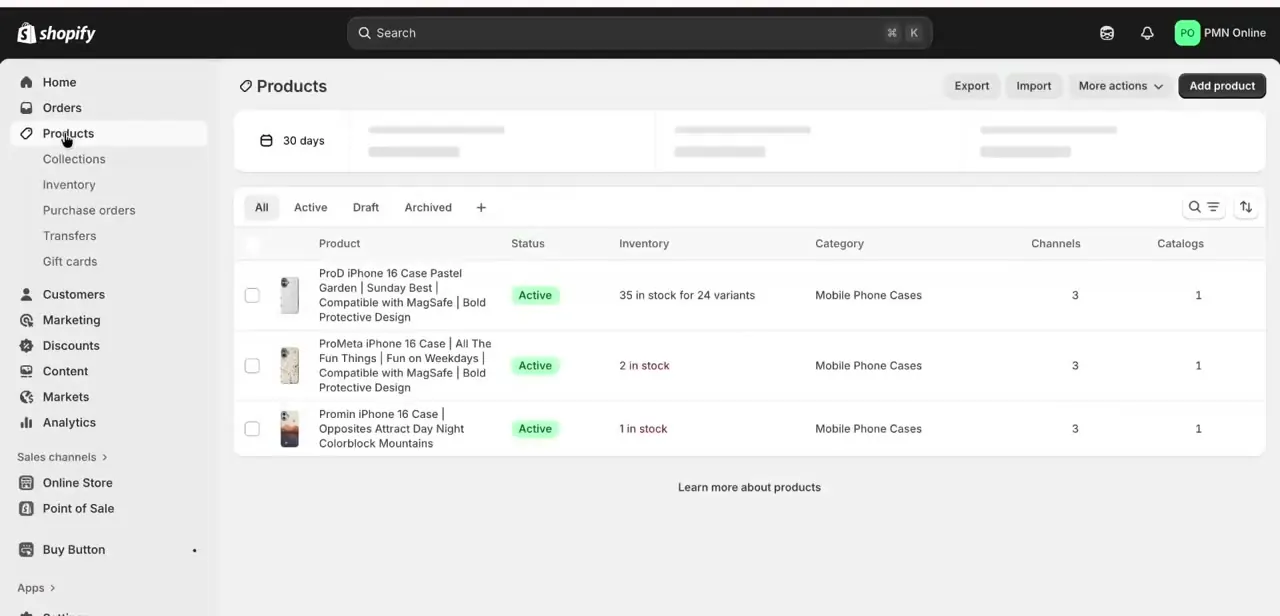
On the Products page, select the checkboxes next to the products you want, then click Bulk edit. Shopify opens a spreadsheet-style table; click Columns to add Price and Compare-at price if they aren't already showing, then type or paste new values directly into the cells.
This tool doesn't do percentage math on its own; it's built for setting exact values across a selection, not recalculating every price by a percent. Shopify's own documentation also notes that larger batches take longer to save, and that its bulk editor can throw errors in Microsoft Edge specifically, so use Chrome, Firefox, or Safari for this.
03Or run the percentage math yourself with a CSV file
For a percentage change across the full catalog without installing anything, export your products to CSV from the Products page, then open the file in a spreadsheet program. Add a formula next to the Variant Price column, for example =D2*1.1 for a 10% increase, then paste the results back into that column as plain values.
Keep the Option1 Name and Option1 Value columns in the file exactly as exported. Shopify's documentation warns that dropping them creates a new default variant and deletes the existing ones on import. Before reimporting, turn on "Overwrite products with matching handles" so the file updates your existing products instead of creating duplicates.
04Install a percentage-based bulk pricing app
For a percentage change the app itself calculates, with scheduling and an automatic revert built in, install an app made for that job: Bulk Price Editor Sami, Easy by Bulk Editing, or Hextom are options. These add themselves to the admin's left-hand navigation and give a task-based interface for defining what should change and by how much, instead of touching a spreadsheet at all.
05Create a percentage price task
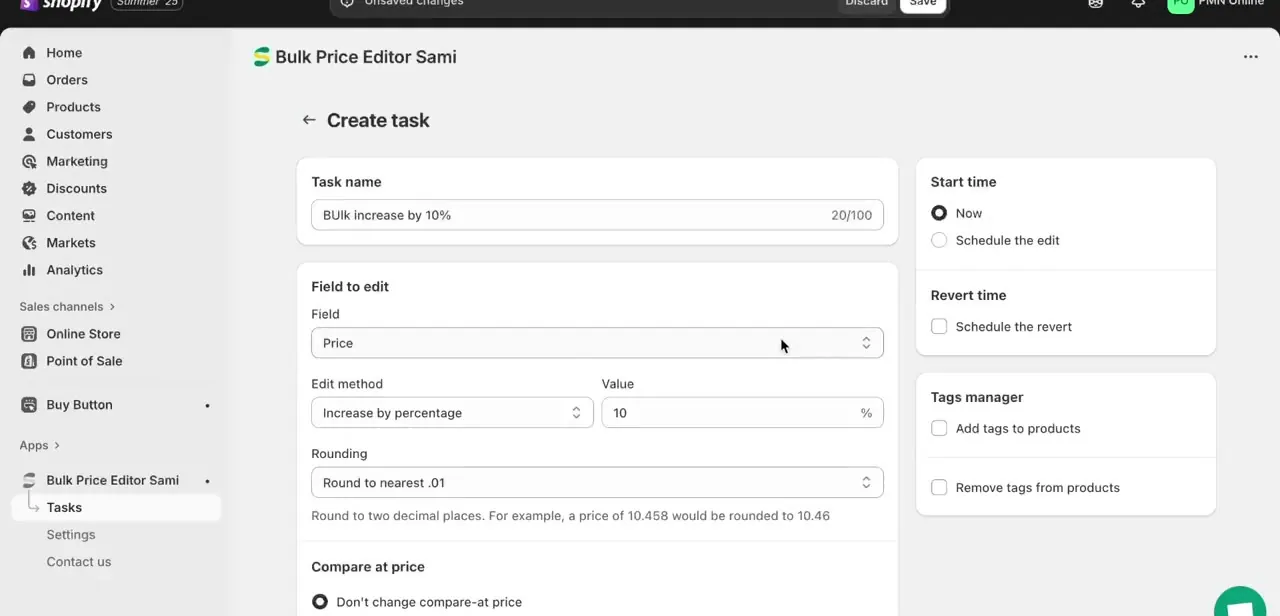
Inside the app, Create task is where the rule lives: name the task something identifiable like "Bulk increase by 10%," set Field to edit to Price, choose Increase by percentage or Decrease by percentage under Edit method, and enter the value. A Rounding option, set here to the nearest .01, keeps the math from producing awkward prices like $10.458, and a Compare at price setting decides whether the task also touches strikethrough sale pricing.
06Choose when the change takes effect
Most of these apps offer a Start time choice between running the task immediately or scheduling it for a specific date and time, useful for lining a price increase up with a supplier cost change or starting a sale exactly at midnight. A Revert time option, when available, is worth using for temporary sales: it schedules prices to return to normal afterward instead of relying on someone remembering to undo it manually.
07Test before applying to your whole catalog
Before running a percentage task against every product, apply it to a small handful first: a single collection, or a few test products, and check the resulting prices look right, including anything affected by rounding and compare-at settings. This catches mistakes like an inverted increase/decrease setting while the damage is limited to a few items instead of the entire store.
| Method | Calculates the percentage for you | Practical limit | Cost |
|---|---|---|---|
| Built-in bulk editor | No, values are typed or pasted per product | Selected products on one page at a time | Free |
| CSV export and reimport | No, the formula is applied in a spreadsheet before reimporting | Whole catalog in one file | Free |
| Pricing app (e.g. Bulk Price Editor Sami) | Yes, enter a percentage and it recalculates every price | Free tier capped at 100 products per task on Sami; higher caps on paid tiers | Free tier, then from about $9.90/month |
When it doesn't work
The built-in bulk editor won't load or throws errors
Why: Microsoft Edge has URL length restrictions that can break Shopify's bulk editor interface.
Fix: Use Chrome, Firefox, or Safari instead.
Reimporting the price CSV creates duplicate products or wipes out variants
Why: The Option1 Name and Option1 Value columns were removed or edited, or "Overwrite products with matching handles" wasn't enabled on import.
Fix: Keep those columns exactly as exported, and turn on the overwrite-by-handle option before reimporting.
A percentage app skips part of the catalog
Why: The store has more products than the plan's per-task limit; Sami's free tier stops at 100.
Fix: Split the run into batches by collection, or move to a paid tier with a higher cap.
New prices come out as awkward decimals like $10.458
Why: No rounding rule was set before running the task.
Fix: Set the Rounding option to the nearest .01 (or another whole increment) before applying the change.
Frequently asked questions
Can I bulk edit prices without installing an app?
Yes, two ways: Shopify's built-in bulk editor for typing exact new prices, or a CSV export where you calculate the percentage yourself in a spreadsheet and reimport it. Neither does the percentage math automatically.
Does Shopify's own bulk editor support percentage-based price changes?
No. It's built for entering or pasting exact values across selected products, not recalculating prices by a percent. That kind of automation comes from a CSV formula or a third-party app.
Is Bulk Price Editor Sami free?
There's a free tier, but it's capped at 100 products per task. Larger catalogs need a paid plan, which starts at roughly $9.90/month for up to 1,000 products.
What's the difference between Bulk Price Editor Sami, Easy by Bulk Editing, and Hextom?
All three are third-party apps offering percentage-based bulk pricing with a similar task-based workflow. Which one fits best depends on catalog size against each app's free-tier limits and pricing.
Can I schedule a price increase to revert automatically after a sale ends?
Yes, apps like this typically offer a Revert time option that schedules prices to return to normal automatically once a sale is over.
Is it safe to bulk edit prices on a live store?
It's safer to test on a small collection or a few products first. Applying a percentage change to the entire catalog without checking rounding and compare-at settings first can produce pricing mistakes that reach real customers before anyone notices.
Sources and last check
The Create task screen and app screens come from a walkthrough recorded in 2026. The built-in bulk editor's behavior, its lack of percentage math, the Edge browser issue, and the CSV column and reimport requirements were re-checked against Shopify's official Help Center in September 2026; the CSV method was added to this guide because it wasn't covered at all in the earlier version. Bulk Price Editor Sami's pricing and free-tier product cap were confirmed against its Shopify App Store listing in the same session.
About the author

Impran M N
I've been hooked on technology for as long as I can remember — especially the new tools and AI apps that seem to land every other week. Easy Tech Tuts is where I write up whatever I've just worked out: I do the task in the real product, record the screen, and turn it into the guide I wish I'd found first.