Easy Tech Tuts
How to Add Skrill to Shopify, Connect Payment Method Easily 2026
By Impran M NLast checked against official docs
Skrill is a useful addition to a Shopify store's checkout if you sell to customers across multiple currencies or regions where local e-wallets matter more than cards. Connecting it isn't as simple as flipping a toggle: it involves installing an app inside Shopify's Payments settings, generating credentials in a Skrill business account, and whitelisting Shopify's own IP address on Skrill's side before the two will talk to each other. This guide walks through both sides of that connection so the first Skrill transaction goes through cleanly instead of bouncing back with a configuration error.
Before you start
- A free Skrill merchant (business) account, opened through Skrill's own application form
- Your Skrill Merchant ID and account email — the Merchant ID is the numeric customer ID shown in the upper-right corner of your Skrill account, not your email address
01Open Payments in your Shopify admin
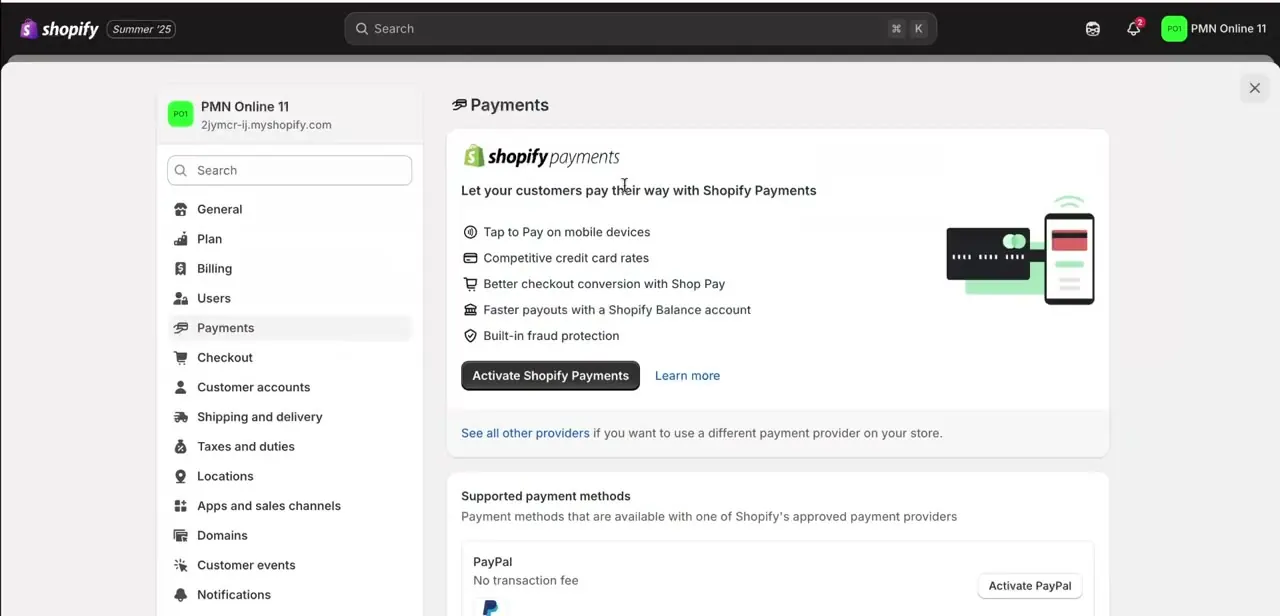
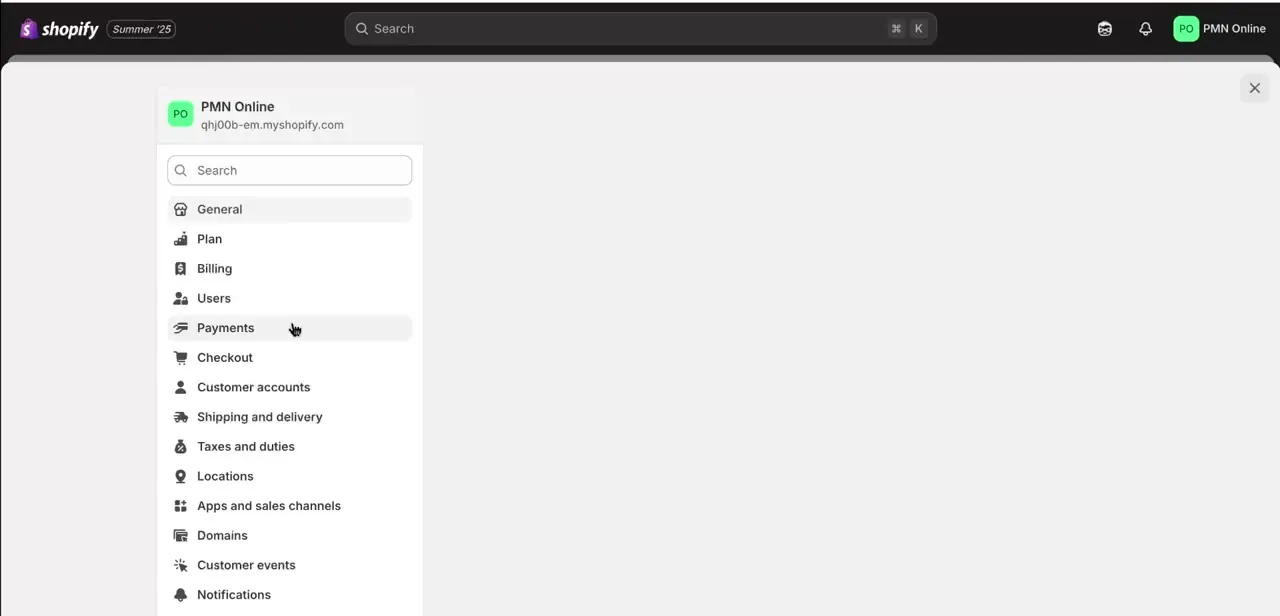
From your Shopify admin, click Settings at the bottom of the left-hand menu, then open Payments. Scroll down to Add payment methods and click Search by provider. Shopify groups third-party gateways like Skrill separately from Shopify Payments, so if you already accept cards through Shopify Payments, adding Skrill sits alongside it instead of replacing it.
02Find Skrill and install the app
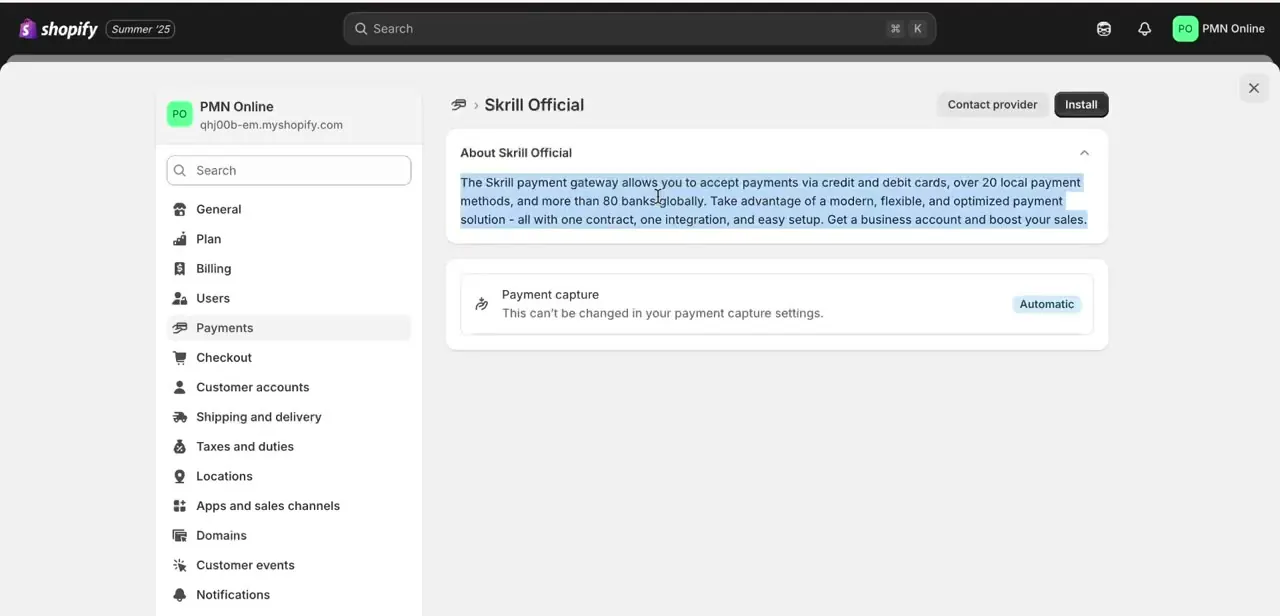
Type Skrill into the search field, click the Skrill result, then click Activate, followed by Connect, then Install app. Shopify's install screen names the permissions the app needs (accessing and editing store information) before you confirm. The app page describes Skrill's coverage of cards and regional payment methods and a note that payment capture on this integration is automatic and can't be changed from Shopify's regular capture settings.
03Get your Merchant ID and set a Secret Word in Skrill
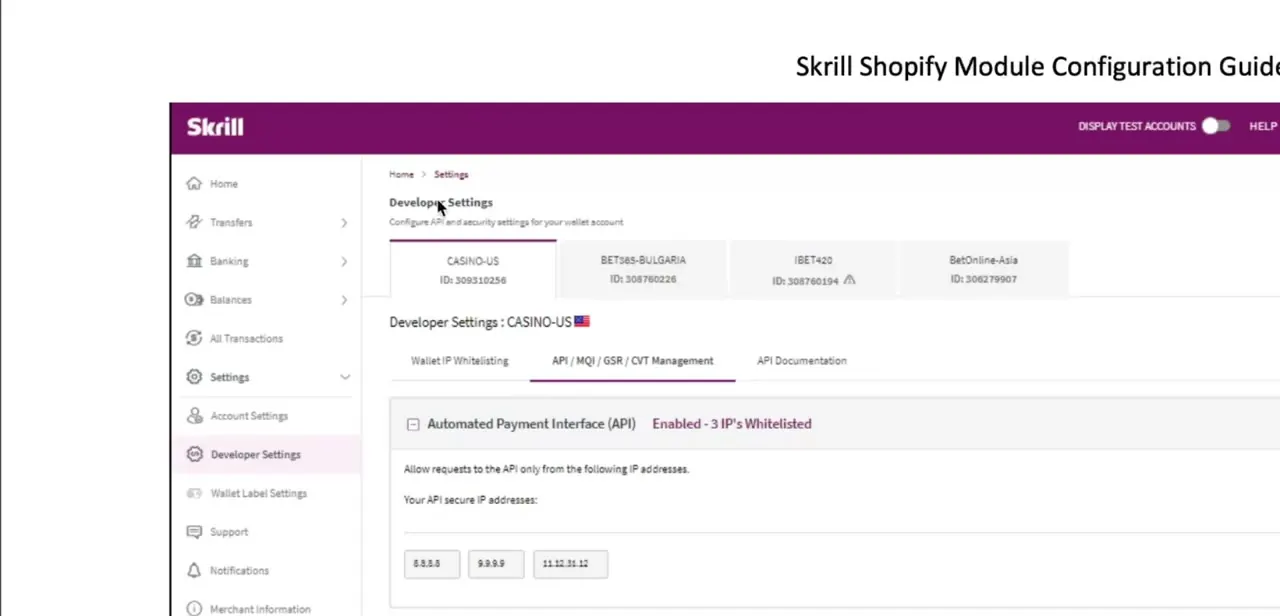
The credentials Shopify asks for come from Skrill's site, not Shopify's. Log into your Skrill merchant account and go to Settings, then Developer Settings, then API / MQI / GSR / CVT Management.
From there, set an API/MQI password and a Secret Word: Skrill requires the Secret Word to be at least 8 characters with one uppercase letter, one lowercase letter, and one number. Your Merchant ID is the numeric customer ID shown in the upper-right corner of your Skrill account; you'll need it, your account email, the Secret Word, and the API password on the Shopify side.
04Whitelist Shopify's IP address in Skrill
Skrill's API access is locked to specific IP addresses by default, so a request from an address that isn't whitelisted gets rejected. This is the single most common reason a Skrill-Shopify connection fails even when the password and Secret Word are correct.
Skrill's own Shopify configuration guide lists the required address as 185.88.185.6; add it under both Automated Payment Interface and Merchant Query Interface in Developer Settings, then save. Skrill changed this IP in January 2025, so an older whitelist entry copied from an outdated guide will silently fail.
05Enter your credentials in Shopify and pick payment methods
Back in the Skrill settings screen inside Shopify, fill in Merchant ID, Email, Secret Word, and API Password exactly as they're set in your Skrill account; Logo URL is optional and only affects the checkout branding. Below that, enable or disable the individual payment methods you want to offer, such as cards, Skrill's own digital wallet, or regional options like Rapid Transfer or Boleto.
Only turn on methods that are also enabled on your Skrill account, since a mismatch there is a separate way for a transaction to fail. Click Activate Skrill once everything is set.
06Test before relying on it for real orders
The Skrill settings panel in Shopify includes its own Test mode toggle, which simulates successful and failed transactions without moving real money. Skrill also publishes two card numbers for use with test merchant accounts: 5438311234567890 for Mastercard and 4000001234567890 for Visa, each used with any future expiry date and a random CVV. Run a test transaction with test mode on, confirm it appears as expected, then switch test mode off before customers start checking out for real.
| Transaction type | Fee |
|---|---|
| Card payment (new merchants) | 1.9% + €0.29 |
| Rapid Transfer | 1% + €0.29 |
| Refund | €0.49 per transaction |
| Withdrawal | €4.00 per withdrawal |
From Skrill's business pricing page for the Shopify integration. Rates can change and may differ by account, so confirm against your own Skrill dashboard before relying on them.
When it doesn't work
Shopify rejects the connection with an IP whitelist error
Why: Skrill changed the IP address its Shopify app connects from in January 2025. An entry copied from an older guide no longer matches.
Fix: Whitelist 185.88.185.6 under both Automated Payment Interface and Merchant Query Interface in Skrill's Developer Settings.
Skrill's Secret Word field won't save
Why: Skrill requires the Secret Word to be at least 8 characters with one uppercase letter, one lowercase letter, and one number.
Fix: Set a Secret Word that meets all three requirements in Skrill's Developer Settings, then re-enter the same value in Shopify.
The Merchant ID field in Shopify is rejected or looks wrong
Why: Merchant ID is not the same as the account email. It's the numeric customer ID Skrill displays in the upper-right corner of the merchant account.
Fix: Copy the numeric ID from the Skrill dashboard, not the account email, into Shopify's Merchant ID field.
Frequently asked questions
Do I need a separate Skrill app installed on Shopify?
Yes. Search for Skrill under Add payment methods in Shopify's Payments settings, then Activate, Connect, and Install app. It runs alongside Shopify Payments instead of replacing it.
What information do I need from my Skrill account before starting?
Your Merchant ID (the numeric customer ID shown in the upper-right of the Skrill dashboard), your account email, a Secret Word, and an API/MQI password set under Skrill's Developer Settings.
Why does my Skrill connection keep failing in Shopify?
Most often an IP whitelist mismatch: Skrill's Shopify app connects from 185.88.185.6, which changed in January 2025, so an outdated whitelist entry fails silently. A Secret Word that doesn't meet Skrill's format rules is the next most common cause.
Can I test the integration before going live?
Yes. The Skrill settings panel in Shopify has its own Test mode toggle for simulating transactions, and Skrill provides dedicated test card numbers for Mastercard and Visa to use with a test merchant account.
Does Skrill charge fees on top of Shopify's own charges?
Yes. Skrill's published Shopify rates list 1.9% + €0.29 on card payments for new merchants, plus separate rates for Rapid Transfer, refunds, and withdrawals. These are separate from anything Shopify itself charges.
Can I change how Skrill captures payments in Shopify?
No. Payment capture for the Skrill integration is automatic and can't be changed from Shopify's regular payment capture settings.
Sources and last check
Click path and screens come from a recorded walkthrough. Re-checked in September 2026 against Skrill's own Shopify Module Configuration Guide (v2.2), which corrected the whitelist step: the guide previously said only to whitelist 'the IP address Shopify's documentation specifies' without naming it, and Skrill's own PDF confirms the current address is 185.88.185.6, changed from an older one in January 2025. The Merchant ID field, the Secret Word format rule, the Test mode toggle, and the two published test card numbers were all added from that same official guide, and fee figures were checked against Skrill's business pricing page for Shopify.
About the author

Impran M N
I've been hooked on technology for as long as I can remember — especially the new tools and AI apps that seem to land every other week. Easy Tech Tuts is where I write up whatever I've just worked out: I do the task in the real product, record the screen, and turn it into the guide I wish I'd found first.