Easy Tech Tuts
How to Add Manual Payment Method in Shopify, Set up Custom Methods Easily 2026
By Impran M NLast checked against official docs
Not every Shopify store runs entirely on card payments. Cash on delivery is standard in a lot of markets, bank transfers are common for B2B and high-ticket orders, and some sellers just want a pay-at-pickup option for local customers.
Shopify supports all of this through manual payment methods, a setting separate from your regular payment gateway that lets orders come through without being charged automatically. This guide covers finding the setting, adding a built-in option like cash on delivery, creating a fully custom method with your own instructions, and what changes about how you'll need to manage the orders that come through it.
01Open Settings and find Payments
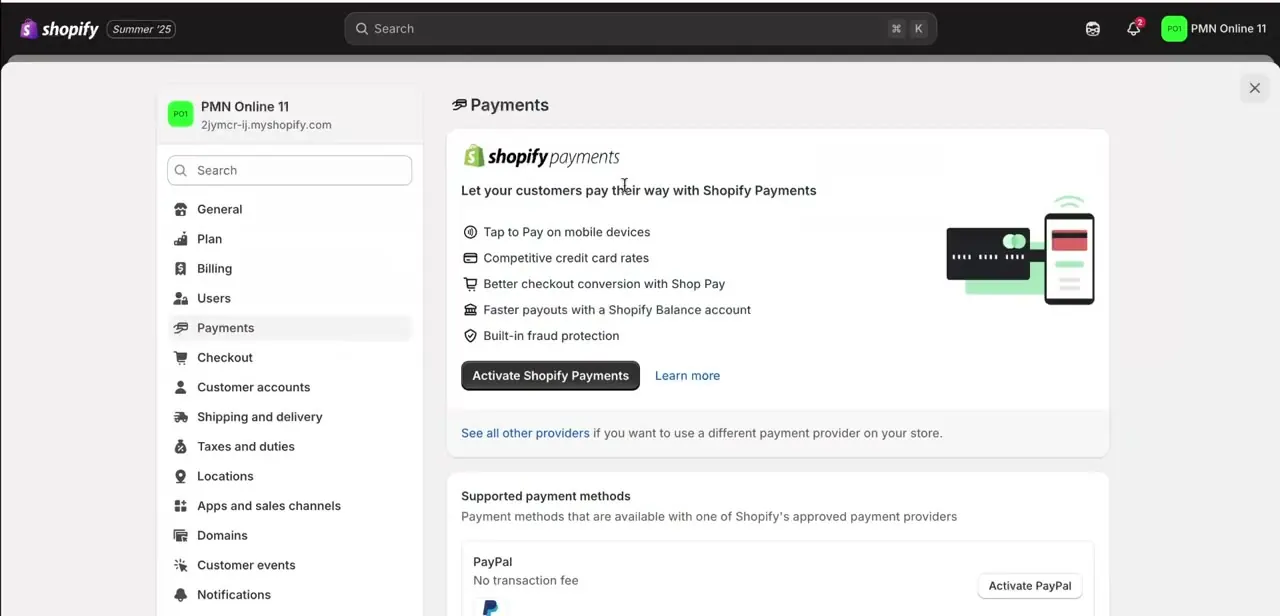
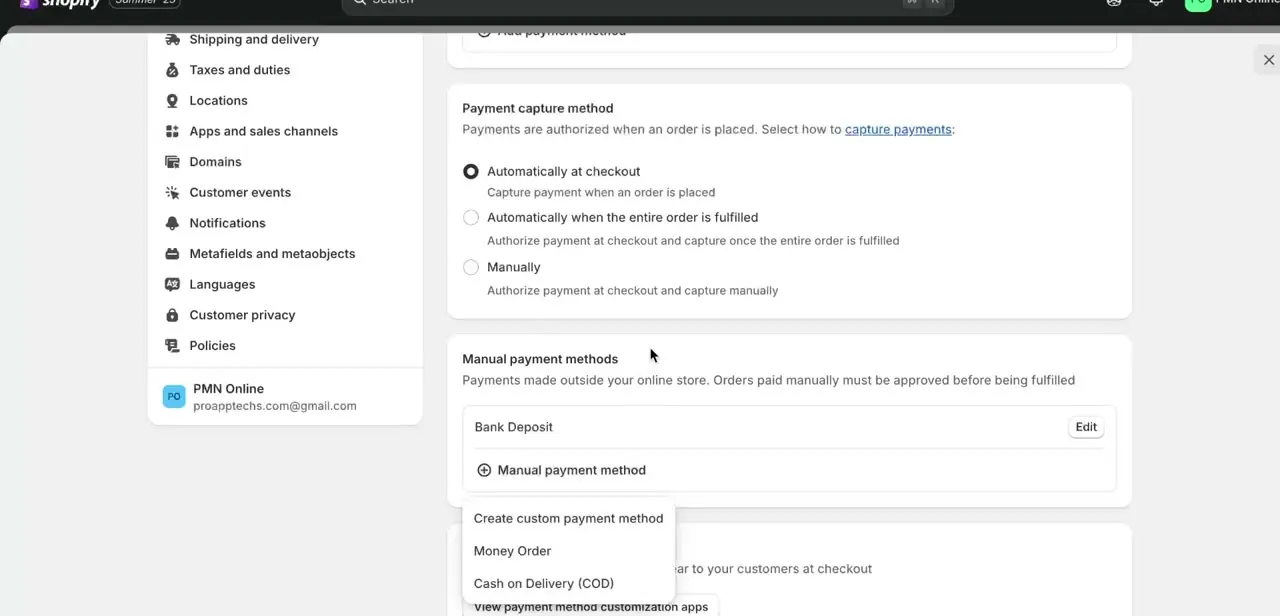
From your Shopify admin, go to Settings and select Payments. Scroll past your main payment provider setup and payment capture method (which controls when card payments are charged) to the Manual payment methods section.
Shopify's own text there says it plainly: payments made outside your online store, and orders paid manually must be approved before being fulfilled. This is a separate list from Shopify Payments or any third-party gateway, meant for orders paid outside your store's automatic checkout flow, like cash handed over on delivery or a bank transfer confirmed by hand.
02Add a built-in method or create a custom one
Click Manual payment method to open a dropdown with three options. Money Order and Cash on Delivery (COD) are built in and only need you to confirm you want them enabled; neither has fields you can edit beyond turning it on. If neither fits, choose Create custom payment method, the option for a bank transfer, pay-at-store pickup, or any other offline arrangement specific to how you take payment.
03Fill in the custom method's details
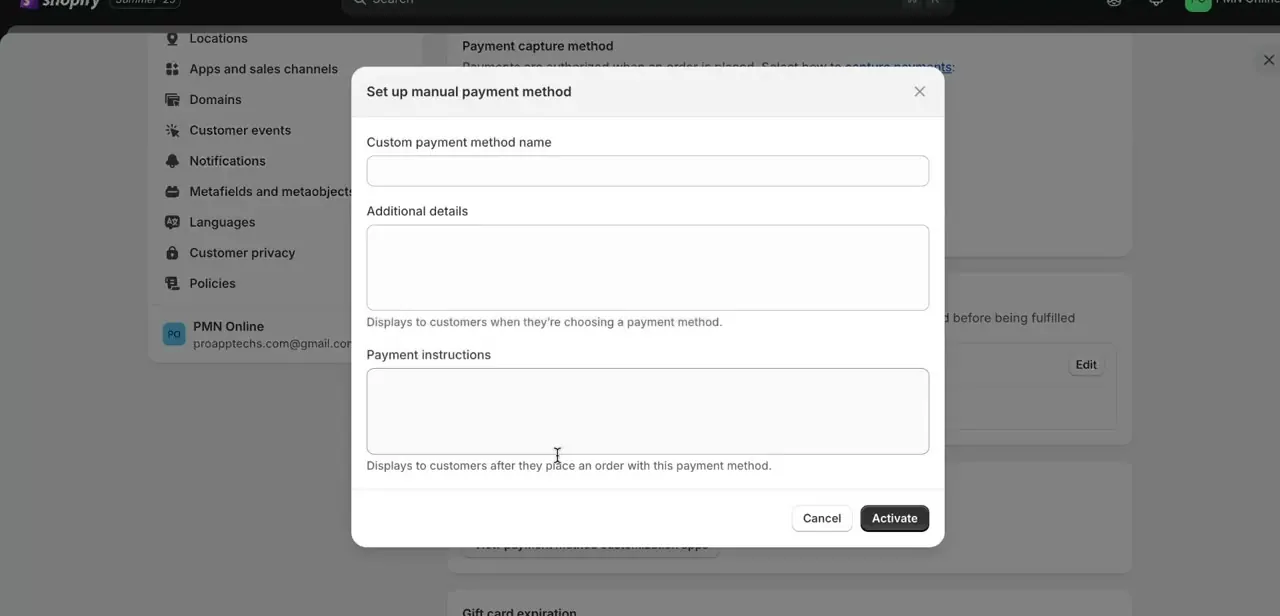
The Set up manual payment method form asks for three things. Custom payment method name is what customers see at checkout, so make it specific, like "Bank Transfer" or "Pay on Pickup" instead of something vague.
Additional details shows next to the payment method while customers are still choosing, useful for a short note like which bank or what to bring. Payment instructions only display after the order is placed; this is where full account numbers, exact pickup hours, or step-by-step payment instructions go. Click Activate once everything's filled in.
04Confirm it's live and add more if needed
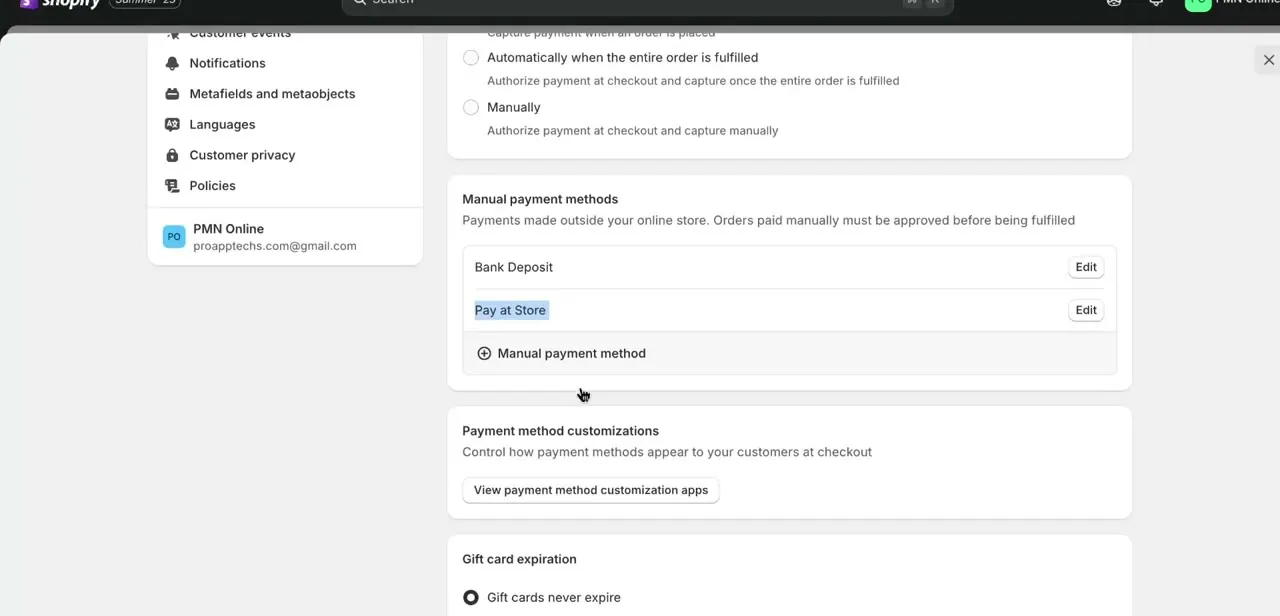
Back on the Payments settings page, your new method appears in the Manual payment methods list alongside any others you've already set up, each with its own Edit link for adjusting the name or instructions later. There's no limit on running several side by side; a store might reasonably offer Bank Deposit, Cash on Delivery, and a Pay at Store option all at once, letting checkout present whichever ones apply to a given customer or region.
| Method | Editable name | Checkout-facing details | Post-purchase instructions |
|---|---|---|---|
| Money Order | No, fixed name | No | No |
| Cash on Delivery (COD) | No, fixed name | No | No |
| Create custom payment method | Yes | Yes (Additional details) | Yes (Payment instructions) |
Money Order and COD just need to be switched on. Only the custom option has fields you fill in yourself.
When it doesn't work
An order paid by bank transfer or COD gets fulfilled before the payment has arrived
Why: Manual payment methods leave the order marked Pending, not Paid. Shopify doesn't confirm receipt for you the way it does for card payments.
Fix: Confirm the cash or transfer landed, then mark the order as paid in the admin before fulfilling it. Build that check into your fulfillment process so it can't be skipped.
A manual order sits unpaid indefinitely, tying up inventory
Why: Nothing in Shopify automatically expires or cancels an unpaid manual order on its own.
Fix: State a deadline directly in the Payment instructions field, for example 48 hours for a bank transfer, and cancel or follow up manually once it passes.
Money Order or Cash on Delivery don't cover a specific offline arrangement
Why: Both are fixed, pre-named methods with no field for custom instructions beyond enabling them.
Fix: Use Create custom payment method instead. It's the only manual option with an editable name, checkout-facing details, and post-purchase instructions.
Frequently asked questions
Does a manual payment method cost anything extra in Shopify fees?
No. Shopify's own documentation states you aren't charged third-party transaction fees for manual payments, since no payment processor is involved in cash, bank transfer, or other offline arrangements.
Do I need to manually mark orders as paid when using a manual method?
Yes. Orders placed through a manual payment method show as Pending, not Paid. You confirm payment was received and update the order's status yourself before fulfilling it.
Can customers choose between a manual method and card payment at checkout?
Yes. As long as both are enabled, Shopify presents all active payment methods, automatic and manual, as options for the customer to choose from at checkout.
What's the difference between Money Order, Cash on Delivery, and a custom method?
Money Order and Cash on Delivery are pre-built manual methods with fixed naming and no editable fields beyond enabling them. A custom payment method lets you control the name, checkout-facing details, and post-purchase instructions for any offline arrangement that doesn't fit the built-in options.
Are there other built-in manual methods besides Money Order and COD?
Stores based in Canada also see an Email Money Transfer option in the same dropdown. It doesn't show up for stores outside Canada, which is why this guide's screenshots list only Money Order and Cash on Delivery.
Can I remove a manual payment method later?
Yes. Each method in the Manual payment methods list has its own Edit option, and from there you can deactivate it if you stop offering that payment option.
Sources and last check
Click path, field names, and the Pending-order behavior come from a walkthrough recorded in 2026 and match what's on screen. Re-checked against Shopify's official Manual payment methods documentation in September 2026, which confirmed the fee wording (no third-party transaction fees) and added one detail this guide didn't originally mention: Canadian stores also see an Email Money Transfer option.
About the author

Impran M N
I've been hooked on technology for as long as I can remember — especially the new tools and AI apps that seem to land every other week. Easy Tech Tuts is where I write up whatever I've just worked out: I do the task in the real product, record the screen, and turn it into the guide I wish I'd found first.