Easy Tech Tuts
How to Hide Your Real Name on PayPal Easily 2026
By Impran M NLast checked against official docs
A standard PayPal Personal account shows your real first and last name to anyone you send money to or receive it from. That's part of how PayPal's network verifies identity, and no Personal-account setting turns it off.
The practical workaround is a Business profile, built to show a company or brand name at checkout instead of the account holder's legal name. This guide covers where that choice gets made, where your name currently lives in account settings, and what stays the same on PayPal's own backend once you switch.
The display change itself is quick. Knowing what a Business profile does and doesn't hide is the part worth reading carefully.
01Understand the two account types before you start
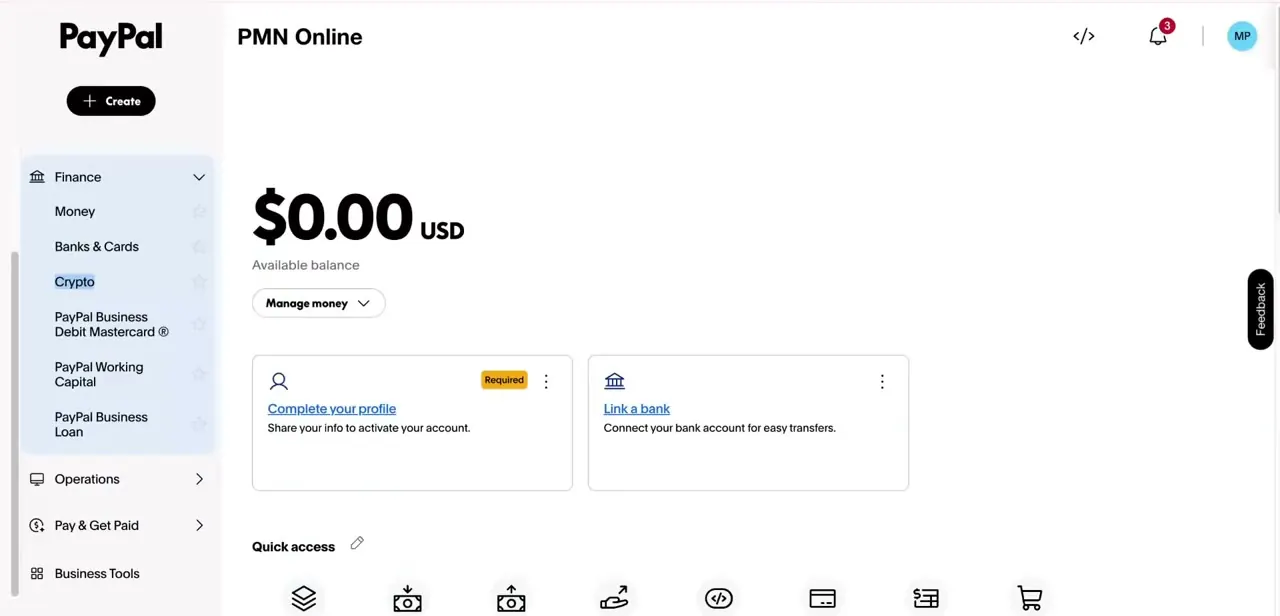
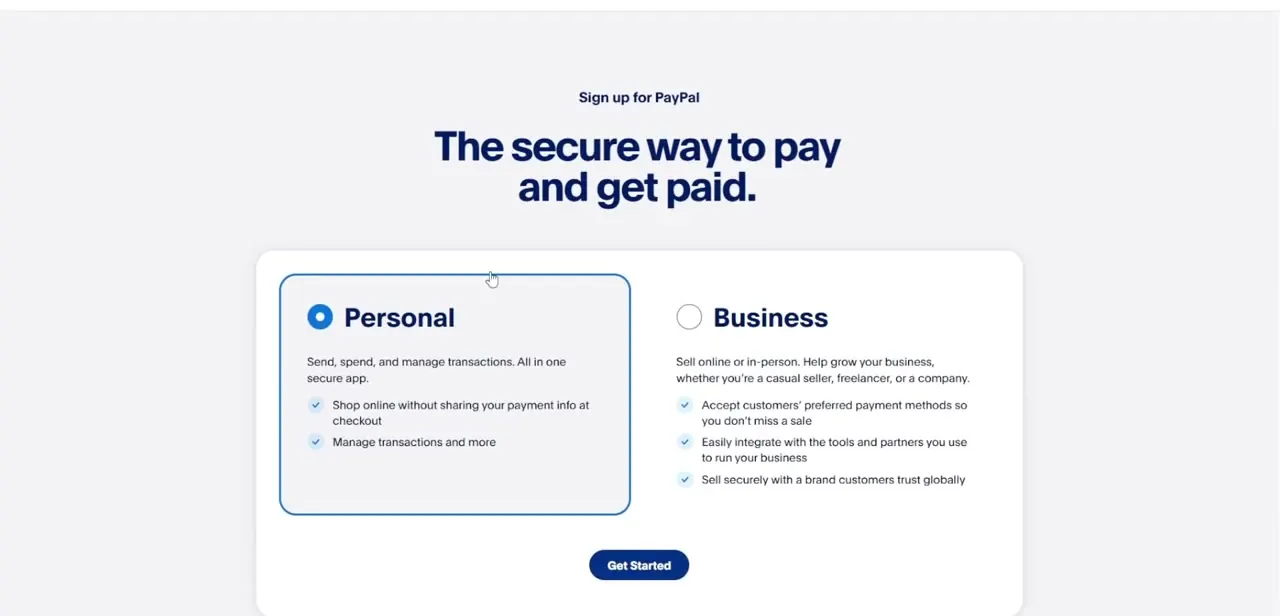
PayPal splits accounts into Personal, for sending, spending and managing your own transactions, and Business, aimed at anyone selling online or in person, from a casual seller to a full company. This split is the whole reason a name-hiding workaround exists at all: Personal accounts tie directly to your legal identity, and Business accounts are built around a public-facing name from the start.
02Check where your name currently lives
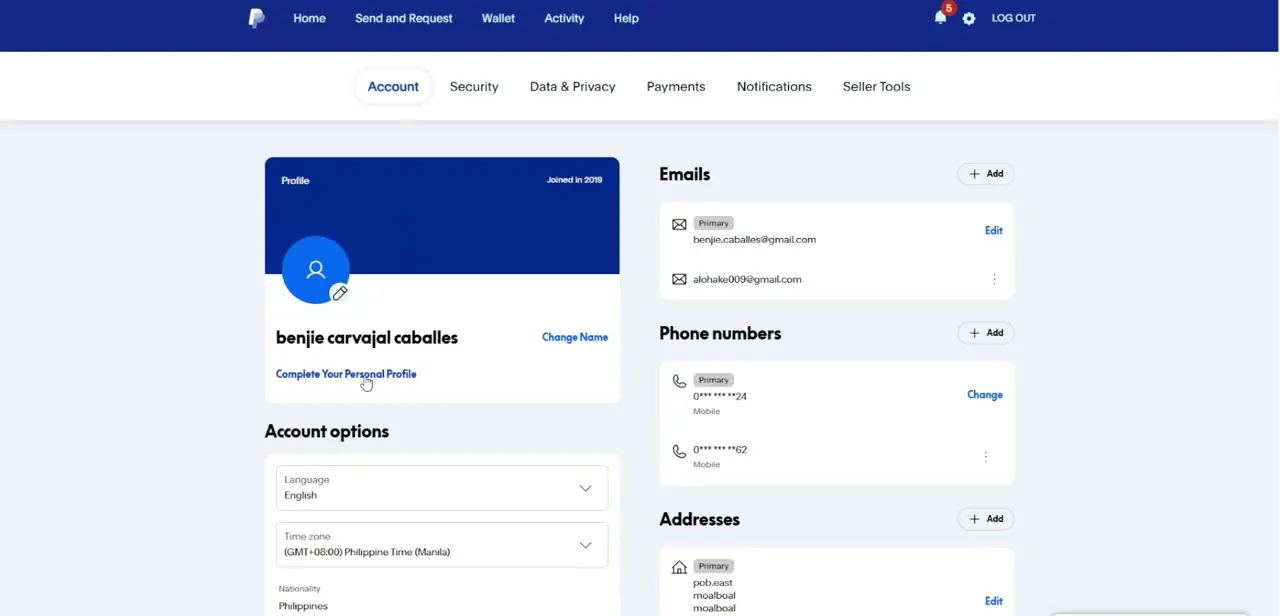
Inside your account, the Account tab under Settings shows your profile exactly as PayPal has it on file: your name next to a Change Name link, plus your emails, phone numbers and addresses. PayPal's own help article on changing your name limits that link, on a Personal account, to three cases: correcting a legal name change, fixing your name if you registered under the wrong one originally, or a minor spelling correction.
None of those let you swap in an unrelated alias. Open this page first, before looking for a workaround, to see what's stored and what a Personal account will and won't let you edit.
03Find the rest of your privacy controls
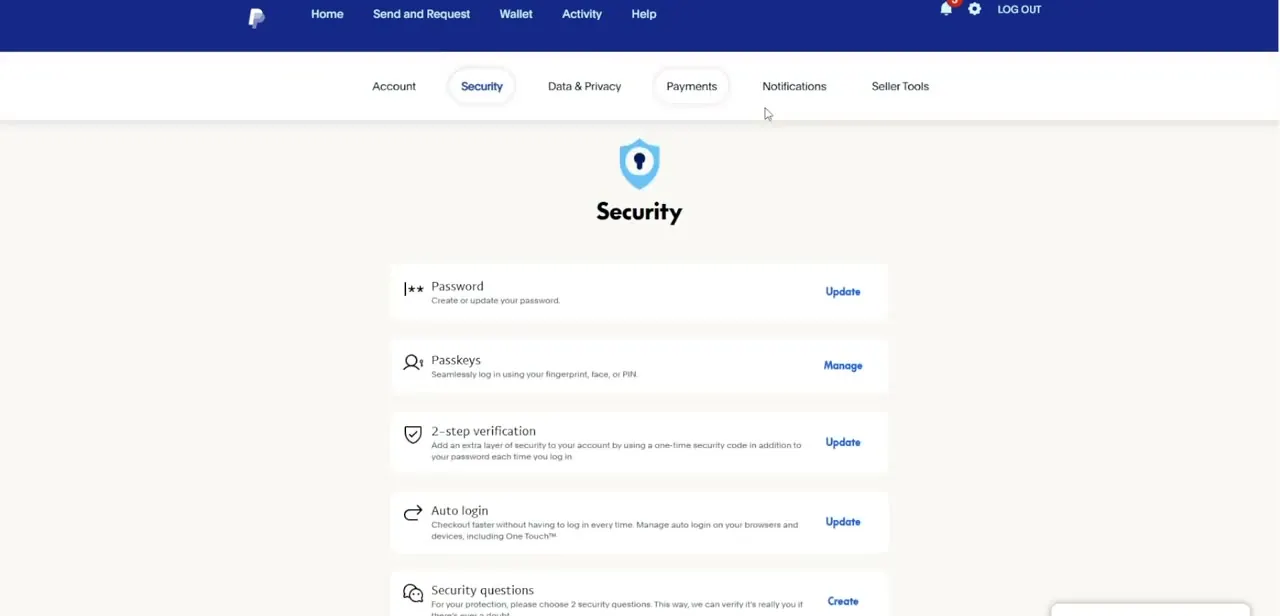
Along the top of Settings, PayPal groups everything into tabs: Account, Security, Data & Privacy, Payments, Notifications and Seller Tools. Data & Privacy holds the settings that affect what other people can see or find about you, separate from Security, which covers passwords, passkeys and 2-step verification. If limiting what's visible matters beyond just the name at checkout, look through that tab too.
04Set a business display name
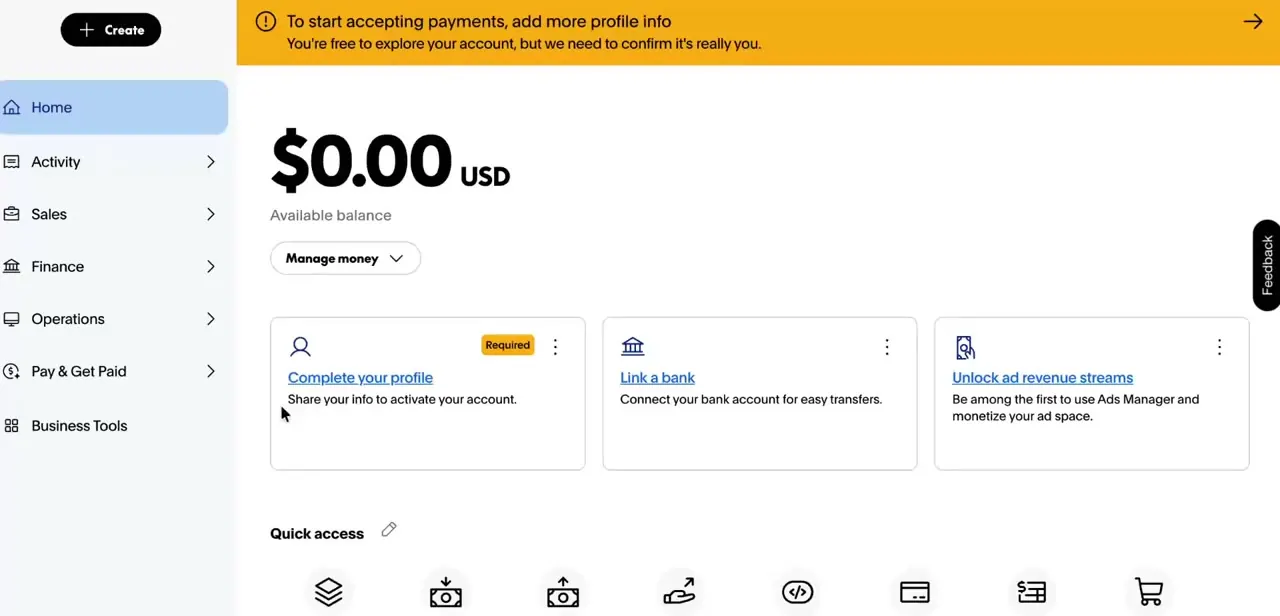
To replace your legal name with something else at checkout, you need a Business profile instead of a Personal one. Starting from scratch, the upgrade flow lets you choose between converting your current account or keeping a separate one, and you enter the business or brand name during setup.
If you already have a Business account and want to change the name later, PayPal's help article on changing a business name lays out a different path: open Business Information under Account Settings, click Update next to your business name, then Edit on your Business profile, then Change and pick a reason. PayPal asks for supporting documents, and changing the name also triggers re-verification of any linked bank account, since the names need to still match.
05Know what stays on the backend, and test it
Switching to a Business profile changes what customers and payment recipients see, not what PayPal itself knows. Your legal name, tax details and bank account information stay tied to the account for compliance and payouts.
A business alias is a display layer, not a way to transact anonymously. Once your business name is set, send or request a small payment and check the transaction record on both ends.
Confirm the brand name is what appears on both records. That catches any leftover spot, like an invoice template you haven't updated, where your legal name might still surface.
Frequently asked questions
Can I switch back to a Personal account later?
Yes, PayPal allows account type changes, but review your settings and transaction history first, since some things may need reconfiguring during the switch.
Does a Business alias hide my identity from PayPal itself?
No. PayPal still holds your legal name and tax details on the backend for compliance. A Business display name only changes what the other party in a transaction sees.
Where do I find PayPal's other privacy settings?
Under Settings, the Data & Privacy tab groups the controls for what other people can see or find about your account, separate from Security.
Will my bank withdrawals still work with a business alias?
Yes, as long as your linked bank account details match the legal registration on file. Withdrawals process the same regardless of the display name customers see.
I already have a Business account. How do I change the name it displays?
Go to Business Information under Account Settings, click Update next to the business name, then Edit and Change, and pick a reason. PayPal asks for supporting documents and re-verifies your linked bank account to confirm the names still match.
Sources and last check
Click paths and screens come from a walkthrough recorded in July 2025. The Personal-account name-change restrictions and the Business name-change flow (Business Information > Update > Edit > Change, plus bank re-verification) were re-checked against PayPal's official help articles in September 2026, which corrected and expanded the vague 'upgrade and enter a name' description this guide previously gave readers who already have a Business account.
About the author

Impran M N
I've been hooked on technology for as long as I can remember — especially the new tools and AI apps that seem to land every other week. Easy Tech Tuts is where I write up whatever I've just worked out: I do the task in the real product, record the screen, and turn it into the guide I wish I'd found first.