Easy Tech Tuts
How to Transfer Domain from Namecheap to Squarespace Easily 2026
By Impran M NLast checked against official docs
You can point a Namecheap domain at Squarespace with DNS alone, or you can move the registration itself into Squarespace so the domain and the site are billed and managed in one place. The move runs through Namecheap's Sharing & Transfer tab, where the Auth Code that authorizes it lives, and finishes inside Squarespace once that code is entered. This guide covers both sides, plus the eligibility rule and the timeline Squarespace itself states.
Before you start
- The domain must have been registered, or last transferred between registrars, at least 60 days ago — this is an ICANN rule, not a Namecheap or Squarespace preference
- The domain unlocked at Namecheap, with any DNSSEC records removed first
- A Squarespace account with billing information on file and a TLD on Squarespace's supported list (a handful of country-code domains, including .jp, .nz and .au, can't be transferred in)
01Check eligibility, then open Sharing & Transfer
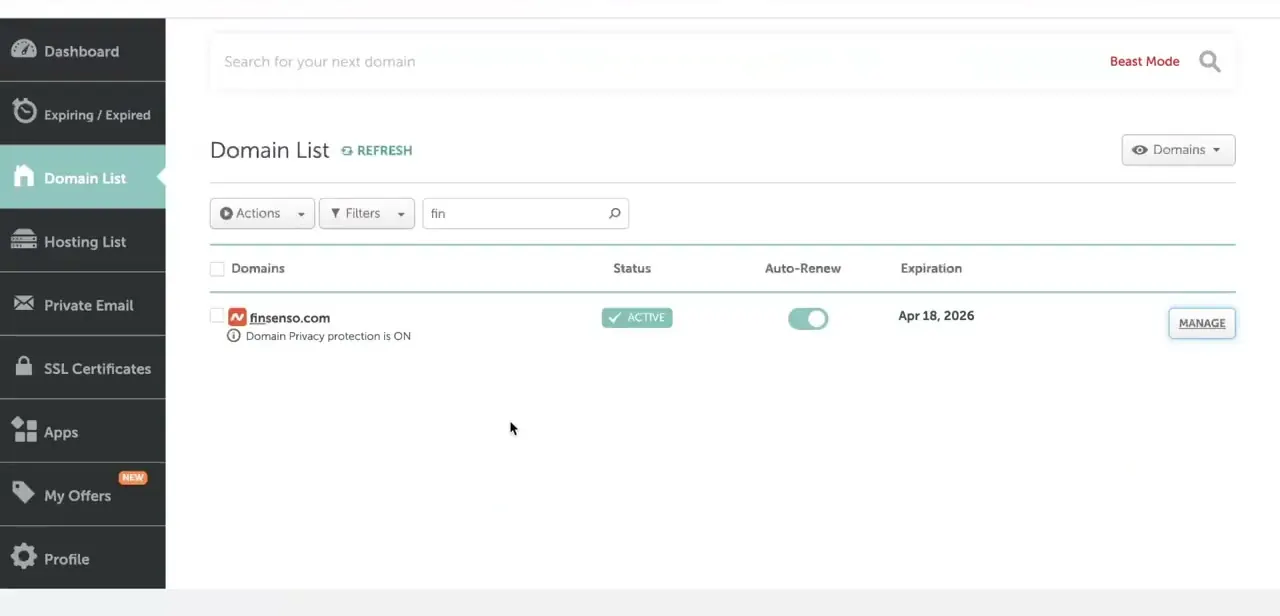
Sign in to Namecheap, open Domain List, and click the domain you plan to move. Two things need to be true before Squarespace will accept it: the domain must have been registered, or last transferred between registrars, more than 60 days ago, and its name can't contain "squarespace" or "sqsp".
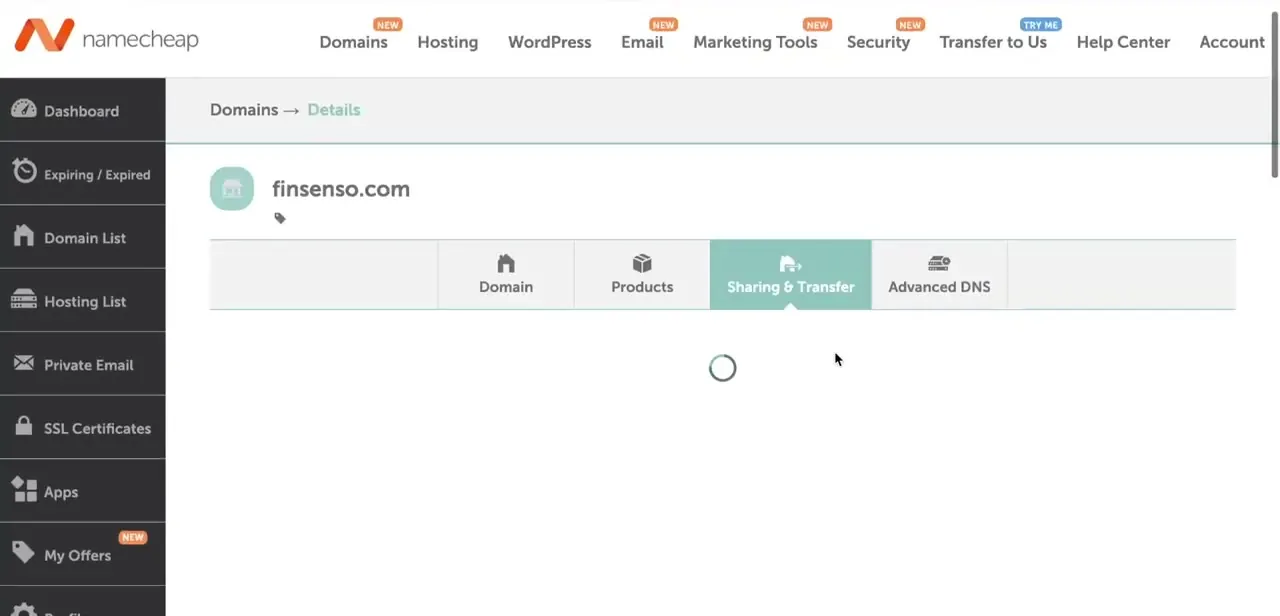
If both check out, open the domain's Details page. Alongside Domain, Products, and Advanced DNS sits a Sharing & Transfer tab — this is where outbound transfers to another registrar are managed, separate from the DNS settings you'd touch for a simple domain connection.
02Unlock the domain
Domains are locked by default to stop unauthorized transfers, and Squarespace can't pull in a locked one. On the Sharing & Transfer tab, find the domain lock toggle and switch it off.
This alone doesn't start anything moving. It just clears the block so the transfer request Squarespace sends later isn't rejected outright.
03Request the Auth Code
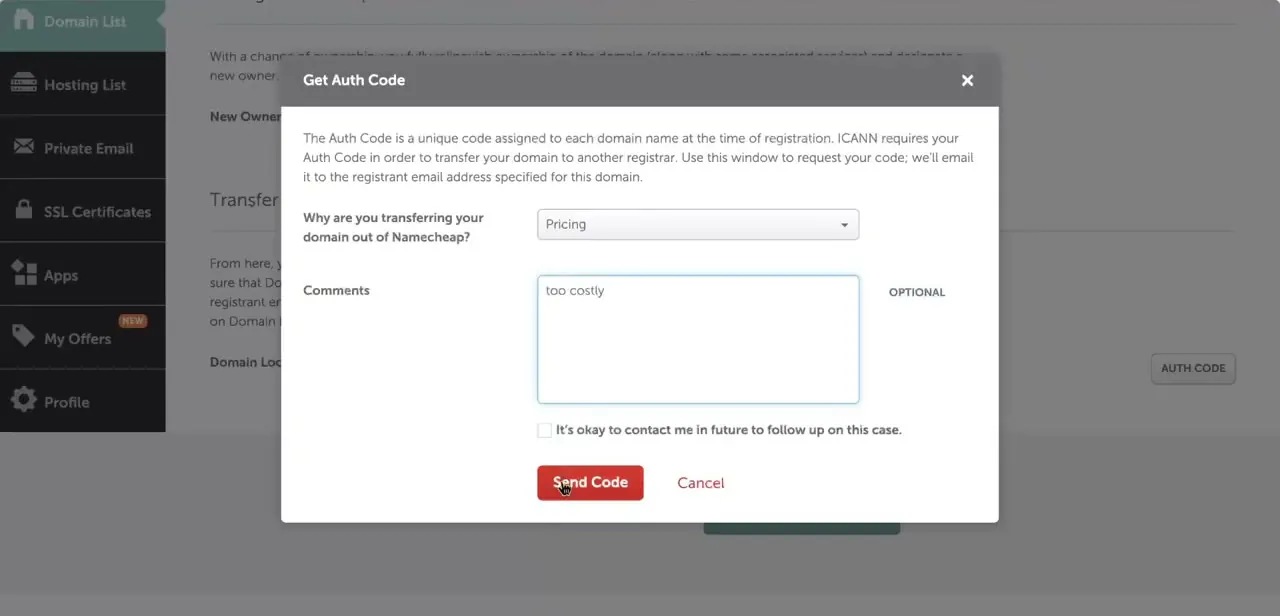
Still on that tab, use the Auth Code button to open the Get Auth Code dialog. Namecheap asks why you're transferring out (a simple dropdown reason such as Pricing), an optional comment, and a checkbox for follow-up contact.
Submitting sends the code by email to the registrant address on file, not to the screen in front of you. That's deliberate: this code alone can authorize moving the domain, so Namecheap won't just display it.
04Start the transfer in Squarespace
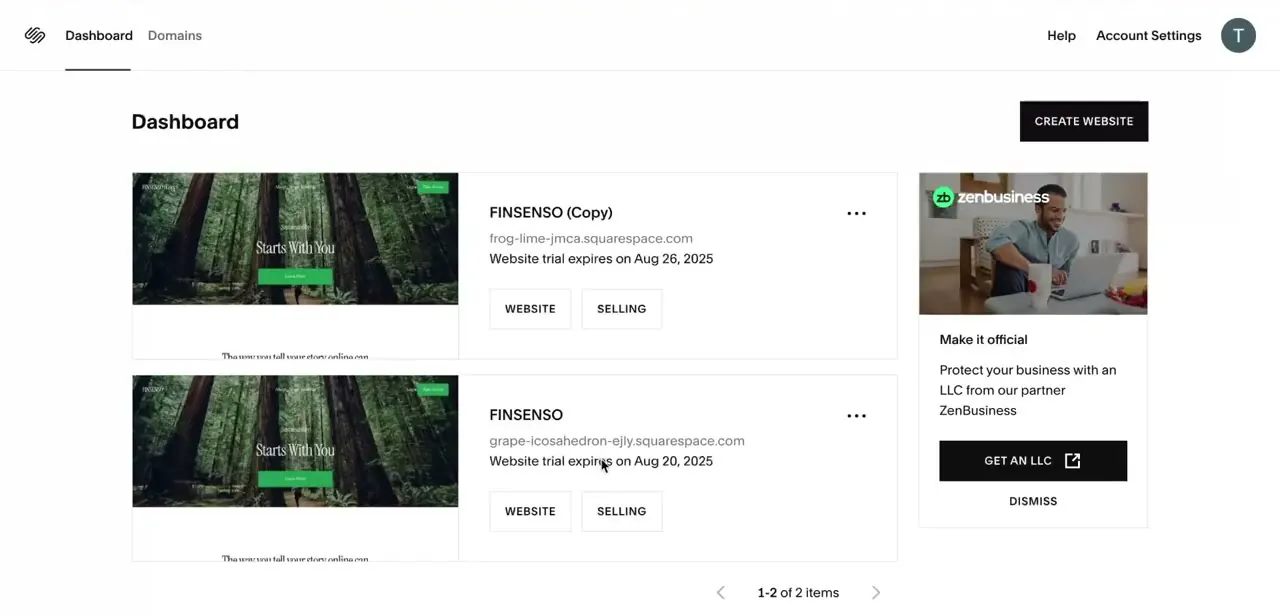
In Squarespace, open the Domains panel and choose Use a Domain I Own. Type the domain name, click Transfer Domain, and paste the Auth Code into the Authorization Code field. Squarespace pulls the domain's public registration data for you to confirm, then asks for billing details, since the registration fee is what's actually charged here, not a separate transfer fee.
05Approve the verification email
After you submit the Auth Code, ICANN rules require a confirmation email be sent to the registrant address, asking you to approve the transfer. This is separate from the Auth Code email. Don't skip it thinking the process is already moving: an unapproved request expires after a few days without completing.
06Wait out the transfer, then confirm it landed
Squarespace states the process can take up to 15 days end to end, even once everything on your side is submitted correctly, partly because Namecheap has a standard five-day window to acknowledge or contest the request before it can proceed automatically. Avoid changing the domain's lock status or contact details during this window; either can reset the transfer.
Once it finishes, the domain shows up under Domains in Squarespace, connected to the site you specified, and you'll get a confirmation email from Squarespace's customer care address. A registrar transfer changes who administers the domain, not where it points, so the live site shouldn't go offline.
If you run email through the domain's old DNS records, expect that to be briefly interrupted while everything settles. Check the site loads and SSL is active once the transfer confirms.
When it doesn't work
Squarespace rejects the transfer, citing the domain's age
Why: The domain was registered, or last moved between registrars, less than 60 days ago. This is an ICANN-wide rule, not something either company can waive.
Fix: Wait out the remainder of the 60-day window from the registration or last-transfer date, then submit the transfer again.
The transfer request expires without completing
Why: The ICANN verification email, sent to the registrant address after you submit the Auth Code in Squarespace, wasn't approved before it expired.
Fix: Check the registrant inbox and spam folder for the approval email. If it already expired, restart the transfer in Squarespace to trigger a new one.
Email tied to the domain stops working partway through
Why: Email hosted through Namecheap's DNS for that domain can be briefly disrupted while MX records move with the transfer.
Fix: Expect short downtime for domain-based email during the transfer window, and confirm the MX records carried over correctly once it finishes.
Frequently asked questions
Does my domain need to be a certain age before I can transfer it?
Yes. Both companies follow the ICANN rule that a domain must have been registered, or last transferred between registrars, at least 60 days ago. Domains containing "squarespace" or "sqsp", and some country-code domains such as .jp, .nz and .au, aren't eligible for transfer in at all.
How long does the transfer take?
Squarespace states the process can take up to 15 days. Part of that is a built-in five-day window during which Namecheap, as the losing registrar, can acknowledge or contest the request before it proceeds automatically.
Does transferring cost anything?
No separate transfer fee. You pay Squarespace's registration price for that TLD, which extends the domain by one year, the same as a normal renewal would.
Will my site or email go offline during the transfer?
The live site usually stays up, since a registrar transfer changes who administers the domain rather than where it points. If you use email hosted through the domain's old DNS records, expect brief interruption while everything settles.
Where does Namecheap send the Auth Code?
To the registrant email address on file for the domain, not to the screen in the dashboard. The code alone can authorize moving the domain, so Namecheap won't display it directly.
Do I need to cancel Namecheap hosting separately?
Yes, if you host anything with Namecheap beyond the domain itself. Registration and hosting are billed and cancelled independently, so moving the domain doesn't touch a separate hosting plan.
Sources and last check
Click path and screens come from a walkthrough recorded in July 2025. The 60-day eligibility rule, transfer cost, and timeline were re-checked against Namecheap's and Squarespace's official documentation in September 2026. That check corrected the timeline this guide previously gave (a flat five to seven days, versus Squarespace's stated up to 15) and added the eligibility requirements and ineligible-domain list it previously omitted.
About the author

Impran M N
I've been hooked on technology for as long as I can remember — especially the new tools and AI apps that seem to land every other week. Easy Tech Tuts is where I write up whatever I've just worked out: I do the task in the real product, record the screen, and turn it into the guide I wish I'd found first.