Easy Tech Tuts
How To Access Cpanel On Namecheap Easily 2026
By Impran M NLast checked against official docs
If you host with Namecheap, cPanel is where the day-to-day management happens: files, databases, domains, and email accounts all live there. This guide covers the quickest way to reach cPanel from your Namecheap dashboard on shared hosting, why reseller hosting takes a different route through WHM, and the direct login URLs to fall back on if the dashboard itself is unreachable.
Before you start
- An active Namecheap shared or reseller hosting subscription. A domain-only purchase doesn't include cPanel access.
01Log in and open the Hosting List
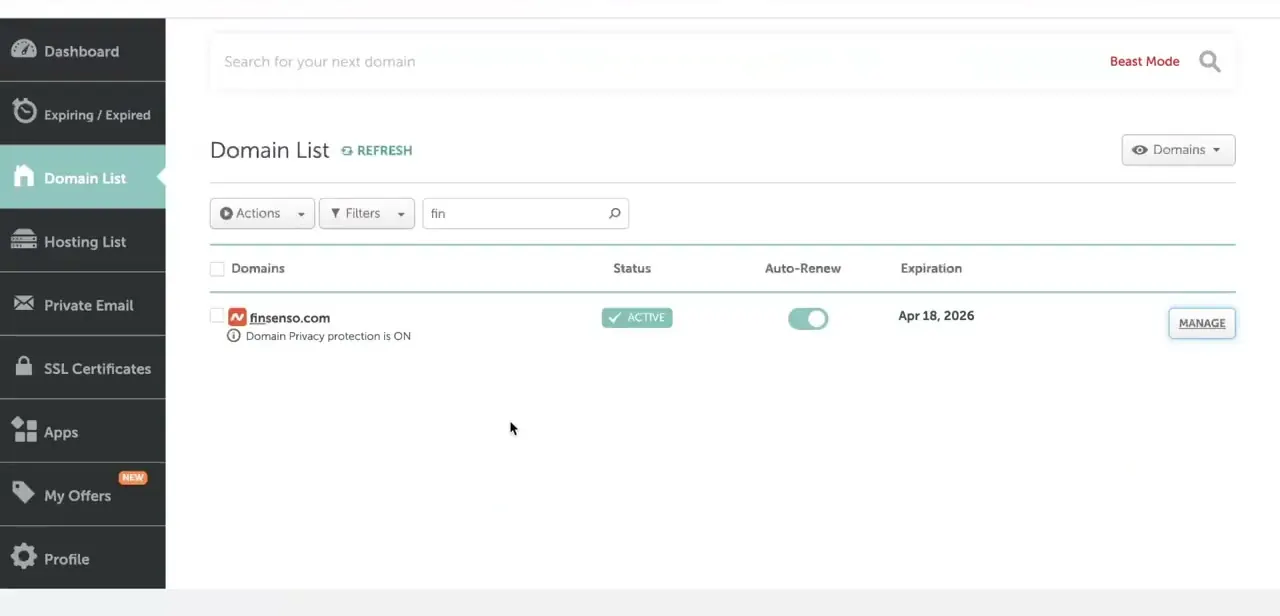
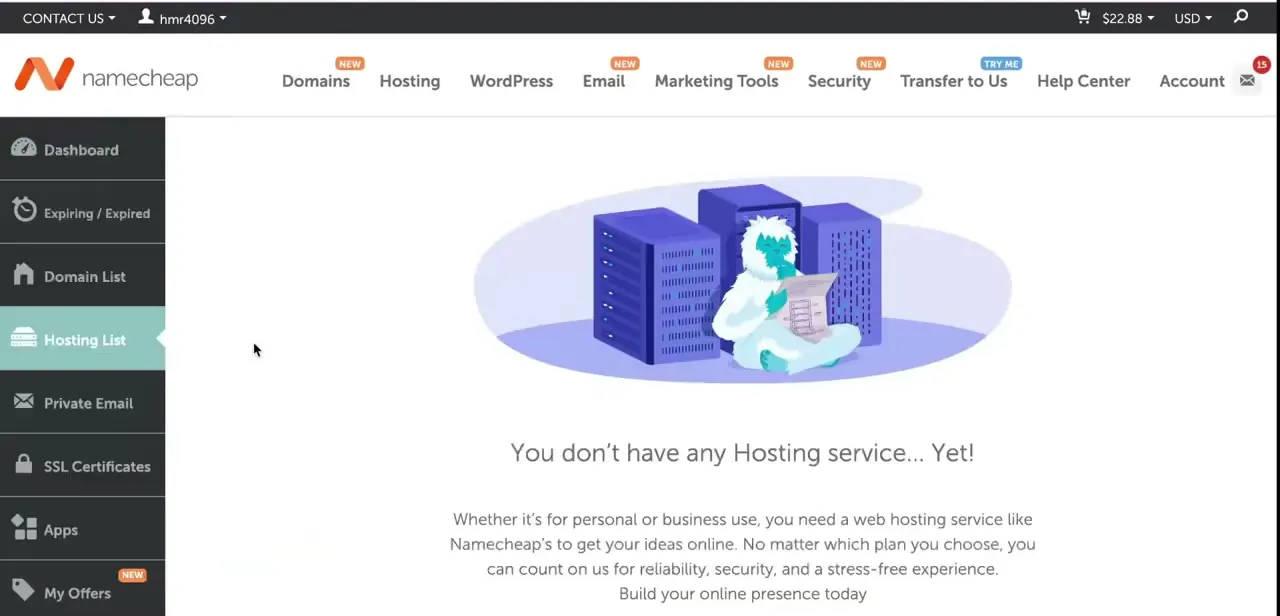
Sign in at namecheap.com with your account credentials, then use the left-hand sidebar in your dashboard to click Hosting List, sitting between Domain List and Private Email. This page lists every active hosting subscription tied to your account.
If your account has no hosting yet, Namecheap shows a plain "You don't have any Hosting service... Yet!" message here instead of a subscription table, a useful sanity check if the cPanel button seems to be missing entirely.
02Confirm your subscription is active
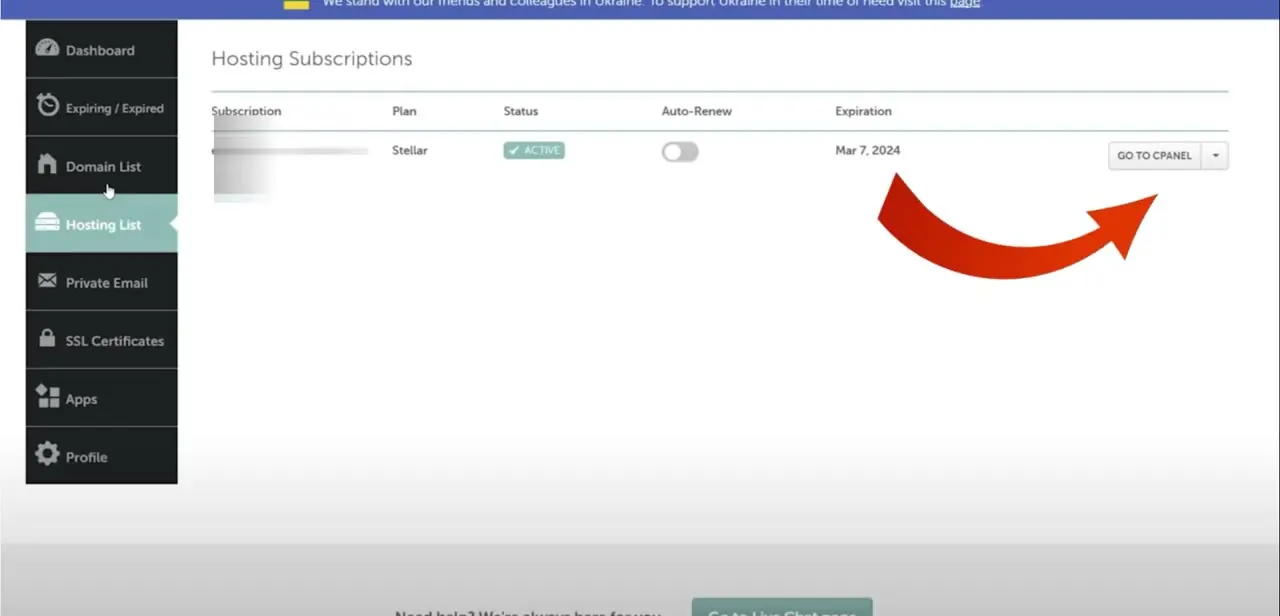
This page lists your plan as a row in a Hosting Subscriptions table, with columns for the plan name, its status, an auto-renew toggle, and the expiration date. Confirm the Status column reads Active before continuing. A plan that's expired or pending still shows in the list, but the cPanel access next to it behaves differently or disappears once the subscription has lapsed.
03Click Go to cPanel next to your plan
On the far right of your active subscription's row is a Go to cPanel button. Clicking it logs you straight into cPanel using your Namecheap session, with no separate cPanel username or password to remember.
This exact button applies to shared hosting. Reseller accounts work differently: a reseller's own panel is WHM, not cPanel, reached at yourdomain.tld/whm with the credentials from your welcome email, and individual client cPanel accounts are opened from inside WHM's List Accounts page rather than from the Namecheap dashboard.
04Get oriented inside cPanel, and use Softaculous for quick installs
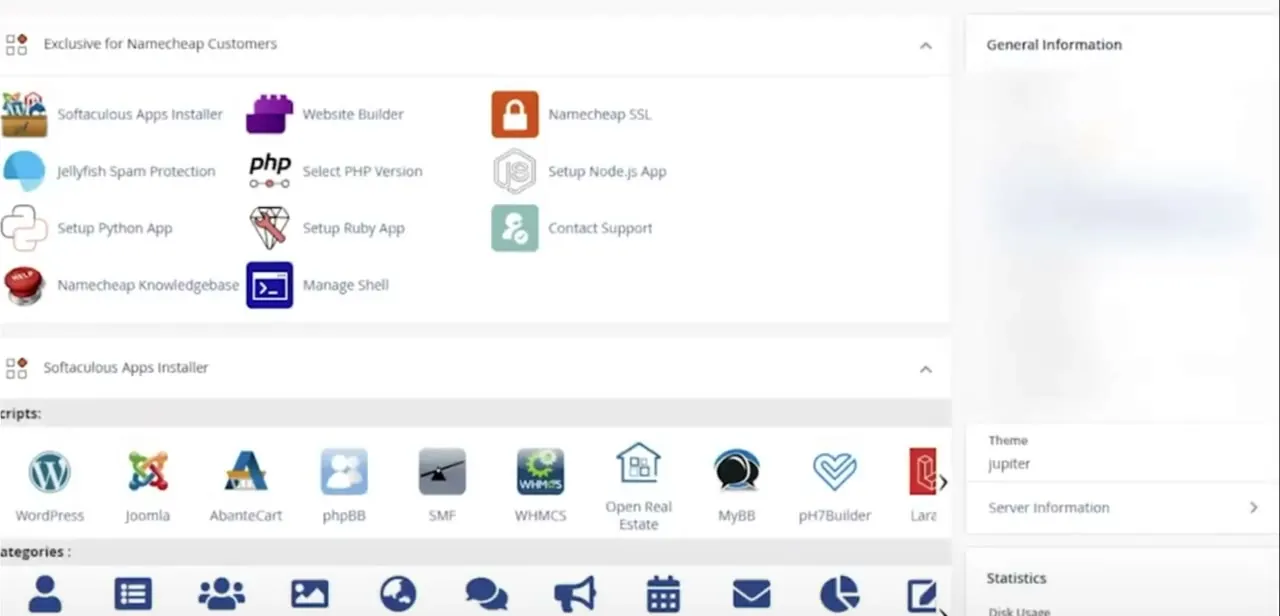
cPanel opens in a layout most hosting users will recognize: a General Information panel showing your account's theme and server details, and a grid of tool icons covering everything from file management to email. Under "Exclusive for Namecheap Customers" sit shortcuts Namecheap adds on top of the standard cPanel toolset, including AutoBackup, Namecheap SSL, Select PHP Version, Manage Shell, and the Softaculous Apps Installer.
If you're setting up a website rather than managing an existing one, Softaculous is worth opening first. It lists one-click installers for WordPress, Joomla, phpBB, WHMCS, and other platforms, usually faster than uploading files through File Manager for a fresh install.
05Manage files, databases, domains, and email
From this same cPanel home screen, scrolling further reveals the standard sections for File Manager, MySQL databases, domain and subdomain settings, and email account creation. Everything you'd normally do through cPanel on any host works the same way here; the Namecheap-specific shortcuts sit alongside the standard tools instead of replacing them.
06Reach cPanel a direct way if the dashboard route fails
When the Namecheap dashboard itself is unreachable, or you just want a bookmark that skips it, cPanel accepts direct logins too: yourdomain.tld/cpanel, or https://servername:2083 (unencrypted at http://servername:2082) using the server hostname from your welcome email. If the domain's nameservers or A record aren't pointed at Namecheap's hosting server yet, the domain-based URL won't resolve to cPanel; the server-hostname URL works regardless, which is why Namecheap's own troubleshooting article leads with it.
| Hosting type | How you get in |
|---|---|
| Shared hosting | Namecheap dashboard > Hosting List > Go to cPanel. No separate cPanel password needed. |
| Reseller hosting | Log in to WHM directly (yourdomain.tld/whm) with your welcome-email credentials, then open each client's cPanel from WHM's List Accounts page. |
When it doesn't work
cPanel says the login is invalid
Why: Usually stale or mistyped credentials, or logging in through a direct URL instead of the Namecheap dashboard.
Fix: Log in via Namecheap dashboard > Hosting List > Go to cPanel, or pull the correct credentials from your Hosting Account Details welcome email and reset the password if it still fails.
The domain-based cPanel URL (yourdomain.tld/cpanel) doesn't load
Why: The domain's nameservers or A record aren't pointed at Namecheap's hosting server yet.
Fix: Use the server-hostname URL instead (https://servername:2083), and allow up to 24 hours for DNS changes to propagate.
cPanel is unreachable and the site uses Cloudflare
Why: Cloudflare is proxying the cpanel subdomain, which blocks the connection.
Fix: Turn off proxying (the orange cloud) for the cpanel DNS record in Cloudflare, or use one of Namecheap's cPanel proxy links instead.
Login works on one network but not another
Why: An IP block on the server, sometimes tied to a dynamic or VPN IP address.
Fix: Check your current external IP and contact Namecheap support to confirm it isn't blocked, or adjust Cookie IP validation on VPS or dedicated plans.
Frequently asked questions
Do I need a separate cPanel username and password?
No. The Go to cPanel button on your Hosting List page logs you into cPanel automatically using your existing Namecheap session, so you don't need separate cPanel credentials for basic access.
Does this work for reseller hosting too?
Not the same way. Reseller accounts are managed through WHM, not the Go to cPanel button. You log in to WHM directly (yourdomain.tld/whm, using your welcome-email credentials) and open each client's cPanel account from WHM's List Accounts page.
What if I don't see a cPanel link in my dashboard?
Make sure you're looking at an active hosting plan rather than a domain-only product or an expired subscription. If the dashboard route still doesn't show a link, cPanel also accepts a direct login at yourdomain.tld/cpanel or https://servername:2083.
Can beginners use cPanel without technical experience?
Yes. cPanel is built around a visual grid of tool icons rather than command-line tools, and the Namecheap-exclusive shortcuts like Softaculous make common tasks like installing WordPress a few clicks instead of a manual setup.
What can I do once I'm inside cPanel?
The main sections are File Manager for site files, MySQL databases, domain and subdomain settings, and email account creation, plus Namecheap-specific tools like AutoBackup, Select PHP Version, Namecheap SSL, and the Softaculous Apps Installer for one-click app installs.
Is there a way into cPanel that doesn't go through the Namecheap dashboard?
Yes. cPanel accepts direct logins at yourdomain.tld/cpanel or https://servername:2083, using the server hostname from your hosting welcome email. This helps if the dashboard is down or the domain isn't fully pointed at Namecheap yet.
Why does cPanel say my login is invalid even with the right password?
Two common causes, per Namecheap's own troubleshooting: the domain's nameservers or DNS records aren't pointed at the hosting server yet, or a service like Cloudflare is proxying the cpanel subdomain. Logging in through the Namecheap dashboard instead of a direct URL sidesteps both while DNS settles.
Sources and last check
Click path and screens come from a walkthrough recorded in August 2026 on a shared hosting plan. The reseller-hosting claim, the Namecheap-exclusive tool list, and the troubleshooting causes were re-checked against Namecheap's own knowledgebase in September 2026. That check corrected the FAQ: reseller hosting does not use the same Go to cPanel button as shared hosting. It's managed through WHM, with individual client cPanel accounts opened from inside WHM.
About the author

Impran M N
I've been hooked on technology for as long as I can remember — especially the new tools and AI apps that seem to land every other week. Easy Tech Tuts is where I write up whatever I've just worked out: I do the task in the real product, record the screen, and turn it into the guide I wish I'd found first.