Easy Tech Tuts
How To Create Namecheap Email For Your Website Easily 2026
By Impran M NLast checked against official docs
A free @gmail or @outlook address doesn't do much for a business site, which is why pairing your domain with Namecheap's Private Email service is worth the small monthly cost. This guide covers picking a plan sized to how many mailboxes you need, creating your first mailbox once you've bought one, and the DNS step that's easy to skip and is the actual reason a new mailbox sometimes never receives mail.
Before you start
- A domain already added to your Namecheap account (or one you can point at Namecheap's mail servers)
- An active Private Email subscription for that domain — this is billed separately from domain registration or hosting
01Compare the Private Email plans
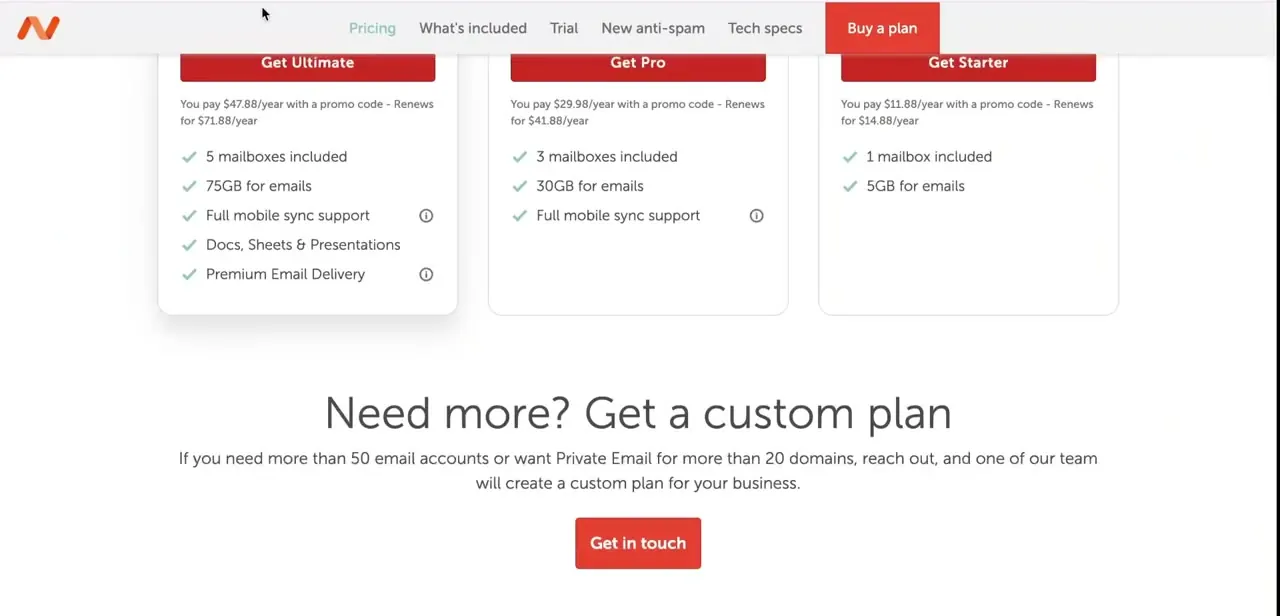
Namecheap's Private Email pricing page lists three tiers: Starter with 1 mailbox and 5GB, Pro with 3 mailboxes and 30GB plus full mobile sync, and Ultimate with 5 mailboxes, 75GB, mobile sync, Docs/Sheets/Presentations, and Premium Email Delivery (Ultimate's mail is sent from separate high-reputation servers). Docs, Sheets & Presentations is included from Pro upward, not only on Ultimate.
Each card shows a promotional first-term price next to a smaller renewal price — check the renewal figure, since that's what recurs from year two onward. Namecheap also offers a custom plan, reachable through Get in touch, for anyone needing more than 50 mailboxes or Private Email on more than 20 domains.
02Find your domain in the Namecheap dashboard
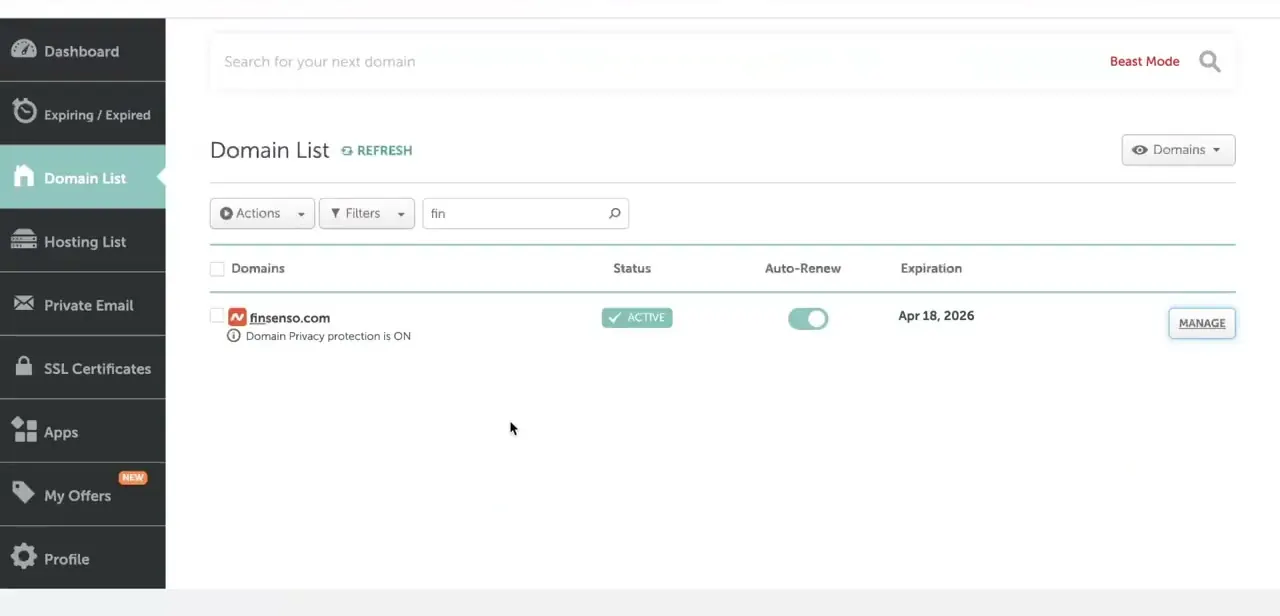
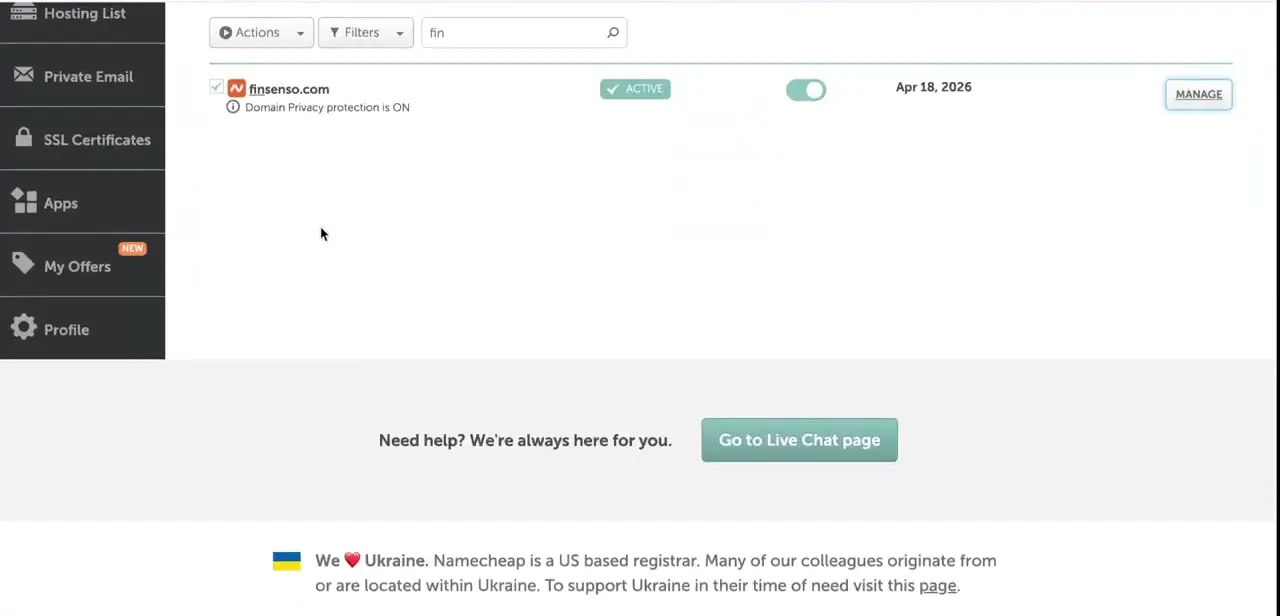
After purchasing, your domain shows up under Domain List in the left-hand dashboard menu, marked Active with domain privacy protection noted underneath it. Clicking Manage on the domain leads into its DNS and email settings. This is one valid route to Private Email; the sidebar also has a Private Email link that goes there more directly, covered in the next step.
03Open Private Email Subscriptions
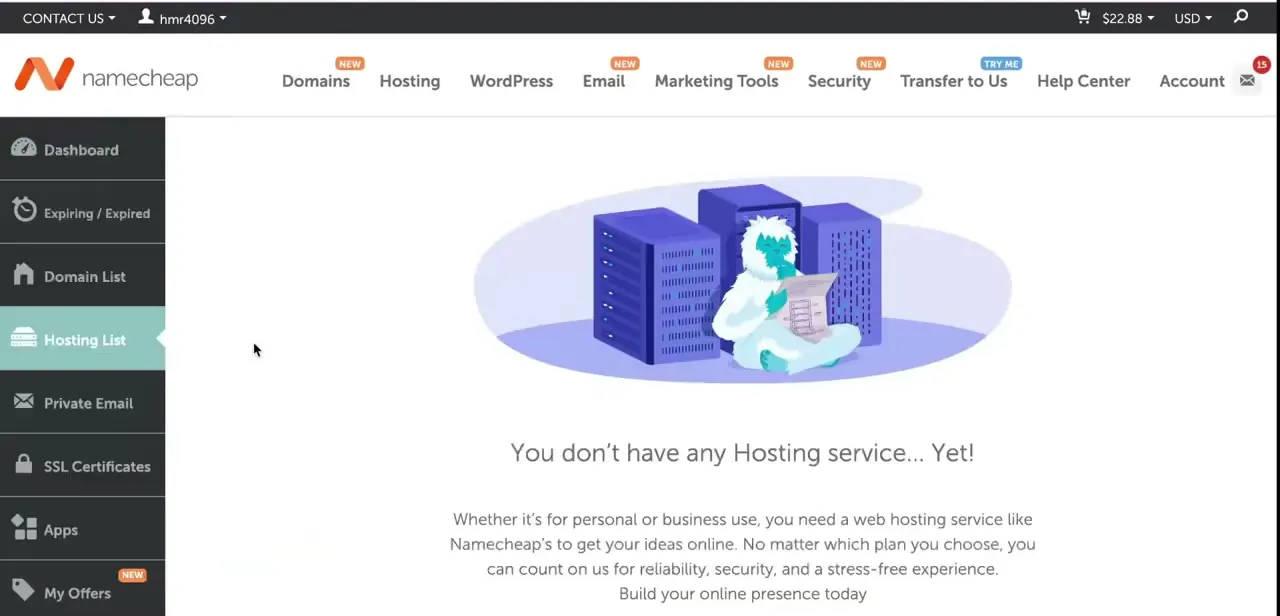
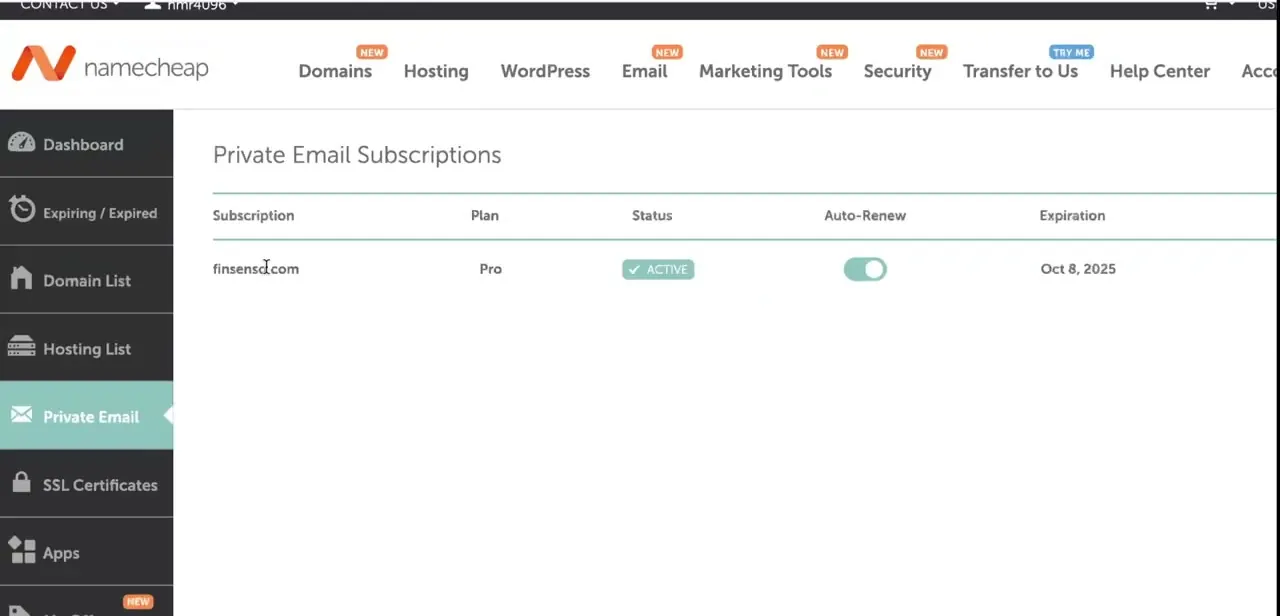
Click Private Email in the dashboard's left sidebar to reach Private Email Subscriptions, which lists your domain, its plan, status, whether auto-renew is on, and the exact expiration date. Confirm the subscription reads Active before trying to create a mailbox. A lapsed or still-pending subscription blocks mailbox creation even though the domain itself keeps showing as active, and that mismatch is a common source of confusion.
04Create your first mailbox
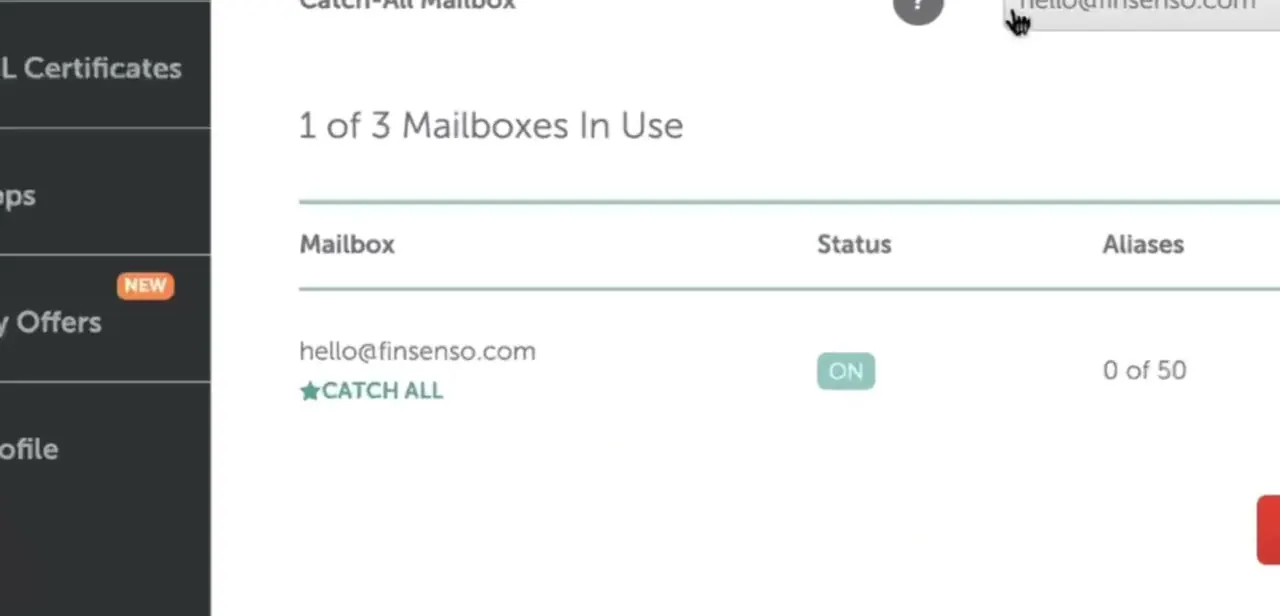
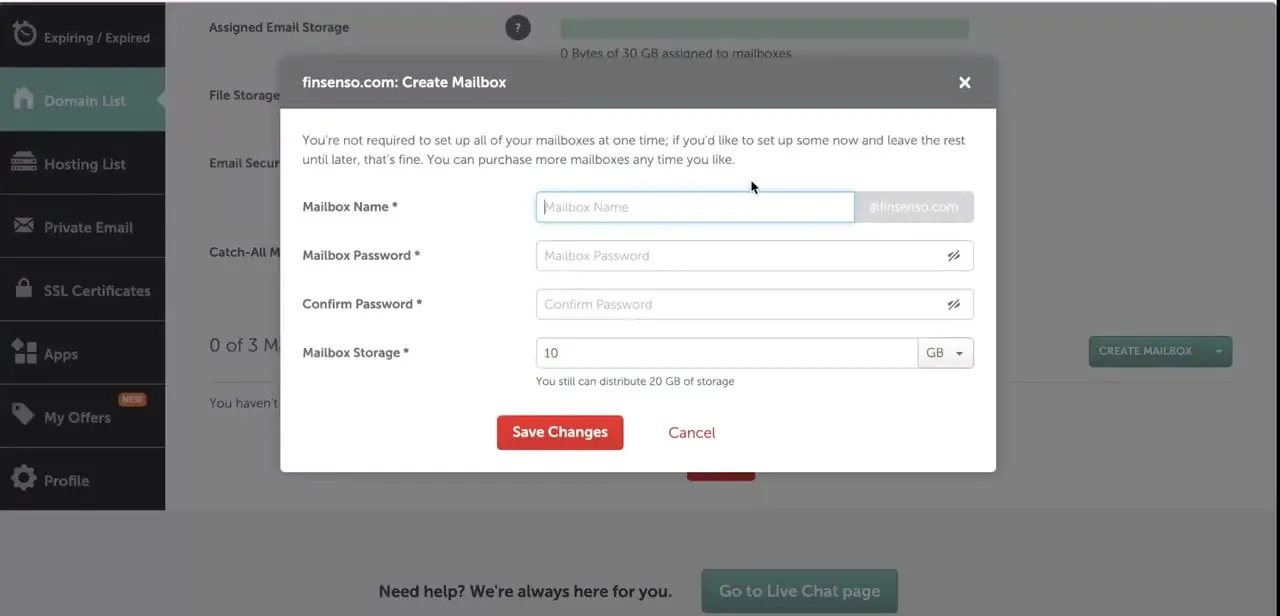
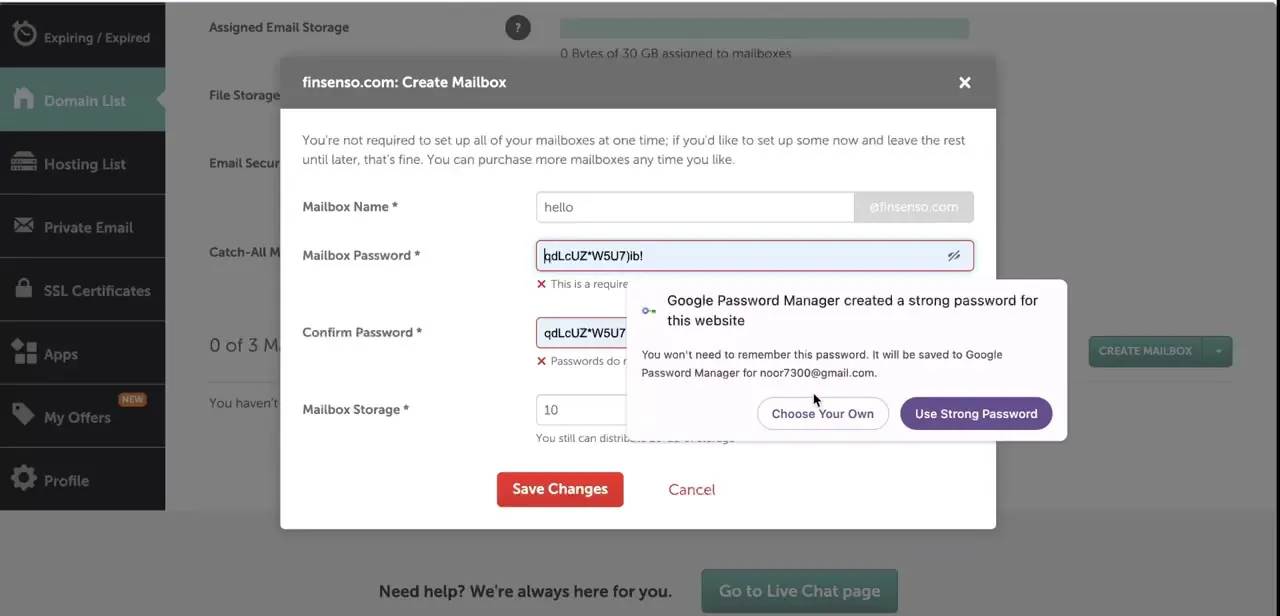
From the subscription's management screen, click Create Mailbox to open a form asking for a Mailbox Name (the part before the @ sign), a password, a password confirmation, and how much of the plan's total storage to assign to this mailbox. Namecheap doesn't require setting up every included mailbox right away — create one now and add the rest whenever you need them. If the button reads Buy Mailbox instead of Create Mailbox, every mailbox slot on the plan is already used and an additional one needs to be purchased first.
05Set a strong password and save
Clicking into the password field, a browser password manager may offer to generate and store a strong random one, which is a sensible option for anything not typed from memory day to day, like a shared support inbox. Re-enter the same password in Confirm Password; a short random string is easy to mistype once, and the form flags a mismatch immediately rather than after Save Changes is clicked. Click Save Changes to finish and activate the mailbox.
06Point the domain's MX records so mail arrives
Private Email needs two MX records: mx1.privateemail.com and mx2.privateemail.com, both at priority 10. If the domain runs on Namecheap's own nameservers, open Advanced DNS, scroll to Mail Settings, and choose Private Email from the dropdown, which writes both records for you.
If DNS is hosted elsewhere (Cloudflare, GoDaddy, a previous host), those same two records need to be added manually in that provider's panel, and any old MX records from a prior email provider should be removed first. Namecheap checks for the record every 15 minutes and activates the subscription once it's detected, though propagation can take up to 4 hours. For subscriptions bought from June 2026 onward, a DKIM record (host privateemail._domainkey) is also available immediately and is worth adding alongside SPF so outgoing mail is less likely to land in spam.
07Connect the mailbox to Gmail or Outlook
Once the mailbox exists, either use Namecheap's webmail directly or connect the address to a client already in daily use. Gmail's "Add another email address" option under Accounts settings, and the equivalent "Add account" flow in Outlook, both accept the IMAP or POP settings Namecheap lists on the mailbox's management page. That means checking the domain's mail doesn't require a separate inbox habit just because the address lives outside Gmail's own servers.
| Plan | Promo price (year 1) | Renews at | Mailboxes | Storage | Extras |
|---|---|---|---|---|---|
| Starter | $11.88/yr | $14.88/yr | 1 | 5GB | — |
| Pro | $29.98/yr | $41.88/yr | 3 | 30GB | Full mobile sync, Docs/Sheets/Presentations |
| Ultimate | $47.88/yr | $71.88/yr | 5 | 75GB | All of Pro's extras, plus Premium Email Delivery |
Prices shown were current at the time of recording and reflect promotional first-term pricing; Namecheap may adjust list prices, and 2026 subscriptions may show these tiers under the newer Launch/Expand/Scale Mail names at the same per-mailbox cost.
When it doesn't work
"Buy Mailbox" shows up instead of "Create Mailbox"
Why: Every mailbox slot included in the current plan is already in use.
Fix: Purchase an additional mailbox for the subscription, then create the new address.
Save Changes rejects the new mailbox with a password mismatch
Why: The Mailbox Password and Confirm Password fields don't match, which is easy to trigger with a long generated password typed or pasted twice.
Fix: Use the password manager's autofill for both fields, or copy the generated password once and paste it into each field instead of retyping it.
The mailbox sends mail but never seems to receive any
Why: MX records still point at a previous email provider, or the two Private Email MX records (mx1/mx2.privateemail.com, priority 10) were never added on a third-party DNS host.
Fix: Add or correct both MX records in the domain's DNS panel, remove any conflicting old MX records, and allow up to 4 hours for propagation and Namecheap's verification check.
Outgoing mail lands in recipients' spam folders
Why: No SPF or DKIM record is set for the domain, so receiving mail servers can't confirm the mail came from Namecheap's servers.
Fix: Add the SPF record and, for subscriptions from June 2026 onward, the DKIM record at privateemail._domainkey, following Namecheap's DNS setup guide for the domain's specific nameserver situation.
Frequently asked questions
Which DNS records does Namecheap Private Email need?
Two MX records, mx1.privateemail.com and mx2.privateemail.com, both at priority 10. Domains on Namecheap's own nameservers can add both at once from Advanced DNS's Mail Settings dropdown; third-party DNS hosts need them added by hand.
Can I use my custom domain email in Gmail or Outlook?
Yes. Once the mailbox is created, connect it in Gmail or Outlook using the IMAP or POP settings listed on the mailbox's management page in Namecheap.
Do I have to create all my mailboxes at once?
No. Namecheap doesn't require setting up every mailbox included in a plan right away; set up what's needed now and create the rest later.
Why does "Buy Mailbox" appear instead of "Create Mailbox"?
It means the plan's mailbox slots are all used. An additional mailbox has to be purchased before another one can be created.
How long does it take for a new mailbox to start receiving mail?
Namecheap checks the domain's MX records every 15 minutes and activates the subscription once they're detected, but full DNS propagation can take up to 4 hours, longer in rare cases.
Are the plans still called Starter, Pro, and Ultimate?
Mostly, yes, though Namecheap has begun rolling out a rebuilt Private Email platform since June 2026 and lists the same tiers under new names in places (Launch, Expand, and Scale Mail) at identical per-mailbox prices. Expect either set of names depending on when the account or subscription was created.
Sources and last check
Click path, screens, and pricing shown in the table come from a walkthrough recording. Mailbox counts, storage, custom-plan threshold, MX record values, DNS setup steps, and the 2026 plan-renaming detail were checked against Namecheap's official knowledgebase in September 2026; that check is also what corrected the plan-comparison step, which had implied Docs/Sheets/Presentations was Ultimate-only when it starts at Pro.
About the author

Impran M N
I've been hooked on technology for as long as I can remember — especially the new tools and AI apps that seem to land every other week. Easy Tech Tuts is where I write up whatever I've just worked out: I do the task in the real product, record the screen, and turn it into the guide I wish I'd found first.