Easy Tech Tuts
How to Change DNS on Namecheap, Add Dns records like TXT, CName, MX Easily 2026
By Impran M NLast checked against official docs
Managing DNS records in Namecheap lets you connect email services, verify domain ownership, and point subdomains at third-party hosting, but the panel packs a lot into one screen and it's easy to edit the wrong row. This guide covers finding a domain's Advanced DNS panel, reading the records already there so you don't overwrite something working, and adding TXT, CNAME, and MX records correctly. MX records specifically don't work the same way as the other two.
01Open your domain list
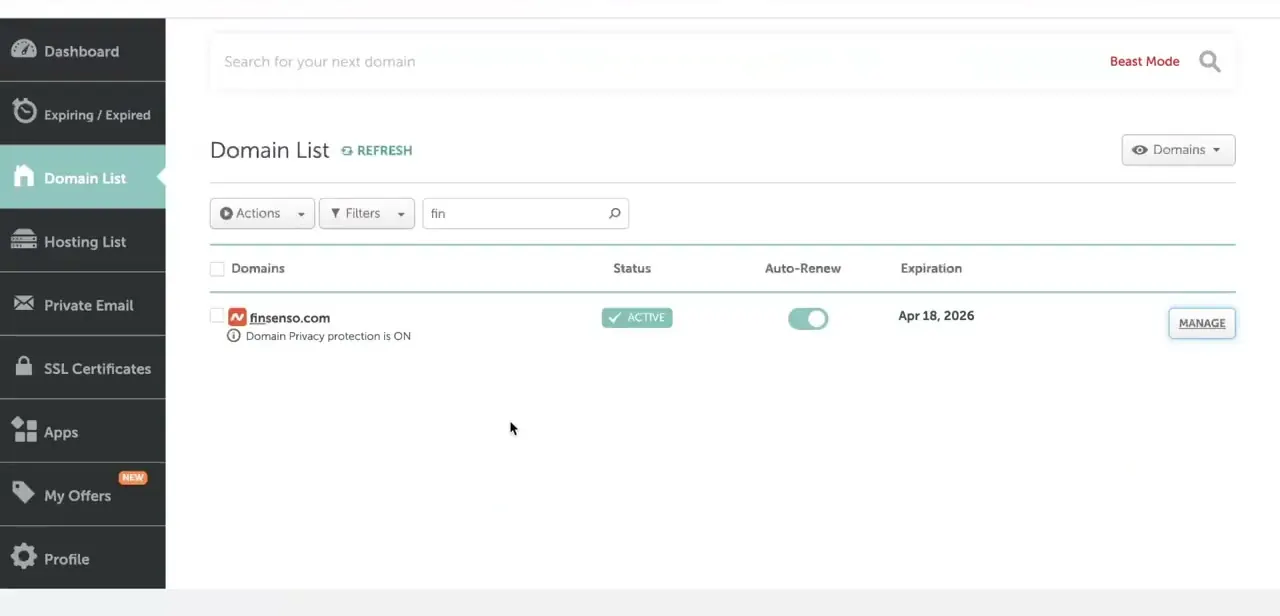
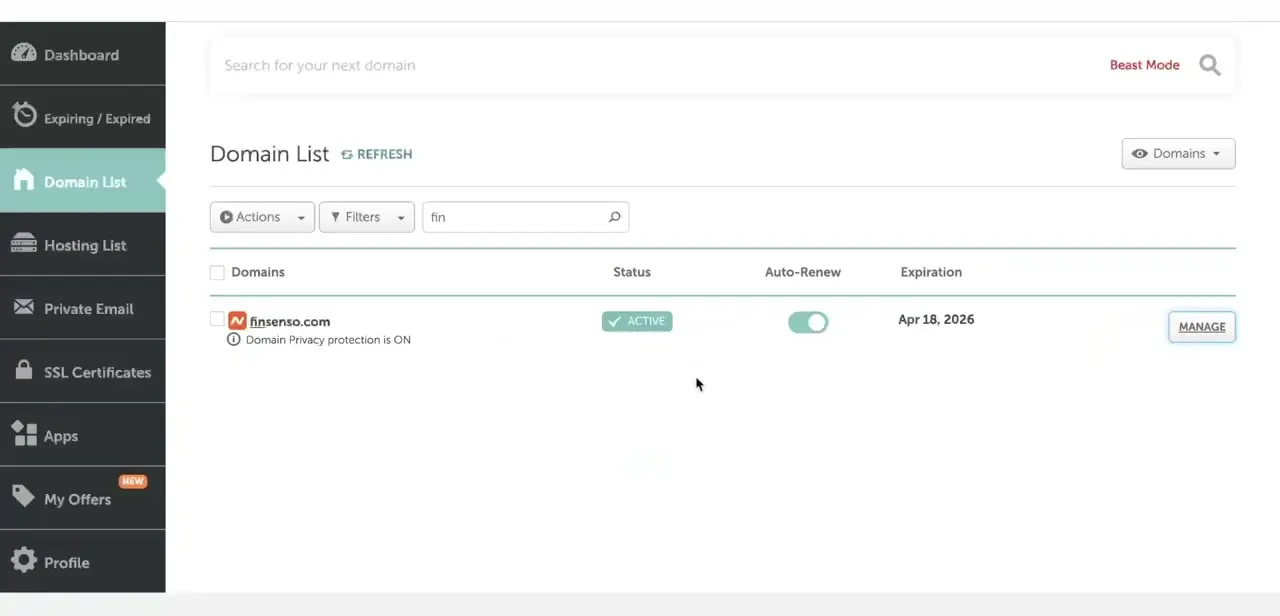
Log in to Namecheap and land on the Domain List screen, which shows every domain on your account with its status, auto-renew setting, and expiration date. Confirm the domain you need shows as Active; an expired or locked domain won't let DNS changes take effect properly. Click Manage next to it to open its individual settings.
02Go to Advanced DNS
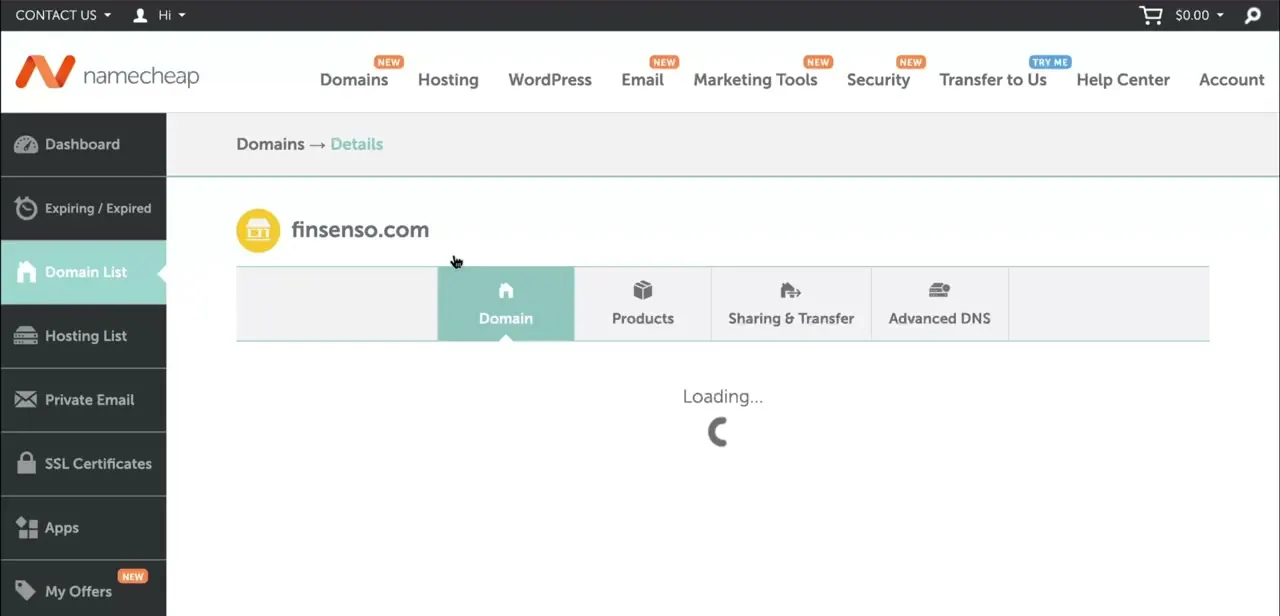
On the domain's detail page, click the Advanced DNS tab. Domain, Products, and Sharing & Transfer sit alongside it, but Advanced DNS is the only one that exposes host records. The page briefly shows a loading state while it pulls the domain's current configuration.
03Read the existing host records before changing anything
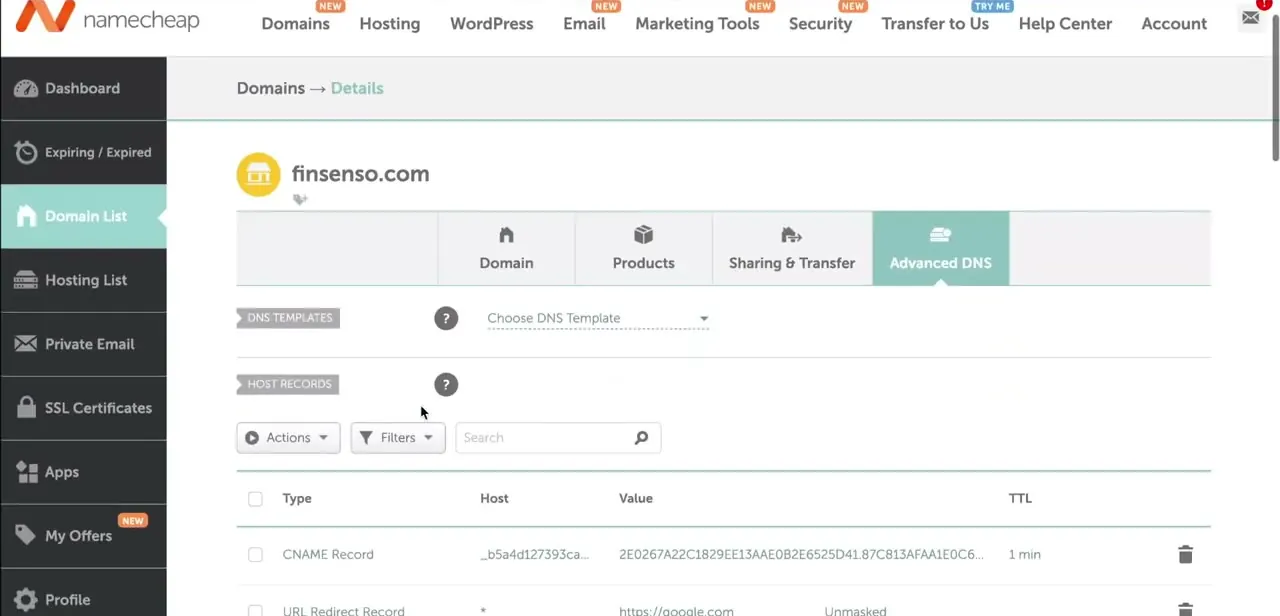
Once Advanced DNS loads, the Host Records table lists every record currently active, with columns for Type, Host, Value, and TTL. Scan what's there before touching anything, and keep one specific rule in mind: don't add a CNAME record on the bare domain (the @ host). Namecheap's own guidance warns that a CNAME there can disrupt MX records and break email, which is easy to do by accident if a service's setup instructions say to alias the root domain without mentioning the exception.
04Add a TXT or CNAME record
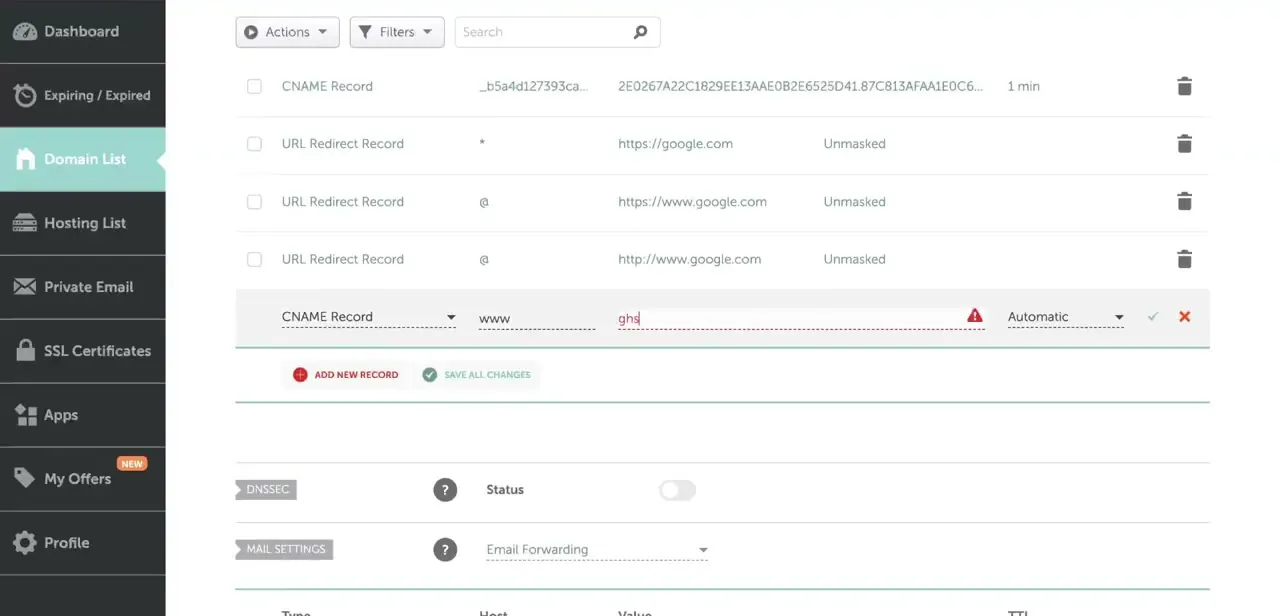
Click Add New Record, then use the Type dropdown to choose TXT Record or CNAME Record. Fill in Host with the subdomain or prefix the service specifies, often @ for the root or a value like www for CNAME, and paste Value exactly as provided; a single mismatched character breaks verification. Leave TTL on Automatic unless a service asks for something shorter.
05Add an MX record: this one works differently
MX records aren't just another row in Add New Record the way TXT and CNAME are. Further down the Advanced DNS page, Namecheap has a separate Mail Settings section with its own dropdown: No Email Service, Email Forwarding, MXE Record, Custom MX, Private Email, and Gmail (currently listed as unavailable; use Custom MX for Google Workspace instead).
Setting up custom email hosting means switching this dropdown to Custom MX, then entering the mail server as the MX value with a priority number, plus a matching A record if the mail server address doesn't already resolve. Leaving Mail Settings on something else, like Email Forwarding, while also trying to add an MX record by hand is the most common reason mail routing doesn't behave as expected.
06Save, verify, and give it time
Click the green checkmark next to a row, or Save All Changes for several at once; a red warning icon means something in that row needs fixing first. Reopen Advanced DNS afterward and confirm the record looks exactly right.
A typo here is far easier to catch now than after a service has already failed to verify. Namecheap's own systems typically reflect a newly saved record within about 30 minutes.
Other DNS resolvers around the internet cache records according to their TTL, though, so a service checking from outside Namecheap can still take longer to see the change, especially if the previous record had a long TTL. If a check fails immediately after saving, that's usually just too soon to ask.
When it doesn't work
A new MX record was added, but mail still isn't delivering
Why: MX records aren't controlled purely through Add New Record. The separate Mail Settings dropdown needs to be set to Custom MX; if it's still on Email Forwarding or another option, that setting overrides or conflicts with a manually added MX row.
Fix: Open Mail Settings, switch it to Custom MX, and re-enter the mail server there with its priority. Add an A record for the mail server's hostname if it doesn't already resolve.
Email stopped working after adding a CNAME record
Why: The CNAME was added on the bare domain (@ host). Namecheap warns this can disrupt MX records for that domain.
Fix: Remove the CNAME from the root host. If a service needs the root domain aliased, use an ALIAS record instead, which Namecheap supports specifically because it can coexist with MX records.
A third-party service says it still can't find the record right after saving
Why: Namecheap's own propagation is normally around 30 minutes, but resolvers elsewhere on the internet cache the domain's previous DNS state according to its TTL, which can run much longer than that.
Fix: Wait at least 30 minutes and recheck. If the previous record had a long TTL, allow more time before assuming the entry is wrong.
Frequently asked questions
What is a TXT record typically used for?
Most often to verify domain ownership for services like Google Workspace, Microsoft 365, or other platforms that need proof you control the domain.
Can I add an MX record the same way as a TXT or CNAME record?
Not exactly. Namecheap routes mail through a separate Mail Settings dropdown further down the Advanced DNS page. That needs to be set to Custom MX before a manually entered MX record will control mail delivery.
Why would I need to add an MX record?
MX records tell the internet where to deliver mail for your domain, so they matter if you're setting up custom email hosting through a provider other than your registrar, via Namecheap's Custom MX option.
How long does a DNS change really take to apply?
Namecheap says its own systems typically pick up a new record within about 30 minutes. Other resolvers across the internet can take longer, since they cache the domain's previous DNS answers according to that record's TTL.
What happens if I enter a DNS record incorrectly?
An incorrect record can break domain verification or email delivery, so compare each field character-for-character against what the service provided before saving.
Do I need to touch existing records to add a new one?
No. Adding a new TXT, CNAME, or MX record is done through Add New Record (or Mail Settings for MX), and existing host records stay untouched unless you edit or delete them directly.
Sources and last check
Click path and screens come from a walkthrough recorded in August 2026. In September 2026 the record-type behavior and propagation timing were re-checked against Namecheap's own knowledgebase. That check corrected the article's treatment of MX records as just another Add New Record entry (they route through the separate Mail Settings dropdown) and replaced the vague 'a few minutes to 48 hours' propagation claim with Namecheap's own stated figure plus the TTL caveat that explains the longer end of that range.
About the author

Impran M N
I've been hooked on technology for as long as I can remember — especially the new tools and AI apps that seem to land every other week. Easy Tech Tuts is where I write up whatever I've just worked out: I do the task in the real product, record the screen, and turn it into the guide I wish I'd found first.