Easy Tech Tuts
How to Send Automatic Emails in Jira Easily 2026
By Impran M NLast checked against official docs
Jira already emails people constantly, and that's exactly the problem: the default notification scheme fires on everything, and your team filtered it into a folder nobody reads long ago. Automatic emails people open instead come from automation rules, where you choose the precise event, the precise recipients, and write the subject line yourself.
This guide builds one from an empty rule to a live one, covering the trigger, the Send customized email action (Atlassian's replacement for the older Send email action) and its recipient options, the smart values that put real issue data into the message, and the conditions that stop a well-meant rule from turning into noise. It also covers the outgoing mail settings people forget to check when a rule runs successfully but nothing arrives.
01Know which of Jira's two email systems you want
Jira sends mail two different ways, and picking the wrong one is why so many setups end up half-working. Notification schemes are the built-in system: they map events like Issue Created or Issue Assigned to roles like Reporter, Assignee and Watchers, and they are all-or-nothing per event with no control over wording.
Automation rules are the flexible system: you define the trigger, filter it with conditions, and compose the email yourself with real issue fields in it. If you want "tell the assignee when something lands on them," the notification scheme already does that.
If you want "email the client's address when a bug moves to Done, with the issue key and a link in the subject," you need an automation rule. This guide builds the second kind.
02Confirm outgoing mail is configured
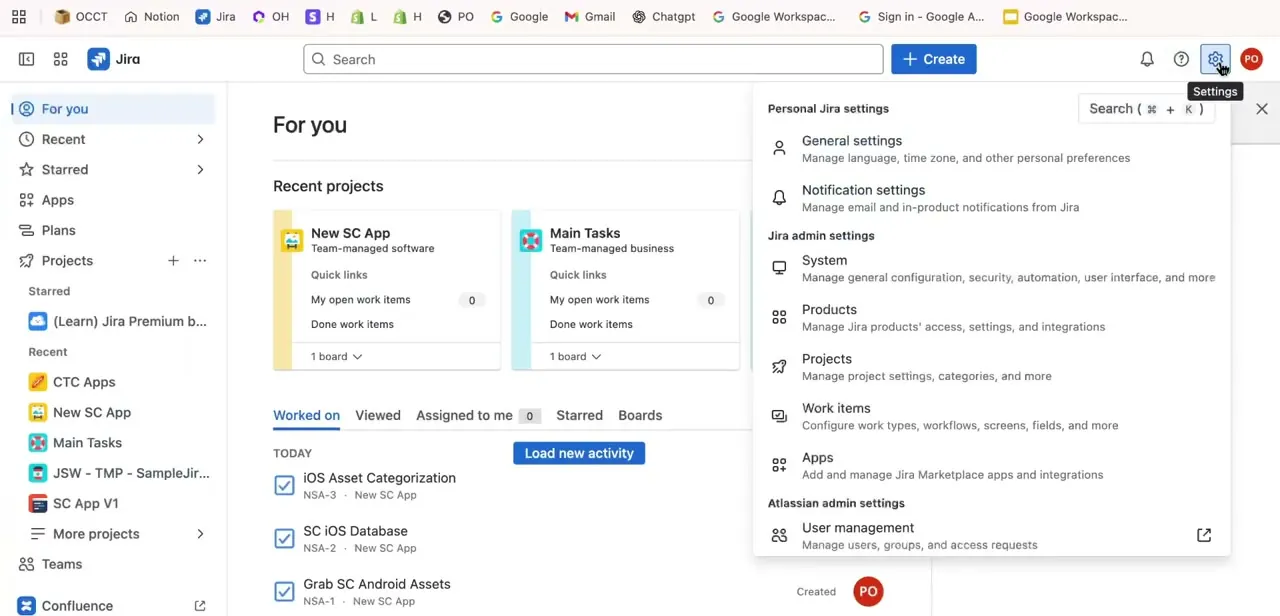
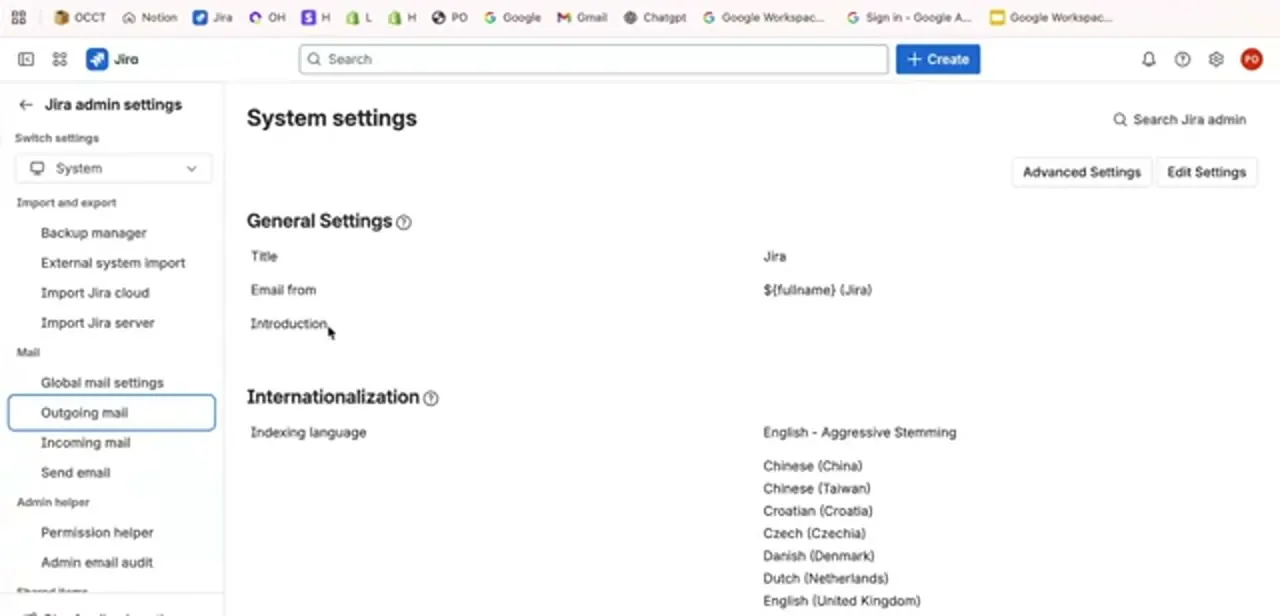
Before building anything, check that your instance can send mail. In Jira's admin settings, the System section has a Mail group containing Global mail settings, Outgoing mail, Incoming mail and Send email.
Outgoing mail is where the sending configuration lives, and there is a Send email page for firing a test message at yourself. The General Settings block above it also holds the Email from value, which controls the display name on outbound mail and is templated by default as the acting user's full name followed by Jira.
Two things commonly bite here: outgoing mail being globally disabled after a migration, and a From name so generic that recipients can't tell which instance a message came from. Fix both now. A rule that runs perfectly and sends nothing is a miserable thing to debug later.
03Create a rule in the project's Automation settings
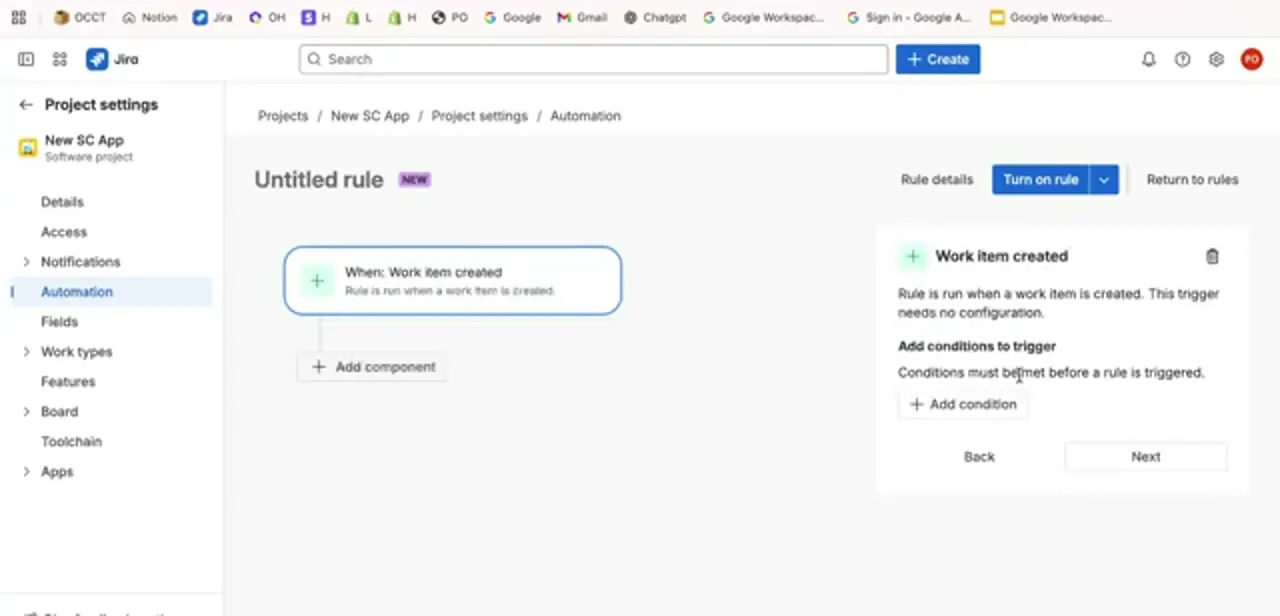
Open the project, go to Project settings, and choose Automation from the left menu. Create a new rule and Jira drops you into the rule builder with a single card waiting for a trigger.
Pick the event that should start the rule. Work item created is the obvious one for a new-ticket alert, and Jira notes on the panel that this trigger needs no configuration at all.
Other common choices are Work item transitioned for status changes, Field value changed for things like priority, and Scheduled if you want a digest at a fixed time instead of a message per event. The rule is created at project level here, which keeps its execution limits and blast radius contained. A Jira admin can create the same thing globally across projects if the need is wider.
04Add the Send customized email action and choose recipients
Click Add component, choose New action, and pick Send customized email. Atlassian retired the plain Send email action during 2025; any existing rule still using it keeps working and was migrated automatically, but a rule you build today only offers the newer action.
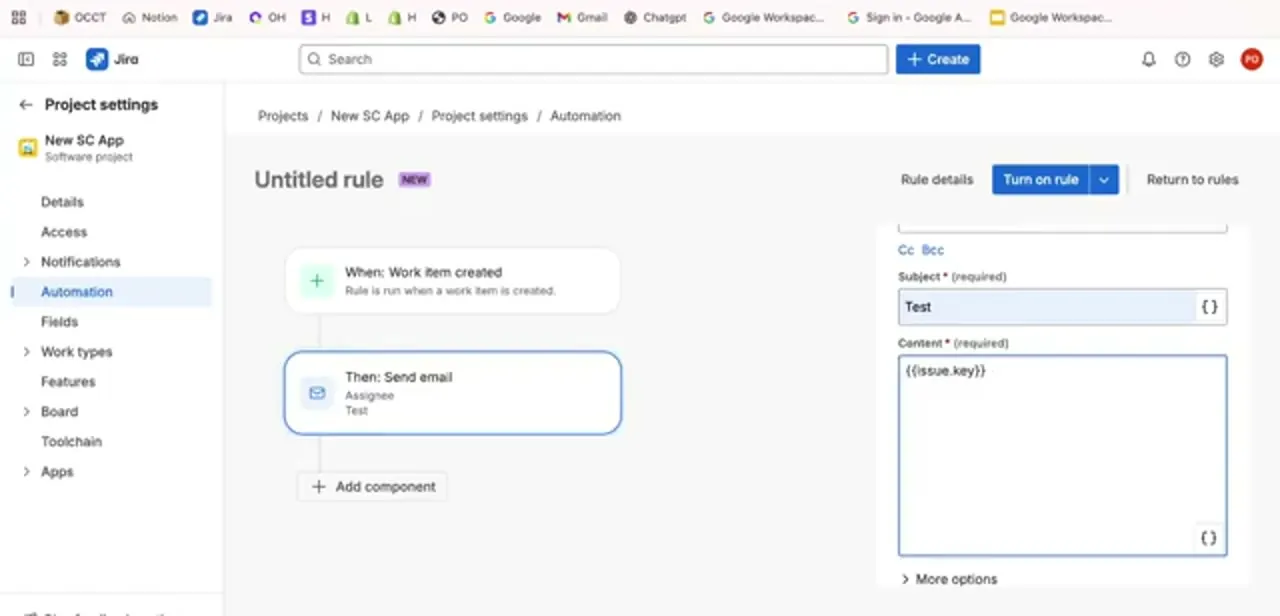
The panel gives you a Recipient(s) field, a From option (your default automation address, or a custom sender address a Jira admin has configured), a required Subject, and a Content field that can be plain text, rich text or HTML. Recipients are the part worth slowing down for: you can address a role instead of a person (Assignee, Reporter, Watchers, a project role, or all customers involved on a service project), which keeps the rule correct as people change, or you can type an external address for someone with no Jira account, which is how you keep a client informed without buying them a licence. Addressing the Assignee, as in the rule shown here, means the message follows whoever the work belongs to at the moment the rule runs, not whoever it belonged to when you wrote it.
05Put real issue data in the message with smart values
A bare subject like "Test" tells nobody anything, and this is where most automation emails fail. Smart values are placeholders in double curly braces that Jira replaces at send time, and the braces button at the corner of each field inserts them.
The useful set is small: {{issue.key}} for the ticket ID, {{issue.summary}} for the title, {{issue.status.name}} for where it now sits, {{issue.assignee.displayName}} for who owns it, and {{issue.url}} for a clickable link straight to the work item. A subject built from {{issue.key}} - {{issue.summary}} makes the inbox scannable on its own, and a body with the status, the assignee and the URL means most recipients never need to open Jira to know what happened.
Keep the body short. An automated email that reads like a report gets skimmed like one.
06Narrow it with conditions before you turn it on
A trigger on its own fires for every work item in the project, which is how automation earns its reputation for spam. Add a condition between the trigger and the action to narrow it: an issue-type condition so only Bugs qualify, a JQL condition for something specific like priority in (High, Highest), or a user condition so the rule ignores changes made by the automation account itself.
That last one matters more than it sounds: rules that respond to their own edits are the classic cause of loops, and Jira's rule details also carry a checkbox controlling whether a rule may be triggered by other rules. Every condition you add is one fewer email your team learns to ignore.
07Turn the rule on, test it, and read the audit log
Give the rule a real name in place of Untitled rule (future you will be grateful when there are fifteen of them), then click Turn on rule. Test it immediately by performing the actual trigger: create a work item, or transition one, and watch what arrives.
If nothing does, open the rule's audit log, which records every execution with its outcome and tells you whether the rule matched but the email failed, or the rule never fired at all. Those are entirely different problems: the first points at mail configuration or an invalid recipient, the second at your trigger or conditions.
Once it works, revisit it after a fortnight and ask whether people are still reading the messages. Automation earns its place by staying rare enough to notice.
When it doesn't work
The audit log shows the rule ran, but no email arrives
Why: Outgoing mail is disabled at the instance level, or nobody has confirmed it works with a test message.
Fix: Check System > Mail > Outgoing mail is enabled, then send a test from the Send email admin page before assuming the rule itself is broken.
Emails stop arriving partway through a bulk change
Why: The Free plan caps automation email sending at 100 messages in a rolling 24-hour window.
Fix: Address a role or group in one email instead of firing a separate execution per recipient, or move to a paid plan if the volume is a regular need.
An external client address never gets the message, even though the audit log shows success
Why: A Jira admin has restricted automation from emailing addresses outside the organization.
Fix: Ask a Jira admin to check the site's automation security settings for external recipient restrictions before assuming the rule is misconfigured.
Frequently asked questions
What's the difference between Jira notification schemes and automation rules?
Notification schemes map built-in events to roles like Reporter and Watchers with fixed wording. Automation rules let you choose the trigger, filter it with conditions, pick any recipient including external addresses, and write the subject and body yourself.
Can Jira send an automatic email to someone without a Jira account?
Yes. In the email action's Recipient(s) field you can enter an external email address directly instead of a Jira role or user, which is the usual way to keep a client updated without giving them a licence.
Why does my rule only offer "Send customized email" and not "Send email"?
Atlassian retired the original Send email action during 2025 and replaced it with Send customized email, which adds a configurable From address, rich text and HTML content, and attachments. Rules built before the change kept working under the old action and were migrated automatically; a rule you create now only offers the newer one.
How do I include the issue key or a link in the email?
Use smart values in double curly braces: {{issue.key}}, {{issue.summary}}, {{issue.status.name}} and {{issue.url}}. The braces button beside the subject and content fields inserts them, and Jira substitutes the real values when the rule runs.
My automation rule runs but no email arrives. Why?
Check the rule's audit log first to confirm it executed. If it did, the problem is usually outgoing mail: verify it's enabled under the admin Mail settings and send a test message from the Send email admin page. It can also be an empty recipient, which happens when a rule addresses the Assignee on unassigned work.
Do I need admin permissions to create these rules?
Project admin rights are enough for rules scoped to a single project. Global rules spanning multiple projects, and the outgoing mail configuration itself, require Jira administrator access.
How do I avoid flooding my team with automated emails?
Add conditions so the rule only fires on the cases that matter: a specific issue type, a JQL filter on priority, or excluding changes made by the automation account. Prefer a scheduled digest over a message per event when the volume is high.
Sources and last check
Click path and screens come from a walkthrough recorded in 2025, when the action was still called Send email. Re-checked against Atlassian's own automation documentation in September 2026, which confirmed Send email is now deprecated in favor of Send customized email — existing rules migrated automatically, but a new rule only offers the renamed action. That rename, plus the Free plan's 100-email daily cap and the external-recipient restriction, have been added; the smart value syntax and trigger names in the original walkthrough were confirmed unchanged.
About the author

Impran M N
I've been hooked on technology for as long as I can remember — especially the new tools and AI apps that seem to land every other week. Easy Tech Tuts is where I write up whatever I've just worked out: I do the task in the real product, record the screen, and turn it into the guide I wish I'd found first.