Easy Tech Tuts
How to Create Jira Issue From Email Easily 2026
By Impran M NLast checked against official docs
Manually retyping support requests or team emails into Jira wastes time a mail handler can save entirely. This guide covers the real admin screens for turning incoming email into Jira issues (Atlassian is mid-rollout on renaming these to "work items", more on that below), from the settings menu where mail configuration lives, through creating an incoming mail handler, to the options that decide what type of issue an email becomes. It's for admins who want support or stakeholder emails landing directly in the backlog instead of an inbox.
Before you start
- The "Administer Jira" global permission on the instance
- An incoming mail server already set up under System > Mail (Default Cloud Mail Server, or a POP, IMAP or Microsoft Graph server you've added)
01Open Jira's admin settings
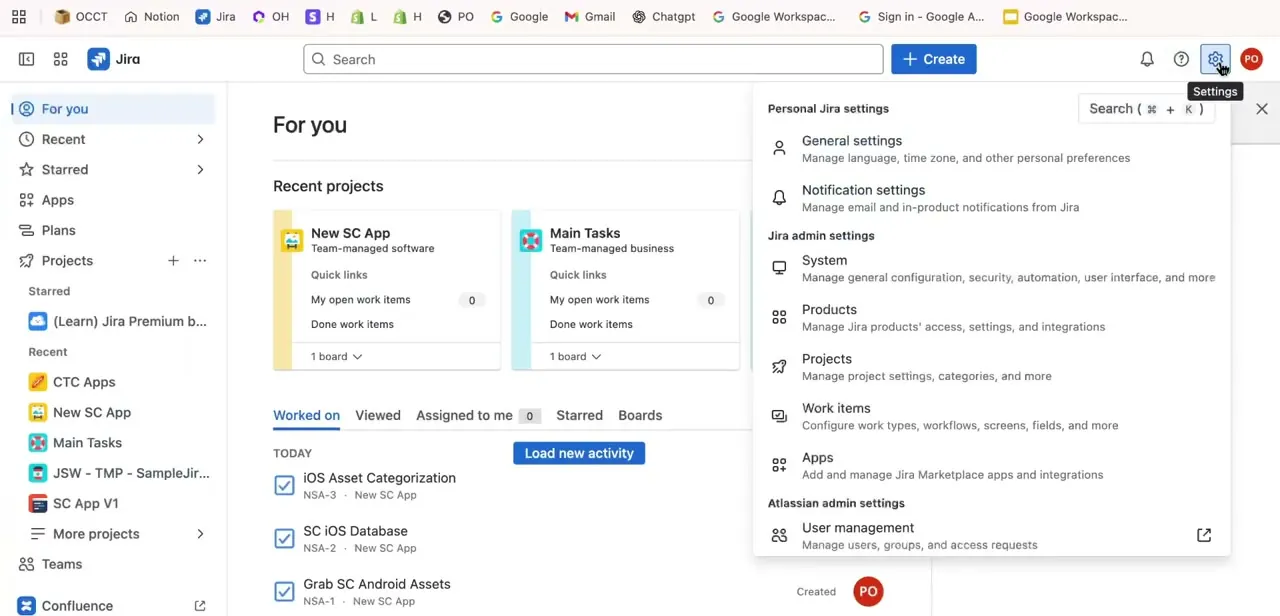
From any Jira screen, click the gear icon in the top navigation to open Settings. Personal settings sit at the top (general preferences and notifications), while Jira admin settings below cover System, Products, Projects, Work items, and Apps. Mail configuration lives under System, the section to open next.
02Find the Mail Handlers section
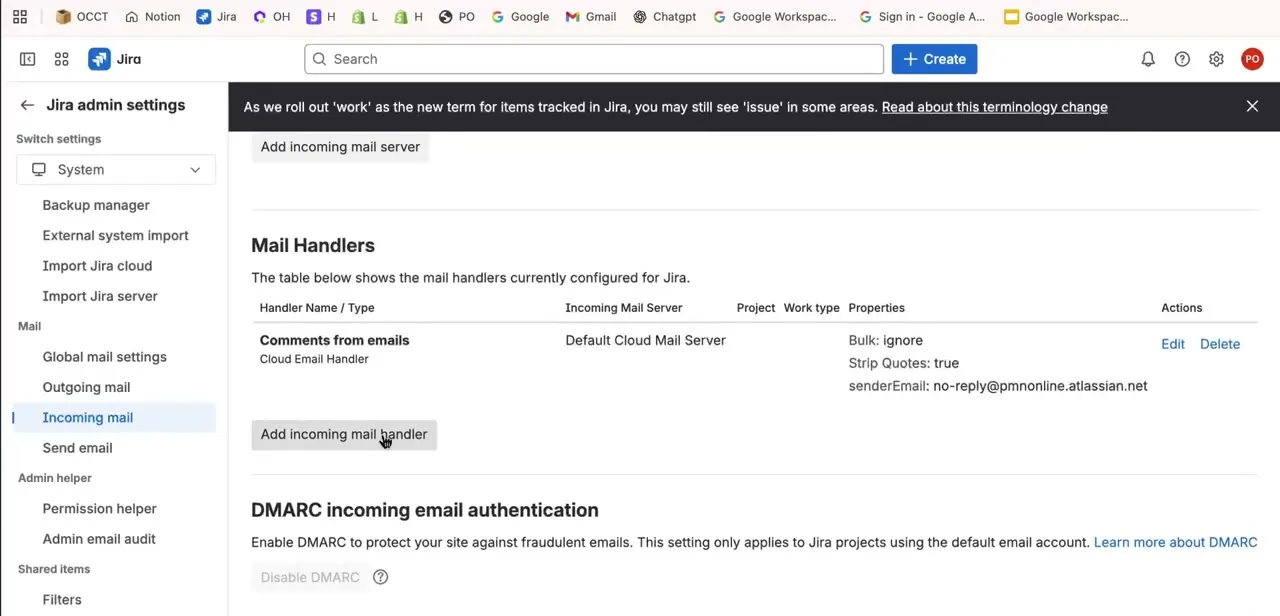
Under System, the left sidebar has a Mail group with Global mail settings, Outgoing mail, Incoming mail, and Send email. Incoming mail opens the Mail Handlers page, listing every handler currently configured, in this case one named "Comments from emails" tied to the Default Cloud Mail Server, with properties like Bulk: ignore and Strip Quotes: true already set.
Check this table first in case a similar handler already exists before creating a new one. Atlassian is partway through renaming "issue" to "work item" across Jira Cloud, and this page shows the transition mid-stream: a banner reads "As we roll out 'work' as the new term for items tracked in Jira, you may still see 'issue' in some areas," while the handler table's own column is already labelled Work type even though the setup dialog below still says Issue Type. Expect labels on this screen to keep shifting from issue to work item.
03Create a new incoming mail handler
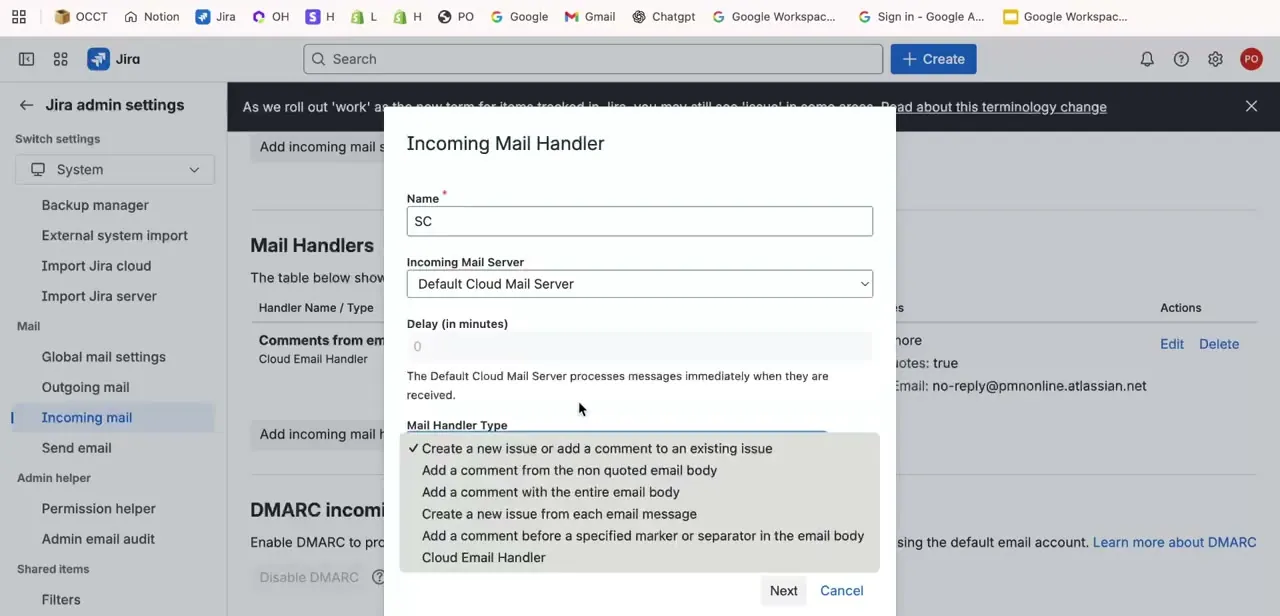
Click "Add incoming mail handler" to open the setup dialog. Give it a name, choose the Incoming Mail Server it should watch (Default Cloud Mail Server here), and set an optional processing delay.
The key decision is the Mail Handler Type list further down, six options in total; the table below breaks down what each one does. "Create a new issue or add a comment to an existing issue" is the standard choice for turning support emails into trackable work.
04Configure what kind of issue gets created
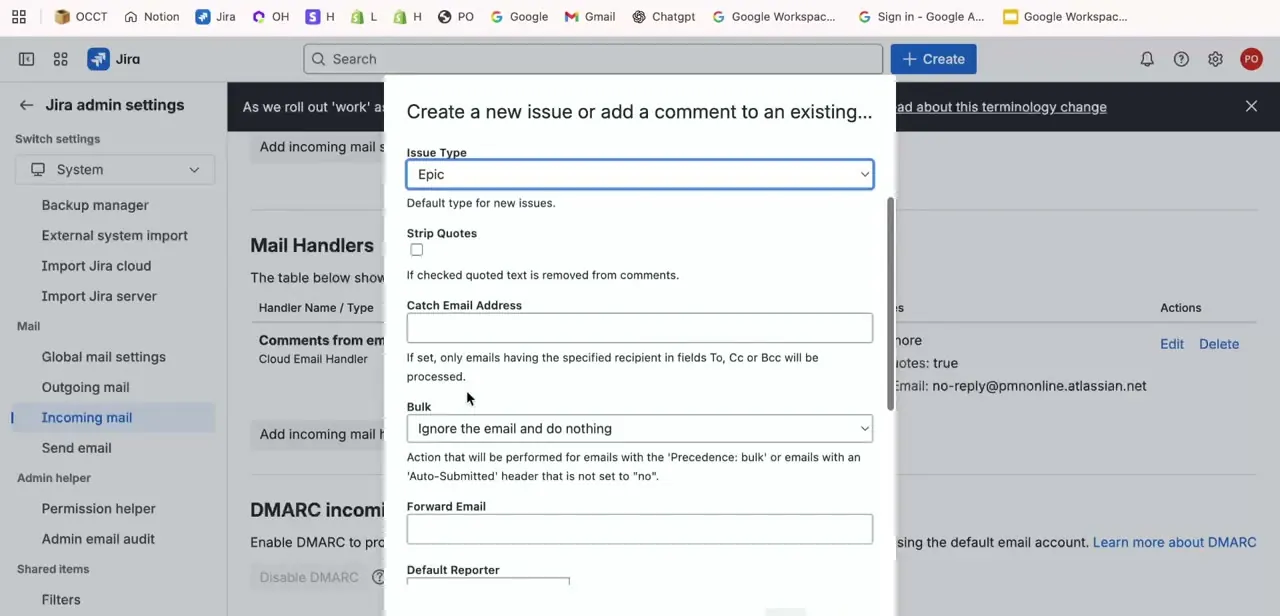
After choosing the handler type, the next screen sets the specifics: an Issue Type dropdown (it defaults to Epic, though Task or Bug is usually the better fit for support requests), a Strip Quotes checkbox to clean up reply chains, a Catch Email Address field that restricts processing to emails sent to a specific address, and a Bulk setting controlling what happens to bulk or auto-submitted mail (set to "Ignore the email and do nothing" by default, which keeps junk mail from spawning issues). A Default Reporter field further down assigns ownership when the sender isn't a recognised Jira user.
Attachments on the original email do carry over to the created issue automatically, as long as attachments are enabled in Jira. The combined message and attachments need to stay under Jira's 25 MB limit, or the email won't process.
05Test the handler, then set expectations for senders
Send a test message to the address tied to your handler and confirm it lands in Jira as the right issue type, in the right project, with the email body intact as the description. This is the point to catch a wrong default issue type or quoted reply text cluttering the description because Strip Quotes wasn't checked, before real emails start flowing through the same handler.
Once it's live, ask anyone emailing into it to keep subject lines short and put the actual request early in the body, since that becomes the issue summary and description. Consistent formatting on the sending side is what keeps auto-created issues usable instead of needing manual cleanup afterward.
| Option | What it does |
|---|---|
| Create a new issue or add a comment to an existing issue | The default. Creates a new issue for unrecognised subjects, adds a comment when the subject line references an existing issue key. |
| Add a comment from the non quoted email body | Adds only the new reply text to an existing issue as a comment, stripping out quoted history automatically. |
| Add a comment with the entire email body | Adds the full email, quoted history included, as a comment on an existing issue. |
| Create a new issue from each email message | Always creates a new issue, even for a reply to a thread already linked to one. |
| Add a comment before a specified marker or separator in the email body | Adds only the text before a separator string you choose, useful when senders include a fixed signature or footer. |
| Cloud Email Handler | Jira's own built-in handler, used for the default "Comments from emails" configuration rather than picked when building a custom one. |
Options and order as shown in the Mail Handler Type dropdown at the time of recording; Atlassian may rename or add to this list over time.
When it doesn't work
An email sent a while ago never turned into an issue
Why: Jira only processes messages with a sent date within the last 7 days.
Fix: Ask the sender to resend the request if the original email is older than a week.
The created issue is missing the file the sender attached
Why: Attachments carry over automatically, but the email plus attachments together exceed Jira's 25 MB limit.
Fix: Ask the sender to resend with a smaller file or share a link instead of attaching it directly.
Every email creates an Epic instead of a Task or Bug
Why: Issue Type defaults to Epic until it's changed, and it's easy to skip on first setup.
Fix: Edit the handler and set Issue Type to whatever matches the incoming request.
Emails from a CRM or ticketing tool never create issues
Why: The Bulk setting defaults to "Ignore the email and do nothing" for anything carrying a Precedence: bulk or Auto-Submitted header.
Fix: Change Bulk to accept that mail if you actually want automated senders to open issues.
Frequently asked questions
Do I need Jira admin access to set up email issue creation?
Yes. Configuring an incoming mail handler requires the "Administer Jira" global permission on the instance.
Can any email automatically become a Jira issue?
Only emails sent to the address tied to your configured mail handler are processed, and the Catch Email Address field lets you restrict that further to one specific recipient address.
What issue type does an email create by default?
Whatever the handler's Issue Type field is set to; it defaults to Epic and should be changed to match how incoming requests should be classified, such as Task or Bug.
Do attachments in the email carry over to the Jira issue?
Yes, automatically, as long as attachments are enabled in Jira. The email plus its attachments must stay under Jira's 25 MB combined limit.
Why didn't an old email turn into an issue?
Jira only processes messages with a sent date within the last 7 days. Anything older is skipped.
Is a Jira "issue" the same thing as a "work item"?
Yes. Atlassian has been renaming "issue" to "work item" across Jira Cloud since March 2025. It's the same underlying data, permissions and workflow under a new label, and both terms still turn up depending on which screen you're on.
Sources and last check
Click path and screens come from a recorded walkthrough, which itself shows Atlassian's issue-to-work-item rename in progress. The mail handler fields, the attachment behaviour, the 25 MB size limit and the 7-day processing window were checked against Atlassian's official support documentation, and the terminology change was checked against Atlassian's own community announcement, in September 2026. The attachment answer (previously hedged as "worth testing") and the terminology note are corrections this pass added.
About the author

Impran M N
I've been hooked on technology for as long as I can remember — especially the new tools and AI apps that seem to land every other week. Easy Tech Tuts is where I write up whatever I've just worked out: I do the task in the real product, record the screen, and turn it into the guide I wish I'd found first.