Easy Tech Tuts
How to Create Epic Template in Jira Easily 2026
By Impran M NLast checked against official docs
Jira doesn't ship with a dedicated "epic template" feature, which trips up teams who go looking for one in the settings menu and come up empty. The workaround that works is simpler than it sounds: build one epic properly, with the child items and structure your team reuses every time, then clone it whenever a similar project starts. This guide walks through that flow on a real Jira Kanban board, and covers a detail most guides skip: what the Clone dialog copies, and what it quietly leaves behind.
Before you start
- Permission to create work items in the target project. The "Modify Reporter" permission specifically, if cloned copies need to keep the original reporter instead of listing whoever clicked Clone.
01Start from your project's board
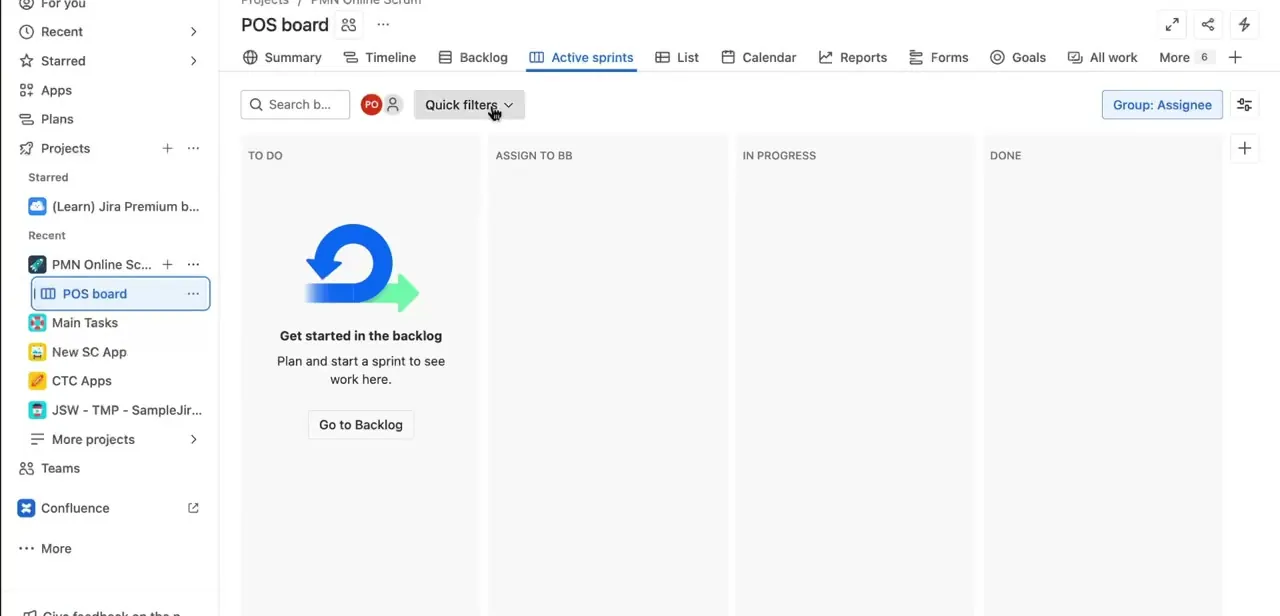
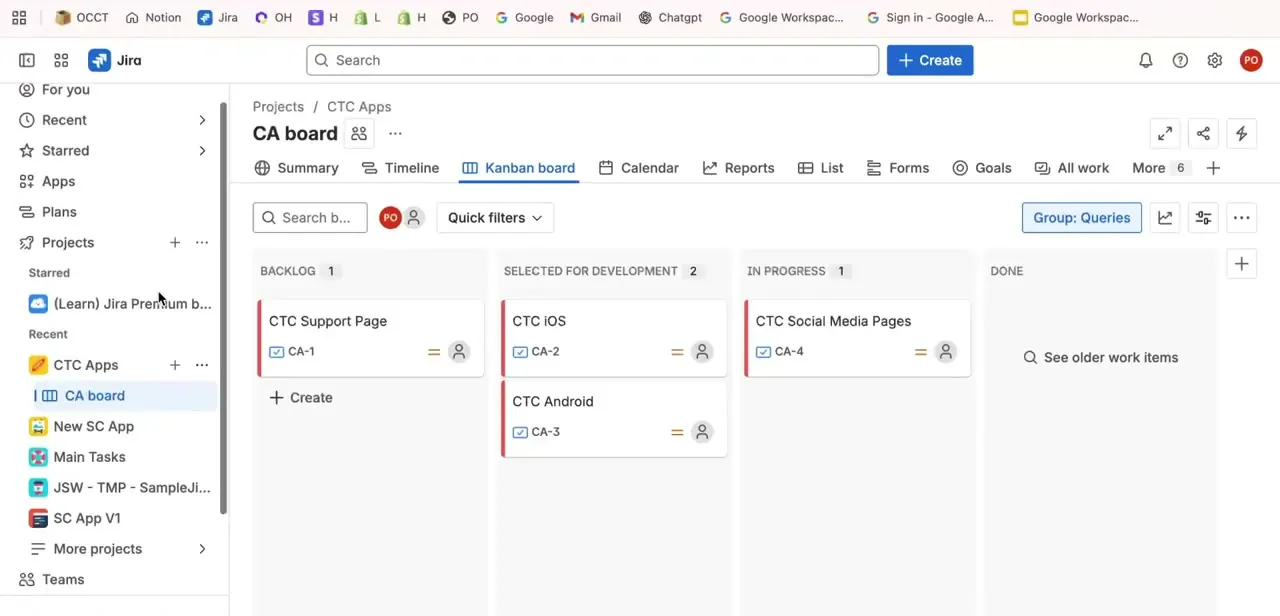
Open the project where the template will live. In this example, that's a Kanban board called CA board under the CTC Apps project, with columns for Backlog, Selected for Development, In Progress, and Done.
Existing work items like CTC iOS and CTC Android already sit in their columns with short IDs (CA-1, CA-2, and so on), which is the numbering scheme the new epic will join. Working from an active board, instead of a blank project, keeps the template grounded in how the team's items are really organized.
02Create the base work item
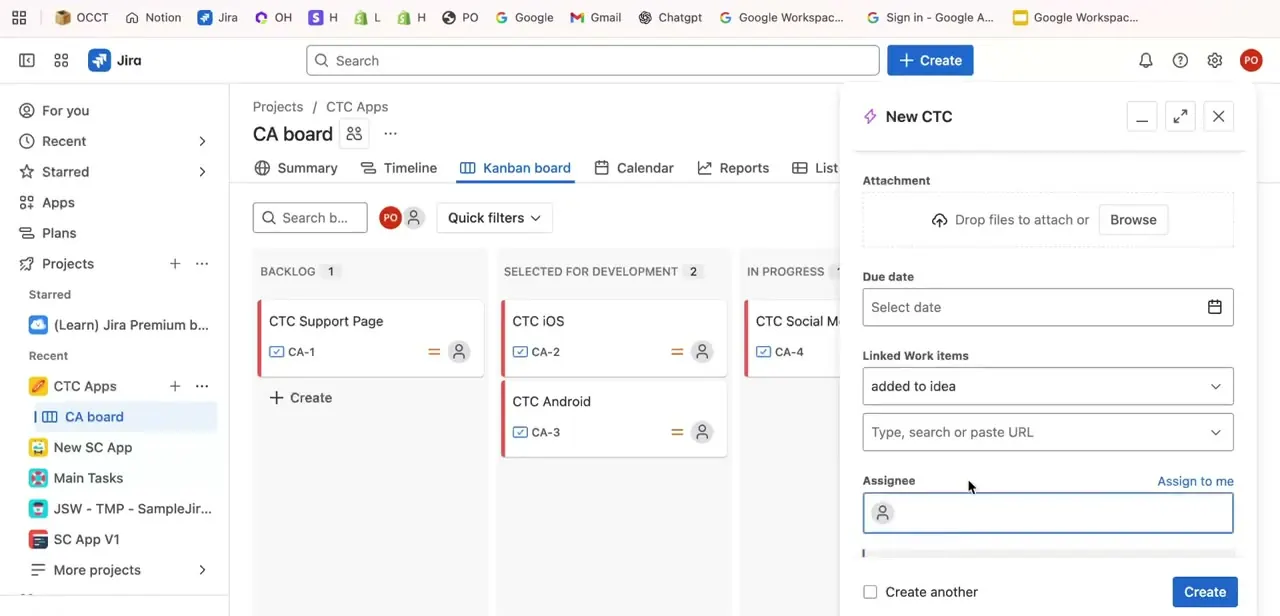
Click Create to open the new work item panel. This is where the template's shape gets decided: set a Due date if the team's epics typically carry one, add any Linked Work items that should always accompany this type of epic, and set the Assignee, or leave it blank and use "Assign to me" as a placeholder to change per project. Every field filled in here becomes part of what gets copied later.
03Add the description and child work items
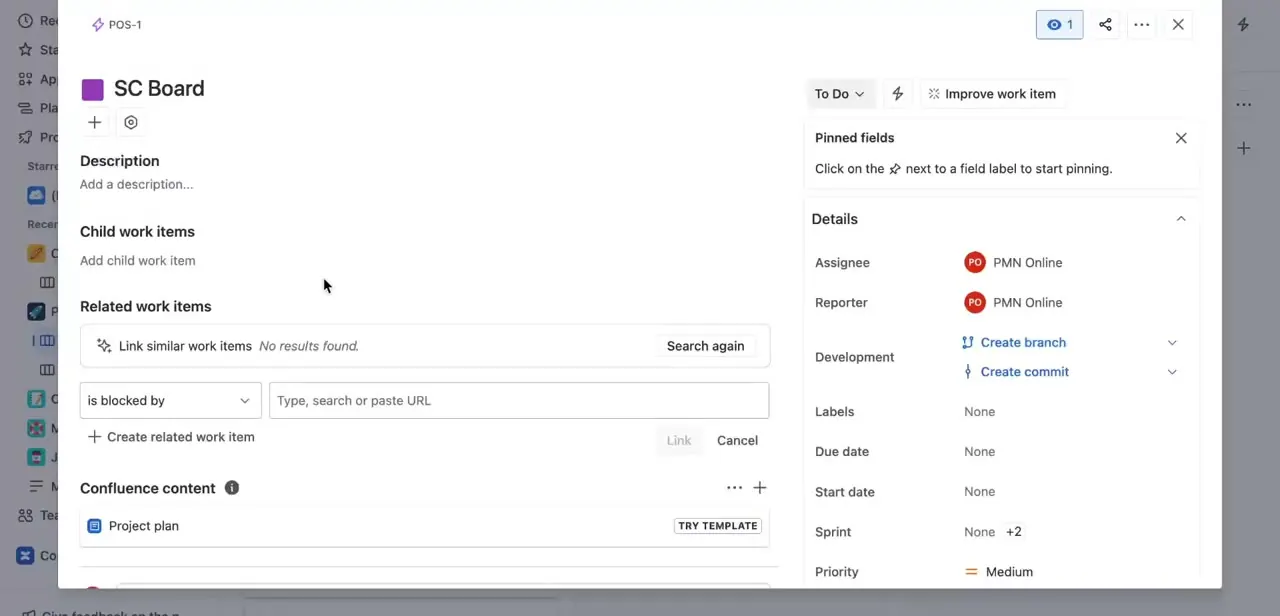
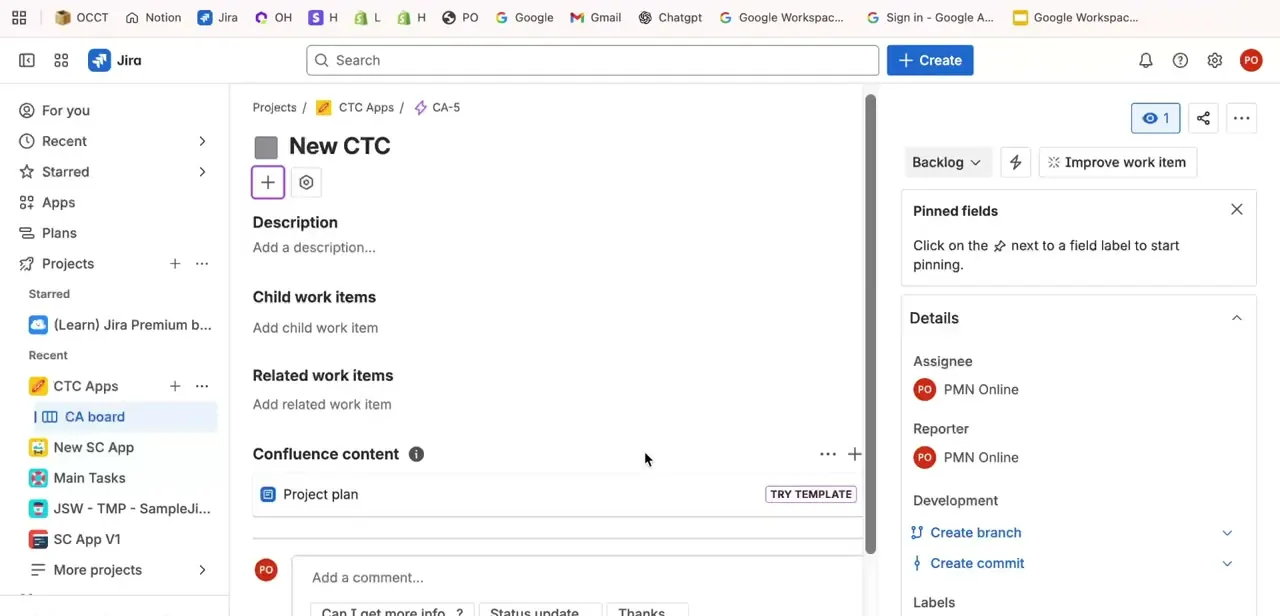
Once the base item is created, open it to its full detail view. This is where the actual template content lives: a Description explaining what the epic covers, a Child work items section for the stories and sub-tasks the projects typically need, and a Related work items section for anything that should be linked but not nested underneath. Filling these in consistently, the same three or four stories every time, the same sub-task breakdown, is what makes the epic worth cloning instead of just another one-off item.
04Clone it to start a new project
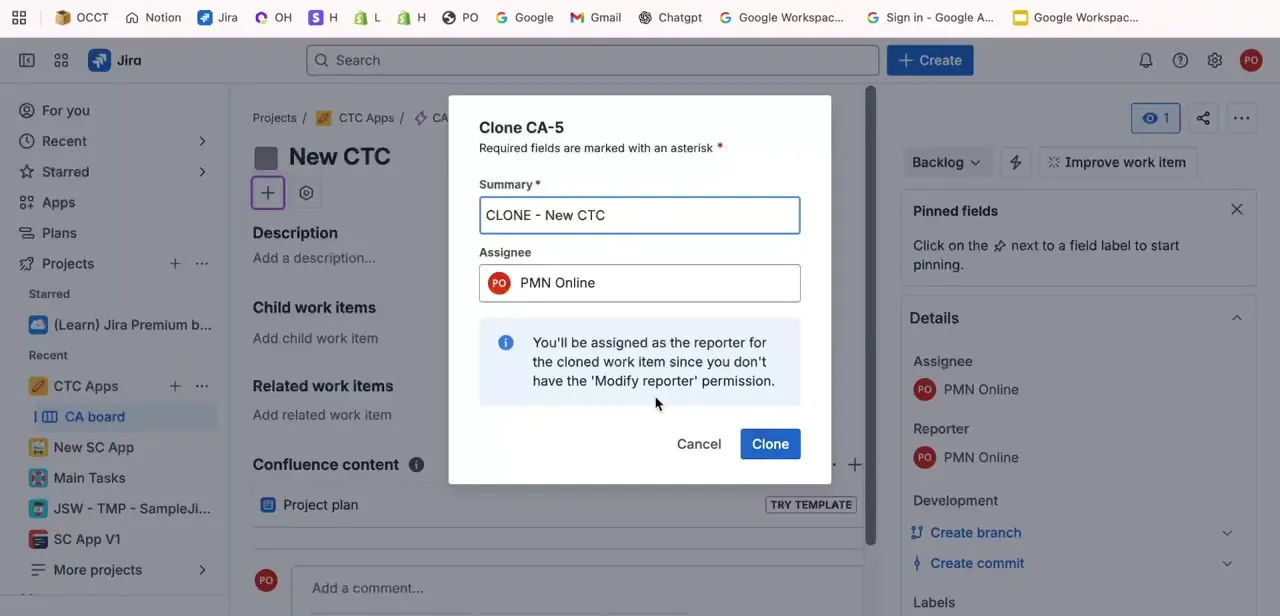
When a new project needs this same structure, open the base epic and use the Clone option. In this Jira interface, the Clone dialog is short: a Summary field defaulting to "CLONE - " plus the original title, and an Assignee field carried over from the source.
It also flags a real limitation: without the "Modify reporter" permission, the account cloning the epic is set as reporter on the copy automatically, a documented Jira behavior, not a bug specific to this setup. Rename the summary to match the new project, adjust the assignee, and click Clone.
05Check what carried over, since this dialog doesn't ask
Open the new clone and check its Child work items and Related work items sections directly. Older, classic Jira documentation describes a clone dialog with checkboxes for including sub-tasks, links, and attachments, but the simplified dialog shown here has none of that: just Summary and Assignee.
There's no toggle to opt child items in or out, so the safest assumption is that they don't automatically follow the epic through this dialog, and the only way to know for a given instance is to open the clone and look. If that turns out to be true on your instance and re-adding items by hand every time gets old, Atlassian's own support documentation describes an automation rule specifically for cloning an epic together with its child issues, which is worth setting up once instead of repeating this check on every new project.
06Keep the template current
Treat the original epic as a living document, not a one-time setup. When a retro surfaces a step the projects always need but the template is missing, add it to the base epic so every future clone includes it.
Over a few projects this turns one well-built epic into the closest thing Jira's own interface offers to a template system. For teams that outgrow the clone workaround entirely, the Atlassian Marketplace lists several third-party issue-template apps, typically paid, that add a real "create from template" option to the issue-create screen; Jira itself still doesn't offer that natively.
When it doesn't work
Cloned the epic, opened the copy, and the child work items section is empty
Why: The Clone dialog in this Jira interface carries over only Summary and Assignee. There's no checkbox for child items or links, unlike the classic Jira clone dialog, which clones sub-tasks automatically and offers optional checkboxes for links and attachments.
Fix: Re-add stories and sub-tasks by hand after cloning, or set up an automation rule that clones an epic along with its child issues.
You're listed as reporter on every clone instead of the original reporter
Why: Cloning without the "Modify Reporter" permission always sets the person cloning as reporter. This is documented Jira behavior, not a misconfiguration.
Fix: Ask a project admin to grant Modify Reporter if the original reporter needs to carry over onto clones.
Looking for a native "create from template" option and it isn't there
Why: Jira has no built-in epic or issue template feature as of 2026. The only native template concept is a project template, used when setting up an entire new project.
Fix: Use the build-once, clone-repeatedly workaround in this guide, or look at a third-party issue-template app on the Atlassian Marketplace if cloning isn't enough.
Frequently asked questions
Does Jira have a built-in template feature for epics?
Not a native one. The practical workaround is building one well-structured epic with its child work items filled in, then using Clone to reuse that structure for new projects.
Will cloning an epic also clone its child work items?
Not through the simplified Clone dialog shown here, which offers only Summary and Assignee with no option to include child items or links. Open the cloned epic afterward and check its Child work items section directly instead of assuming.
Why was I set as the reporter on a cloned item instead of someone else?
Jira's Clone dialog assigns you as reporter automatically if your account doesn't have the "Modify Reporter" permission. An admin can grant that permission if a different reporter is needed.
Is there a way to clone an epic with all its child issues at once?
Atlassian's own support documentation covers an automation rule built for exactly this: cloning an epic together with its child issues in one step, instead of re-adding them by hand each time.
Are there apps that add real issue templates to Jira?
The Atlassian Marketplace lists several third-party issue-template apps that add a template picker to the create screen. They're typically paid add-ons, not a native Jira feature.
Sources and last check
The Create panel and Clone dialog screenshots were checked field-by-field against the walkthrough's own recording: the Clone dialog shown there genuinely has no checkbox for child items, links, or attachments, only Summary and Assignee. That was cross-checked against Atlassian's own documentation in September 2026, which describes an older clone dialog with those checkboxes and confirms sub-tasks clone automatically there. That's a real difference between Jira versions, worth flagging instead of glossing over. The Modify Reporter behavior and the automation-rule alternative were confirmed against Atlassian's own support pages. The claim about third-party template apps was checked directly against one Marketplace listing to confirm it's a third-party vendor, not an Atlassian product, before it was included.
About the author

Impran M N
I've been hooked on technology for as long as I can remember — especially the new tools and AI apps that seem to land every other week. Easy Tech Tuts is where I write up whatever I've just worked out: I do the task in the real product, record the screen, and turn it into the guide I wish I'd found first.