Easy Tech Tuts
How to Create Rich Filter in Jira 2026 Easily Setup Smart Rich Filter in Jira
By Impran M NLast checked against official docs
Standard Jira filters are static lists; they don't let you layer conditions or hand viewers a set of clickable options the way a real dashboard needs. Rich Filters for Jira Dashboards, an Atlassian Marketplace app built by Appfire, adds a smart filtering layer on top of your existing filters that plugs straight into dashboard gadgets. This guide covers installing the app, building a rich filter around JQL-backed smart clauses, and adding it to a dashboard, along with what the app costs once its trial period ends, which the marketing copy doesn't mention upfront.
Before you start
- Jira Cloud with permission to install Marketplace apps
- An existing saved Jira filter to use as the rich filter's base
01Install Rich Filters from the Atlassian Marketplace
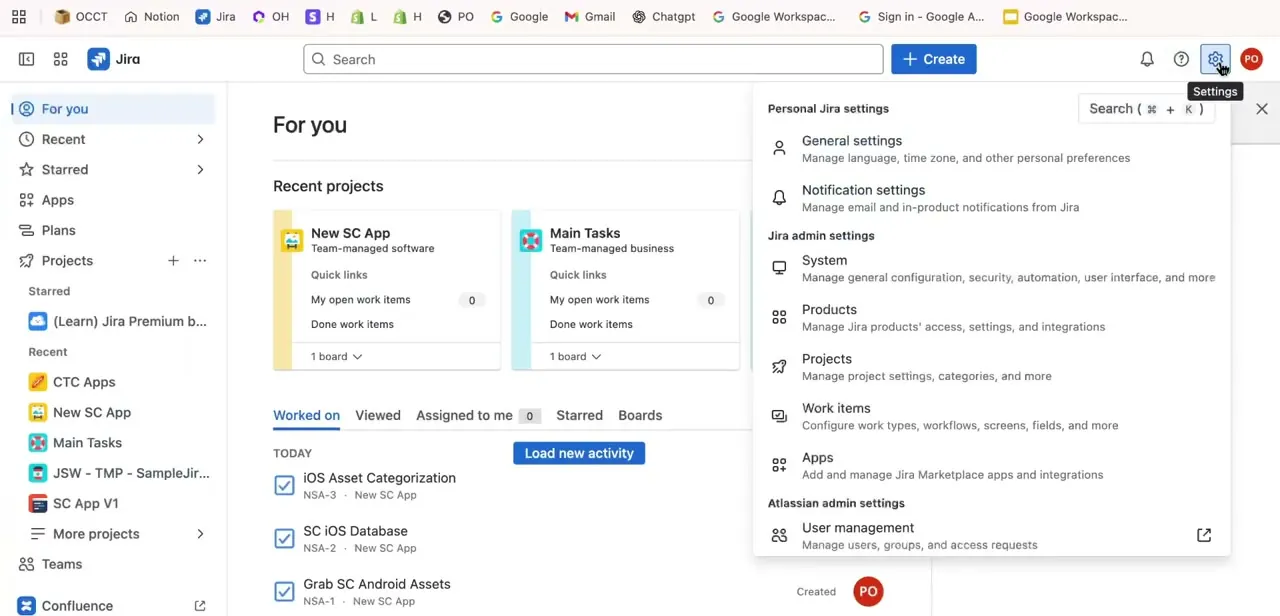
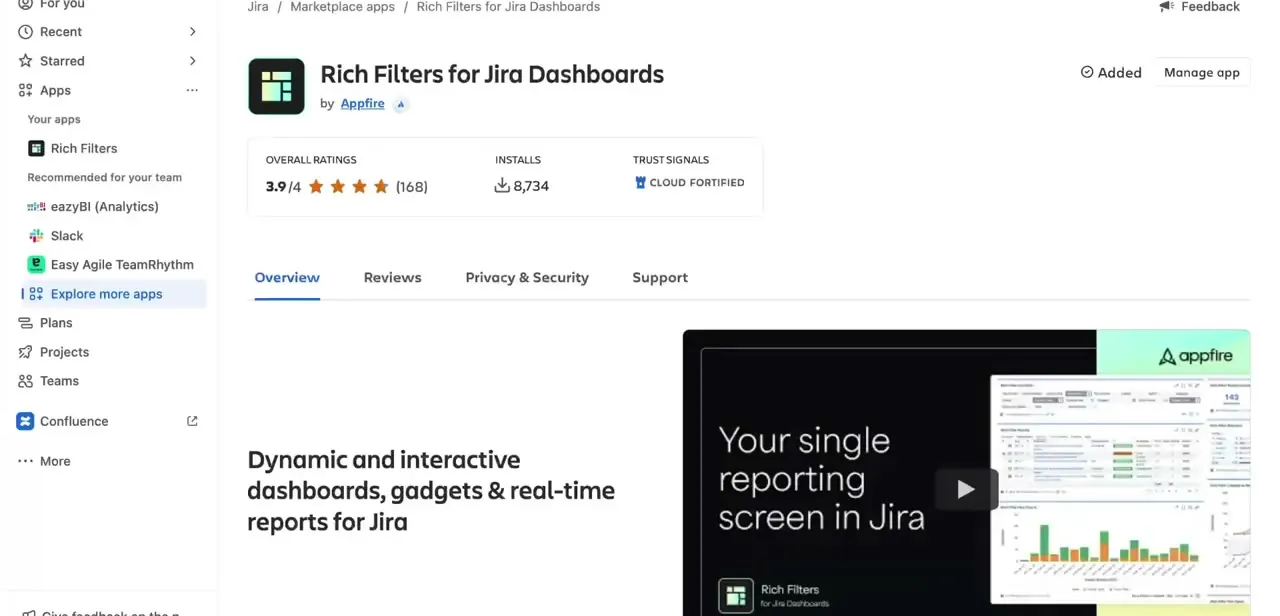
From your Jira sidebar, open Apps, then Explore more apps, and search for Rich Filters for Jira Dashboards. The listing shows its rating and install count, plus an overview video of dynamic dashboards and gadgets, worth a quick watch before installing.
Click Add to install; this step needs Jira site-admin permission. Once added, it shows up under the Apps menu as Rich Filters.
02Create a new rich filter
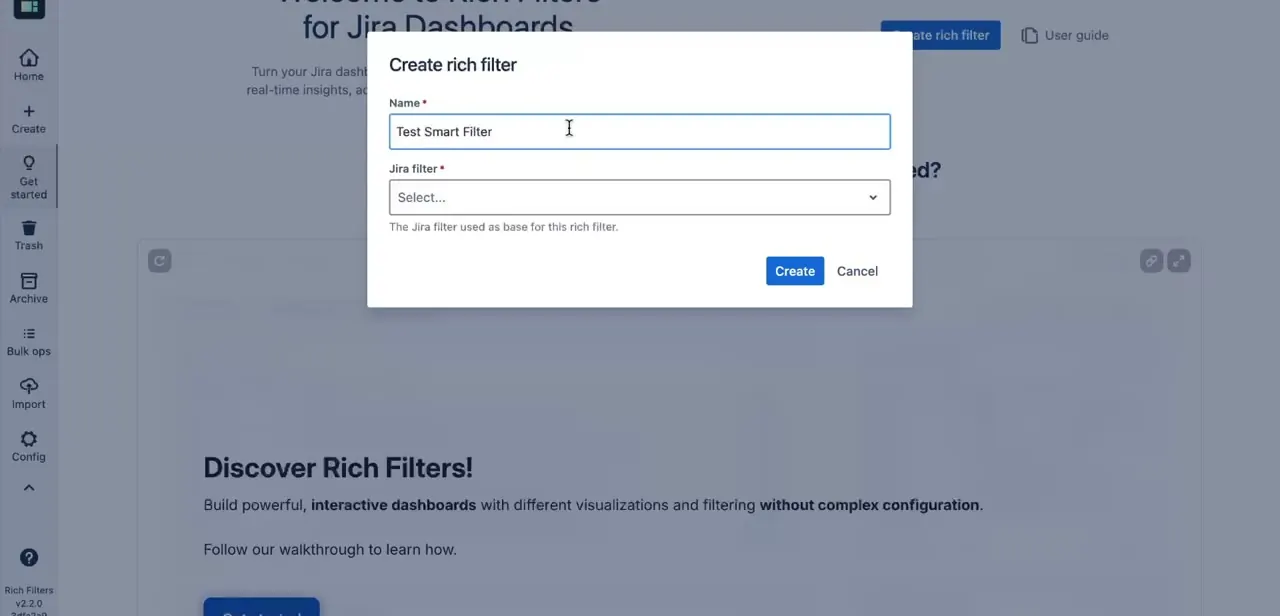
Open Rich Filters from the Apps menu and click Create rich filter. The dialog asks for a Name and a Jira filter to base it on.
This base filter narrows down the issues the rich filter starts from, so pick an existing saved filter that already scopes to the right project or board. You need permission to use that filter, not ownership of it, so a shared team filter works fine here.
03Build a smart clause with JQL
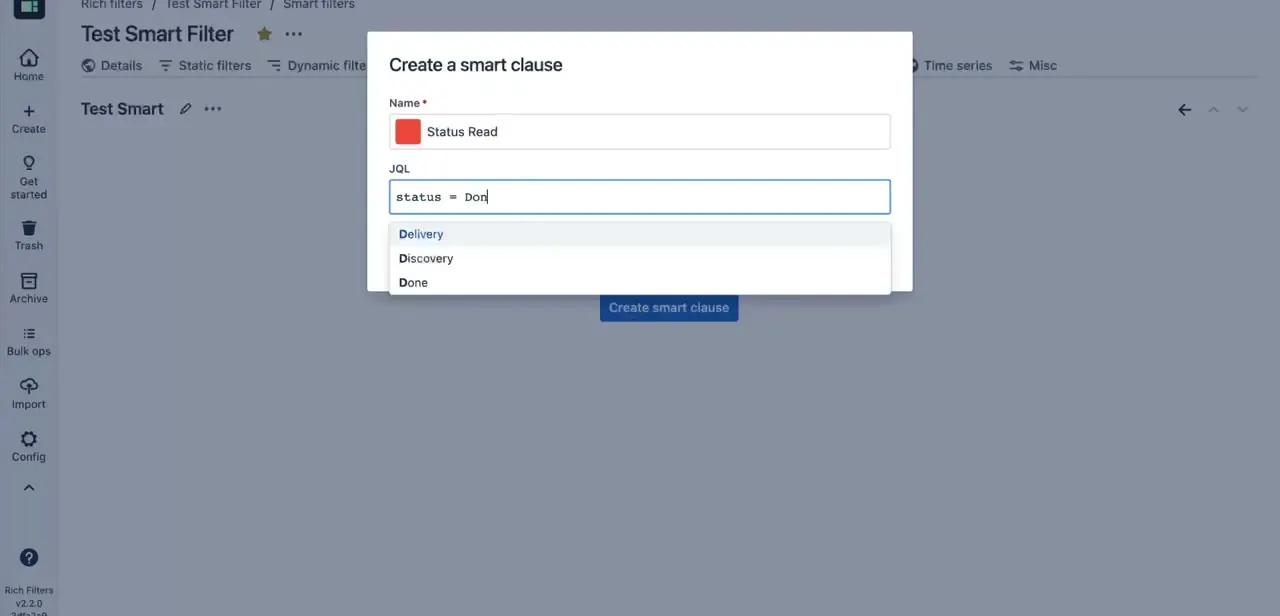
Inside the new rich filter, open its filter configuration and click Create smart clause. Give the clause a name and color, then write the condition in the JQL field; Jira autocompletes matching values as you type, for example suggesting status names after typing `status = `. Name each clause for what a viewer would want to click, not for its JQL syntax, since that name is what appears on the dashboard.
04Edit clauses as your reporting needs change
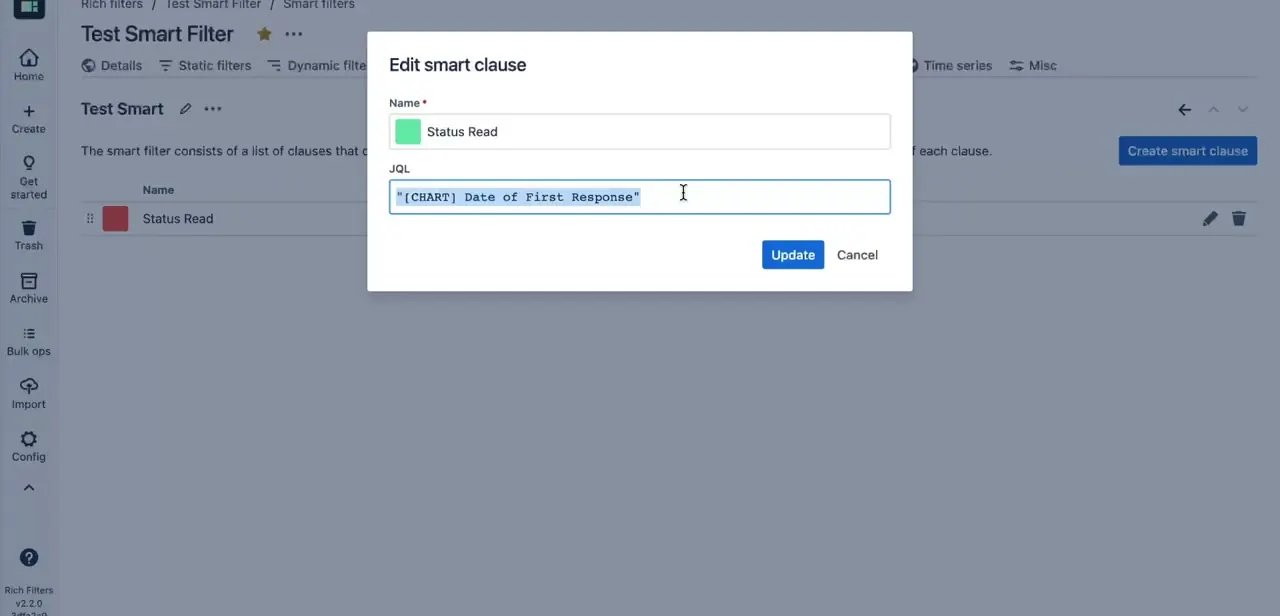
Reopen any clause through Edit smart clause to rewrite its JQL, for instance swapping a status condition for a date range or a custom field. This is routine maintenance, not a sign something broke. A clause built around a status or field that later gets renamed keeps running but quietly returns nothing, which is worth checking for now and then.
05Add the rich filter to a dashboard
From any Jira dashboard, click Add gadget, search for the Rich Filters gadget, and select the filter you built. Viewers see your named smart clauses as clickable options instead of a JQL box, and results update the moment they switch between them. This is the payoff for naming clauses clearly in the step above.
When it doesn't work
A rich filter's clause suddenly returns nothing
Why: The JQL references a status, field, or value that no longer exists, usually after a workflow or scheme change.
Fix: Reopen the clause under Edit smart clause and update the JQL to match the current field or status names.
Rich Filters doesn't appear in the Apps menu after someone installed it
Why: Installing a Marketplace app requires Jira site-admin permission. Without it, the install doesn't complete even though no error shows.
Fix: Have a site admin install it from Explore more apps.
A teammate can see the app but can't build a rich filter
Why: They don't have permission to use the base Jira filter that was selected.
Fix: Share the base filter with them, or have them build on a filter they already have access to.
Frequently asked questions
Is Rich Filters for Jira Dashboards free?
Only for a 30-day trial, plus a free tier for very small sites of roughly 1 to 10 users. Beyond that it's a paid Marketplace subscription that scales with user count.
Do I need admin access to create rich filters?
Installing the app requires Jira site-admin permission, but once it's added, anyone with permission to use the base filter can create their own rich filters.
Can I share a rich filter with my team?
Yes. Rich filters get added to dashboards as gadgets, so anyone with access to that dashboard can see and use the smart clauses you built.
Why did a smart clause stop returning results?
Usually because the JQL references a status or field that's since been renamed or removed. Reopen it under Edit smart clause and update the condition.
How is a rich filter different from a basic search?
A rich filter is built from named, JQL-backed smart clauses plugged into a dashboard gadget, so viewers click between saved conditions instead of typing or re-running JQL.
Can I edit a clause after creating it?
Yes, through Edit smart clause. You can rewrite the JQL entirely, for example changing a status condition into a date-range check.
Sources and last check
Click path and screens come from a recorded walkthrough. The base-filter permission rule and the app's pricing were checked against Appfire's official Rich Filters documentation and its Atlassian Marketplace listing in September 2026. That check added the cost information this guide previously left out entirely and replaced a closing maintenance-reminder step with a specific stale-clause troubleshooting entry.
About the author

Impran M N
I've been hooked on technology for as long as I can remember — especially the new tools and AI apps that seem to land every other week. Easy Tech Tuts is where I write up whatever I've just worked out: I do the task in the real product, record the screen, and turn it into the guide I wish I'd found first.