Easy Tech Tuts
How to Create a Scrum Board in Jira
By Impran M NLast checked against official docs
A Scrum board gives a team a shared view of sprints: what's planned, what's in progress, what's shipped, pulled straight from the backlog. In Jira, a board isn't a separate object you hunt for in a top-level menu; it's created from inside a space's backlog, in a short dialog asking for a name and what should feed it. (Atlassian renamed Jira's "projects" to "spaces" in February 2026; this guide uses the current term.) This walks through that flow using a real space's backlog, from opening the create dialog to what a populated Scrum backlog looks like once sprints are underway.
Before you start
- Browse spaces permission for the space, or spaces, the board will pull work from
- A company-managed space — team-managed spaces can't have extra boards added this way (see the note in step 3)
01See what a working Scrum backlog looks like
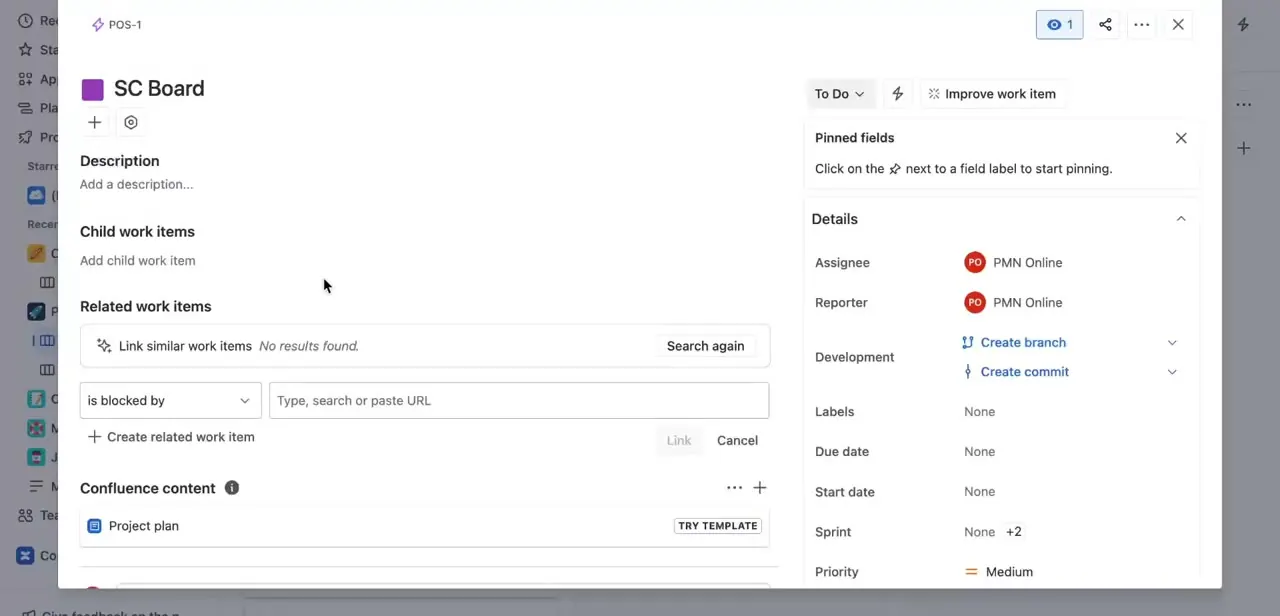
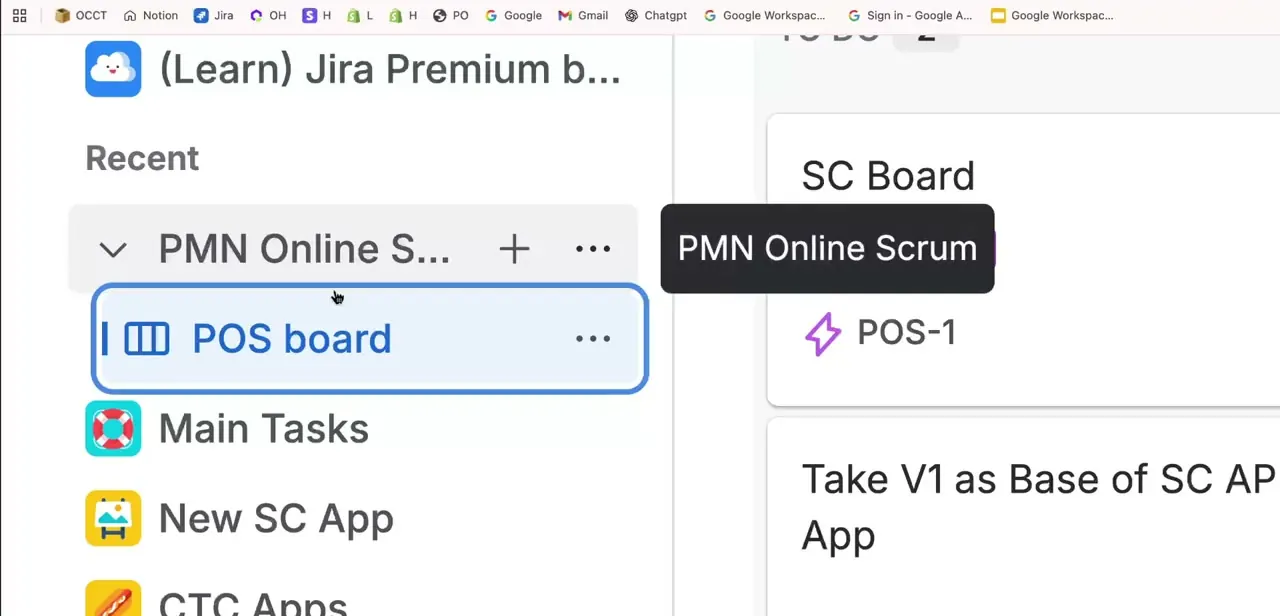
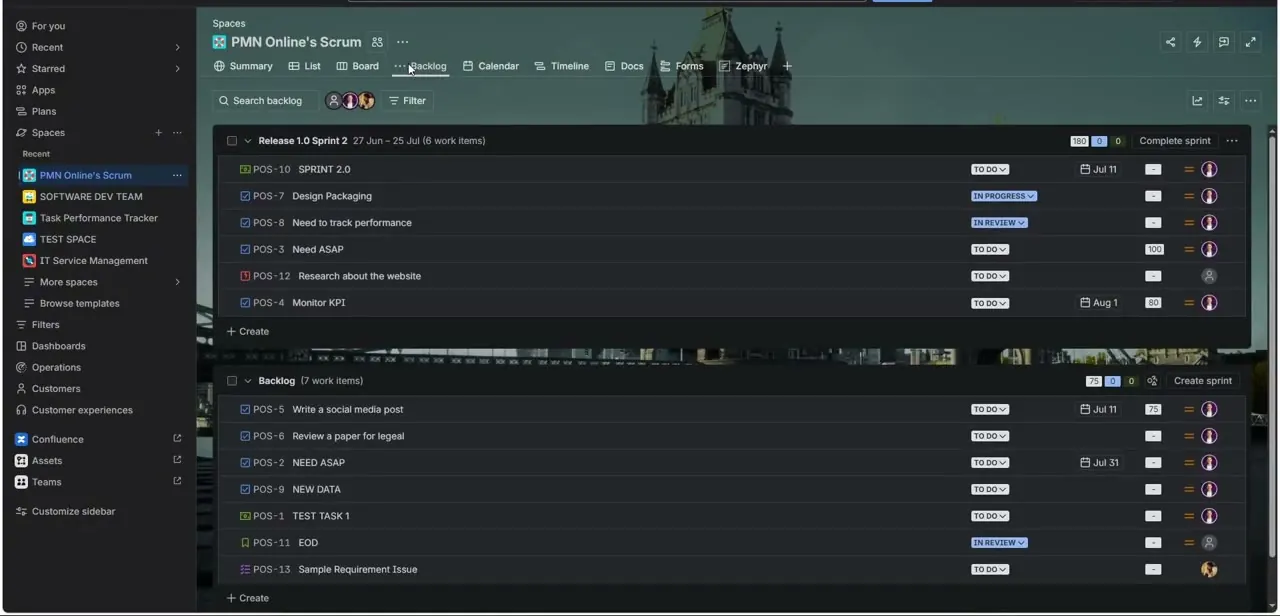
Before building one, it helps to look at an established example. A space like "PMN Online's Scrum" shows the pattern: an active sprint at the top, dated and scoped, listing its work items with statuses like To Do, In Progress, and In Review, and a separate Backlog section below holding items not yet pulled into a sprint. That's the structure a Scrum board exists to support: a defined sprint window sitting above an unscheduled backlog.
02Open the space where you want the board
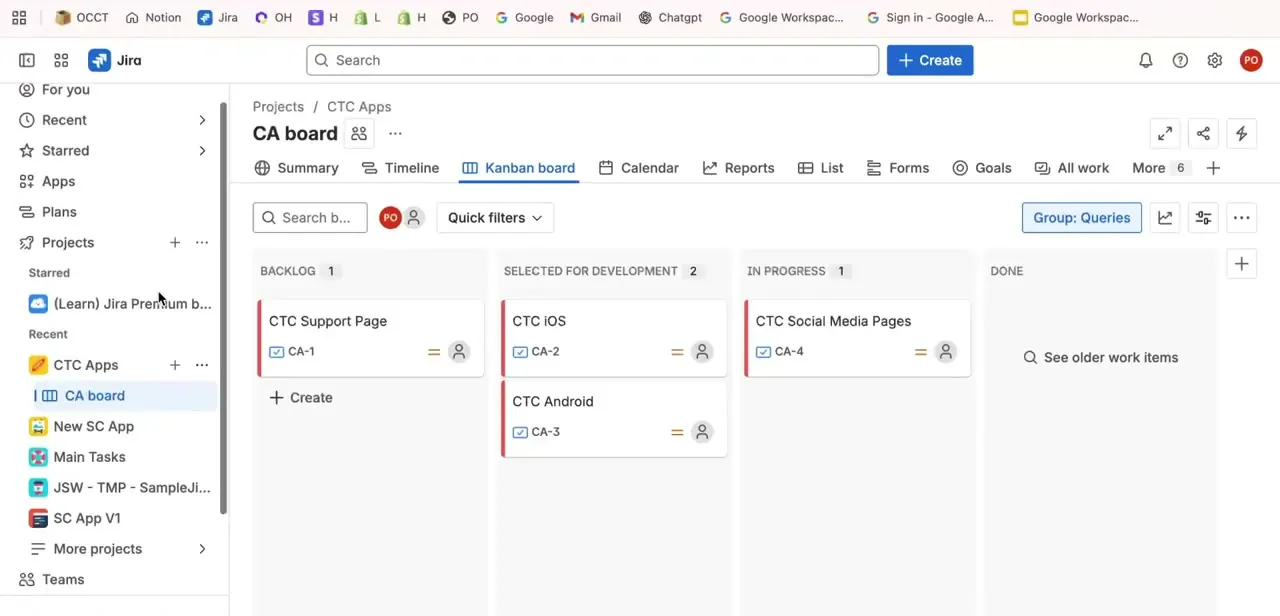
From the left sidebar under Spaces, open the space you're setting the board up in, for example one called TEST SPACE. Its existing boards are listed underneath, such as a "TS board." A new board is typically created alongside a space's existing backlog and board list instead of from a blank slate.
03Start the board creation dialog
From within the space's backlog view, use the add action (the + control near the board list) to open Create a board, then choose Create a Scrum board. There's a second route to the same dialog: the global search field (or the / shortcut), then "Go to all: Boards," then Create board.
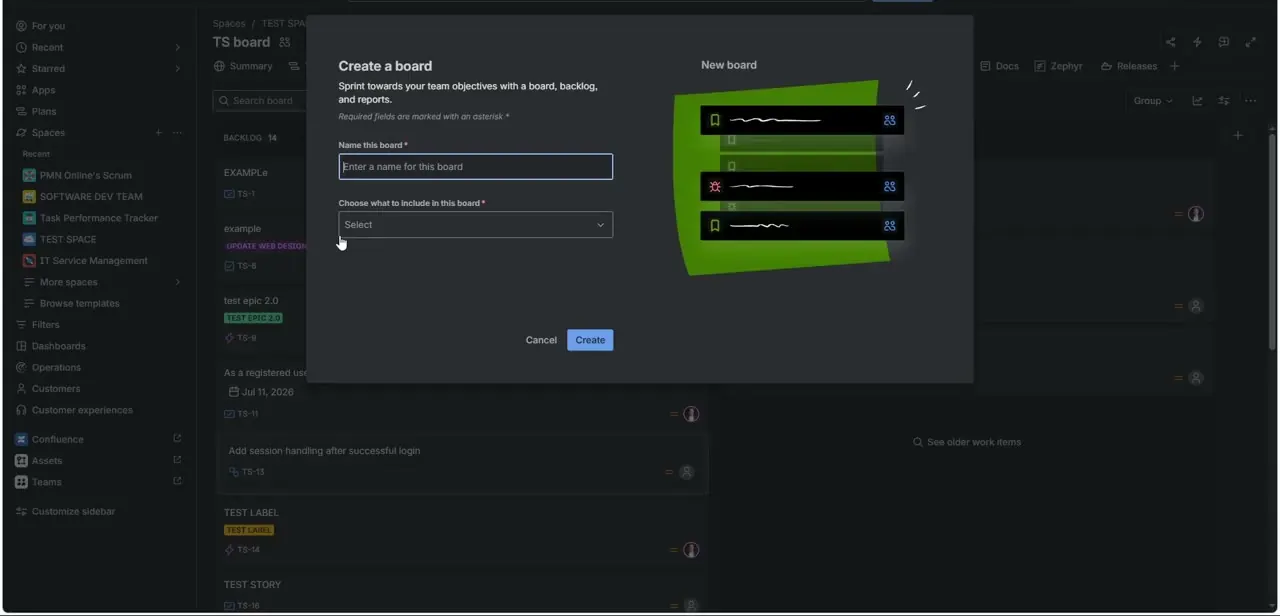
Either way you land on a short form: a required Name this board field, and a required "Choose what to include in this board" dropdown. One limit worth knowing before you start: team-managed spaces don't support adding extra boards this way, since each ships with exactly one board already. If you don't see the + control, you're likely in a team-managed space, and a saved-filter-based board from the global route is the workaround.
04Name the board and set what it includes
Give the board a name your team will recognize at a glance, tied to the sprint cadence or the team itself, not something generic. Basing the board on a space auto-generates a filter behind the scenes, roughly space = "YOUR SPACE" ORDER BY Rank ASC, so getting the include dropdown wrong is the most common reason a freshly created board looks empty: the filter ends up pointed at the wrong space, or none at all. Double-check the selection before clicking Create, since a board's type (Scrum or Kanban) can't be changed after it's made.
05Create the board and confirm it's populated
Click Create. The new board appears in the space's board list in the sidebar alongside any others.
Open it once to confirm it shows the work items you expected. If it's empty, check the board's underlying filter and its JQL before assuming something broke. That filter, not the board itself, decides what shows up.
06Populate the backlog and start your first sprint
A Scrum board is only useful once its backlog has real work in it. Add the issues your team plans to tackle, prioritize by dragging them into order, and give each enough detail, a clear title plus any relevant labels or story points, that whoever picks it up doesn't need to ask what it means.
Then select the items for your first sprint and start it, the same way the sprint at the top of the PMN Online's Scrum example is dated and scoped. Once started, those items move onto the active board where the team drags them across statuses as work progresses.
When it doesn't work
A new board appears in the list but shows no work items
Why: The board's auto-generated filter is scoped to the wrong space, or the include dropdown picked during creation didn't match the space you meant.
Fix: Open the board's settings and check the filter's actual JQL, not just what you selected in the creation dialog.
There's no + control to create a board inside a space
Why: Team-managed spaces don't support adding extra boards; each one ships with a single board already built in.
Fix: Use the global route instead: search, then "Go to all: Boards," then Create board, and base the new board on a saved filter.
Wanting to switch an existing board from Kanban to Scrum, or the reverse
Why: Jira doesn't support changing a board's type once it's created.
Fix: Create a new board of the correct type against the same space or filter, instead of trying to convert the existing one.
Frequently asked questions
What's the difference between a Scrum board and a Kanban board in Jira?
A Scrum board is built around fixed-length sprints pulled from a backlog; a Kanban board shows continuous flow with no sprint boundaries. A space's board list can hold both types side by side, but one board can't switch between them after creation.
Where do I create a new board?
From inside a space, using the + control near its board list, or from the global search bar via "Go to all: Boards" then Create board. Both open the same dialog asking for a name and what to include.
Why is my new board showing no work items?
Check the "Choose what to include in this board" setting from creation, then check the board's actual filter JQL. A mismatch between the two is the most common reason a board looks empty right after being created.
Do I need issues in the backlog before starting a sprint?
Yes. A sprint pulls from backlog issues, so populate and prioritize the backlog before starting your first one.
Why can't I add a new board inside one of my spaces?
It's likely a team-managed space, which supports only its single built-in board. Create additional boards from the global "Go to all: Boards" route using a saved filter instead.
Can multiple teams share the same Scrum board?
It's possible by scoping one board's filter to include work from multiple spaces, but most teams find a dedicated board per team keeps sprint planning and reporting cleaner.
Sources and last check
Click path and screenshots come from a walkthrough recorded before Atlassian's February 2026 project-to-space rename; wording has been updated to match. Re-checked against Atlassian's official board-creation documentation in September 2026: added the global "Go to all: Boards" creation route this guide previously omitted, the team-managed-space limitation, the auto-generated filter behind a space-based board, and the fact that a board's type can't be changed after creation.
About the author

Impran M N
I've been hooked on technology for as long as I can remember — especially the new tools and AI apps that seem to land every other week. Easy Tech Tuts is where I write up whatever I've just worked out: I do the task in the real product, record the screen, and turn it into the guide I wish I'd found first.