Easy Tech Tuts
How to Add Quick Filters to a Sprint or Kanban Board in Jira
By Impran M NLast checked against official docs
Once a board fills up with more than a handful of cards, scanning it for just your own tickets or just the high-priority ones gets tedious fast. Quick filters fix this with one-click toggles sitting above the board columns, each backed by a short JQL query that narrows what's visible. This guide covers where that toolbar lives, the settings screen that manages it, and what the create-a-filter form asks for.
Before you start
- Board admin, space admin, or Jira admin permissions on the board (quick filter creation is gated by permission)
- Basic familiarity with JQL, or at least a willingness to copy the syntax of an existing filter
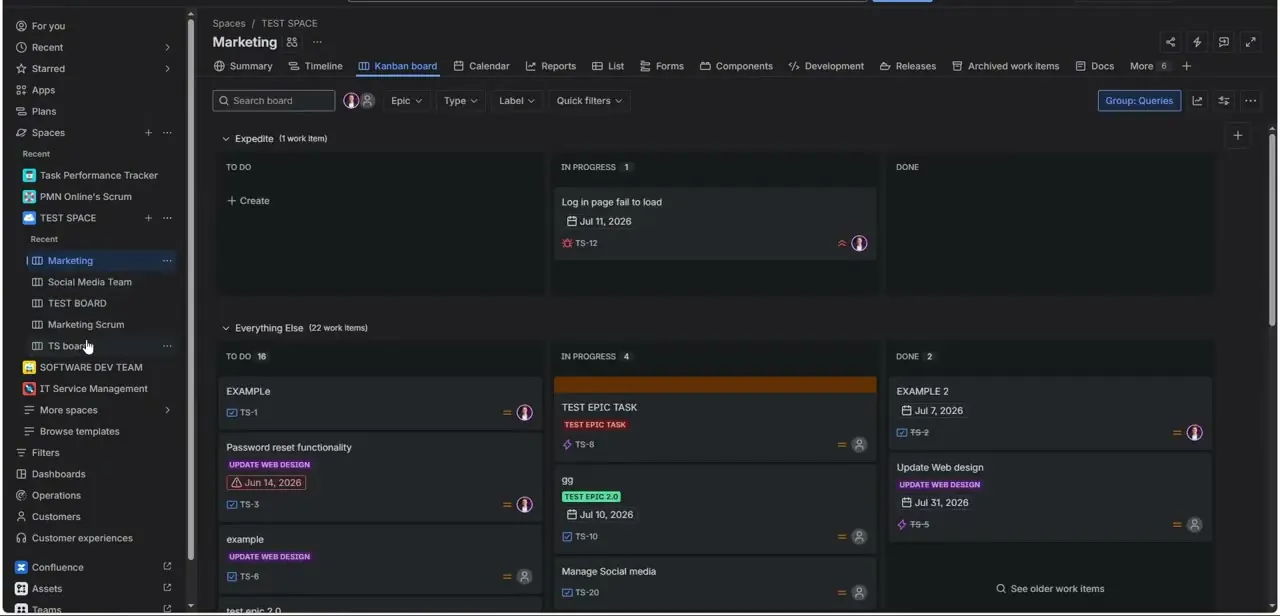
01Notice where quick filters live on the board
Open any board; a Kanban board like "Marketing" works the same way a Scrum board does here. Along the toolbar above the columns, next to the Epic, Type, and Label dropdowns, there's a Quick filters control.
This is the toggle bar your team will click day to day. Everything else in this guide is about populating it with filters worth having.
02Open board settings and go to Quick Filters
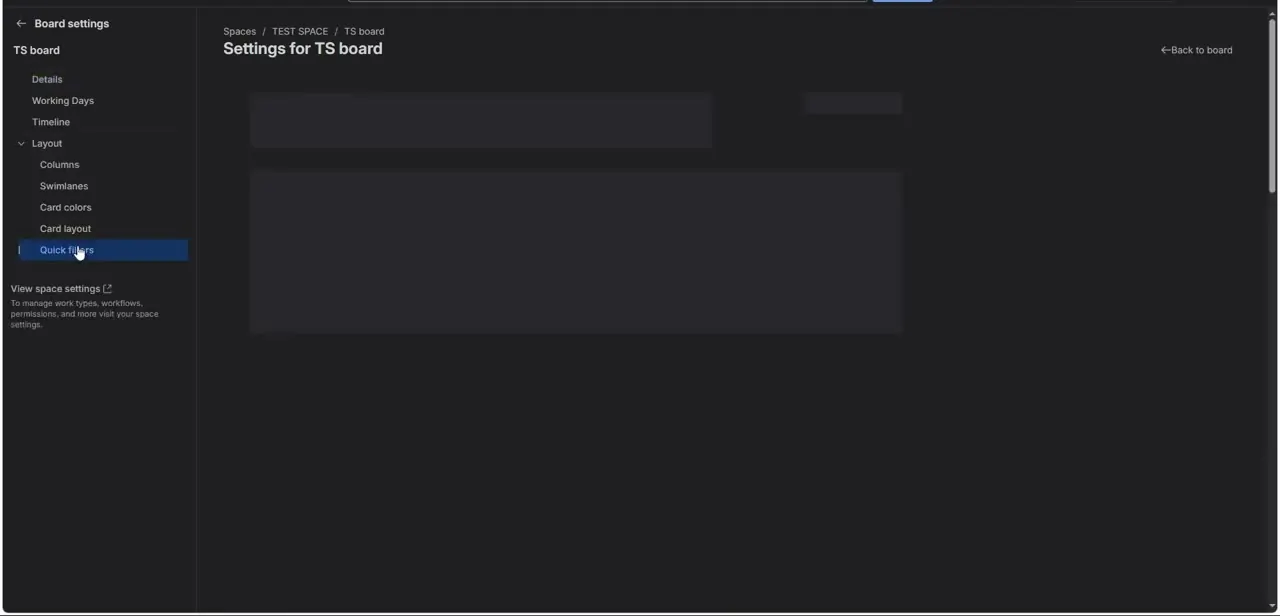
From the board, open the ••• menu and choose Configure board (some Jira sites label this Board settings in the newer navigation; either takes you to the same screen). This settings page is scoped to one board at a time, in this case a board called "TS board" inside the TEST SPACE, so quick filters you build here only apply to this board.
Atlassian's own documentation lists Quick Filters as its own tab in the left-hand panel alongside Columns, Swimlanes, Card colors, and Card layout, not tucked inside a combined Layout section as older write-ups describe. Click Quick Filters to open it.
03Click Create quick filter
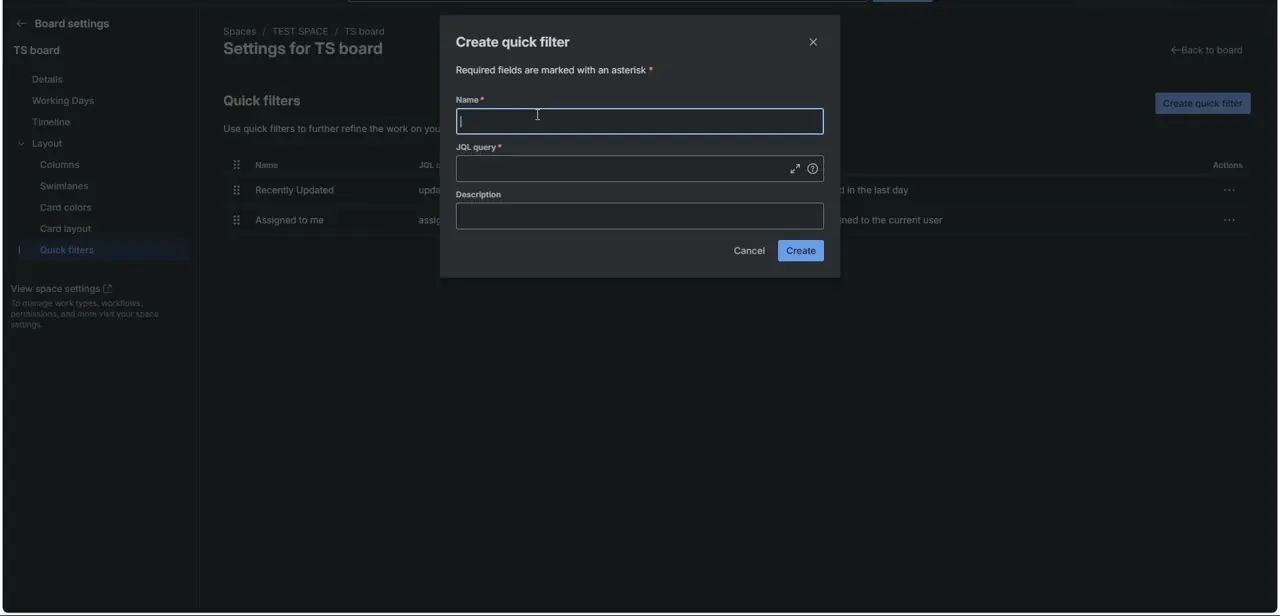
The Quick filters page lists any filters that already exist for the board. New boards ship with two by default: Atlassian's documentation names them "Only My Work items" and "Recently Updated," though older boards or different templates may show similarly named starter filters. Click Create quick filter in the top right to open the creation form and add your own.
04Fill in the name, JQL query, and description
The Create quick filter form asks for three things: a required Name (what shows on the toggle itself, so keep it short, "My Bugs" rather than "Bugs Currently Assigned to Me"), a required JQL query that defines the filter logic, and an optional Description for context. The board's default filters are useful patterns to copy if you're unsure how to phrase your own: "Only My Work items" checks that the issue is assigned to the current user, and "Recently Updated" checks for items updated within the last day.
05Write JQL for the slice of work you need
For a priority filter, something like priority = High narrows the board to urgent items. For an issue-type filter, type = Bug isolates defects from stories and tasks.
You can combine conditions with AND if a single toggle needs to represent more than one rule, though more conditions make the filter's name and purpose harder to guess at a glance. A few well-named filters generally work better than one that tries to do everything.
06Save, then test it from the board
Click Create to save the filter, then go back to the board and find it in the Quick filters toolbar. Click it and confirm the board narrows the way you expected.
When it doesn't work
There's no "Configure board" or "Board settings" option in the ••• menu
Why: Creating or editing quick filters requires board admin, space admin, or Jira admin permissions. Without one of those, the menu option may be hidden or the settings page may open read-only.
Fix: Ask a project or board admin to either grant you board admin rights or add the filter for you.
A new quick filter shows nothing, or shows everything, when toggled on
Why: A syntax error in the JQL query is the most common reason. A missing quote, wrong field name, or mismatched operator will silently return an empty or unfiltered result instead of an error.
Fix: Re-open the filter from the Quick Filters settings page and check the query against a known-working one, like the board's default "Only My Work items" filter.
A filter that works on one board isn't available on another
Why: Quick filters are scoped to the individual board they were created on, not to the space or the underlying Jira project.
Fix: Recreate the filter on each board that needs it; there's no single place that pushes one filter to multiple boards.
Frequently asked questions
Do I need to know JQL to create a quick filter?
Yes, quick filters are built on a JQL query, though simple ones (filtering by assignee, issue type, or priority) use basic syntax you can copy from the board's existing default filters.
Can multiple quick filters be applied at once?
Yes, you can toggle on more than one quick filter at a time to narrow the board down further.
What are the default quick filters a new board comes with?
Atlassian's documentation names them "Only My Work items," scoped to the current user, and "Recently Updated," scoped to items changed in the last day. Both are visible from the Quick Filters settings page and can be edited or removed.
Do quick filters apply to every board in a space?
No. They're scoped to the individual board they're created on, so a filter built for one board won't automatically appear on another board in the same space.
Can I edit a quick filter after creating it?
Yes. Go back into the board's Configure board (or Board settings) screen, open Quick Filters, and adjust the name, JQL query, or description, or remove it entirely.
Sources and last check
Click path and screens come from a walkthrough of a Jira Cloud board. The settings-screen path, the tab layout, and the default filter names were re-checked against Atlassian's official Jira Cloud documentation in September 2026. That check corrected two things: Quick Filters is its own top-level tab in board settings, not nested under a combined Layout section, and the two filters a new board ships with are named "Only My Work items" and "Recently Updated," not "Assigned to me." The two settings-navigation steps were also merged into one, since they described the same click path twice.
About the author

Impran M N
I've been hooked on technology for as long as I can remember — especially the new tools and AI apps that seem to land every other week. Easy Tech Tuts is where I write up whatever I've just worked out: I do the task in the real product, record the screen, and turn it into the guide I wish I'd found first.