Easy Tech Tuts
How To Withdraw Money From Instagram, Paypal Reels Payout Settings Problem Solved 2026
By Impran M NLast checked against official docs
When Instagram Reels earnings get stuck in "processing" or come back "failed," it's usually a disconnect between Meta's payment system and your linked PayPal account: an unverified identity, a currency mismatch, or a payout method that's gone stale. This guide covers finding your way to the actual payout settings (a few menus deep in Instagram's settings, not on your main profile), reading what your monetization tools are telling you, and re-linking or replacing a broken PayPal connection without triggering the delay Meta builds in whenever you touch payout details.
Before you start
- A professional (creator or business) Instagram account with monetization tools turned on
- A PayPal account, bank account, or debit card you actually control, with identity details that match your Instagram account
01Check your monetization tools and insights first
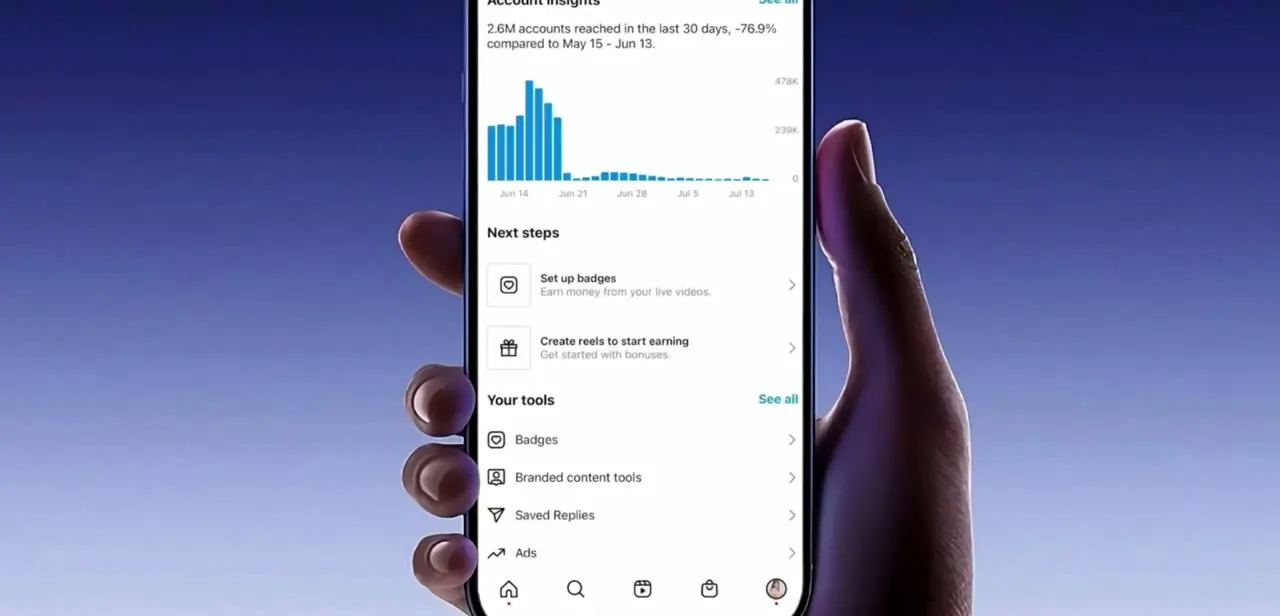
Your professional dashboard's tools section shows Account Insights (reach over the last 30 days, charted out) alongside a "Next steps" panel with prompts like Set up badges and Create reels to start earning, and a "Your tools" list covering Badges, Branded content tools, Saved Replies, and Ads. This isn't the payout screen itself, but it's worth a look first. A sudden reach drop or an earning tool that's greyed out here often points to the same underlying account issue that's blocking your payout.
02Navigate to the professional account settings
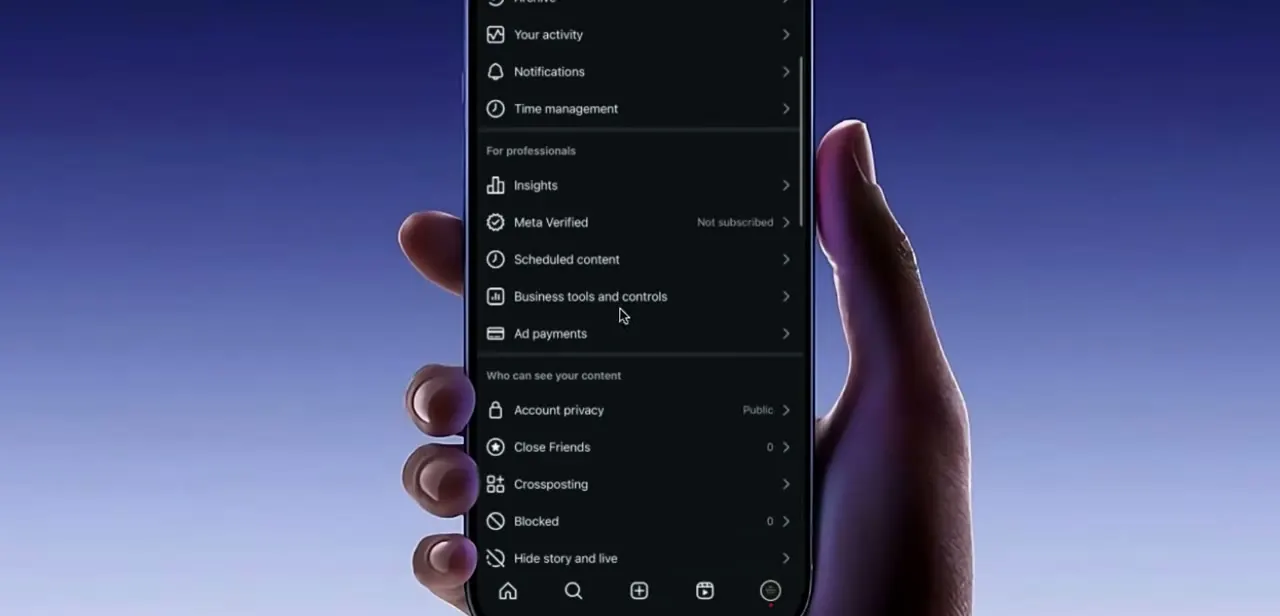
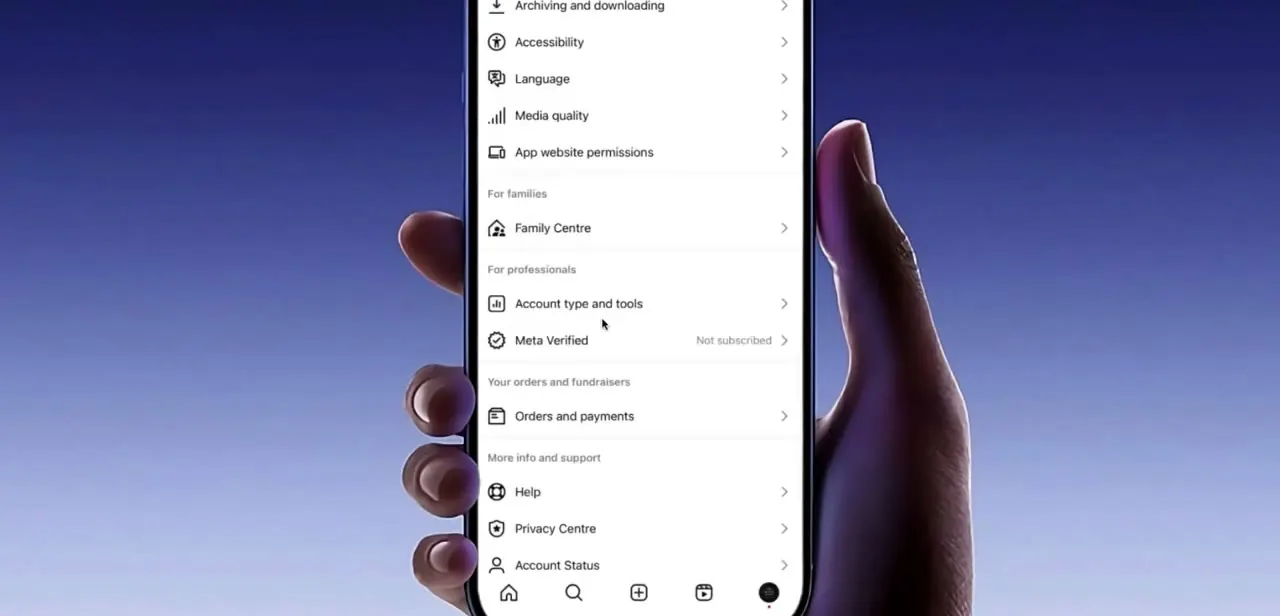
Payout settings live inside Instagram's main Settings menu, under a "For professionals" section alongside Account type and tools and Meta Verified, separate from the more general settings above it like Archiving and downloading, Accessibility, and Family Centre. There's also an "Orders and payments" entry under "Your orders and fundraisers," which is where purchase-related payment methods live. Payout settings for your earnings are reached through the professional tools section instead, not this one.
03Open the payout method screen and check your PayPal link
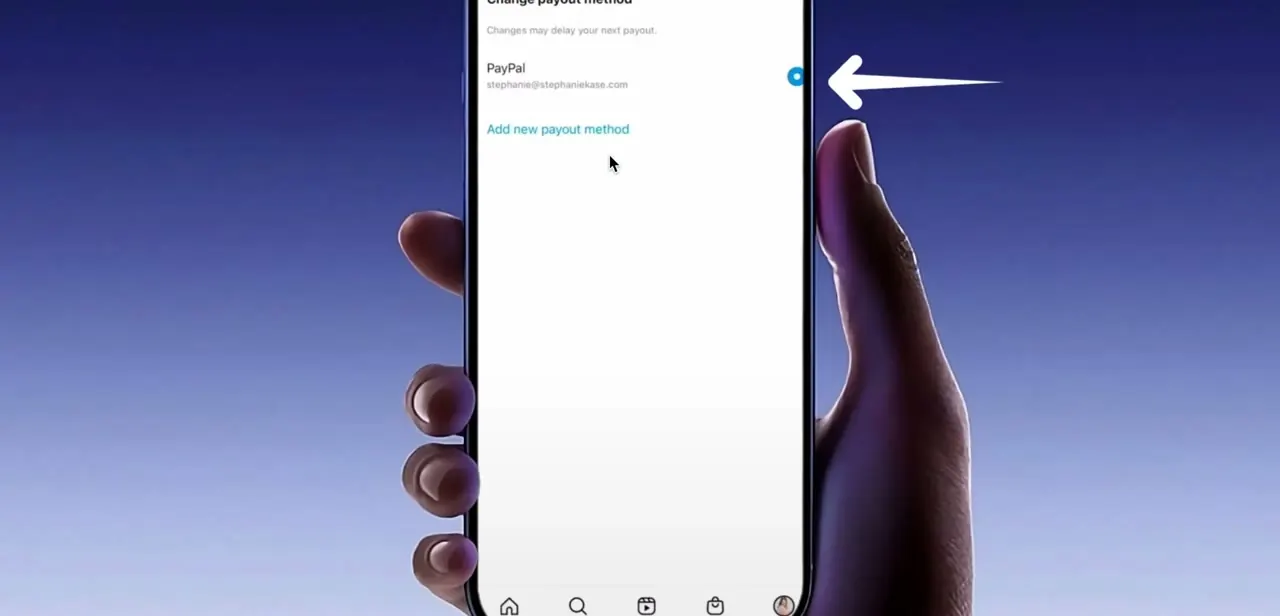
Inside Account type and tools, the payout method screen shows your currently connected method, PayPal, with the email address it's linked to, and an "Add new payout method" option below it. A note at the top warns that changing your payout method may delay your next payout: leave it alone if your current link works and the problem is somewhere else, like your tax info or business type.
If the connected PayPal address doesn't match an account you still control, this is where you fix that. PayPal isn't the only option here. Instagram's payout settings also support linking a bank account directly or a debit card, so if PayPal keeps giving you trouble, switching payout methods entirely is a legitimate fix, not just a re-link.
04Re-link PayPal if the connection looks stale
If your PayPal identity isn't verified, or the email shown no longer matches an active PayPal account, use Add new payout method to connect fresh instead of trying to edit the existing broken link in place. Log into the PayPal account you want to use before starting this step, since Instagram needs to complete an authorization handshake with PayPal directly; starting the re-link without being logged into PayPal is a common reason it silently fails.
Time this carefully. Changing a payout method places a hold on the account, and Instagram's own help documentation notes that updating financial information within 5 days of a scheduled payout pushes that payout to the next cycle instead of releasing it on time. Re-linking PayPal the day before a payout is due is a common, self-inflicted reason a payment that would otherwise have gone through shows as delayed.
05Update your tax information and business type
Outdated tax details or a mismatched business type, LLC selected when you're filing as an individual, for instance, can block a payout even when the PayPal link itself is fine. This information lives in the same professional account tools area as your payout method. Work through it and correct anything that no longer reflects your actual filing status before assuming the PayPal connection is the only problem.
06Escalate through Meta Business Support if it's still stuck
If a payment stays in processing or keeps failing after you've confirmed the PayPal link, tax info, and business type are all correct, use Meta Business Support chat, reachable from the Help entry in Settings, to escalate directly. Have your account details and the specific error or status message ready. A stuck payout with no visible error is a different support conversation than one actively showing "failed."
| Method | Note |
|---|---|
| PayPal | What most creators use; needs a verified PayPal account with a matching identity |
| Bank account | Linked directly, no third-party login step involved |
| Debit card | Also linked directly; availability can vary by country |
Per Instagram's Help Center content on payout setup; exact availability varies by region and account type.
When it doesn't work
Payout stays in "processing" right after you change payout method
Why: Updating payout information triggers a review hold. Instagram documents this as a 5-day hold, and changing financial details within 5 days of a scheduled payout pushes that payout to the next cycle instead of releasing it on time.
Fix: Wait the hold out instead of repeatedly re-linking PayPal, which can restart it. Make payout-method changes right after a payout clears, not right before the next one is due.
PayPal is connected but the payout still fails
Why: Tax information or business type is outdated or mismatched, which Meta checks separately from whether the PayPal link itself is valid.
Fix: Go through the tax verification and business type fields in the same professional tools area and correct anything that no longer matches your actual filing status.
PayPal specifically won't stay linked
Why: Some accounts run into recurring PayPal-side verification issues that a re-link doesn't fix.
Fix: Switch to a bank account or debit card as the payout method instead, from the same payout method screen, rather than continuing to fight the PayPal connection.
Frequently asked questions
Why is my Instagram Reels payment stuck in processing?
Often a disconnect between Meta's payment system and your linked PayPal account: an unverified identity, a currency mismatch, or outdated tax information. It can also just be the review hold Instagram places whenever you change your payout method.
Does changing my payout method delay the payout I'm currently owed?
It can. Instagram documents a hold when you update payout information, and a change made within 5 days of a scheduled payout gets pushed to the next payout cycle rather than paid on time.
Do I have to use PayPal to get paid on Instagram?
No. Instagram's payout settings also support linking a bank account or a debit card directly. If PayPal keeps failing, switching payout methods is a legitimate fix.
How do I fix greyed-out payout settings on Instagram?
Greyed-out fields usually clear up once you've corrected related account details, like your tax information or business type, that were blocking the edit in the first place.
Where exactly do I find my Instagram payout method?
Open Settings, go to Account type and tools under the "For professionals" section, and look for the payout method screen. It shows your connected payout method and an option to add a new one.
Who do I contact if my Instagram payout keeps failing?
If the issue persists after checking your payout method, tax details, and business type, use Meta Business Support chat (reachable from Help in Settings) to escalate a stuck payment directly.
Sources and last check
Screens and click path come from a walkthrough recorded in 2025. Instagram and Meta's official help pages on payouts render through JavaScript and returned empty page shells when fetched directly in this session, so they could not be read in full. The 5-day payout hold and the bank-account/debit-card payout options were cross-checked through two independent searches that both surfaced quoted text from Instagram's own Help Center; that is a weaker form of verification than reading the article directly, and is flagged as such here. No outright factual error was found in the original draft; the changes are additions (the hold timing, the alternate payout methods) plus a tighter troubleshooting section.
About the author

Impran M N
I've been hooked on technology for as long as I can remember — especially the new tools and AI apps that seem to land every other week. Easy Tech Tuts is where I write up whatever I've just worked out: I do the task in the real product, record the screen, and turn it into the guide I wish I'd found first.