Easy Tech Tuts
How To Fix Inverted Camera in Instagram Video Call 2026, Flipped Cam Fixed
By Impran M NLast checked against official docs
A flipped or mirrored front camera during an Instagram video call usually is not a broken phone or a broken app. Most reports turn out to be the ordinary mirrored self-view every camera app shows while you frame yourself, surfacing somewhere more noticeable than usual.
This guide separates that from a real glitch, and corrects a fix that gets repeated across forums but does not touch Instagram at all: the iPhone's system-level Mirror Front Camera toggle. None of what follows needs a third-party camera app.
01Understand the mirrored self-view
Instagram shows a mirrored preview of your own front camera while you're framing yourself in Reels, Stories, and calls, the same way a bathroom mirror or a laptop's built-in camera app does. That mirroring is standard for live camera previews across apps; it isn't something Instagram invented for this one feature. A lot of what gets reported as an inverted camera during a call is this same behavior showing up somewhere the person didn't expect it, not footage that's genuinely broken.
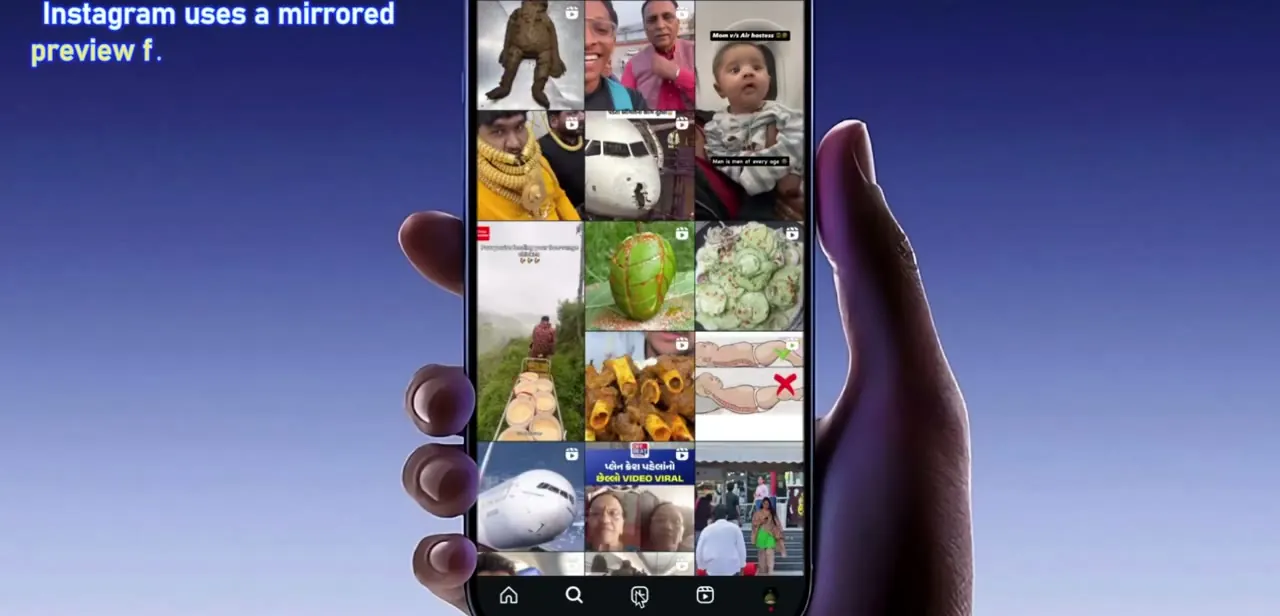
02Check Instagram's own call controls first
During an active video call, tap your own video tile to bring up the on-screen controls, including the icon that switches between front and back camera. Not every version of the app surfaces a dedicated mirror toggle there, but when one is present it's the quickest fix, since it changes what the other person sees without touching any setting on the phone itself.
03Don't expect the iPhone's Mirror Front Camera setting to fix it
Settings > Camera > Mirror Front Camera is a common suggestion for any app that shows a flipped camera, and it's the wrong tool here. Apple's own iPhone User Guide describes it as capturing a selfie the way you see it in the frame, scoped to the Camera app's own photo and video modes.
It doesn't extend to how other apps render their live preview: FaceTime keeps mirroring its feed during a call no matter how that toggle is set, and Instagram's call preview behaves the same way. If this setting is already on and Instagram still looks the same, that's expected, not a sign the fix failed.
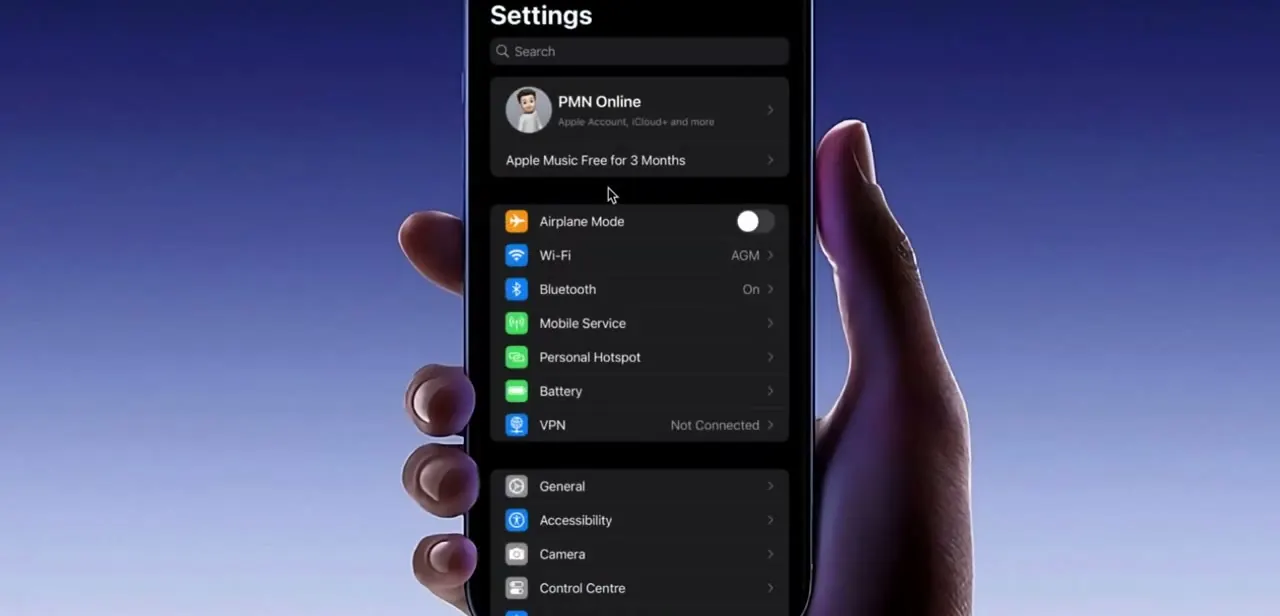
04Update Instagram, clear its cache, then test on a real call
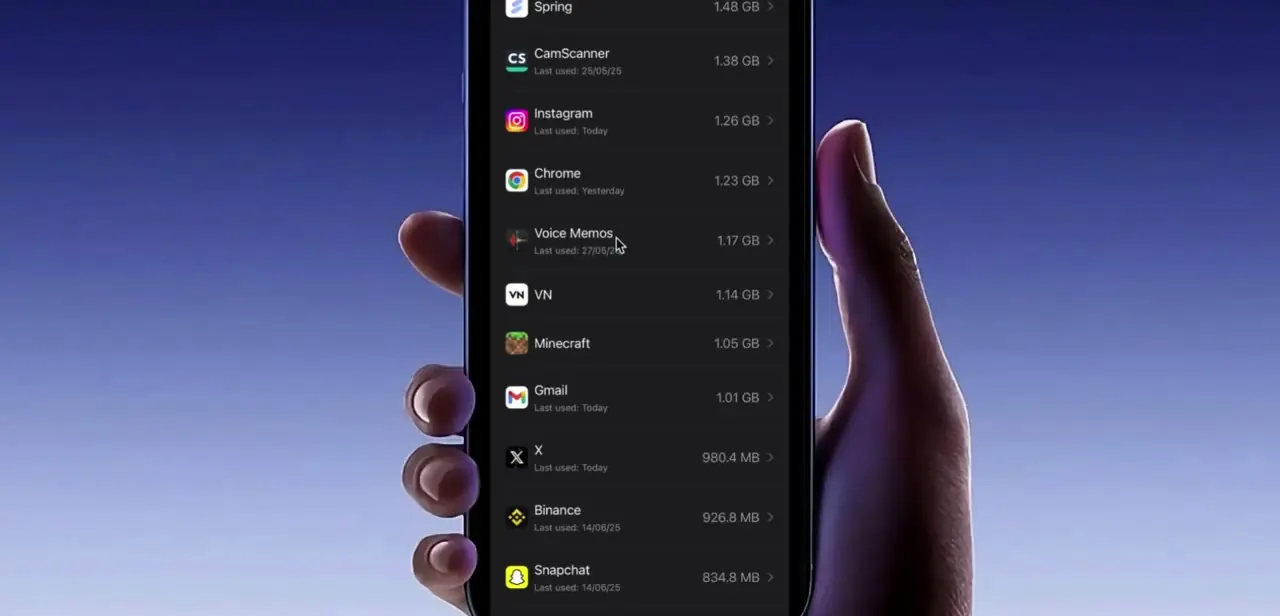
An outdated app version is one of the more common causes of display glitches, so check the app store for a pending Instagram update before anything else. If the flip persists, open your phone's storage settings, find Instagram among the installed apps, and clear its cache or offload it without losing your login. Then start a test call with a friend or a second device and change one thing at a time, so if the flip returns you know which setting to revisit instead of starting over.
When it doesn't work
Mirror Front Camera is turned on in iPhone Settings and Instagram still looks the same
Why: That setting only changes how Apple's own Camera app captures selfies. Apple scopes it to the Camera app's photo and video modes; apps with their own live preview, FaceTime included, keep mirroring the feed regardless of how it's set, and Instagram behaves the same way.
Fix: Skip this setting where Instagram is concerned. Check Instagram's own in-call controls and app version instead.
The camera looks flipped on your own screen, but the person you're calling says theirs looks normal
Why: This is the ordinary mirrored self-view, the same effect as looking in a mirror while you frame yourself. It's intended behavior for live previews, not a fault in the call.
Fix: Ask the other person what they see before treating anything as broken. If they see it correctly, there's nothing to fix.
The flip appeared suddenly, mid-call or right after an update
Why: Most often an outdated app build or a corrupted local cache rather than anything account-side.
Fix: Update Instagram first. If the flip continues, clear its cache or offload and reinstall the app.
Frequently asked questions
Why does my Instagram video call camera appear flipped?
Usually it's Instagram's mirrored self-view, the same behavior every live camera preview uses for framing, showing up during a call. When it isn't that, it's more often an outdated app version or a local glitch than anything account-side.
Will turning on iPhone's Mirror Front Camera setting fix Instagram?
No. Apple's documentation scopes that setting to the iPhone's own Camera app. It doesn't change how Instagram, FaceTime, or any other app with its own live camera preview displays your feed.
Do I need a third-party app to fix a flipped camera?
No. Checking Instagram's own call controls, updating the app, and clearing its cache cover most cases without installing anything extra.
Does this happen on both Android and iPhone?
Yes, though the exact settings menu names differ between the two, and the specific Mirror Front Camera correction above is an iPhone setting.
Is the mirrored preview a bug?
No. Instagram mirrors the front camera preview on purpose so framing feels natural, the same as a mirror. It only reads as a problem when someone notices it somewhere they weren't expecting, like a call.
Sources and last check
Click path and screens come from a walkthrough recorded in 2026. Instagram has no help-center documentation covering this specific complaint, so the mirrored-preview explanation reflects how live front-camera previews behave generally rather than an Instagram-specific published claim. The concrete correction made in this pass, that iPhone's Mirror Front Camera setting does not affect Instagram's call preview, was checked against Apple's iPhone User Guide in September 2026, which scopes that setting to Apple's own Camera app.
About the author

Impran M N
I've been hooked on technology for as long as I can remember — especially the new tools and AI apps that seem to land every other week. Easy Tech Tuts is where I write up whatever I've just worked out: I do the task in the real product, record the screen, and turn it into the guide I wish I'd found first.