Easy Tech Tuts
How To Fix Instagram Time Zone is Wrong, Change Post Time to 12 Hour - 2026
By Impran M NLast checked against official docs
When Instagram shows the wrong time on posts, stories, or Insights, the cause is almost never Instagram itself. It's tied to your device's clock settings.
This guide covers syncing your phone's time with network time, switching your device to a 12-hour clock so timestamps show AM/PM, and clearing out cached data so the fix sticks. It also clears up a common misconception: the business address on a professional account's dashboard has nothing to do with your displayed time zone, whatever other guides claim.
01Check whether your clock is set automatically
Before touching anything Instagram-specific, open your phone's date and time settings. Confirm "Set Automatically" is switched on so your device pulls time from your carrier network instead of a manually entered value.
A manually set clock is the single most common reason an app's timestamps drift from reality. This screen also shows your detected time zone; if it's wrong here, every app on the phone, not just Instagram, will show incorrect times.
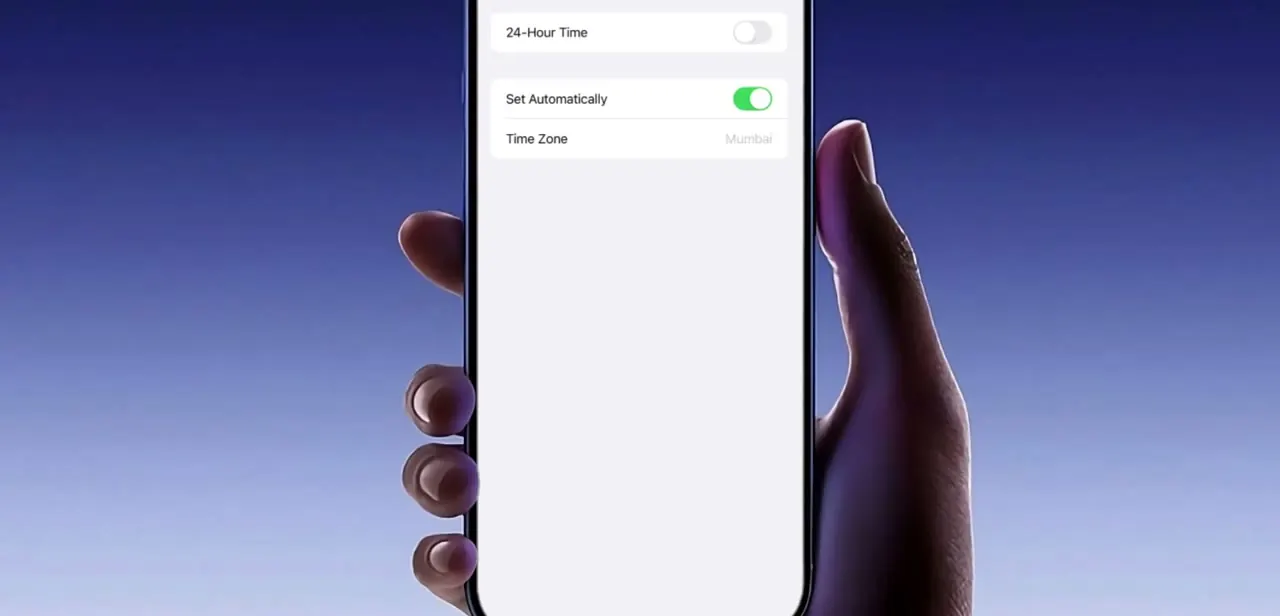
02Switch to a 12-hour clock format
On the same settings screen, the 24-Hour Time toggle controls whether your device, and by extension apps like Instagram that follow the system clock, displays times as "14:00" or "2:00 PM." Turn this off for AM/PM formatting across your phone. This governs the small timestamps under posts and comments; it's a system setting, not something inside the Instagram app, which is why hunting through Instagram's own settings for a 12-hour toggle doesn't turn anything up.
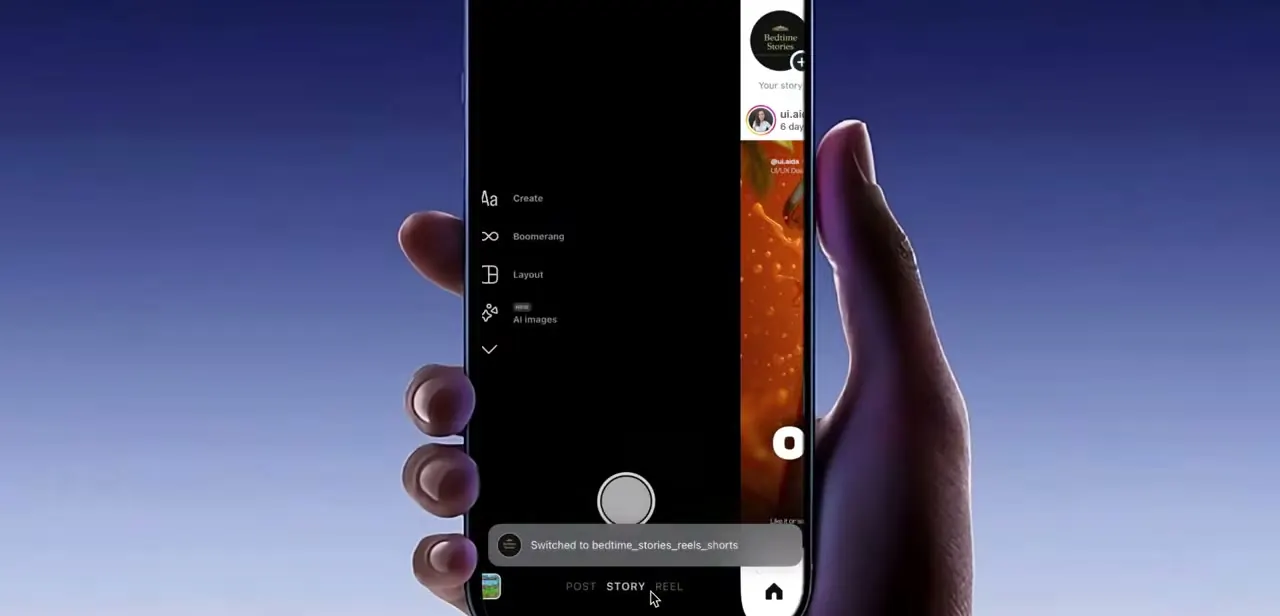
The clock sticker you can add to a story is a separate thing: it has its own format, not tied to your phone's setting. Tap the sticker itself after adding it to cycle through its digital and analog styles until it shows the format you want.
03Clear the Instagram app cache
After correcting the device clock, force-close Instagram and clear its cache, or offload and reinstall the app if your device doesn't offer a direct cache-clear option. Apps commonly hold onto cached data between sessions, and lingering cached timestamps can make it look like the fix didn't work even after the underlying settings are correct. Instagram's own troubleshooting guidance lists reinstalling as a standard step once a restart and a connection check haven't resolved a display problem.
04Verify posts and stories show the correct time
Reopen Instagram and check a recent post's timestamp, a story sticker, and the Insights section if you have a professional account. All of them should now agree with your phone's actual local time. If one still looks off, give it a few minutes; some changes take a short refresh cycle to fully show up instead of updating instantly.
When it doesn't work
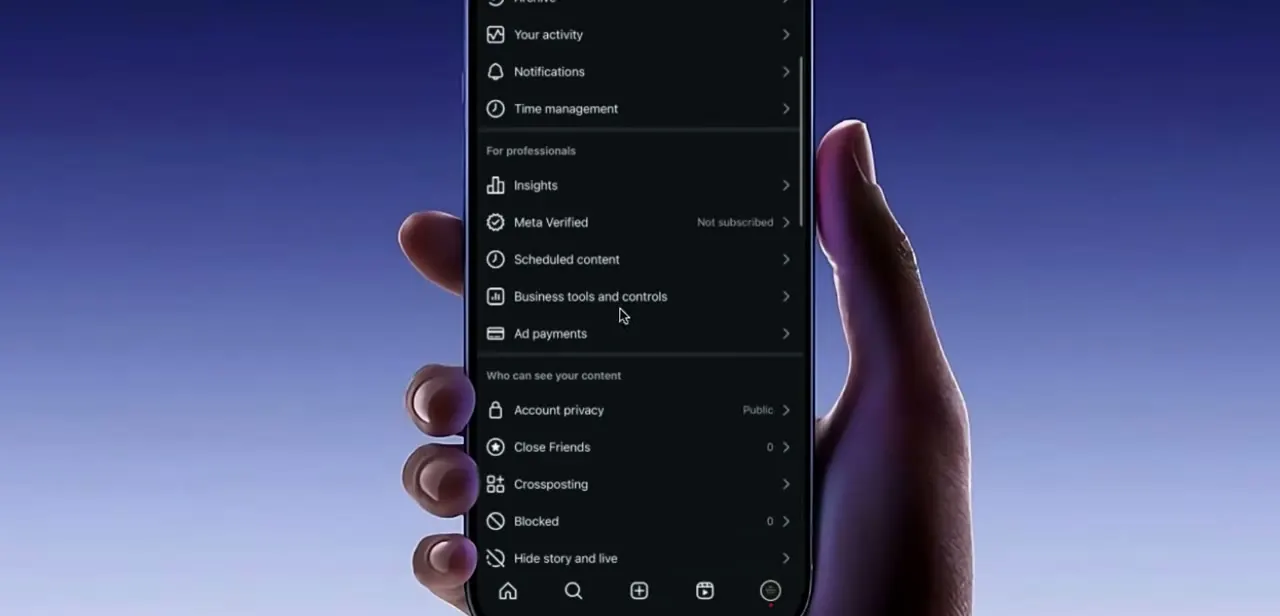
I updated my professional account's business address but the time is still wrong
Why: The business address field isn't tied to your displayed time zone. Meta's own Instagram Insights documentation describes Insights, including your followers' most active times, without mentioning the business address at all; every account-level source points to the device clock instead.
Fix: Leave the address field alone unless it's genuinely out of date for other reasons, and check your phone's date and time settings instead.
The clock sticker on my story still shows 24-hour time after I fixed my phone
Why: The Time sticker has its own format that cycles independently of your device's clock setting.
Fix: Tap the sticker itself, after placing it, to cycle through its digital, analog, and format options.
Times still look wrong right after making these changes
Why: Cached data from before the fix, or a short delay before Instagram's own display catches up.
Fix: Force-close the app, clear its cache or reinstall it, and give it a few minutes before checking again.
Frequently asked questions
Why is my Instagram time zone showing incorrectly?
Almost always because your device's clock or time zone setting is wrong or set manually. Turning on "Set Automatically" in your phone's date and time settings fixes it in most cases.
How do I make Instagram show 12-hour time instead of 24-hour?
Switch your phone's system clock from 24-hour to 12-hour format in its date and time settings. Instagram's post and comment timestamps follow the system clock; there's no separate format toggle inside the app for them.
Does updating my business address change my Instagram time zone?
No. This is a common claim in other guides, but Meta's own documentation for Instagram Insights makes no mention of the business address affecting time zone, and describes account activity times as based on device settings. Changing the address won't fix a wrong time.
Can I change the format of the clock sticker on my Instagram story?
Yes. After adding the Time sticker to a story, tap it to cycle through its available styles, including digital and analog formats. This is separate from your phone's system clock setting.
Will clearing Instagram's cache fix incorrect post times?
It can help. Clearing the cache removes old cached data that might otherwise keep displaying even after you've corrected your device's clock settings.
Sources and last check
Click paths and screens come from a walkthrough recorded in July 2025. In September 2026 the claim that a professional account's business address controls its displayed time zone was checked against Meta's official Instagram Insights documentation, which describes account activity times without mentioning the address field at all; that claim has been removed and replaced with a direct correction, since no official source supports it. Meta doesn't publish a dedicated time-zone troubleshooting page, so the device-clock guidance reflects how the system clock and Instagram's app cache generally interact, not a specific vendor article.
About the author

Impran M N
I've been hooked on technology for as long as I can remember — especially the new tools and AI apps that seem to land every other week. Easy Tech Tuts is where I write up whatever I've just worked out: I do the task in the real product, record the screen, and turn it into the guide I wish I'd found first.