Easy Tech Tuts
How to Fix Failed To Load Earlier Messages in Instagram 2026 Full Guide
By Impran M NLast checked against official docs
You scroll up in a DM thread, the spinner appears, and "Failed to Load Earlier Messages" appears where your conversation should be. In most cases the history is intact and the app simply cannot fetch it, so the fixes below run from least disruptive to most.
One cause is new and worth knowing before you start clearing anything. Meta's help pages state that end-to-end encrypted messaging on Instagram is no longer supported as of 8 May 2026, and people with affected chats are shown instructions for downloading the media and messages they want to keep. If the thread that refuses to load older messages was an encrypted one, no amount of cache clearing will bring it back, and step 2 tells you what to do instead.
01Separate a broken inbox from a broken thread
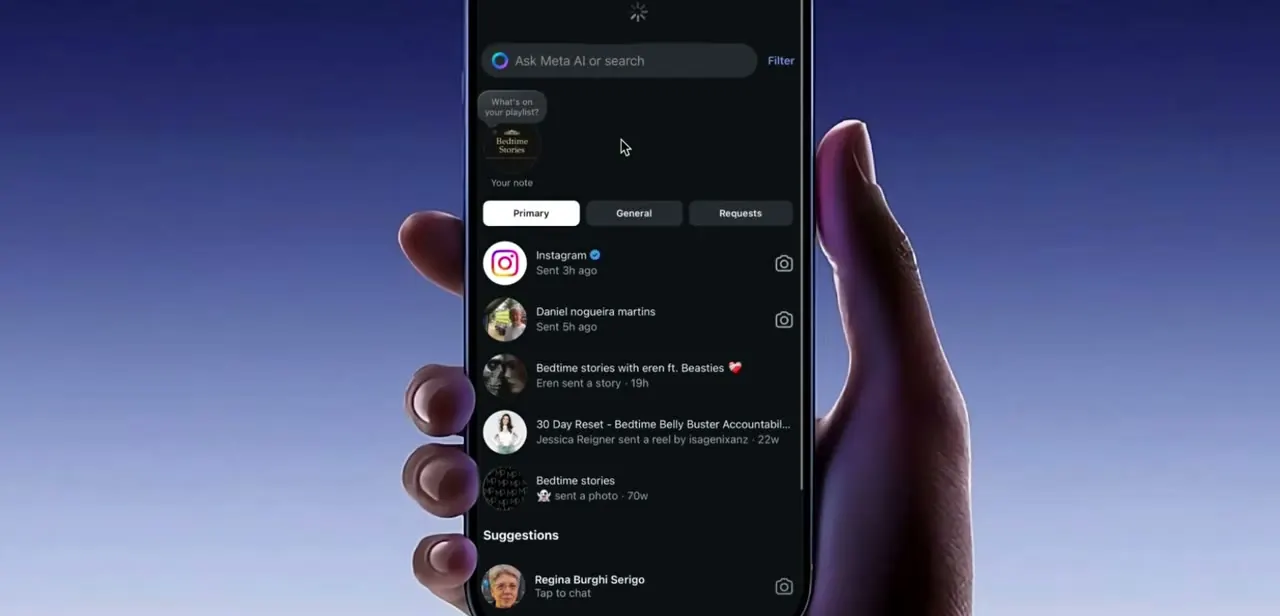
Open the inbox before touching any settings. If the thread list, notes and the Primary, General and Requests tabs all load, your connection to Instagram is fine and the fault is limited to fetching older history.
A completely dead inbox points somewhere else: your network, or an outage. Give the thread a pull-to-refresh and wait before scrolling up again.
Instagram fetches older messages in pages, and tapping while a page is still in flight can cancel the request and produce this exact error. On the outage question, Instagram says it has been testing a feature that notifies you in your Activity Feed when there is an outage and again when it is resolved, so check there before trusting a third-party status tracker.
02Check whether the thread was an encrypted chat
This is the cause that none of the usual fixes touch. Meta's help pages state that end-to-end encrypted messaging on Instagram stopped being supported on 8 May 2026, and that anyone with affected chats sees instructions for downloading any media or messages they want to keep.
Meta also notes that people running an older build may need to update Instagram before those download options appear. So if the failure is confined to one or two older threads and the rest of your history scrolls back normally, update the app and look for that prompt on the affected conversation.
Clearing cache, logging out, and reinstalling do nothing here. Meta points anyone who wants encrypted messaging to WhatsApp instead.
03Force stop the app, then clear its cache
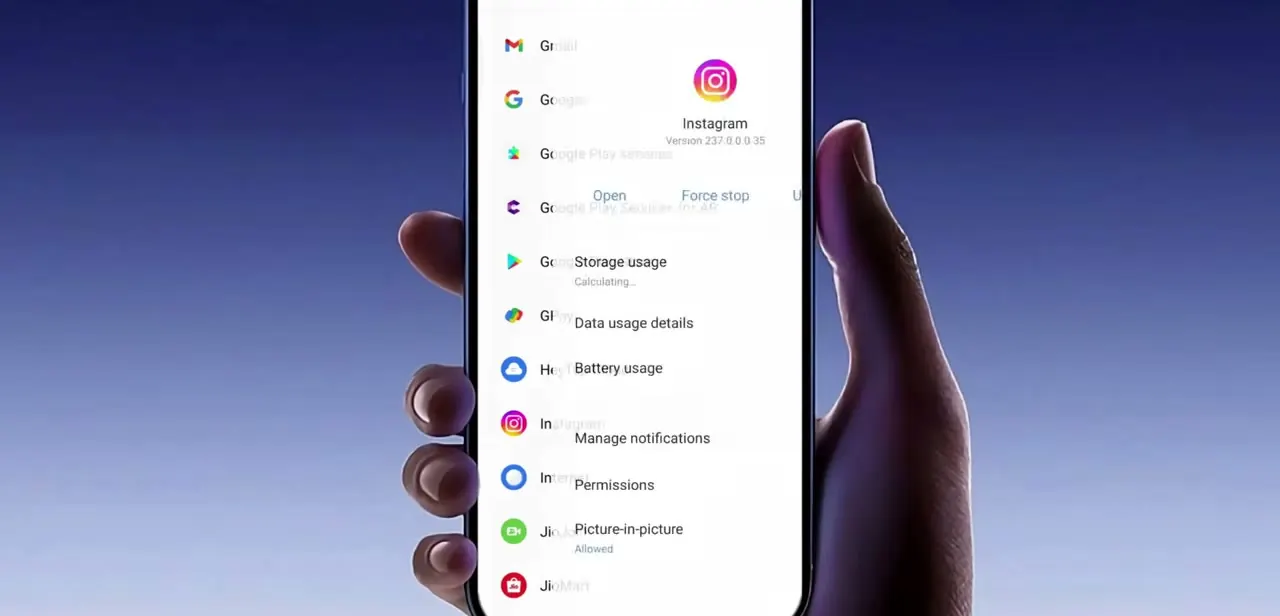
Kill the process properly instead of swiping the app off the recents carousel. On Android, long-press the Instagram icon, open App info, and tap Force stop.
On iPhone, swipe it away from the app switcher and pause a few seconds before relaunching. That drops the in-memory state holding the failed request, so the next open starts a fresh fetch.
If the error survives a clean relaunch, work on the cache. On Android the same App info screen leads to Storage usage, which offers clear cache and clear data as separate buttons.
Clear cache removes stored media and message fragments and leaves your login alone. Clear data signs you out, so keep it in reserve. iPhone has no cache button; offloading the app from Settings, General, iPhone Storage is the closest equivalent, and reinstalling afterwards restores it. Note the version number shown on that screen while you are there.
04Update the app, then sign out and back in
An old build is a real cause. Instagram changes how message history is paged, and clients that fall behind stop being able to request it.
Open the Play Store or App Store, search for Instagram, and install any pending update instead of assuming auto-update ran. If the error outlives the update, reset the session.
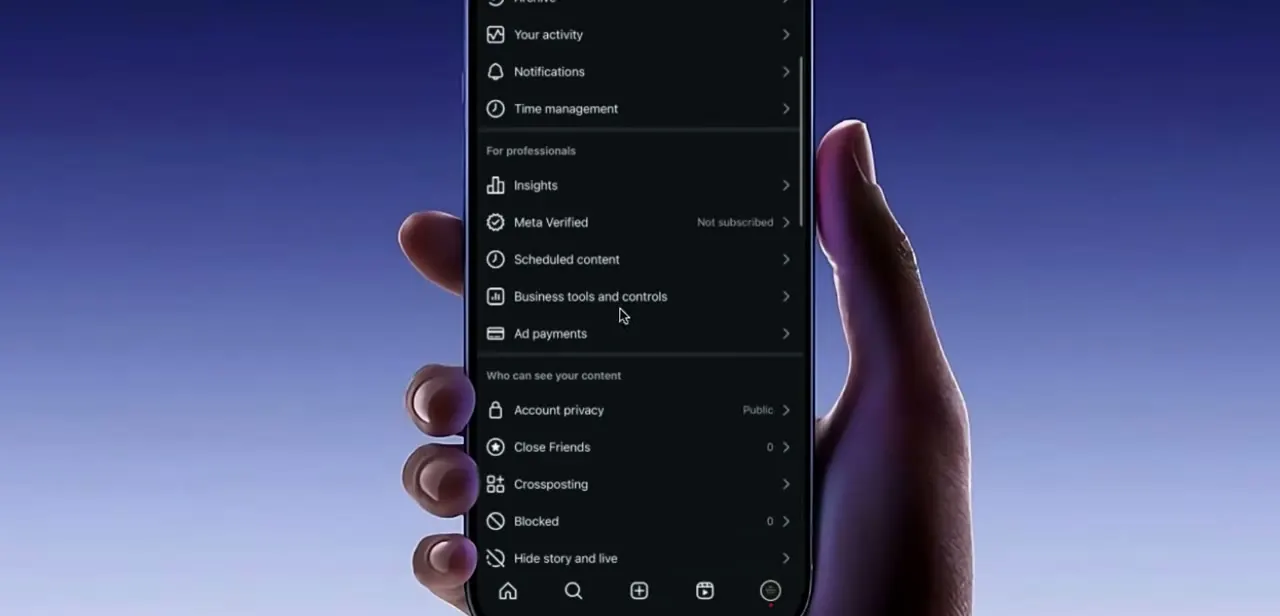
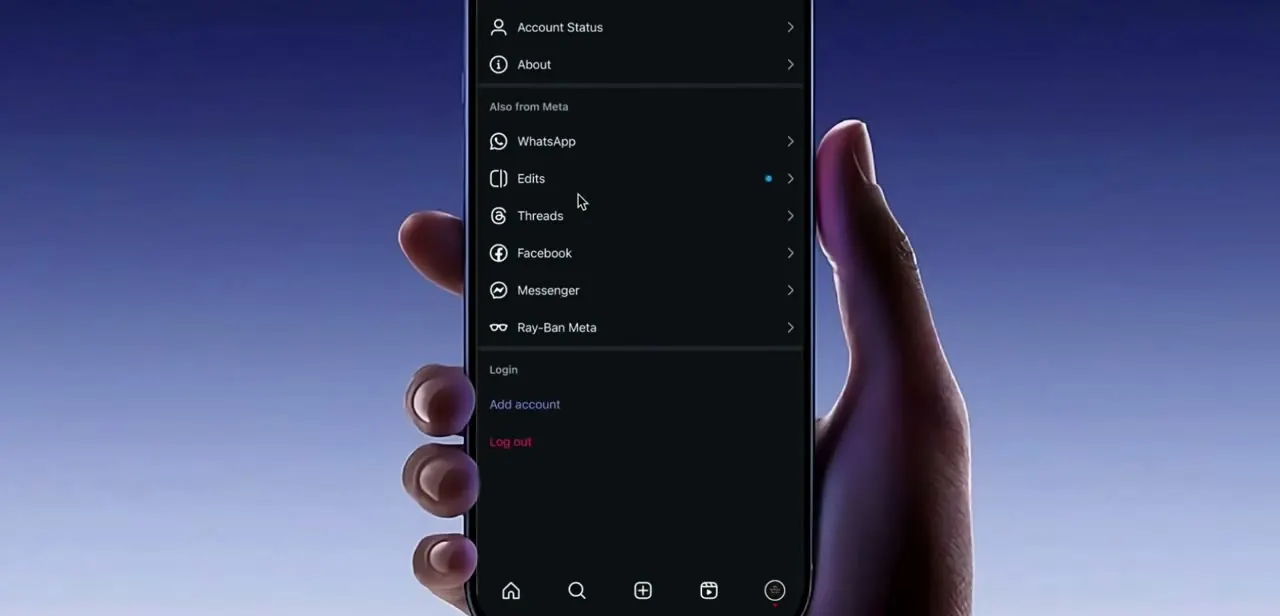
Open your profile, tap the menu, scroll to the bottom of Settings past Account Status and the Also from Meta list, and choose Log out. Signing back in re-authenticates the app and re-syncs your threads.
Ordinary Instagram messages are stored on Meta's servers, so this does not delete them. Sort out any chat covered by the encryption change in step 2 first, though, since that history is the one category you do not want to gamble with.
05Decide whether it is your device or your account
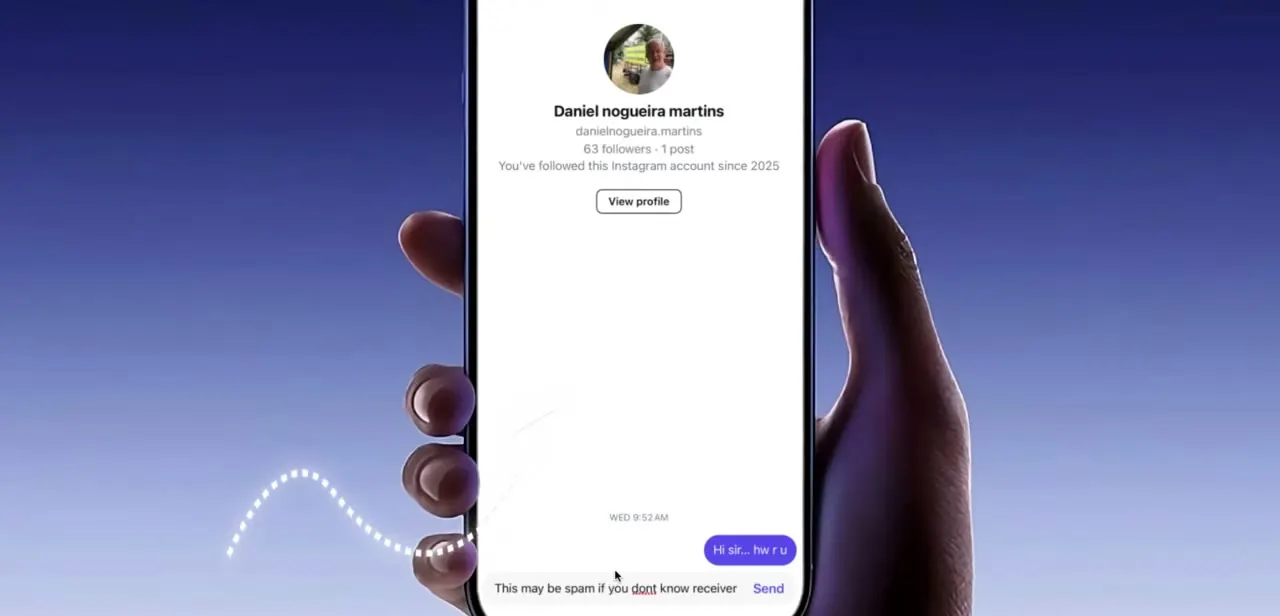
One test settles it. Sign in to the same account on another device, or at instagram.com in a browser, and open the conversation.
History that loads there confines the problem to your phone, and a clean reinstall is the fix. History that fails everywhere is server or account side, and no local change will help.
If you need the messages while the problem persists, export them. Meta's documented path is Settings, then Accounts Center, then Your information and permissions, then Export your information, where you pick a format, a date range and media quality. Expect a wait: Meta says the email link can take up to 30 days, and once the export is ready you have four days to download it from Available downloads.
Frequently asked questions
Why won't my older Instagram messages load?
The usual causes are a temporary server problem, a blocked or unstable network, a stuck app session, or corrupted local cache. Since May 2026 there is one more: chats that were end-to-end encrypted are no longer supported on Instagram, and those histories behave differently from ordinary threads.
Will logging out delete my chat history?
Ordinary Instagram messages are stored on Meta's servers, so signing out and back in re-downloads them. Handle any chat flagged by the May 2026 encryption change before you log out, and follow the download prompt Meta shows on those conversations.
Should I clear cache or clear data?
Cache first. It removes temporary files without signing you out. Clear data wipes the session as well, so it belongs after clearing cache and reinstalling have both failed.
How do I get a copy of the messages while this is broken?
Settings, then Accounts Center, then Your information and permissions, then Export your information. Meta says the link can take up to 30 days to arrive, and the finished export stays available for four days.
Do I need a third-party app to recover the messages?
No, and it is a bad idea. Every fix here uses Instagram's own settings or your phone's. Tools promising to recover Instagram DMs want your login and can see nothing the official app cannot.
Sources and last check
The Android and Instagram screens come from a walkthrough recorded in 2025. In September 2026 the advice was re-checked against Meta's help pages on Instagram's end-to-end encryption change and on exporting your information, plus Instagram's own post about outage notifications. That check added a cause the earlier version could not have known about: Meta states end-to-end encrypted messaging on Instagram has not been supported since 8 May 2026, so the flat claim that logging out never risks any message has been qualified. The export path and its timings are quoted from Meta's documentation. No account was tested first-hand.
About the author

Impran M N
I've been hooked on technology for as long as I can remember — especially the new tools and AI apps that seem to land every other week. Easy Tech Tuts is where I write up whatever I've just worked out: I do the task in the real product, record the screen, and turn it into the guide I wish I'd found first.