Easy Tech Tuts
How to Fix Disappearing Messages on Instagram, Turn ON & Off Vanish Mode Issues 2026
By Impran M NLast checked against official docs
If you've gone looking for Vanish Mode in Instagram's settings, you're not missing anything: Instagram now calls the everyday version of this feature Disappearing Messages, and it lives inside an individual chat instead of in Settings. The two names haven't fully separated, though.
Instagram's own Help Center still keeps a page titled "Send messages in vanish mode on Instagram" alongside "About disappearing messages in Instagram chats", so the rename isn't as clean as it looks from inside the app. This guide covers where the setting sits, how to read the grey line Instagram puts in the thread to confirm the mode's current state, and what to try, in order, when the gesture that turns it on won't work.
01What changed, and what didn't
Instagram now uses Disappearing Messages as the everyday name for this feature: messages in a thread clear automatically instead of staying in your history. Vanish Mode hasn't disappeared from Instagram's own documentation, though.
The company's Help Center still separately covers "vanish mode" for chats, distinct from the newer, more configurable version. In practice you'll only ever see "Disappearing message" inside the app itself; treat vanish mode as the old name for the same idea, not a separate feature you need to hunt down.
It's a per-chat setting too, not an account-wide one. Turning it on in a conversation with one friend leaves every other thread untouched.
02Open the chat you want it in
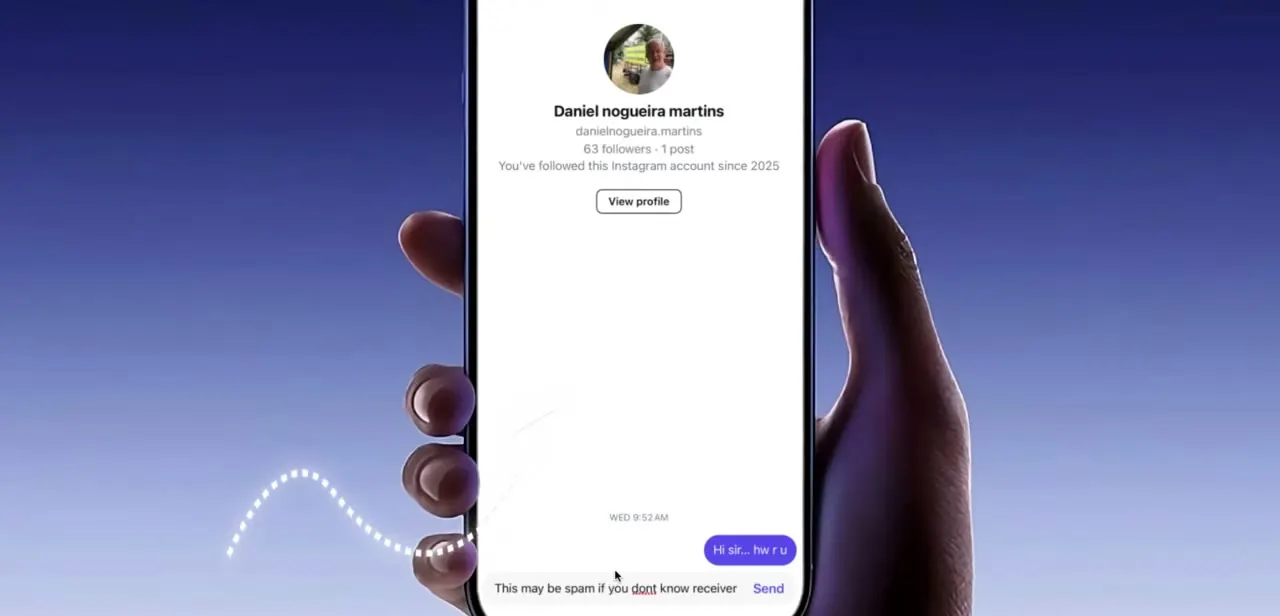
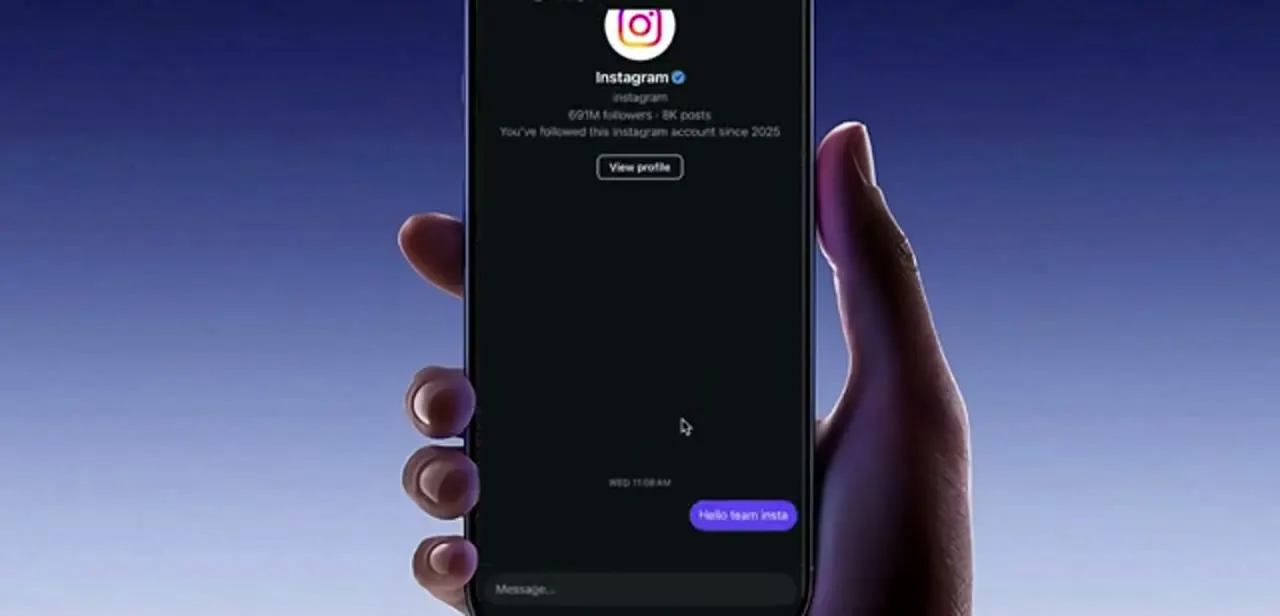
Disappearing Messages only exists inside a one-to-one direct message thread, so open the conversation first from the DM inbox. You can't enable it from your profile, from Settings, or from the inbox list, and it isn't available in every kind of thread; group chats and message requests behave differently.
Get into the thread and dismiss the keyboard so the whole conversation is visible. The gesture that activates the mode needs room to work.
03Swipe up from the bottom of the conversation
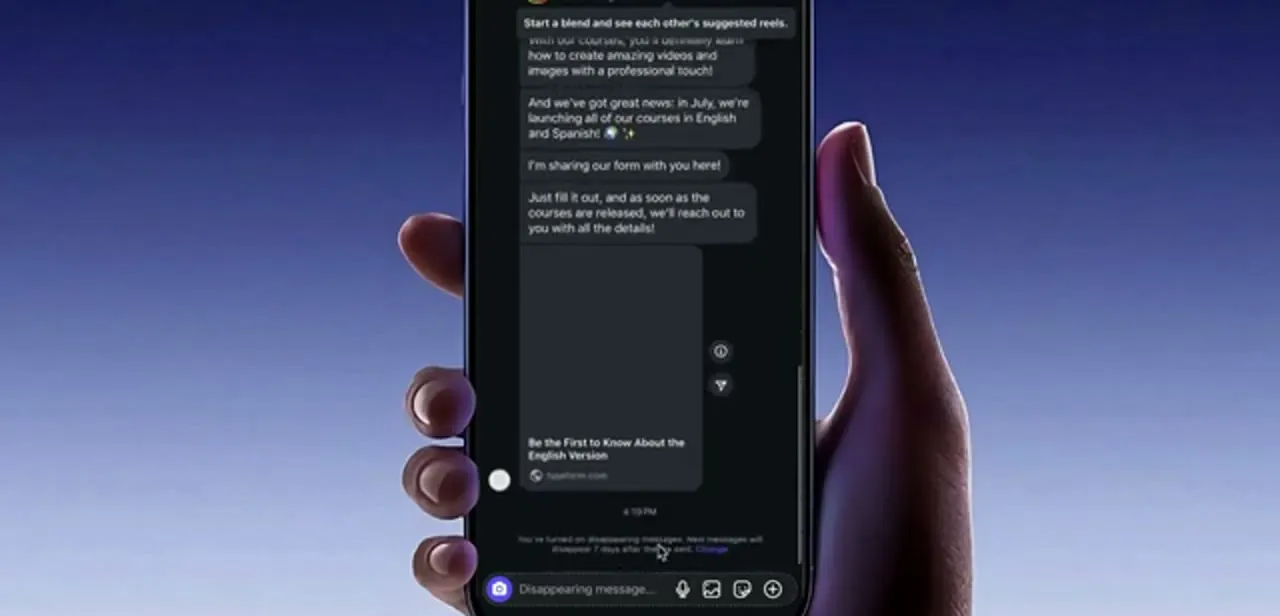
With the thread open, put your finger near the bottom of the chat area and swipe up, continuing past the point where the messages stop moving. The screen darkens and a prompt confirms you're entering disappearing mode; release, and the thread switches.
Two things confirm it worked: the composer placeholder changes from Message to Disappearing message, and Instagram drops a small grey system line into the conversation stating that disappearing messages are on, with a Change link beside it. Swiping up again turns the mode back off, and the same grey line records that too.
04If the swipe does nothing, update the app first
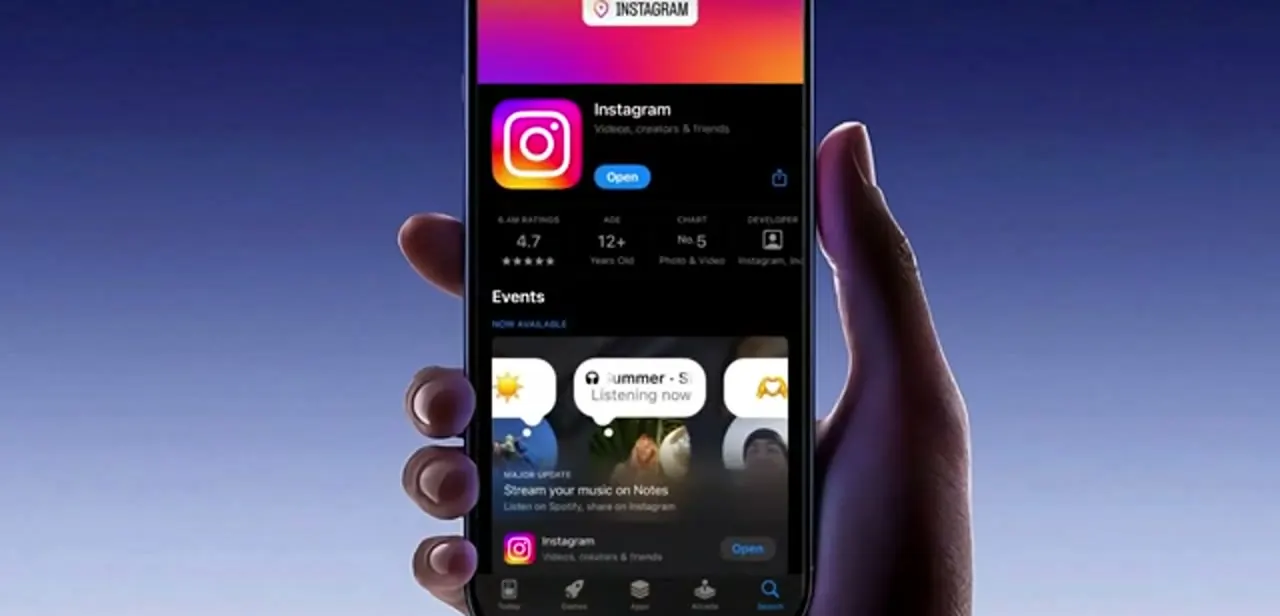
Rule out the app version before anything else. Open the App Store on iPhone or Google Play on Android, search for Instagram, and check the button on the listing.
If it shows Open instead of Update, you're already current. Messaging features are often gated to a minimum client build, and a phone with auto-updates switched off can sit months behind. Update if needed, force-close Instagram completely instead of just backgrounding it, then reopen the chat and try the gesture again.
When it doesn't work
The gesture still does nothing after updating
Why: Messaging changes roll out gradually by region and by account, so an up-to-date app can still lack the feature.
Fix: There's no setting to force the rollout. Wait, or check whether Instagram has documented restrictions for your country; accounts registered as under-18 carry tighter default messaging rules that can remove the option entirely.
The feature should be there but the app misbehaves when you try it
Why: Stale local app data.
Fix: On Android: Settings > Apps > Instagram > Storage > Clear cache (not Clear data, which signs you out). iOS has no cache button, so offload or reinstall the app instead. Messages live on Instagram's servers, not the device, so a reinstall costs you nothing beyond logging back in.
The option is there for a friend but missing on your Business or Creator account
Why: Some messaging features behave differently on professional profiles than on personal ones.
Fix: Switch back to a Personal profile temporarily as a diagnostic. If the option reappears, the account type, not a bug, was the cause.
Frequently asked questions
Why can't I find Vanish Mode in Instagram anymore?
The everyday feature is now called Disappearing Messages and uses the same swipe-up gesture inside a chat. Instagram's Help Center still keeps a separate page for "vanish mode", so the old name hasn't fully gone, even if the app itself no longer shows it.
How can I tell disappearing messages is on?
Two signals in the thread: the composer placeholder changes to "Disappearing message", and Instagram inserts a grey system line saying the mode is on and when messages will clear, with a Change link next to it.
The swipe-up gesture does nothing. What now?
Update the app and force-close it, confirm you're in a one-to-one chat and not a group or message request, then work through the troubleshooting steps above in order: cache, rollout, and account type each explain a different failure.
Will reinstalling Instagram delete my messages?
No. Conversations are stored on Instagram's servers, so they reappear once you log back in. Make sure you can complete two-factor authentication before you uninstall.
Can someone screenshot a disappearing message?
Yes, and Instagram tells you when they do. Disappearing messages cut down on clutter and casual scrollback; they aren't a guarantee that the content is gone for good.
Is vanish mode a different feature from disappearing messages?
Not in any way that matters day to day. Instagram's Help Center still documents "vanish mode" as its own article, separate from "disappearing messages", but the in-app experience only ever shows the newer name and behavior described in this guide.
Sources and last check
Click path, gesture, and screens come from a walkthrough recorded in 2025. Re-checked in September 2026 by opening Instagram's own Help Center: it still lists "Send messages in vanish mode on Instagram" as a separate live article from "About disappearing messages in Instagram chats", which corrects this guide's earlier claim that Instagram cleanly renamed the feature and the old name leads nowhere. Instagram's help pages render via JavaScript and returned mostly navigation content instead of full instructional text, so this check confirms both articles exist and are distinct, not a line-by-line match of Instagram's wording.
About the author

Impran M N
I've been hooked on technology for as long as I can remember — especially the new tools and AI apps that seem to land every other week. Easy Tech Tuts is where I write up whatever I've just worked out: I do the task in the real product, record the screen, and turn it into the guide I wish I'd found first.