Easy Tech Tuts
How To Download & Save Instagram Video On Phone Gallery 2026
By Impran M NLast checked against official docs
Instagram doesn't give every video a save-to-gallery button, but for public Reels it often gives you more than people realize: a native Download option sitting right in the share sheet. This guide covers checking for that option first, then falling back to copying the video's link and feeding it to a browser-based downloader when the native route isn't available, on both Android and iPhone. It also covers what to check when a download stalls, loses its audio, or comes back watermarked.
01Find the Reel or video you want to save
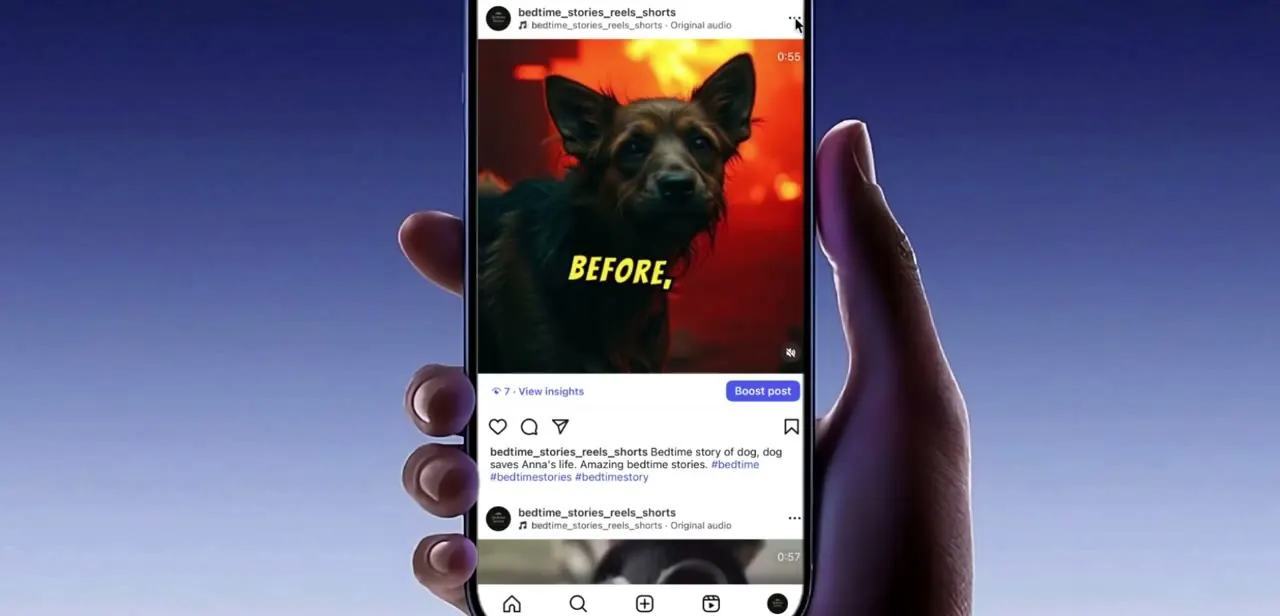
Open the post in the Instagram app the same way you normally would, whether that's from your main feed or a Reel someone shared with you. Note the caption and creator handle before going further. You'll want that context if you're saving multiple videos and need to tell them apart later, since downloaded files rarely carry any of that metadata with them.
02Check the share sheet for Instagram's own Download option
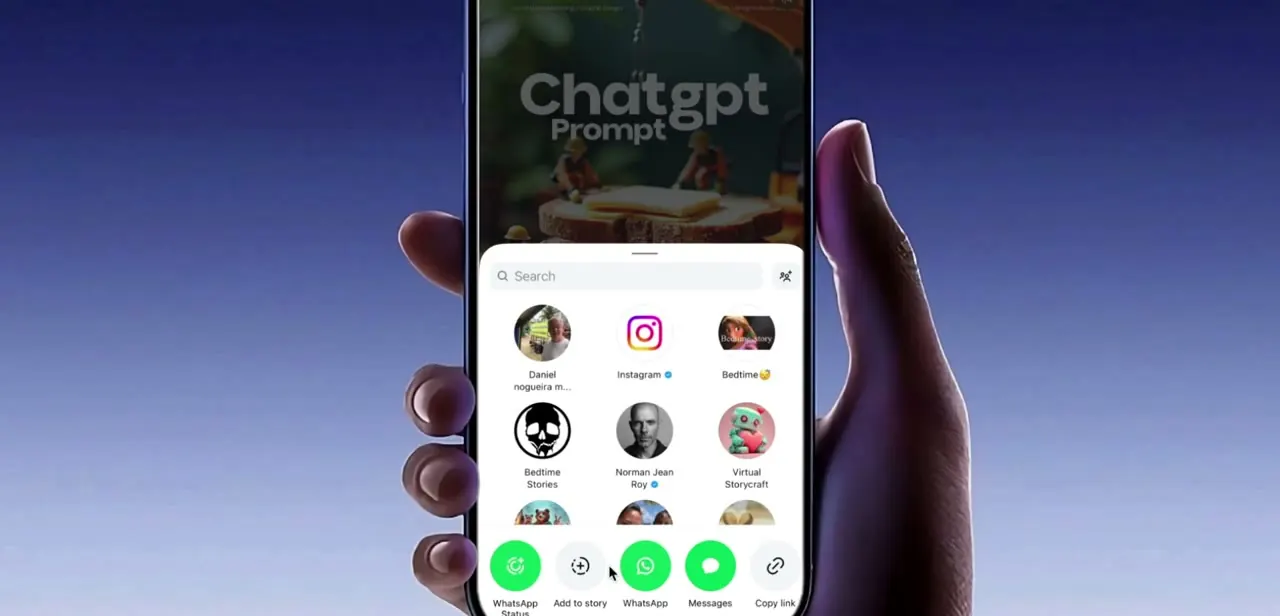
Tap the paper-airplane share icon under the video. On a public Reel whose creator hasn't turned this off, Instagram's share sheet includes a Download option that saves the file straight to your device, no browser or outside tool needed.
Instagram rolled this out worldwide for Reels in November 2023, and it's on by default for adult accounts (off by default under 18). Creators can switch it off under Settings > Privacy > Reels and Remix > Allow people to download your Reels.
There's a real trade-off: the saved file carries an Instagram watermark showing your handle and the audio track's name, with no way to remove it, and if the Reel runs on a licensed music track rather than an original sound, the download loses its audio entirely. The option also only applies to Reels, not regular feed video posts, so it won't appear on every video you open.
03When there's no Download option, copy the link instead
If the share sheet has no Download option, whether it's a private account, a regular feed video rather than a Reel, or a creator who's turned downloads off, the same sheet still offers Copy link. Alongside options to send the video to WhatsApp Status, add it to your own story, or message it to a contact, Copy link is what you need next: it gives a browser-based downloader the URL it needs to fetch the file for you.
04Paste the link into a browser-based downloader
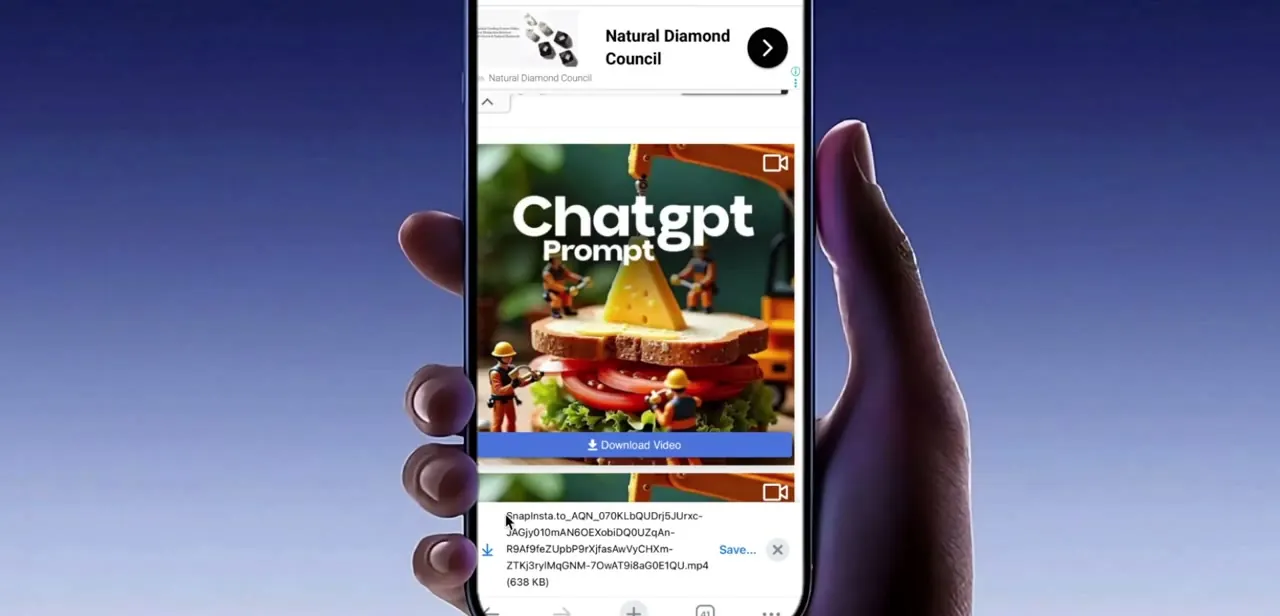
With the link copied, open your phone's browser and go to a trusted Instagram video downloader site, the kind that asks you to paste a link rather than log in to your account. Paste the copied URL into its input field and submit it. A working tool pulls up a preview of the video along with a Download Video button, confirming it found the right post before you commit to downloading anything.
05Save the downloaded file to your gallery
If you used Instagram's own Download button, the file already went to your camera roll or gallery, no extra step needed. If you went the browser route instead, tapping Download Video pulls the file into your browser's downloads, appearing as an .mp4 with a size next to it so you can confirm it actually finished. On Android, the file typically lands in your Downloads folder and can be moved to your gallery from there; on iPhone, Safari's download manager offers a Save to Files or Save to Photos option depending on the site, and Save to Photos is the one that puts it directly in your camera roll.
06Fix watermark, audio, or permission problems
A watermark from Instagram's own Download button, your handle plus the audio track's name, can't be removed; that's built into the feature. A watermark from a browser-based downloader is that tool's own branding, and switching to a different downloader often gets you a clean file.
Missing audio on a native download means the Reel used a licensed music track rather than an original sound; a downloader that fetches the original file usually keeps the sound intact. If a download fails to save at all, check that your browser or file manager has storage permission on your phone. Both Android and iOS will silently block a save rather than warn you if that permission hasn't been granted.
07Watch your saved videos offline anytime
Once a video is in your gallery or Photos app, it plays back like any other video on your device, with no Instagram app or internet connection required. This is the point of downloading instead of just re-watching in the app: the file is genuinely yours to keep, rewatch, or share elsewhere once it's saved locally.
| Instagram's own Download | Browser-based downloader | |
|---|---|---|
| Works on | Public Reels only, when the creator allows it | Reels and regular feed videos, as long as you can copy the link |
| Watermark | Always: your handle and the audio track's name | Depends on the tool; not all of them brand the file |
| Audio | Stripped if the Reel uses a licensed music track | Usually kept, since these tools fetch the original file |
| Needs the creator's permission | Yes, tied to their download setting | No, works from any link you can copy |
When it doesn't work
There's no Download option in the share sheet
Why: The account is private, the post is a regular feed video rather than a Reel, or the creator disabled downloads under Reels and Remix settings.
Fix: Use Copy link and a browser-based downloader instead; that route doesn't depend on the creator's download setting.
A Reel downloaded through Instagram's own Download button has no sound
Why: The Reel runs on a licensed music track. Instagram strips audio from downloads unless the sound is original to the Reel.
Fix: There's no fix within Instagram's own Download option. A browser-based downloader that fetches the original file usually keeps the audio intact.
The saved video has a watermark you didn't want
Why: Either Instagram's own Download button (which always stamps a handle and audio name, unremovable) or a browser-based downloader's own branding.
Fix: If it's Instagram's watermark, there's no way around it. If it's from a browser tool, try a different downloader, since not all of them brand the output.
The download fails to save at all
Why: Your browser or file manager doesn't have storage permission on your phone.
Fix: Check your phone's app permissions for the browser or file manager and grant storage access, then retry the download.
Frequently asked questions
Can I save Instagram videos without a third-party app?
For public Reels whose creator hasn't disabled it, yes: tap the share icon and use the Download option built into Instagram's own share sheet. That option only exists for Reels, not regular feed video posts, and it's off by default for accounts under 18.
Why does my downloaded Reel have no sound?
If you used Instagram's own Download button, a Reel built on a licensed music track loses its audio in the download; only Reels using an original audio track keep sound. That's Instagram's own restriction, not a broken download.
Why do downloaded Instagram videos sometimes have a watermark?
Both routes can add one. Instagram's Download option always stamps the file with your handle and the audio track's name, with no way to turn that off. A browser-based downloader's watermark, if it has one, comes from that specific tool, so a different downloader can get you a clean file.
Why isn't there a Download option on the Reel I want?
Either the account is private, the post is a regular feed video rather than a Reel, or the creator turned downloads off under Settings > Privacy > Reels and Remix. Copying the link and using a browser-based downloader covers all three cases.
Is it safe to use third-party Instagram video downloaders?
Stick to tools that only ask for a pasted link and never ask you to log in with your Instagram credentials. A downloader requesting your username and password is a red flag regardless of how legitimate the site looks.
Why isn't the Instagram video saving to my gallery?
This is usually a storage permission issue. Check that your browser or file manager app has permission to save files on your phone, then retry the download.
Does this method work the same on Android and iPhone?
The steps up through pasting a link into a downloader are identical. Where it saves afterward differs slightly: Android typically drops the file into Downloads for you to move, while iPhone's Safari offers a Save to Photos option that puts it directly in your camera roll.
Sources and last check
Click path and screens come from a walkthrough recorded in August 2026. This guide originally treated a browser-based downloader as the only route and was checked against reporting on Instagram's official Reels-download rollout in September 2026. That check added the bigger correction here: Instagram has had a native Download option in the share sheet for public Reels since its worldwide rollout in November 2023, on by default for adult accounts, with a mandatory watermark and audio stripped from Reels using licensed music. A direct help.instagram.com page for this feature could not be located during this check; the TechCrunch reference above reports Instagram's own announcement.
About the author

Impran M N
I've been hooked on technology for as long as I can remember — especially the new tools and AI apps that seem to land every other week. Easy Tech Tuts is where I write up whatever I've just worked out: I do the task in the real product, record the screen, and turn it into the guide I wish I'd found first.