Easy Tech Tuts
How To Upload Website To Hostinger, Host & Publish HTML Files Easily 2026
By Impran M NLast checked against official docs
Getting a finished HTML website onto Hostinger doesn't require any coding, just Hostinger's built-in File Manager and a zipped copy of your site files. This guide walks through the hPanel dashboard, creating the right folder for your domain or subfolder, and uploading, extracting, and moving your files so the site goes live. The same process works whether you're publishing to your main domain or a new folder alongside an existing WordPress install.
Before you start
- An active Hostinger hosting plan with hPanel access (a domain registration alone isn't enough; File Manager only exists on the hosting side of the account)
- Your finished website's files (HTML, CSS, JS, images) compressed into a single archive, ideally a .zip
01Log into Hostinger and open File Manager
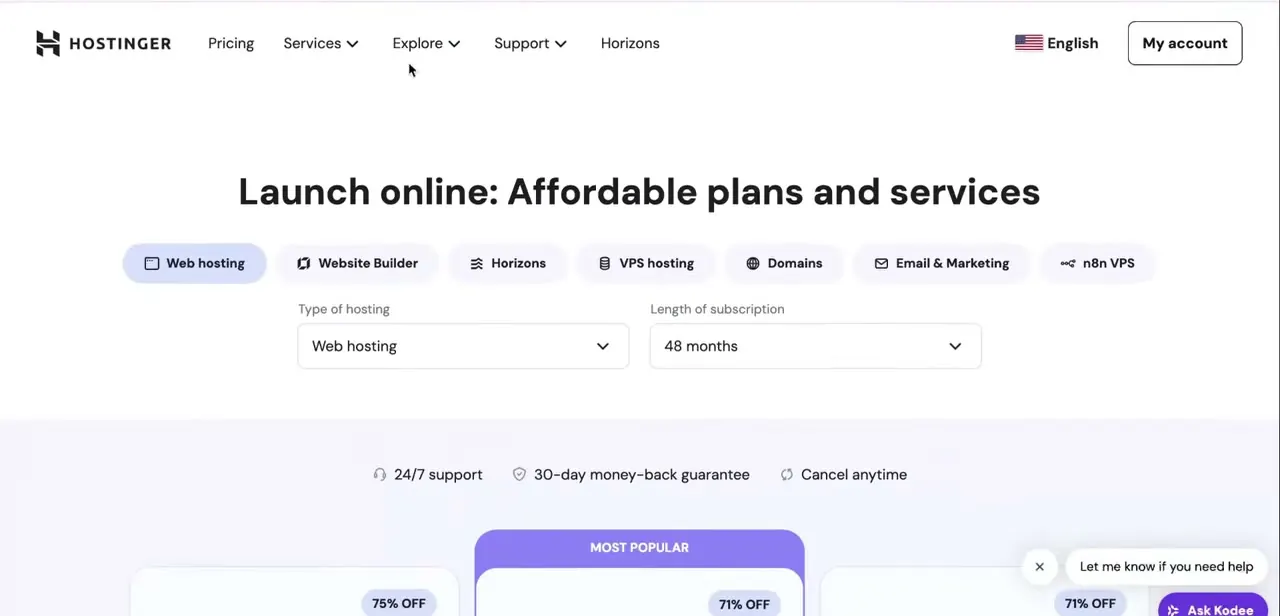
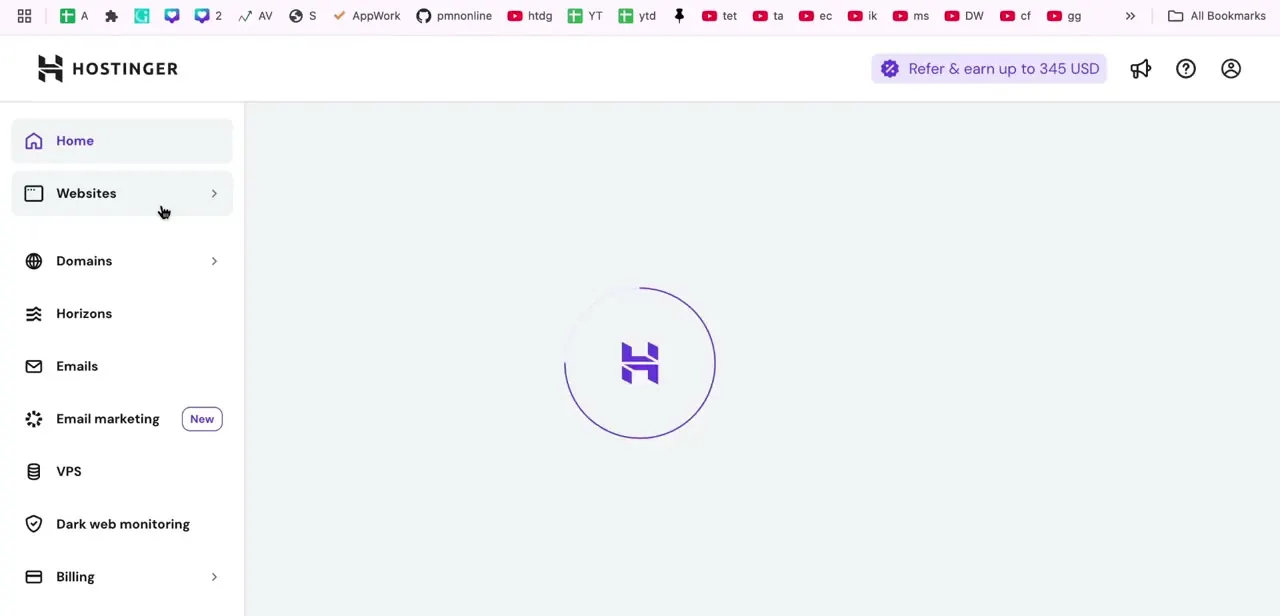
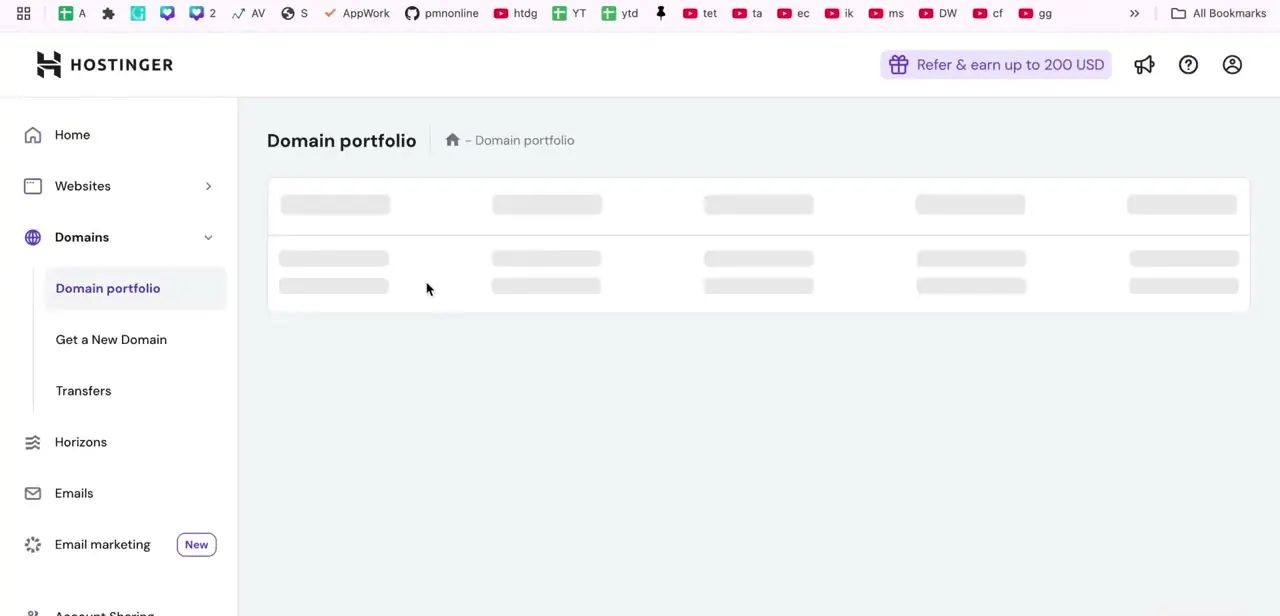
Sign into your Hostinger account and you land in hPanel, the dashboard where domains, websites, email, and hosting all live under one sidebar. From your hosting plan, open File Manager, then navigate into the public_html folder.
That's where files need to sit if you want the site to load at your main domain (yourdomain.com). If another site, like WordPress, is already installed on your main domain, upload into a new folder instead so the two installs don't collide.
02Create a new folder for your site
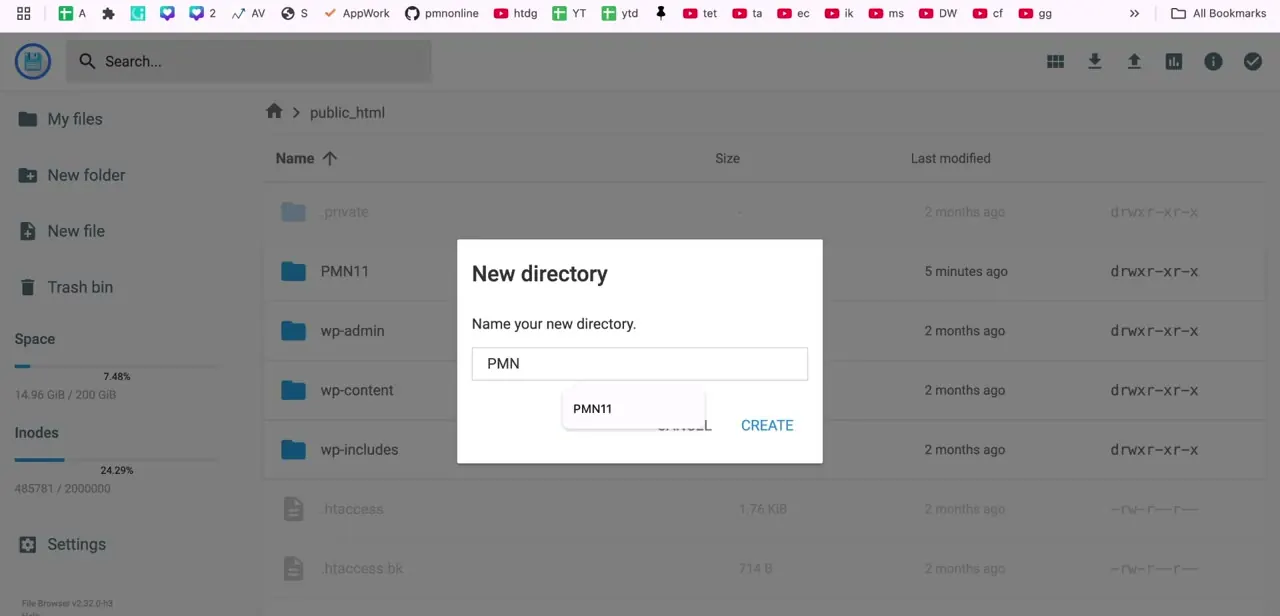
Click New folder in the left sidebar, type a name for it in the dialog that appears, and click Create. Hostinger will suggest existing similarly-named folders as you type, a useful check that you're not about to create a duplicate.
This folder becomes the subfolder path your site loads under, so pick a name you're fine seeing in the URL. Skip this step if you're publishing straight to public_html at your main domain.
03Zip your site and upload it
Before uploading, compress your entire local website into a single ZIP file. That's the most reliable way to move a full folder of HTML, CSS, JS, and image assets without missing anything along the way.
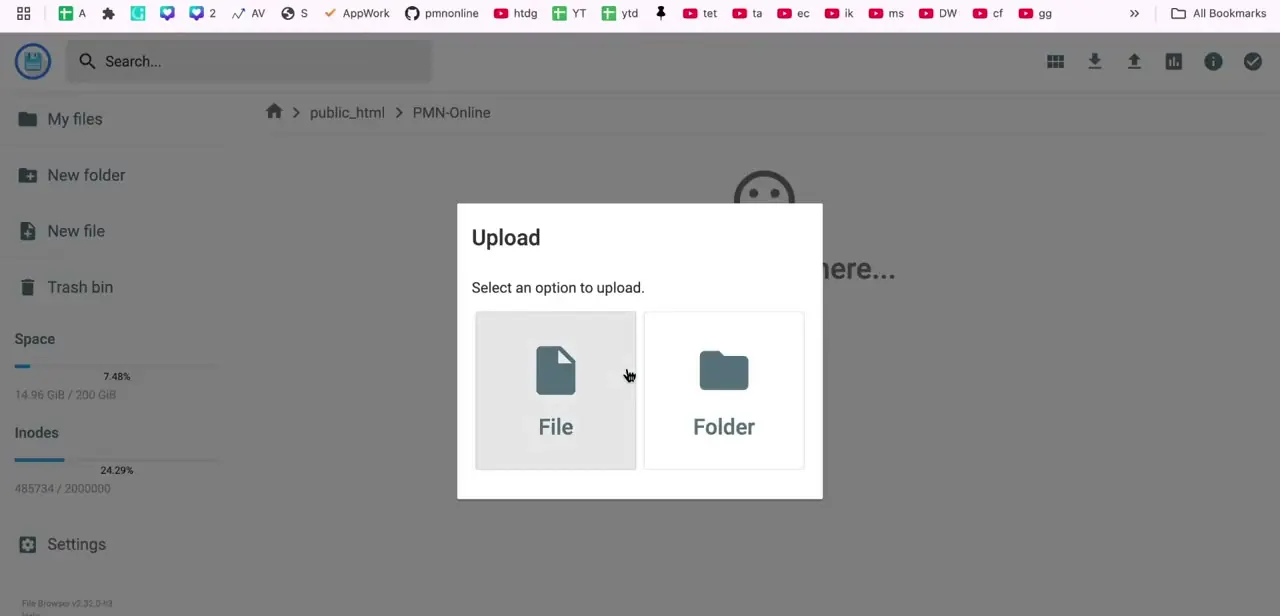
Open your new folder, click Upload from the top menu, and choose File to select your ZIP. The upload starts immediately once you confirm. File Manager handles uploads up to 100GB; for anything larger, or for a slow connection, Hostinger's own guidance is to use FTP instead.
04Extract the ZIP file
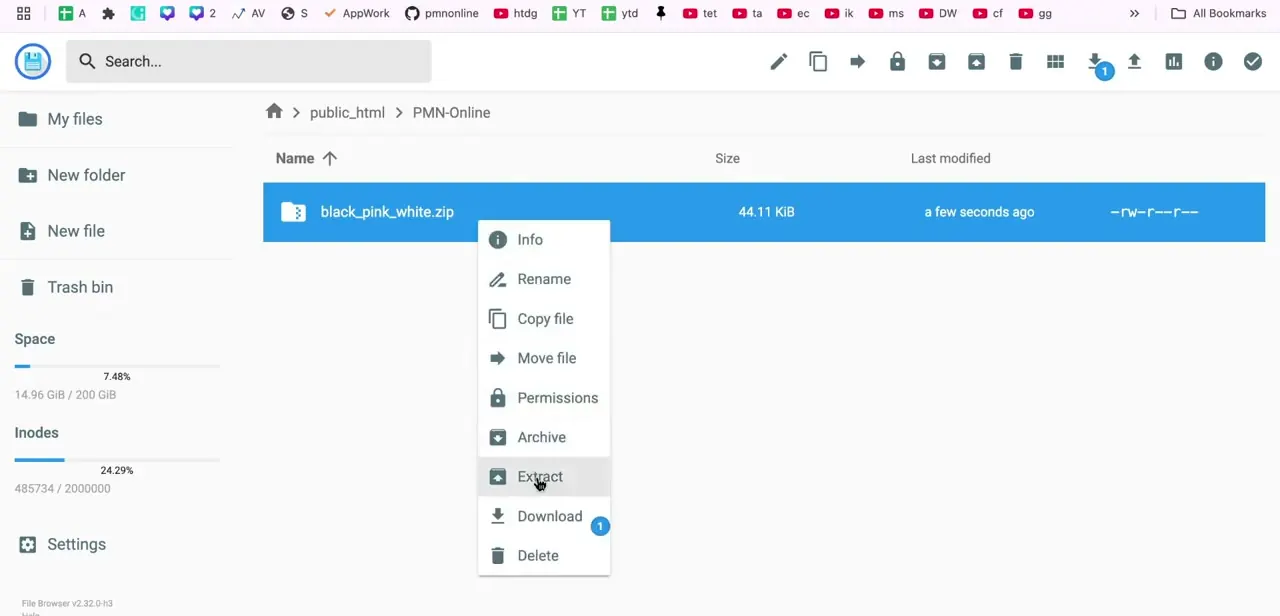
Once the upload finishes, right-click the ZIP file (or use the row's overflow menu) to bring up file actions: Info, Rename, Copy file, Move file, Permissions, Archive, Extract, Download, and Delete. Select Extract, confirm a folder name if prompted, and File Manager unpacks the archive right where the ZIP sits.
05Move the extracted files into place
Double-click into the extracted folder. If another folder is nested inside it, open that too, since ZIP tools sometimes wrap everything in an extra layer.
Select all the files, starting from the first and shift-clicking the last, then right-click and choose Move (or use the Move icon in the toolbar), and navigate to the folder you created earlier. Confirm the move, and your files land exactly where the domain or subfolder expects them.
06Verify the live site
Visit your domain or subfolder URL in a browser to confirm the site loads correctly. If it doesn't show up right away, double-check that the files ended up directly inside the target folder and are not nested one level too deep. That's the most common reason a freshly uploaded HTML site shows a blank page or a 403 error instead of the homepage.
When it doesn't work
The extracted files show up in a folder inside a folder
Why: Many ZIP tools wrap a site's files in one extra top-level folder that shares the archive's name, so extracting lands you a level too deep.
Fix: Open into that inner folder before selecting files to move, so only the actual site files (index.html and its siblings) end up in the target folder.
The site shows a blank page or a 403 error after upload
Why: The homepage file isn't sitting directly inside public_html or your subfolder; it's nested one level too deep from the extra folder issue above.
Fix: Open the folder in File Manager and confirm index.html is a direct child of the target folder, then move it up if it isn't.
File Manager won't extract the archive
Why: File Manager's Extract action only supports zip, tar, tar.gz, tar.bz2, tar.xz, tar.lz4, and tar.sz. Other compressed formats, like .rar, aren't supported.
Fix: Re-compress the site as a .zip on your computer and re-upload it.
The upload stalls or fails on a large site
Why: File Manager is built for browser uploads and can bog down on very large transfers even though its stated ceiling is 100GB.
Fix: Use an FTP client such as FileZilla with the FTP credentials from hPanel; Hostinger recommends FTP over File Manager for large or slow uploads.
Frequently asked questions
Do I need to zip my website before uploading it to Hostinger?
You don't have to, but it's the most reliable way to move a full folder of HTML, CSS, JS, and images without missing anything. File Manager's Extract action also supports tar, tar.gz, tar.bz2, tar.xz, tar.lz4, and tar.sz if your files are already packaged that way.
Can I upload a website to a subfolder instead of my main domain?
Yes. Create a new folder inside public_html and upload your files there if your main domain already has another site, like WordPress, installed.
Do I need coding knowledge to upload an HTML site to Hostinger?
No. The process uses Hostinger's File Manager interface, creating a folder, uploading a ZIP, extracting it, and moving files, so it doesn't require any coding.
Why isn't my site showing up after uploading to Hostinger?
Check that the extracted files were moved directly into the correct folder instead of being left nested inside an extra subfolder. That's the most common reason a site doesn't display at the expected URL.
Is there a file size limit for uploading through File Manager?
Hostinger's File Manager handles uploads up to 100GB. Beyond that, or on a slow connection, Hostinger recommends using an FTP client instead.
Do I need a hosting plan, or does a domain alone work?
You need an active hosting plan. File Manager is a hosting feature, so a domain registration or a Website Builder subscription by itself won't give you access to it.
Sources and last check
Click path and screens come from a walkthrough recorded in August 2026. The upload, folder creation, extraction, and move steps were re-checked against Hostinger's official File Manager documentation and its 'How to Upload Your Website' tutorial in September 2026. That check added the 100GB File Manager ceiling, the full list of supported archive formats, and the FTP recommendation for large sites, none of which the original draft mentioned; the click path itself matched the current documentation.
About the author

Impran M N
I've been hooked on technology for as long as I can remember — especially the new tools and AI apps that seem to land every other week. Easy Tech Tuts is where I write up whatever I've just worked out: I do the task in the real product, record the screen, and turn it into the guide I wish I'd found first.