Easy Tech Tuts
How to Host NextJS Website on Hostinger, Deploy Next.JS App easily 2026
By Impran M NLast checked against official docs
Advice about hosting Next.js on Hostinger has aged badly. For years the answer was "export it as a static site, because shared hosting cannot run Node".
Hostinger now documents Node.js app deployment on Business web hosting and on every Cloud tier, with framework detection, a build step, and a choice of Node version, so server-side rendering and API routes are no longer a VPS-only option. This guide keeps both routes.
The managed Deploy Web App flow is the right answer for most apps in 2026. The manual upload into public_html, which the screenshots here follow, still works and is still the cheapest way to put a purely static Next.js build online.
Before you start
- A Next.js project that builds cleanly on your own machine
- A GitHub repository, or a .zip of the project, if you use the managed deployment route
- A Hostinger plan that matches your build type, covered in step 2
01Decide what your build actually produces
Everything downstream depends on this. A Next.js project builds one of two ways: as an application that needs a Node runtime, or as a static export.
For the static export, set `output: 'export'` in next.config.js. Next.js then writes an `out` folder of plain HTML, CSS, and JS during `next build`, and any web server can serve it.
The trade is a documented list of features that stop working: server actions, cookies, incremental static regeneration, redirects and rewrites from next.config, route handlers that read the request, and `next/image` with the default loader. If your project uses any of those, the static route is closed and you need the Node route in step 4.
02Pick a plan that matches the build
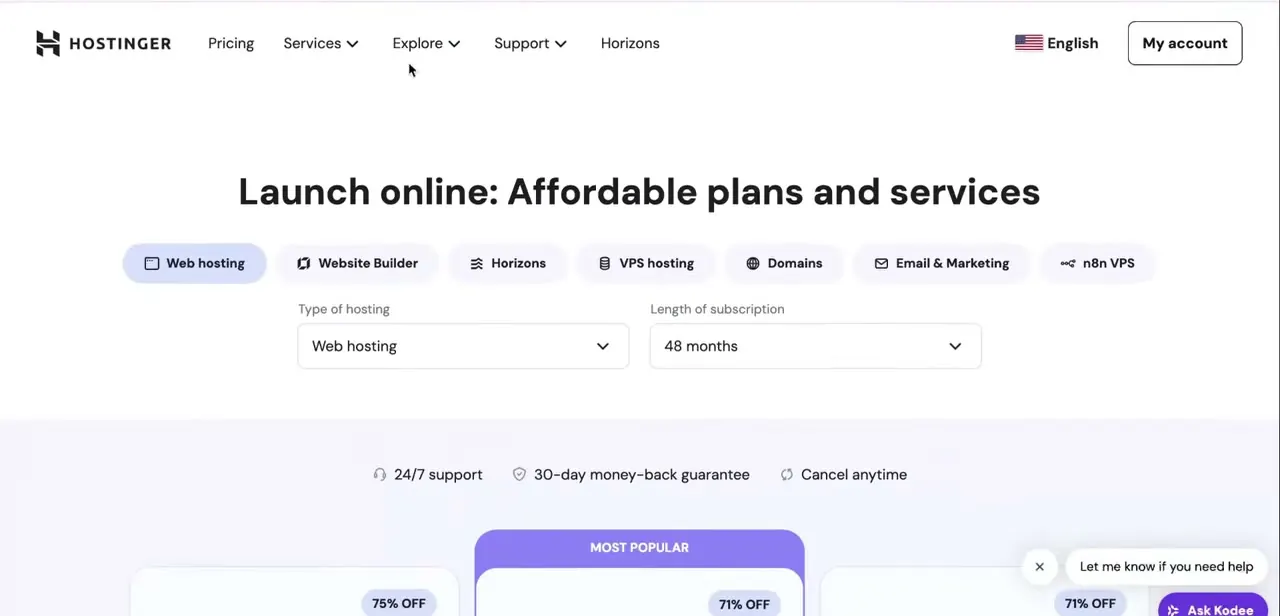
Hostinger's plans page offers Web hosting, Cloud, and VPS. A static export is happy on any of them, including the cheapest shared tier, because it is only files.
A Node app is different. Hostinger documents Node.js support on Business web hosting and on the Cloud plans, and separately on VPS and dedicated servers, where you configure it yourself over the command line.
The entry-level shared tiers are not on that list. Buying the cheapest plan and hoping to add Node later is the mistake this step exists to prevent.
03Sign in to hPanel
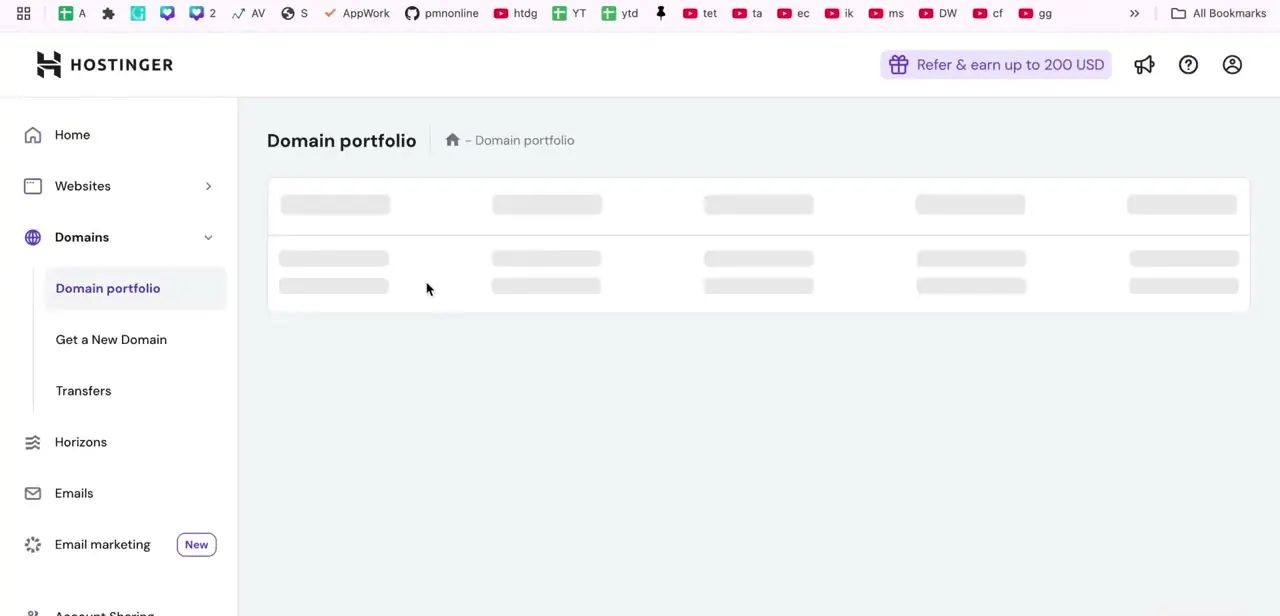
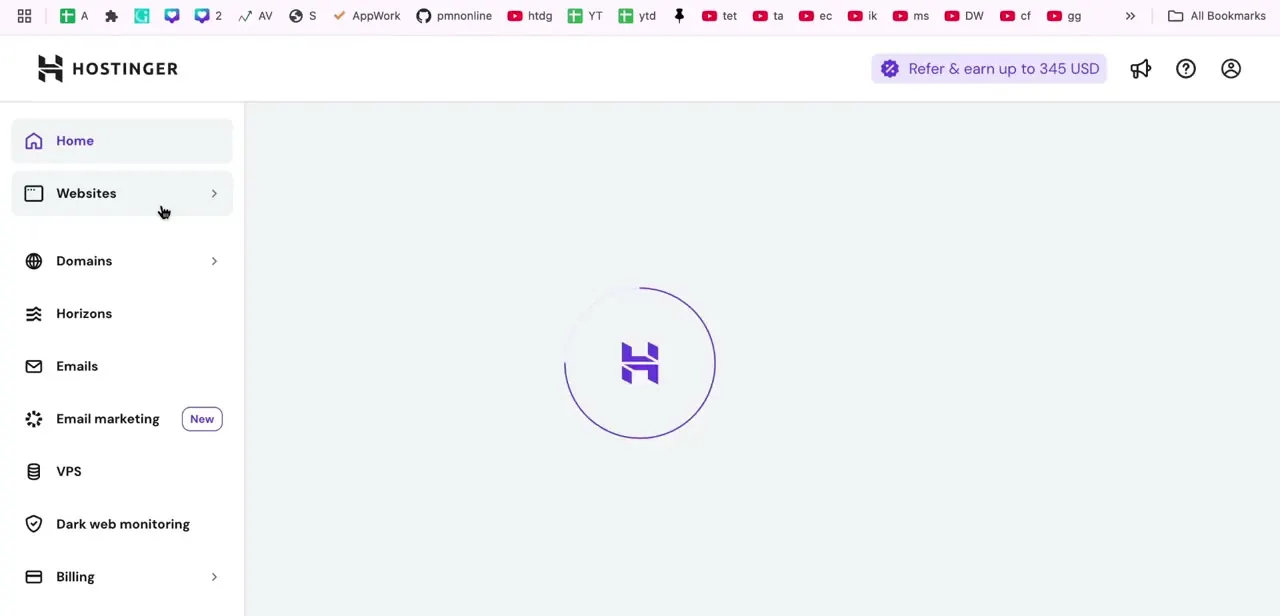
Log in at Hostinger's account page with Google, Facebook, or your email and password. That takes you to hPanel, which holds websites, file manager, domains, and the deployment tools. Everything after this point happens there.

04Route A: deploy the Node app from hPanel
In hPanel, open Websites in the sidebar, click Add Website, then choose Deploy Web App. Hostinger accepts a GitHub repository, which rebuilds on every push, a .zip upload, or a deployment pushed from a local IDE through its connector.
The setup screen asks for the framework, usually detected on its own, the build settings, and the output directory, which for Next.js is `.next`. You also pick a Node version from 18.x, 20.x, 22.x, or 24.x.
Two limits are documented and both bite later: a Node.js site has to be created as a new website, so a domain already attached to an existing site must be freed up first, and there is no stop or delete control for the deployment itself. Taking it offline means removing the whole website, which is permanent.
05Route B: upload a static export to public_html
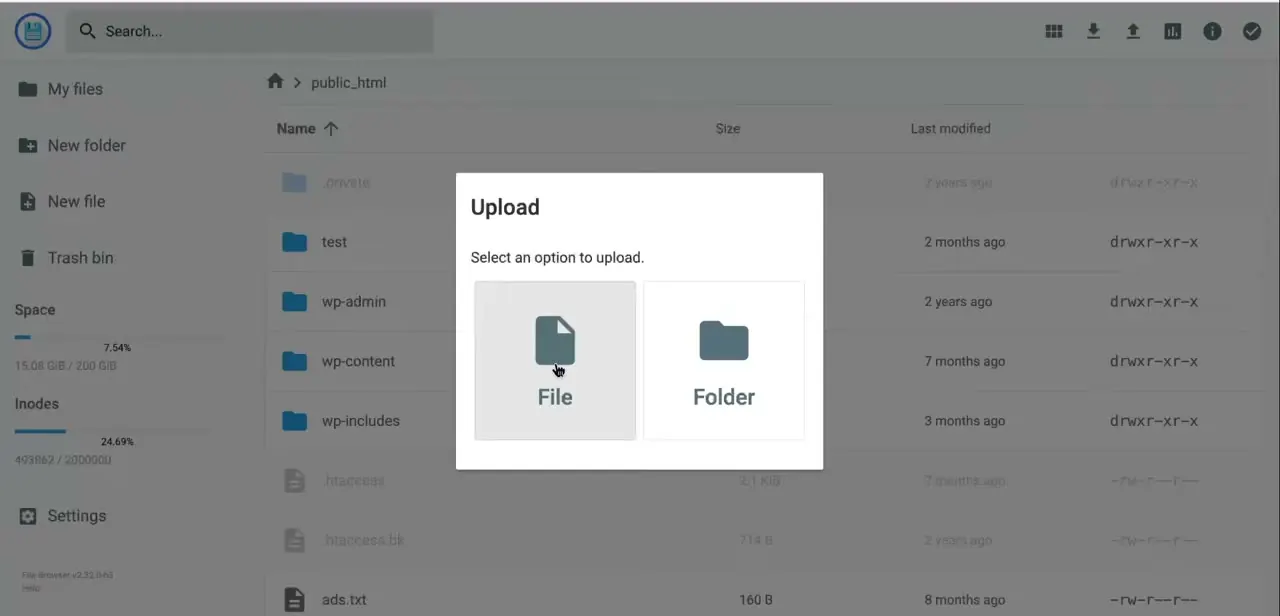
For a static export, open File manager in hPanel and go to public_html, the directory Hostinger serves the live site from. Click Upload and choose File or Folder.
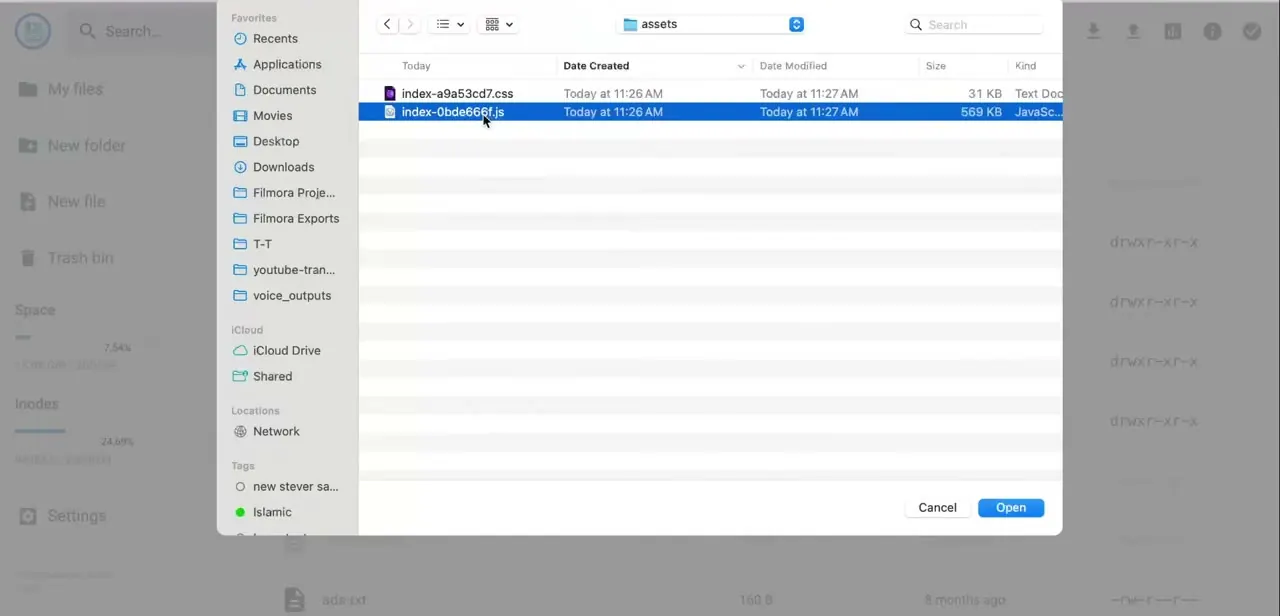
Upload the contents of the `out` folder that `next build` generated. Older versions of this guide pointed at an "assets" directory, which is wrong: `out` is the export target unless you overrode it with `distDir`.
Uploading the folder in one go is quicker than picking files individually, and both end up in the same place. One thing to settle before you build: NEXT_PUBLIC_ environment variables are inlined at build time on your machine, so a wrong API URL means rebuilding locally and re-uploading. hPanel cannot inject them into files that are already static.
06Load the live site and check the paths
Visit the domain and click through the real pages, not just the homepage. Missing styles and broken images almost always trace back to `basePath` or `assetPrefix` in next.config rather than to anything on the server, so the fix is to correct the config, rebuild, and upload again.
Static exports have one more trap. Next.js writes `/blog/post-1.html`, and a request for `/blog/post-1` only resolves if the server tries the `.html` file too.
Next.js's own deployment notes show that rewrite for Nginx. Setting `trailingSlash: true` before you build sidesteps it entirely by emitting `/blog/post-1/index.html`, which every static host resolves without configuration.
When it doesn't work
Deploy Web App is missing or greyed out in hPanel
Why: The plan does not include Node.js. Hostinger documents it on Business web hosting and Cloud plans only, plus self-configured VPS.
Fix: Upgrade to a qualifying plan, or switch the project to a static export and use the file manager route instead.
The build fails or the site 404s after a Node deployment
Why: The output directory is wrong. Hostinger asks for it during setup and offers `dist` and `build` as examples, which are not Next.js defaults.
Fix: Set the output directory to `.next` for a standard Next.js build, and confirm the Node version matches what your project expects.
Sub-pages 404 on a static export while the homepage loads
Why: The export produced `page.html` files and the host is not falling back to them for extensionless URLs.
Fix: Rebuild with `trailingSlash: true` so each route becomes its own `index.html`, then re-upload.
`next build` errors as soon as you set output: 'export'
Why: The project uses a feature the static export does not support, such as server actions, cookies, ISR, or a route handler that reads the request.
Fix: Either remove the dependency on that feature or deploy through route A, which runs a real Node process.
Frequently asked questions
Can Hostinger run a full Next.js app with SSR and API routes?
Yes, on the plans that include Node.js. Hostinger documents Node deployment on Business web hosting and on Cloud plans, and its Next.js hosting page states that SSR, ISR, and API routes are handled. A VPS remains the option when you want root access and manual control.
Is a static export still worth doing?
For a site with no server-side behaviour, yes. It runs on the cheapest shared plan, has nothing to keep alive, and is a folder of files you can move to any host later.
Which folder do I upload?
The `out` folder, created by `next build` once `output: 'export'` is set in next.config.js. Upload its contents into public_html.
Do I need FTP?
No. hPanel's file manager uploads a whole folder, and the managed route takes a GitHub repository or a .zip. FTP still works if you prefer a client.
Can I set environment variables in hPanel for a static site?
No. NEXT_PUBLIC_ values are compiled into the JavaScript during `next build` on your own machine, so changing one means rebuilding and re-uploading.
How do I take a Node.js site offline again?
Hostinger's documentation states there is no stop or delete control for a Node.js deployment. Removing it means removing the website, and that cannot be undone.
Sources and last check
The hPanel screens and upload flow come from a walkthrough recorded in 2025. In September 2026 the hosting requirements were re-checked against Hostinger's own support documentation and its Next.js hosting page, and the build behaviour against the Next.js static export guide. The check overturned this guide's central claim: it previously said server-side rendering required a VPS, and Hostinger now documents Node.js deployment through hPanel on Business web hosting and Cloud plans, so that route has been added. The upload folder was also corrected from "assets" to `out`. Nothing here was deployed or tested first-hand.
About the author

Impran M N
I've been hooked on technology for as long as I can remember — especially the new tools and AI apps that seem to land every other week. Easy Tech Tuts is where I write up whatever I've just worked out: I do the task in the real product, record the screen, and turn it into the guide I wish I'd found first.