Easy Tech Tuts
How to Change Hostinger Email Profile Picture, Can you edit it in 2026 Easily
By Impran M NLast checked against official docs
Hostinger's Webmail doesn't put a profile-picture setting in its top menu or in Settings, and it's easy to lose ten minutes hunting through menus that were never going to have it there. What it does have, documented in Hostinger's own support library, is a Gravatar-based picture that shows inside Webmail's own Profile section, plus a separate route for the photo recipients actually see in their inbox. This guide covers both: where the search for a built-in setting correctly ends, and the two workarounds that get you an image either way.
Before you start
- A Hostinger mailbox that already exists with DNS fully propagated (a brand-new mailbox can take a while to register with Gravatar)
01Start from your Hostinger Webmail inbox
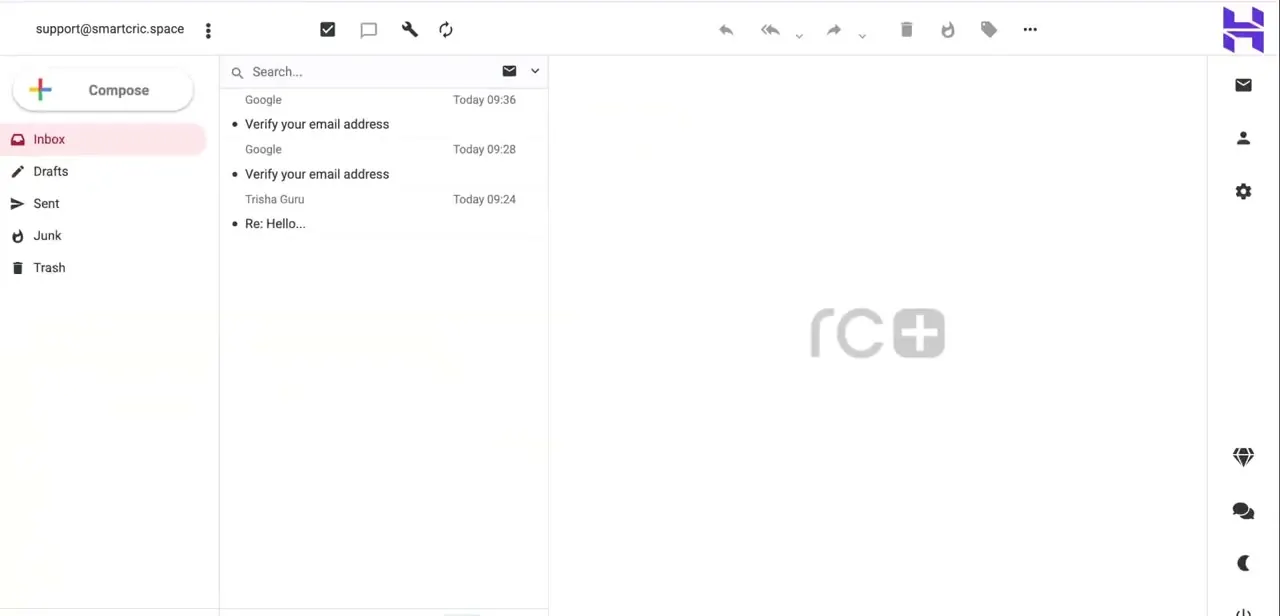
Log into Webmail and you'll land on the standard inbox view, with folders for Inbox, Drafts, Sent, Junk, and Trash down the left side and your account icon in the top right. No avatar or profile photo appears anywhere in this view, just your email address as plain text in the header. That's the first hint a profile picture isn't part of the main interface the way it is in Gmail or Outlook.
02Check Settings and Preferences for a photo option
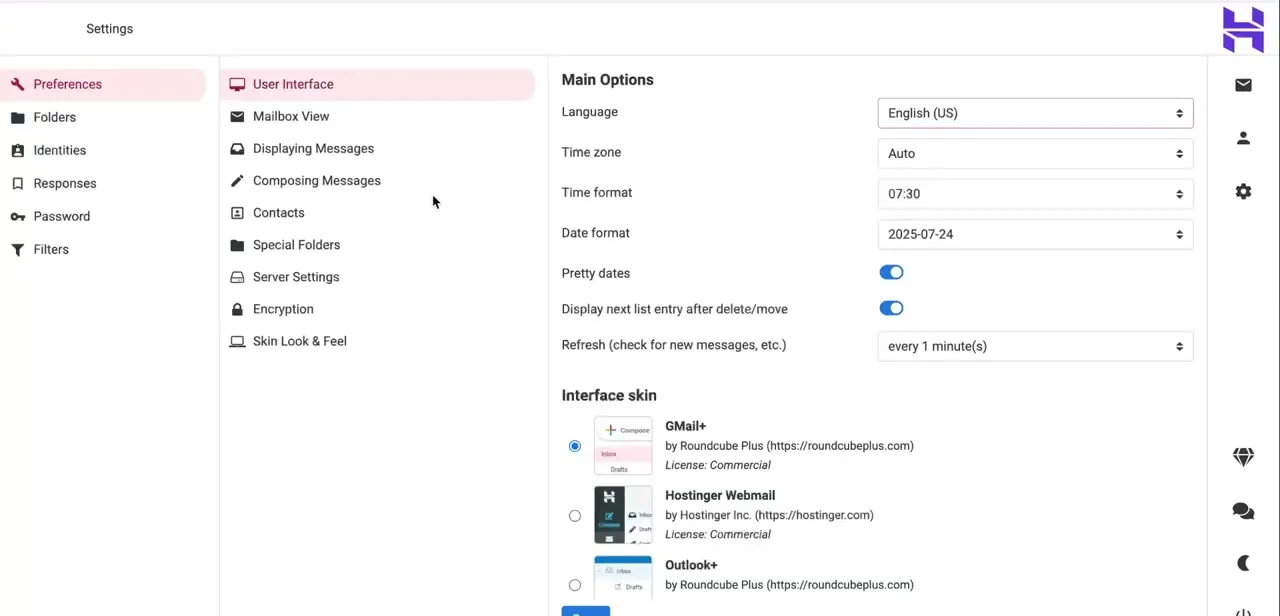
Open Settings from the mail icon menu and go to Preferences, then User Interface. This screen controls language, time zone, date format, and, further down, your Interface skin, letting you switch the whole webmail look between styles like GMail+, Hostinger Webmail, and Outlook+. It's the most likely-looking place for a profile photo setting, and people naturally check here first, but nothing on this screen or anywhere else in Preferences uploads or displays a personal photo.
03What Hostinger support says, and what their own docs add
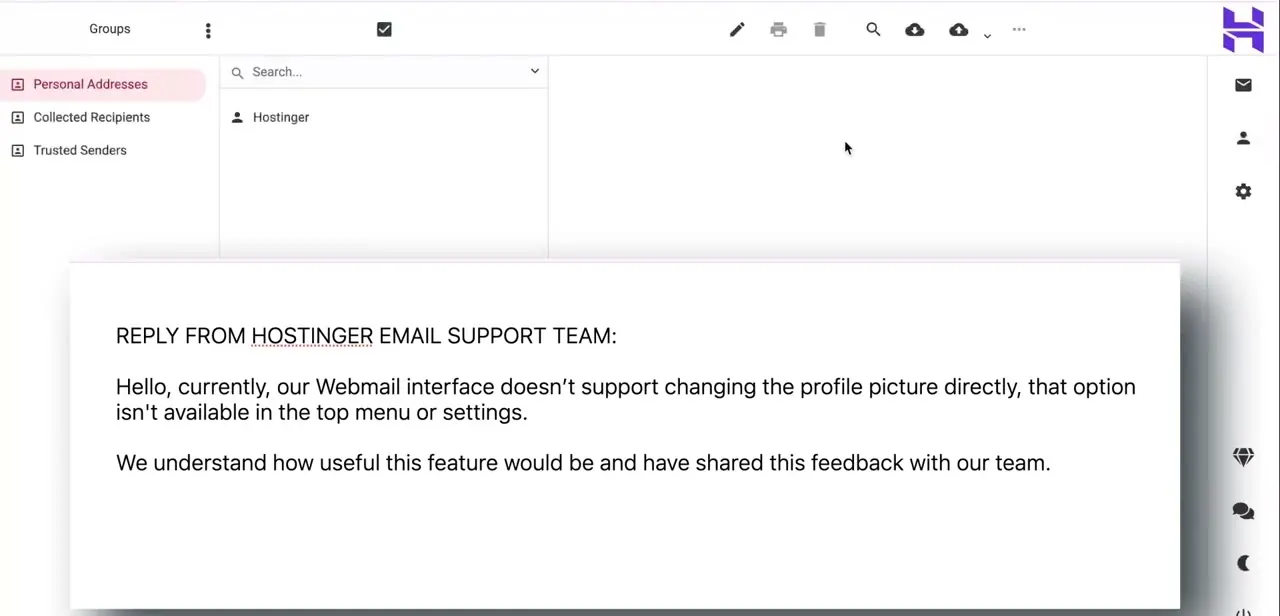
Contacting Hostinger support settles the top-menu and settings question directly: their reply confirms the Webmail interface has no option to change your profile picture in the top menu or in settings, and that the feedback has been passed along to their team. That answer is accurate as far as it goes.
Hostinger's own knowledge base separately documents a different route: a Profile section that displays a Gravatar-linked picture once you register your mailbox address at gravatar.com. It's a real, supported feature, just not one the top menu or Preferences screens surface.
04Set the Webmail Profile picture through Gravatar
Go to gravatar.com and sign up, or log in if you already have a WordPress.com account. Add the exact mailbox address you use with Hostinger Webmail, not a personal Gmail, Outlook, or Hotmail address; Hostinger's documentation notes those free-provider addresses won't register against your custom mailbox.
Upload a photo and confirm the email address. Hostinger's support article flags one timing catch: for a mailbox you just created, DNS needs to be fully propagated first, so a brand-new address may need a wait before Gravatar recognizes it.
05Use a contact photo if you want recipients to see it
The Gravatar picture from the previous step is scoped to Webmail's own Profile section; Hostinger's documentation states plainly that it doesn't affect outgoing emails or how recipients see your messages. To have a photo appear in someone else's inbox, the practical route is a contact photo on their end: many email programs pull a sender's photo from their own contacts list, or independently check Gravatar for that address, instead of from anything Hostinger's mail server sends. Add your chosen image as the contact photo on your own end, and encourage regular correspondents to save your contact with that photo on theirs.
06What recipients see
This workaround isn't universal: it depends entirely on the recipient's email client, not on Hostinger. Someone using Gmail might see a Gravatar-linked image if you've registered one for that address, someone with you saved as a contact might see the photo attached to that contact card, and someone with neither will see initials or a blank icon. Treat it as a nice-to-have for people who already know you, not a guaranteed brand asset.
When it doesn't work
Gravatar sign-up doesn't recognize your new mailbox
Why: DNS for a newly created mailbox hasn't fully propagated yet. Hostinger's own documentation says to wait until the correct MX and DNS records are in place first.
Fix: Wait for DNS propagation and try registering the address on gravatar.com again.
You registered a Gmail or Outlook address on Gravatar by mistake
Why: Hostinger's Webmail Gravatar picture only applies when the exact custom-domain mailbox address is the one registered; a personal free-provider address won't attach to your Hostinger mailbox.
Fix: Log into gravatar.com and add your actual name@yourdomain.com address instead, then confirm it by email.
The photo shows in your own Webmail Profile but recipients still see initials or nothing
Why: Hostinger's support documentation states the Gravatar image is visible only inside the Webmail Profile section and doesn't affect outgoing mail or how recipients see it.
Fix: For a photo recipients see, rely on their own email client's contact photo feature or their own Gravatar lookup instead of Hostinger's Webmail setting.
Frequently asked questions
Can I add a profile picture in Hostinger Webmail at all?
Yes, through Gravatar. Hostinger's support documentation confirms Webmail profile pictures are powered by Gravatar and appear in the Profile section once you register your exact mailbox address at gravatar.com.
Will that photo show up when I send someone an email?
No. Hostinger states the Gravatar image is visible only within the Webmail Profile section and doesn't affect outgoing emails or how recipients see your messages.
How do I get recipients to see a photo next to my emails?
That depends on their email client, not on Hostinger. Some clients look up Gravatar for the sender's address independently; others only show a photo if the recipient has saved you as a contact with one attached.
Why didn't Hostinger support just mention the Gravatar option?
Support's reply addressed the top-menu and settings options directly, which correctly have no photo setting. The Gravatar-based picture lives in a separate Profile section, documented in Hostinger's own knowledge base rather than surfaced in Preferences.
Sources and last check
Click path and screens (the inbox, Preferences > User Interface, and the support reply) come from a recorded walkthrough. The Gravatar-based Profile-section picture, its Webmail-only visibility, the free-provider-address restriction, and the DNS-propagation requirement for new mailboxes were checked against Hostinger's official support article on Webmail profile pictures in September 2026 - that check added a documented Gravatar route this guide previously treated as not existing at all.
About the author

Impran M N
I've been hooked on technology for as long as I can remember — especially the new tools and AI apps that seem to land every other week. Easy Tech Tuts is where I write up whatever I've just worked out: I do the task in the real product, record the screen, and turn it into the guide I wish I'd found first.