Easy Tech Tuts
How to Add Mx Records in Hostinger Domain, Connect Gmail, Zoho Mail & Other 2026
By Impran M NLast checked against official docs
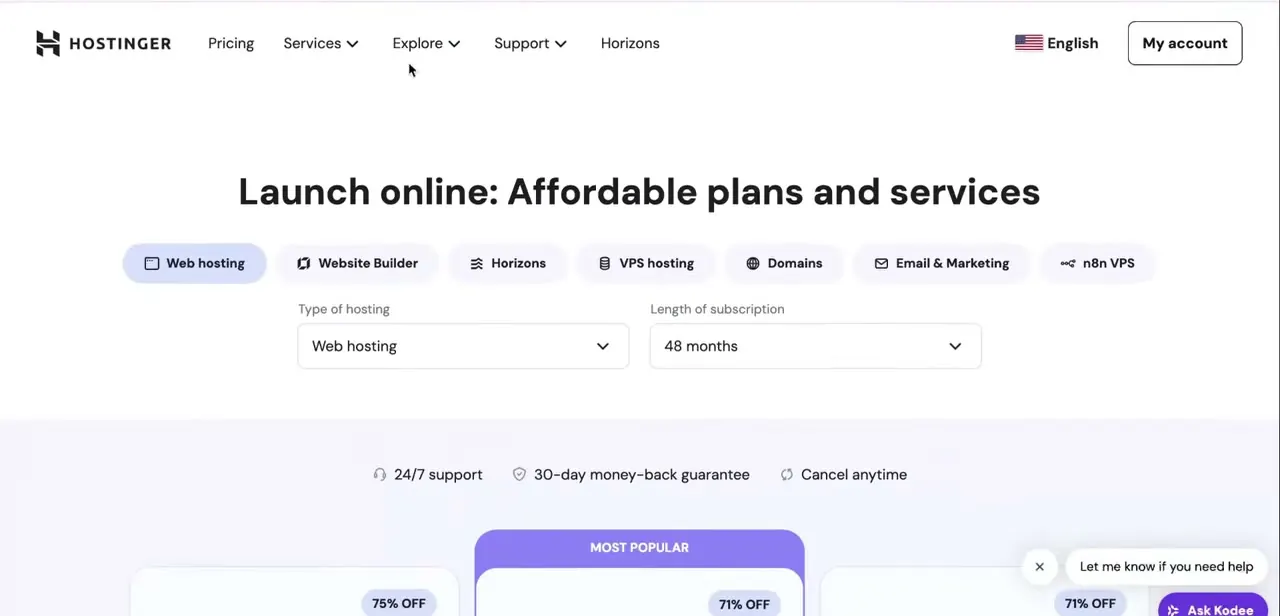
If you registered a domain with Hostinger but want email handled by Gmail, Zoho Mail, or another provider, the fix lives in one small form buried inside the domain's DNS settings. This guide walks through that form, the same one used to add A records or any other DNS entry, and shows what changes once you switch the record type to MX. Getting the mail server value and priority right the first time is what saves you from bounced mail and a long wait to find out something was typed wrong.
Before you start
- The domain's DNS must actually be managed at Hostinger: pointed at Hostinger's nameservers, with the domain and the hosting order sitting in the same Hostinger account. If either isn't true, the DNS Zone Editor won't appear.
- The exact mail server hostnames and priority numbers from your Gmail (Google Workspace) or Zoho Mail admin console, since these can differ from the commonly published values (see the table below).
01Log in and open DNS / Nameservers for the domain
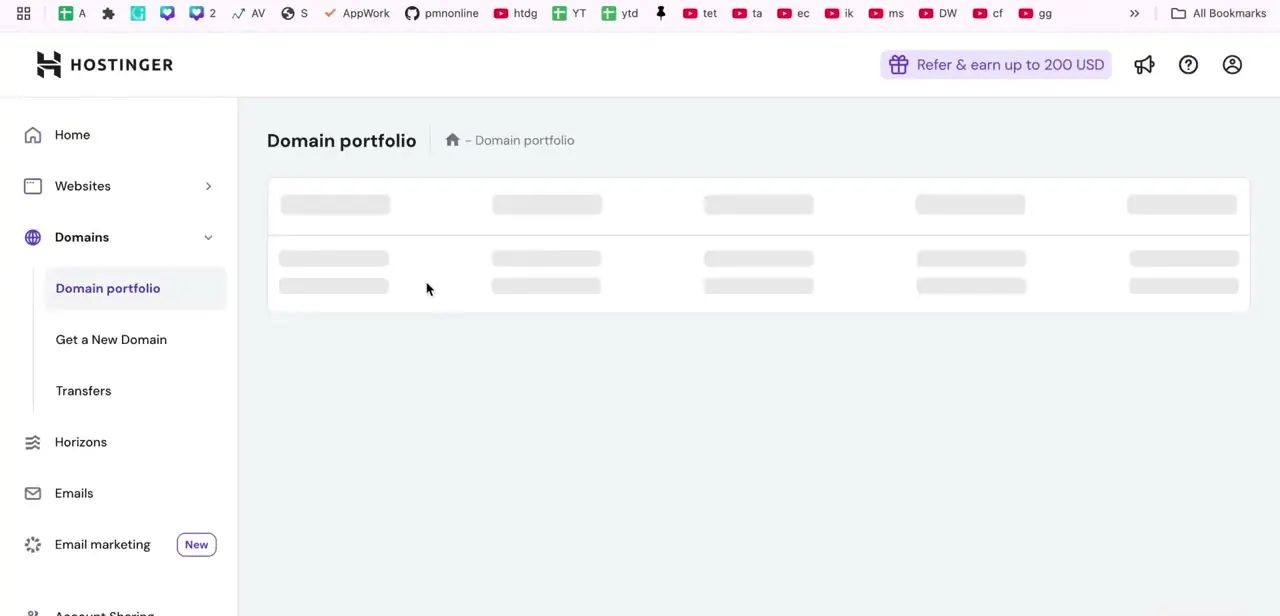
Sign in to Hostinger and land in hPanel. If you manage more than one domain, use the domain selector at the top of the sidebar to pick the correct one first: MX records are set per domain, so working in the wrong one silently does nothing for the site you meant to fix.
With the right domain selected, click DNS / Nameservers in the left sidebar. This one section controls how the domain resolves and routes traffic, from the A records that point to a web server to the MX records that route mail. There's no separate "email settings" area to hunt for.
02Find the Manage DNS records form
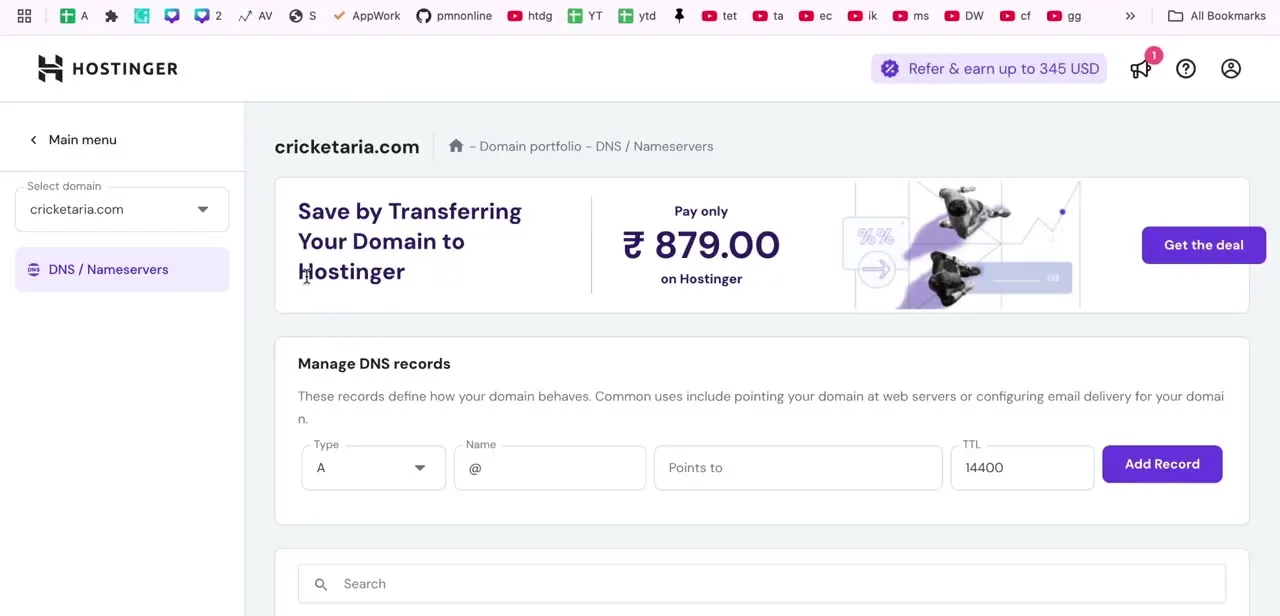
Scroll to "Manage DNS records," a short form for adding any entry: a Type dropdown, a Name field, a value field, and a TTL. By default the Type is set to A, Name defaults to @ (the root domain), and there's a "Points to" field for an IP address. It's the same form you'd use to point the domain at a web server, just with a different record type selected.
03Switch the record type to MX
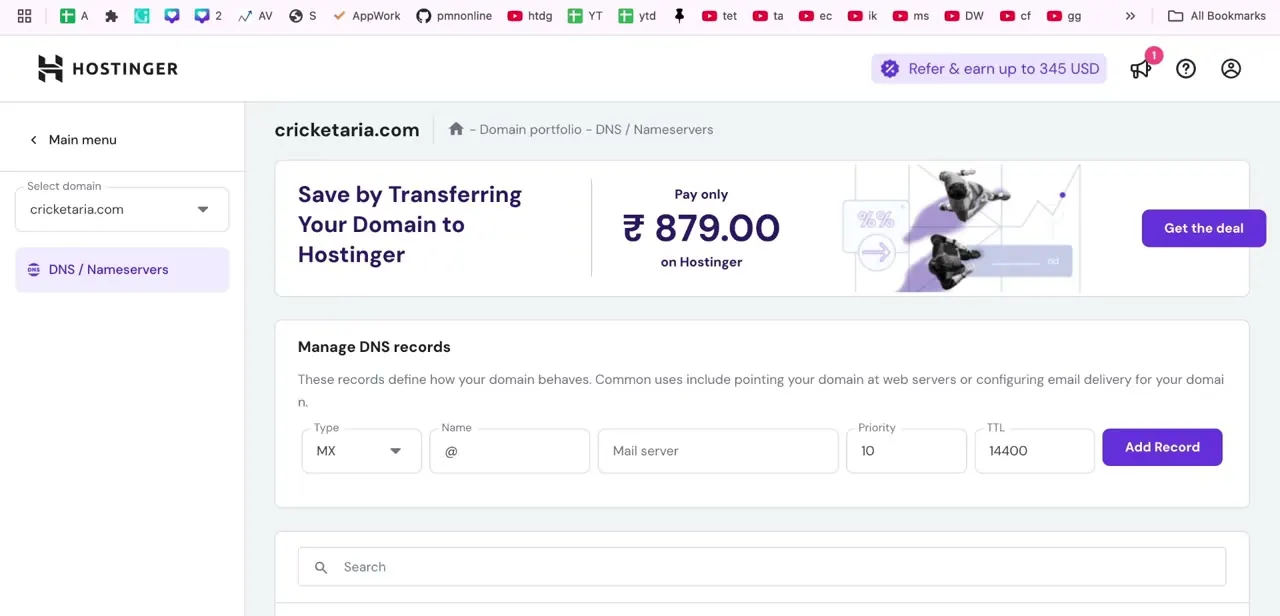
Open the Type dropdown and choose MX. The form reshapes as soon as you do: the "Points to" field becomes "Mail server," and a new Priority field appears between it and TTL, since mail servers, unlike A records, can be ranked so a domain can list a backup. This is where the mail server value from your provider goes.
04Fill in the mail server, priority, and TTL
Name stays as @ for the root domain in most setups. Mail server and Priority come from your provider, not from Hostinger, and the two providers named in this guide handle it differently.
New Google Workspace accounts use a single record, smtp.google.com at priority 1; accounts set up before 2023 may still run on Google's older five-record set starting with ASPMX.L.GOOGLE.COM. Zoho publishes three records, mx.zoho.com, mx2.zoho.com and mx3.zoho.com, at priorities 10, 20 and 50, though Zoho's own documentation notes these can vary by data centre and tells users to confirm them in the Zoho Mail admin console rather than copying values from a guide.
TTL controls how long the record is cached before DNS servers re-check it. Hostinger's form defaults to 14400 seconds (four hours), which is fine for most setups; lowering it only helps if you're actively troubleshooting and want changes to take effect faster.
05Save the record
Click Add Record once every field is filled in correctly. Hostinger adds it to the domain's DNS zone immediately on their end, but that's only the first half of the process.
The record still has to spread across the wider DNS system before mail actually starts routing through it. If you're moving away from Hostinger's own email, delete the old mx1.hostinger.com / mx2.hostinger.com records once the new ones are confirmed working, rather than leaving both sets in place: a domain publishing mail servers from two different providers at once can deliver mail inconsistently.
06Wait for propagation, then test
Hostinger tells users to allow up to 24 hours for a DNS change to propagate fully, though it's often quicker in practice. Once enough time has passed, send a test email to an address on the domain or use a DNS lookup tool to confirm the MX record is visible and pointing where expected. If mail still isn't arriving after that window, recheck the mail server value and priority character-for-character against your provider's admin console before assuming something else is broken.
| Provider | Mail server | Priority |
|---|---|---|
| Google Workspace (current setups) | smtp.google.com | 1 |
| Google Workspace (legacy, pre-2023) | ASPMX.L.GOOGLE.COM + 4 backup servers | 1, then 5 and 10 |
| Zoho Mail | mx.zoho.com / mx2.zoho.com / mx3.zoho.com | 10 / 20 / 50 |
Confirm your own values in each provider's admin console before adding them. Zoho's documentation notes MX values can vary by data centre, and Google still fully supports the older five-record set for accounts created before 2023.
When it doesn't work
The DNS / Nameservers section doesn't show a Manage DNS records form at all
Why: Hostinger locks the DNS Zone Editor when a domain and its hosting order live in different Hostinger accounts, or when the domain's nameservers point somewhere other than Hostinger.
Fix: Move the domain into the same account as the hosting order (Hostinger does this for free), or manage the record at whichever provider the nameservers actually point to.
Email stops arriving after switching from Hostinger's own email to Gmail or Zoho
Why: The previous provider's MX records were left in the zone alongside the new ones. A domain publishing mail servers from two providers with overlapping priorities can route mail unpredictably.
Fix: Delete the old MX records (for Hostinger email, mx1.hostinger.com and mx2.hostinger.com) once the new records are confirmed working, instead of adding to them.
Mail still isn't arriving after waiting a full day
Why: Almost always a typo in the mail server hostname or a priority number that doesn't match what the provider actually issued.
Fix: Recheck the values against your Gmail or Zoho admin console directly, not against a published example, then re-test with a DNS lookup tool.
Frequently asked questions
How long does it take for MX records to work after adding them in Hostinger?
Hostinger's own guidance is to allow up to 24 hours, though it often finishes sooner depending on your previous DNS settings and TTL value.
Can I use Gmail and Zoho Mail on the same Hostinger domain?
Only one provider at a time, since MX records point mail at a single setup. Switching providers means removing the old MX records, not adding the new ones on top.
What priority number should I use for MX records?
Whatever your provider tells you. Lower numbers mean higher priority, and Hostinger's form defaults to 10, but Gmail and Zoho each publish their own values, shown in the table above.
Why isn't my email working after adding MX records?
Usually a propagation delay, a typo in the mail server value or priority, or old MX records left in place from a previous provider. Check all three before assuming something else is broken.
Do I need to change the Name field when adding an MX record?
For most domains, leave Name as @, which points the record at the root domain instead of a subdomain, unless your provider specifically says otherwise.
Why don't I see the Manage DNS records form in hPanel at all?
This usually means the domain and hosting are in different Hostinger accounts, or the domain's nameservers aren't Hostinger's. Hostinger's DNS Zone Editor only works when both conditions are met.
Sources and last check
Click path, form fields, and the 14400-second default TTL come from the original recording and were confirmed against Hostinger's own MX and DNS-records help pages in September 2026. Two corrections came out of that check: propagation is Hostinger's own "up to 24 hours" rather than the "minutes to a few hours" this guide previously said, and the DNS Zone Editor requires the domain's nameservers and hosting to be in the same Hostinger account, which wasn't mentioned before. The Gmail and Zoho MX values were added from Google Workspace's and Zoho's own current documentation, not from memory.
- Hostinger: How to manage MX records at Hostinger (official)
- Hostinger: How to Manage DNS Records at Hostinger (official)
- Hostinger: What to Do if the DNS Zone Editor Is Missing or Not Working (official)
- Google Workspace Admin Help: Set up MX records for Google Workspace
- Zoho Mail: MX record values (official DNS setup guide)
About the author

Impran M N
I've been hooked on technology for as long as I can remember — especially the new tools and AI apps that seem to land every other week. Easy Tech Tuts is where I write up whatever I've just worked out: I do the task in the real product, record the screen, and turn it into the guide I wish I'd found first.