Easy Tech Tuts
How to Upgrade Hostinger Plan Easily & Adjust Paid Balance in New Plan Easily 2026
By Impran M NLast checked against official docs
As a website grows, a basic hosting plan can start to feel limiting. Upgrading on Hostinger doesn't mean losing money already paid: the upgrade screen works out what's left on your current term and knocks it off the new plan's price, so the number you pay is almost never the sticker price. This guide walks through that comparison screen as it appears, current plan against upgrade target, balance credit, and the final amount due, plus one limit worth knowing before you start: this screen moves you between Web and Cloud tiers, not onto a VPS.
Before you start
- An existing Hostinger Web or Cloud hosting plan with an active website on it
01Open the upgrade comparison for your site
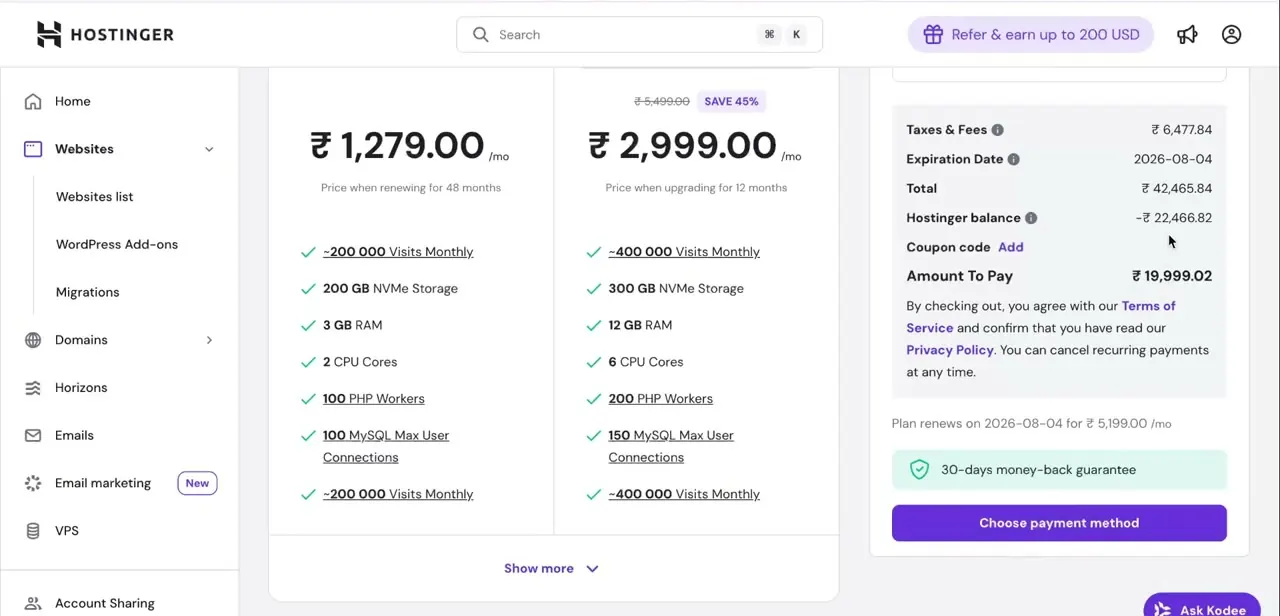
From the Websites section of your Hostinger dashboard, find the upgrade option for the site whose plan you want to change (the same screen is also reachable from Billing > Subscriptions). It opens a two-column comparison: your current plan on the left, the plan you're upgrading to on the right, with a dropdown at the top of the right column for picking the target tier.
Each column lists price, visit limits, storage, RAM, CPU cores, PHP workers, and database connections side by side, so you can see what more money buys before committing. This screen only moves you between Web and Cloud hosting tiers.
It does not offer a direct path to a VPS plan or to Agency hosting; those require a separate purchase and a manual (or, for Agency, tool-assisted) migration of your site. Cloud Enterprise also has no upgrade path from here.
02Pick the new plan from the dropdown
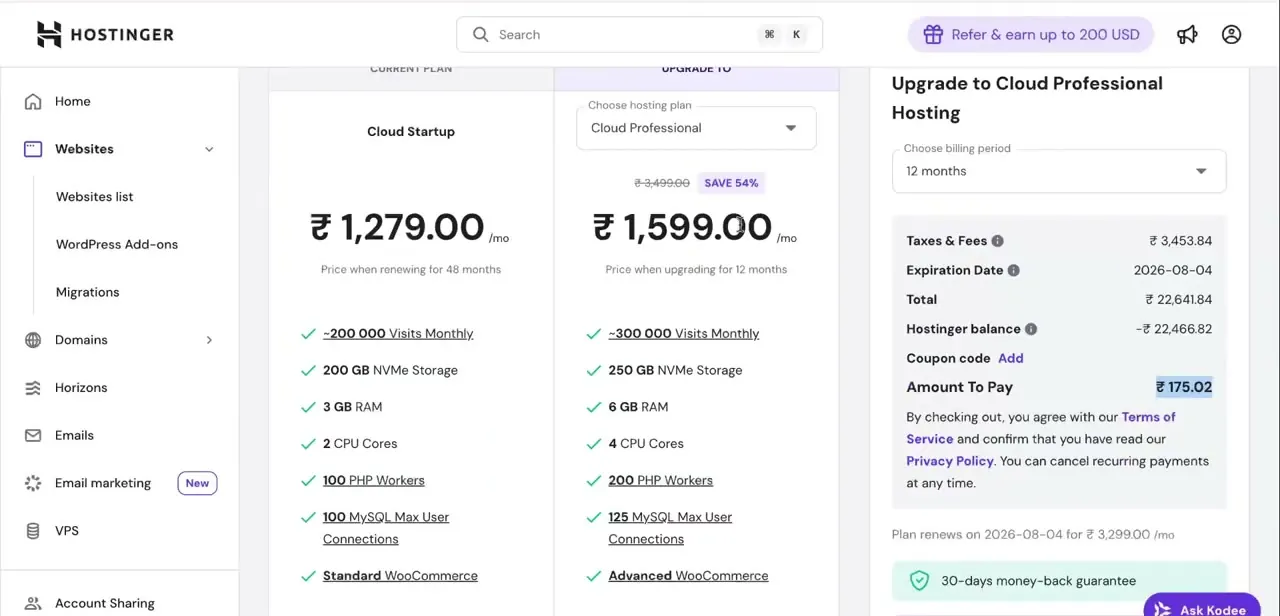
The "Choose hosting plan" dropdown at the top of the right-hand column is where the selection happens. In this walkthrough it's set to Cloud Professional Hosting, one tier above the existing Cloud Startup plan. Changing this dropdown updates every number below it live: price, resource table, and checkout summary all recalculate at once, so it's easy to flip between tiers and compare the real monthly cost of each before settling on one.
03Check the balance credit and billing period together
The checkout panel lists Taxes & Fees, a Total, then a Hostinger balance line shown as a negative amount: the unused, already-paid portion of your current term, credited against the new plan. Below that sits an optional coupon field, then Amount To Pay, the real number charged once the balance and any coupon are subtracted.
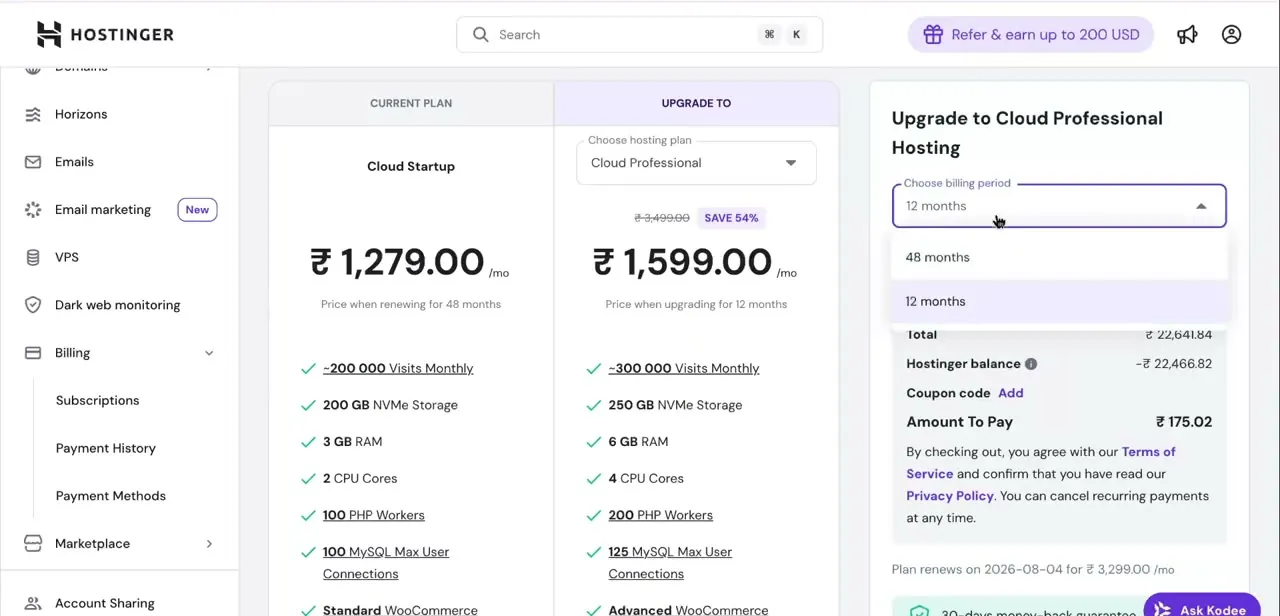
Hostinger's own example is a $50 remaining balance against a $200 upgrade, leaving $150 due; the walkthrough shown here brought a 12-month upgrade down to under ₹200 because the existing balance covered most of it. Above that summary, "Choose billing period" switches between terms, commonly 12 or 48 months.
Each option changes both the monthly rate and how the balance gets applied, since a longer term spreads the same credit across a bigger total. Toggle between the available periods once before paying: the cheaper-looking monthly rate on a longer plan doesn't always mean a lower amount due today.
04Confirm, then check the new plan is live
With the plan, billing period, and any coupon set, choosing a payment method finalizes the upgrade. The summary also shows the new expiration date and the rate the plan renews at afterward.
Hostinger states upgrades take effect immediately, though moving files, email, and databases to the new plan can take a few hours to finish in the background, so give it a little time before assuming something is wrong. If you upgraded from Web hosting to a Cloud plan, you'll also get a new dedicated IP address, visible on the Account details page.
Update any FTP connections, remote database connections, or DNS A records that pointed at the old IP. Hostinger proxies traffic to the new server for 7 days after the transfer, which is the window to make that DNS change before anything breaks for visitors.
When it doesn't work
VPS doesn't appear as an option in the upgrade dropdown
Why: Web and Cloud hosting plans cannot be upgraded directly to a VPS through this screen.
Fix: Purchase a VPS plan separately from the Billing section, then migrate your site content to it manually.
The site or mailboxes stop resolving right after upgrading
Why: Upgrading from Web hosting to a Cloud plan assigns a new dedicated IP address, different from the old Web hosting IP.
Fix: Update FTP connections, remote database connections, and DNS A records to the new IP on the Account details page. Traffic is proxied to the new server for 7 days, so there's a short grace window to make the DNS change.
The new RAM, CPU, or storage limits don't show up straight after paying
Why: Hostinger applies the upgrade immediately for billing purposes, but moving files, email, and databases to the new plan can still take a few hours.
Fix: Wait and refresh hPanel before assuming the upgrade failed.
There's no upgrade button at all on a Cloud Enterprise or Agency plan
Why: Those two plans don't support upgrades through this screen.
Fix: Agency plans move to a new plan using the Clone Website tool (available only on Agency); Cloud Enterprise has no upgrade path and would mean migrating to a VPS instead.
Frequently asked questions
Will I lose the money I've already paid if I upgrade?
No. The checkout screen shows a Hostinger balance line that credits the unused portion of your current term against the new plan's cost, instead of charging you from zero.
Can I upgrade straight from shared or Cloud hosting to a VPS?
No. Hostinger's own documentation says Web and Cloud hosting plans can't be upgraded directly to a VPS through this screen; a VPS has to be purchased separately, with the site content migrated over manually.
Does upgrading change my site's IP address?
Only when moving from Web hosting to a Cloud plan. Cloud-to-Cloud upgrades, like Cloud Startup to Cloud Professional, keep the existing IP.
Does the billing period I choose affect what I pay today?
Yes. Switching between the available billing periods, for example 12 months versus 48, changes both the monthly rate and how the existing balance is applied. Compare both before confirming.
Does upgrading cause downtime?
Hostinger describes the upgrade as taking effect immediately, though the underlying file, email, and database transfer can take a few hours to finish.
Can Cloud Enterprise or Agency plans upgrade the same way?
No. Both are excluded from this upgrade screen; Agency plans move using the separate Clone Website tool, and Cloud Enterprise has no listed upgrade path.
Sources and last check
Click path and screens come from a walkthrough recorded in August 2025. The upgrade mechanics, balance-credit behaviour, and plan restrictions were re-checked against Hostinger's official help articles in September 2026. That check removed the original claim that this screen can upgrade straight to a VPS (it cannot) and added the new-IP and Cloud Enterprise/Agency exclusions, which the original version did not mention.
About the author

Impran M N
I've been hooked on technology for as long as I can remember — especially the new tools and AI apps that seem to land every other week. Easy Tech Tuts is where I write up whatever I've just worked out: I do the task in the real product, record the screen, and turn it into the guide I wish I'd found first.