Easy Tech Tuts
How to Generate SSH Key in Hostinger, Get Format of SSH Key, 2026 Easily
By Impran M NLast checked against official docs
The single thing that confuses people about SSH keys on Hostinger is where the key actually comes from. hPanel has an SSH Access page with an Add SSH key button, which reads like Hostinger will generate the pair for you. It won't.
The panel is a place to store a public key you generated on your own machine, which is exactly how SSH is supposed to work: the private half never leaves your computer. This guide covers both halves of that.
Creating the key pair locally with ssh-keygen or PuTTYgen, recognising the one-line format hPanel expects, pasting it into the right field, and logging in without a password. It also covers the format question directly, since pasting the wrong file into that box is the most common reason the panel rejects a key.
Before you start
- A Hostinger hosting plan on Premium or above; SSH isn't offered on the entry-level Single shared plan
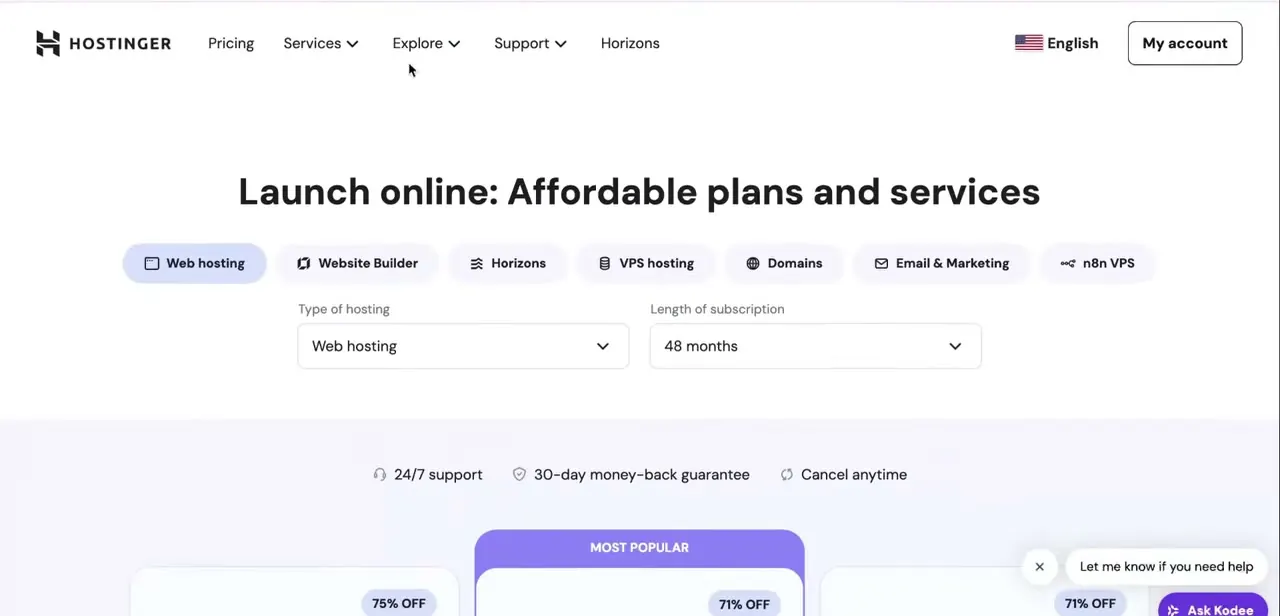
01Open hPanel and find your hosting plan
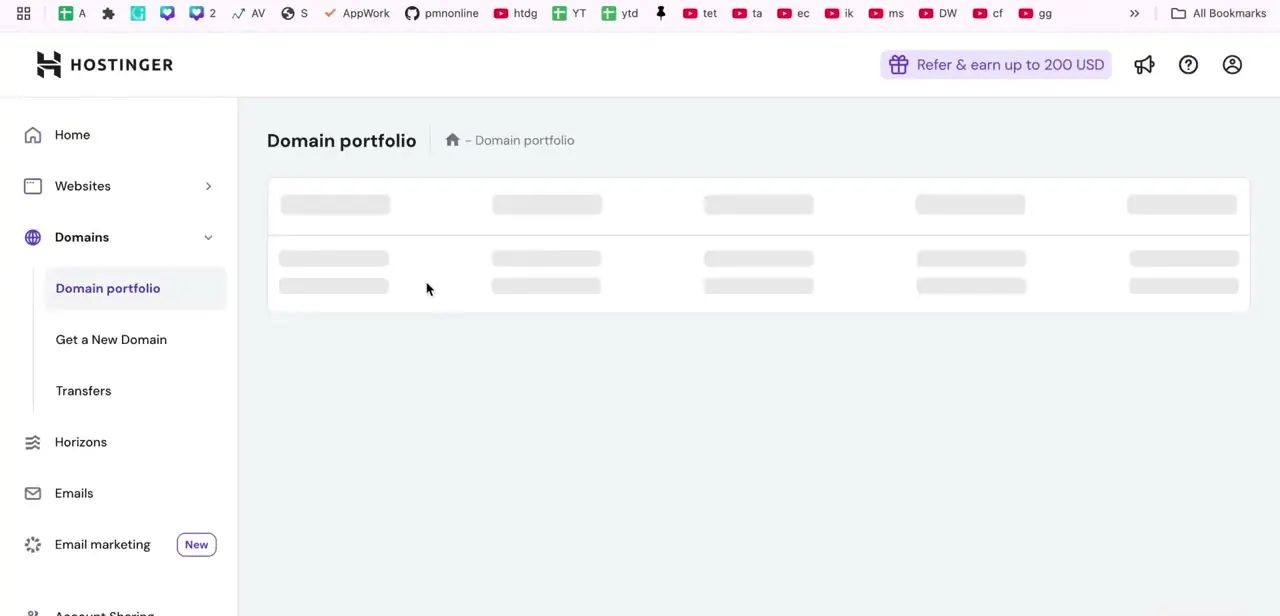
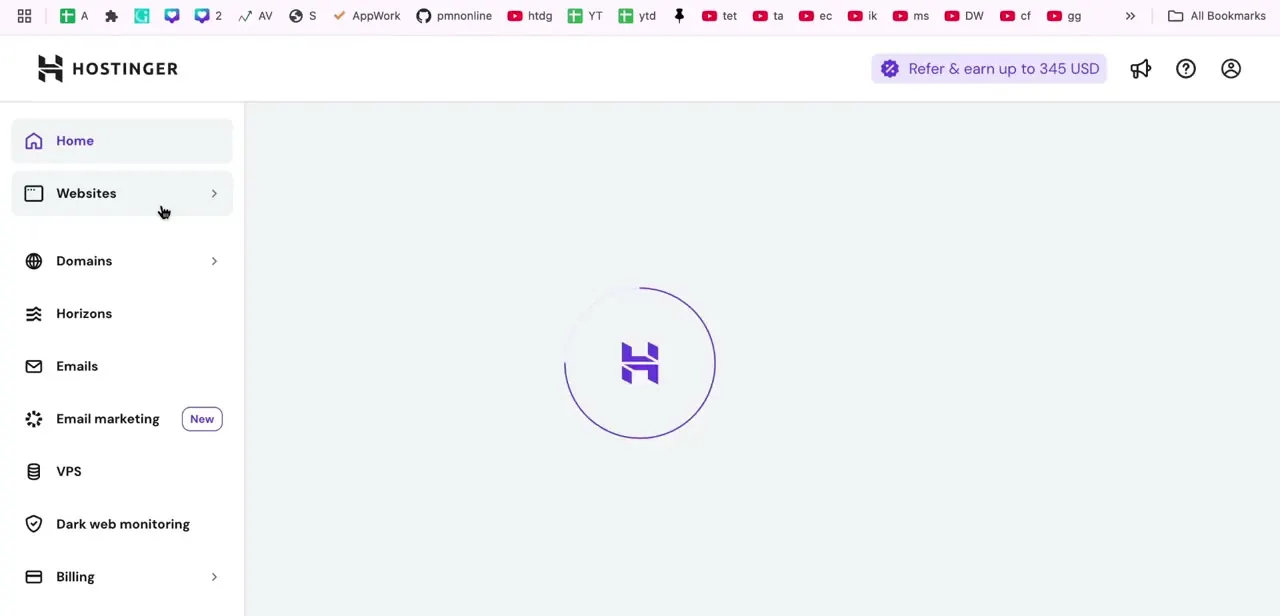
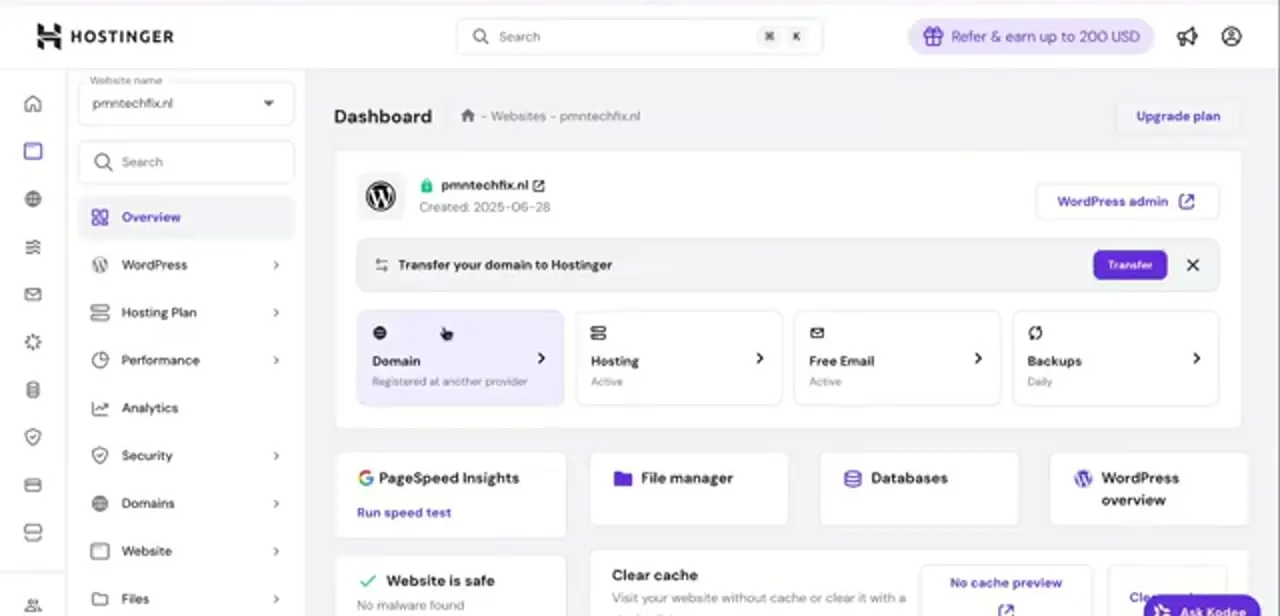
Log in to Hostinger and open hPanel for the site you want SSH access to. The website selector sits at the top of the left sidebar, and the dashboard below it lists Overview, WordPress, Hosting Plan, Performance, Analytics, Security, Domains, Website, Files and Databases.
SSH isn't on that first screen; it lives further down the same sidebar under Advanced, so scroll the menu instead of hunting through the dashboard tiles. SSH access is a hosting feature, not a domain one.
If you manage several sites on the account, make sure the selector at the top shows the right one before you add a key, since keys are stored per hosting plan. Hostinger requires Premium or above for SSH; the entry-level Single plan doesn't include it, and if the Advanced menu has no SSH Access entry, that's usually why.
02Generate the key pair on your own computer
Hostinger stores keys, it doesn't create them, so this step happens in your own terminal. On macOS or Linux, run ssh-keygen -t ed25519 -C "your@email.com" and press Enter to accept the default location, which puts the private key at ~/.ssh/id_ed25519 and the public key at ~/.ssh/id_ed25519.pub.
If you need compatibility with older tooling, use ssh-keygen -t rsa -b 4096 instead. Set a passphrase when prompted.
It encrypts the private key on disk, so a stolen laptop doesn't hand over your server. On Windows you can run the same command in PowerShell or Windows Terminal, or use PuTTYgen: click Generate and move the mouse to build entropy before saving both halves.
03Know what a valid public key looks like
This is the format question that trips people up. A public key is a single line of text with three space-separated parts: the algorithm, the encoded key, and an optional comment, for example ssh-rsa AAAAB3NzaC1yc2EAAAADAQABAAAB... followed by your email.
An ed25519 key looks the same but starts with ssh-ed25519 and is much shorter. Two things it is never.
It isn't the file that begins with -----BEGIN OPENSSH PRIVATE KEY----- (that's the private half, which stays on your machine), and it isn't PuTTYgen's saved .ppk file. If you generated in PuTTYgen, copy the key from the box labelled "Public key for pasting into OpenSSH authorized_keys file" at the top of the window instead of exporting a file; that box is already in the right format. Read the .pub file with cat ~/.ssh/id_ed25519.pub on macOS or Linux and copy the whole line, including the ssh- prefix, with no line breaks.
04Turn on SSH Access before adding a key
Back in hPanel, scroll the sidebar past DNS Zone Editor, PHP Configuration and Cron Jobs to SSH Access. If the SSH status on that page shows as disabled, click Enable first; the Add SSH key button won't do anything useful until SSH access itself is switched on for the plan.
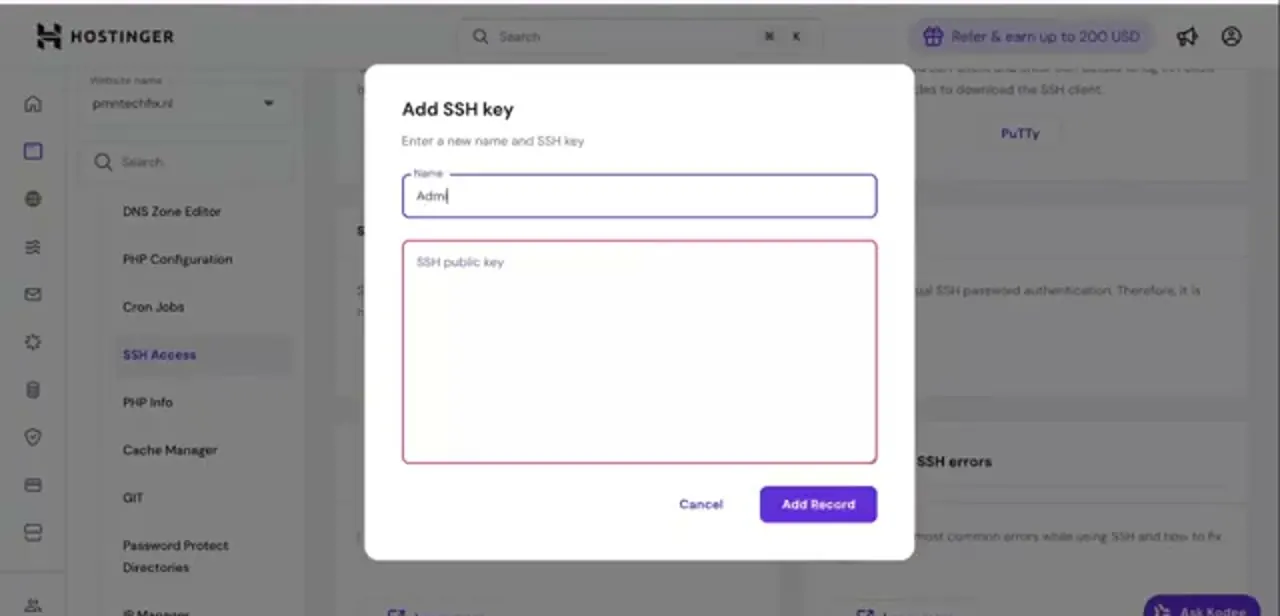
Once enabled, the page shows your connection details, a download link for the PuTTY client on Windows, a section for managing stored keys, and a troubleshooting block covering common SSH errors. Click Add SSH key and a dialog headed "Add SSH key" opens with two fields: a Name and a large SSH public key box. The Name is only a label for you, so use something that identifies the machine the private key lives on, such as "work-laptop" or "deploy-server", because when you retire a device later you want to know which stored key to delete without guessing.
05Paste the public key and save the record
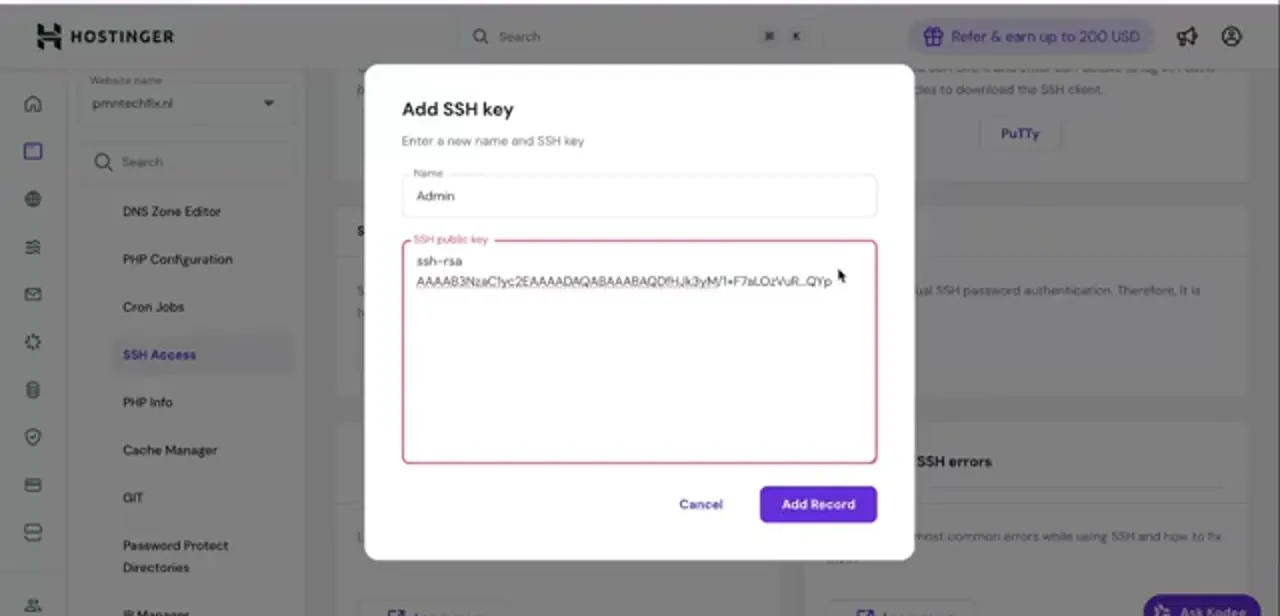
Paste the contents of your .pub file into the SSH public key box. It should land as one continuous line starting with ssh-rsa or ssh-ed25519 followed by the long encoded string.
If it arrives broken across several lines, the copy picked up hard wrapping and hPanel will likely reject it, so recopy straight from the file instead of a rendered web page or chat message. Click Add Record and the key is stored against the hosting plan, active immediately with no restart or waiting period.
The page then lists it by the name you gave it, and you can add several keys to the same plan when more than one machine needs access. That's far better practice than copying one private key onto multiple computers.
06Connect from terminal or PuTTY
The SSH Access page shows the three things you need to log in: the hostname or server IP, the SSH username for the plan, and the port, which on Hostinger shared hosting is a non-standard number, not the usual 22. Read it off the page instead of assuming.
From a terminal, the command is ssh -p PORT username@host, and if your key sits in the default ~/.ssh location it's offered automatically; otherwise point at it with -i /path/to/private_key. In PuTTY, put the host and port on the Session screen and load the .ppk private key under Connection, SSH, Auth before you connect. A successful login lands you in your account's home directory with no password prompt, only the key passphrase if you set one.
07Keep the private key safe and rotate it when needed
The public key you just pasted is safe to share. The private key is the credential and should never be emailed, committed to a repository, or pasted into a support chat.
On macOS and Linux the private key file should be readable only by you (chmod 600 ~/.ssh/id_ed25519), and SSH refuses to use it if the permissions are looser. Use ssh-agent, or macOS Keychain, so you type the passphrase once per session instead of being tempted to skip it.
When a laptop is lost or someone leaves the team, the fix is quick: delete that named key from the SSH Access page in hPanel and its access disappears, while every other machine keeps working. That per-device separation is the whole reason for naming keys carefully in the first place.
When it doesn't work
There's no SSH Access entry under Advanced
Why: The hosting plan is below Premium. Hostinger's entry-level Single shared plan doesn't include SSH.
Fix: Upgrade the plan to Premium or above, or use a Business/Cloud or VPS plan, all of which include SSH.
Add SSH key doesn't seem to do anything
Why: SSH access itself is still switched off for the plan; adding a key doesn't enable the service.
Fix: Open SSH Access and click Enable on the SSH status section first, then add the key.
hPanel rejects the pasted key
Why: The paste picked up line breaks from a web page or chat app, or the wrong file was pasted (a .ppk file or the private key instead of the .pub file).
Fix: Read the key straight from the .pub file with cat and paste the single unbroken line, starting with ssh-rsa or ssh-ed25519.
Frequently asked questions
Does Hostinger generate the SSH key for me?
No. hPanel's SSH Access page stores a public key you paste in; you generate the key pair yourself with ssh-keygen on macOS, Linux or Windows Terminal, or with PuTTYgen on Windows. That's by design: the private half should never leave your machine.
Which Hostinger plans include SSH access?
Premium and above on shared hosting, plus Business, Cloud and every VPS plan. The entry-level Single shared plan doesn't include SSH.
What is the correct SSH key format for Hostinger?
A single line starting with ssh-rsa or ssh-ed25519, followed by the long encoded string and an optional comment. Copy it from your .pub file, or from PuTTYgen's "Public key for pasting into OpenSSH authorized_keys file" box. Never paste the private key or a .ppk file.
Should I use RSA or ed25519?
ed25519 for anything new; it's shorter, faster and secure at a smaller size. Use RSA at 4096 bits only if you have older tooling that can't handle ed25519.
Why is my SSH key rejected by hPanel?
Usually because the pasted text has line breaks in it, or because it's the private key instead of the .pub file. Recopy directly from the file with cat, confirm it starts with ssh- and sits on one line, then try again.
Which port does Hostinger use for SSH?
Shared hosting uses a non-standard port instead of 22. The exact value, along with your hostname and username, is shown on the SSH Access page. Pass it with ssh -p PORT, or enter it in PuTTY's Session screen.
Sources and last check
Click path and screens come from a walkthrough recorded in July 2025. Plan requirements and the setup sequence were re-checked against Hostinger's own support documentation in September 2026. That check corrected the plan gate (Premium and above, not just Business/Cloud) and added the Enable step on SSH Access, which the recording had skipped past.
About the author

Impran M N
I've been hooked on technology for as long as I can remember — especially the new tools and AI apps that seem to land every other week. Easy Tech Tuts is where I write up whatever I've just worked out: I do the task in the real product, record the screen, and turn it into the guide I wish I'd found first.