Easy Tech Tuts
How to Find SMTP Details from Hostinger, Get Your Pop, Imap & All details of Email 2026 Easily
By Impran M NLast checked against official docs
Connecting a Hostinger mailbox to Gmail, Outlook, or a custom app depends on getting four things right: the server hostname, the port, the encryption type, and which protocol you're using. Hostinger keeps all of this on one Configuration Settings screen, but it isn't tucked inside the mailbox's own menu the way you'd expect. This guide walks the actual path to that screen and covers the second SMTP port Hostinger offers, which most walkthroughs skip.
Before you start
- A mailbox already created on a Hostinger email plan
01Open the Emails section in hPanel
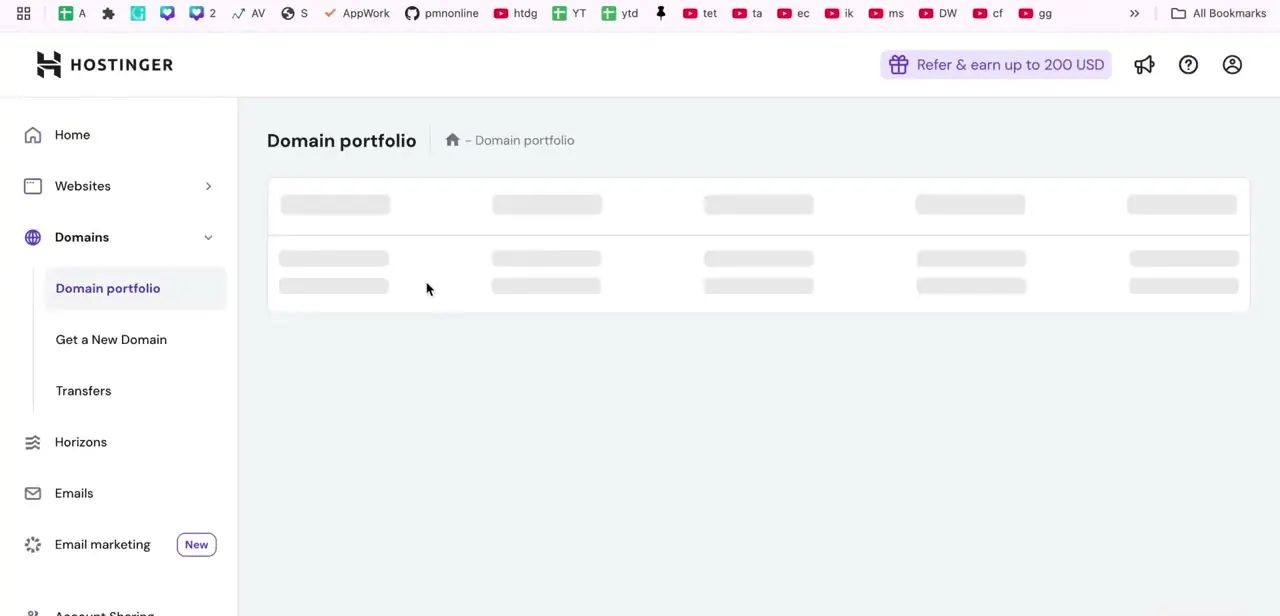
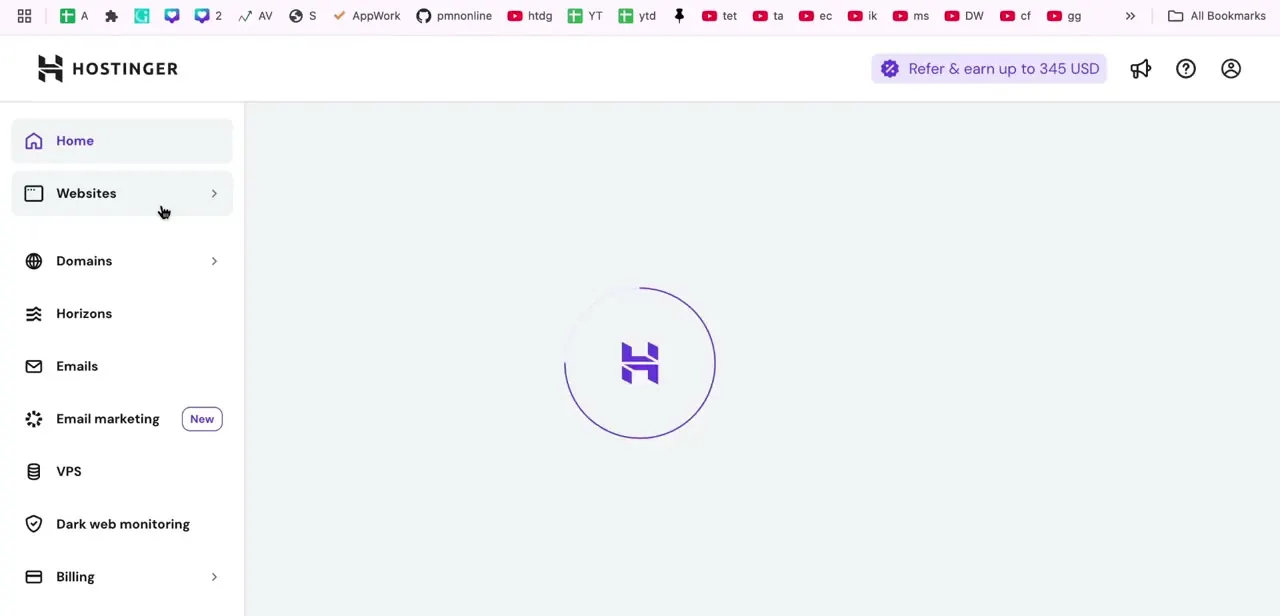
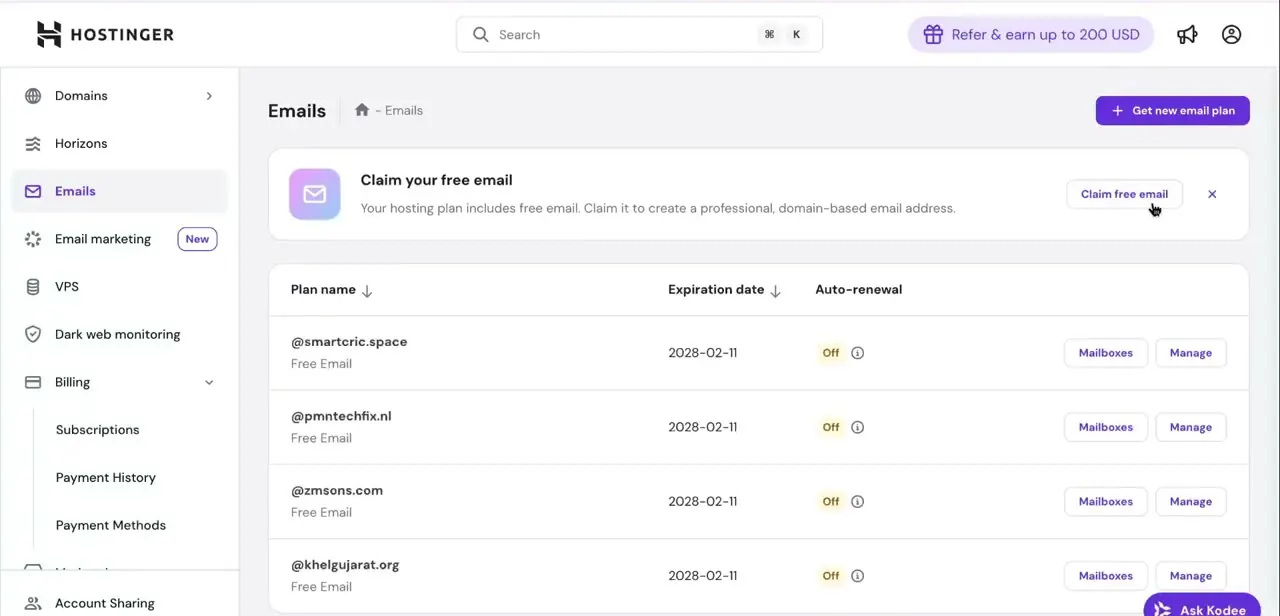
From your Hostinger dashboard, click Emails in the left sidebar. This lists every domain with an active email plan, its expiration date and auto-renewal status, and a Mailboxes button plus a Manage button next to each one. If you manage several domains, check this list first to confirm you're about to configure the right one.
02Click Manage, then Connect Apps & Devices in the sidebar
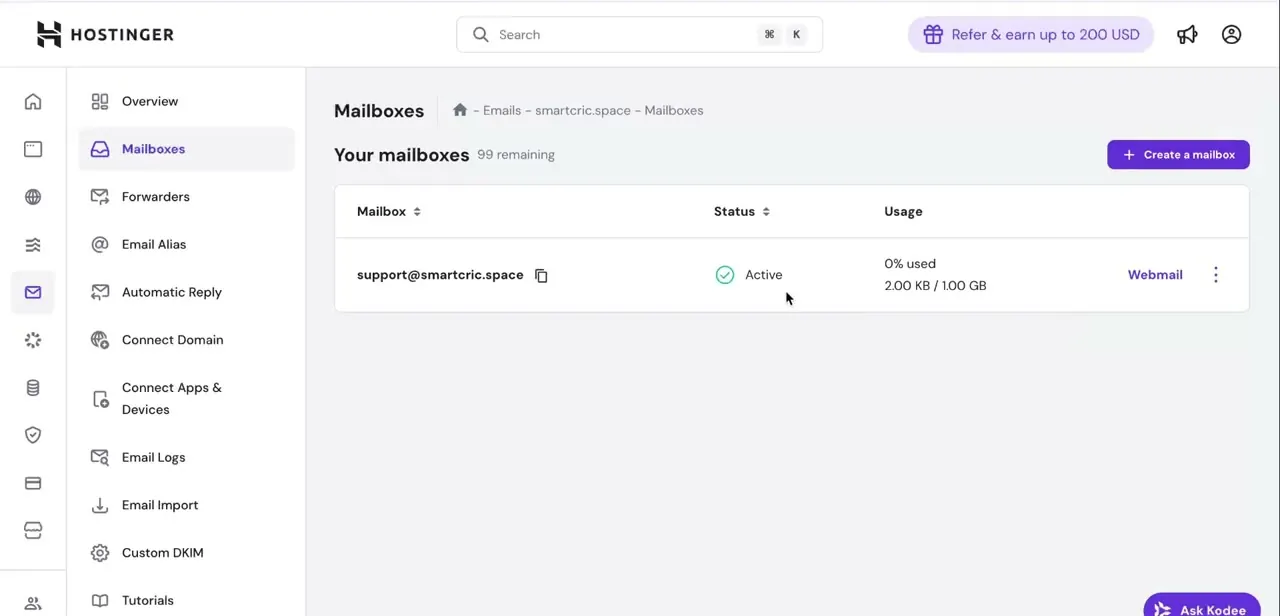
Click Manage next to the domain, not Mailboxes. That opens a left-hand menu for the domain's email plan: Overview, Mailboxes, Forwarders, Email Alias, Automatic Reply, Connect Domain, Connect Apps & Devices, Email Logs, and a few others. The configuration details live under Connect Apps & Devices, not inside any individual mailbox's own three-dot menu, which is the step most people get stuck on.
03Find the Configuration Settings panel
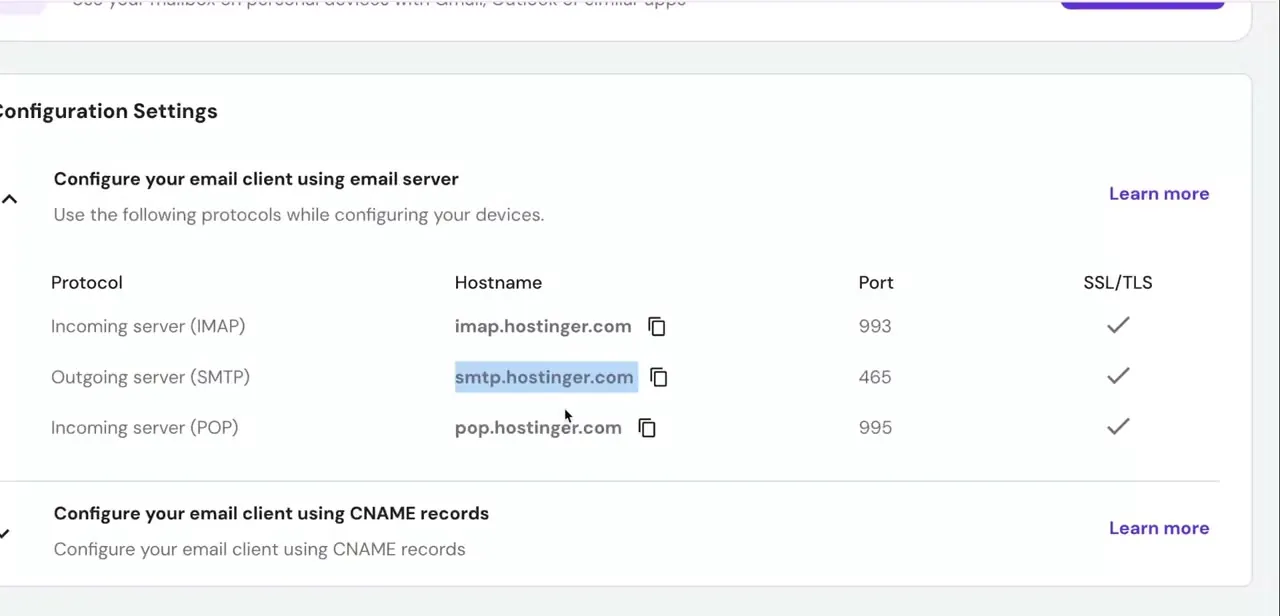
On the Connect Apps & Devices page, look for the section labeled Configuration Settings, under the heading "Configure your email client using email server." It lists three protocols: Incoming server (IMAP), Outgoing server (SMTP), and Incoming server (POP), each with its own hostname, port, and a checkmark confirming SSL/TLS. A copy icon sits next to each hostname so you can paste it straight into your email client.
04Match the protocol to what your email client asks for
Gmail, Outlook, and most mail apps ask for both an incoming and an outgoing server. Use the IMAP hostname and port for incoming mail if you want the mailbox to stay in sync across devices, or POP if you'd rather messages download to one device only. The SMTP hostname and port handle outgoing mail either way, so you need one incoming protocol plus SMTP configured before the account sends and receives correctly.
05If SMTP won't connect on port 465, switch to 587
Hostinger's table shows SMTP on port 465 with SSL, and that's the default to try first. But Hostinger also runs SMTP on port 587 with STARTTLS instead of SSL, meant for exactly the case where 465 gets blocked or mishandled by a network or client. If outgoing mail won't connect on 465, change only the port to 587 and set the encryption dropdown to STARTTLS (or TLS, if that's the only label your client offers) instead of SSL.
06Use your full email address and mailbox password as credentials
When your client asks for a username, enter the full email address, not just the part before the @ symbol, and use the mailbox's own password, not your Hostinger account password. They're separate credentials. If authentication still fails after the hostname, port, and encryption all match, that mismatch is the next thing to check.
| Protocol | Hostname | Port | Encryption |
|---|---|---|---|
| Incoming (IMAP) | imap.hostinger.com | 993 | SSL |
| Incoming (POP) | pop.hostinger.com | 995 | SSL |
| Outgoing (SMTP) | smtp.hostinger.com | 465 | SSL |
| Outgoing (SMTP, alternate) | smtp.hostinger.com | 587 | STARTTLS / TLS |
Use port 587 for SMTP only if 465 fails to connect.
When it doesn't work
Can't find the Configuration Settings screen
Why: It isn't inside an individual mailbox's own settings. It's under Connect Apps & Devices in the domain's email sidebar, a separate page from Mailboxes.
Fix: From Emails, click Manage on the domain, then click Connect Apps & Devices in the left sidebar.
Outgoing mail won't connect on port 465
Why: Some networks and older mail clients block or mishandle implicit SSL on 465.
Fix: Switch to smtp.hostinger.com on port 587 with STARTTLS (or TLS) instead of SSL.
Authentication fails even though the server settings are correct
Why: The client is using the Hostinger account (hPanel) password, or just the local part of the address, instead of the mailbox's own full email and password.
Fix: Enter the complete email address as the username and the mailbox-specific password, not the hPanel login.
Frequently asked questions
Where do I find my Hostinger SMTP settings?
Go to Emails in hPanel, click Manage on your domain, then Connect Apps & Devices in the sidebar. SMTP is listed there in the Configuration Settings table alongside IMAP and POP.
Can I use these details in Gmail or Outlook?
Yes. Once you have the correct hostname, port, and encryption setting, you can add your Hostinger email to Gmail, Outlook, or another client.
What ports does Hostinger use for email?
IMAP uses port 993, POP uses port 995, and SMTP uses port 465 with SSL by default — with a fallback of port 587 using STARTTLS if 465 has connection trouble.
Why isn't my email working after adding it to an app?
The most common causes are an incorrect port, a mismatched encryption setting, or using your hPanel password instead of the mailbox's own password. Recheck all three against the Configuration Settings table.
What's the difference between POP and IMAP?
IMAP keeps your mailbox synced across every device you check it from; POP downloads messages to a single device. Hostinger lists a hostname and port for both, so pick based on how you check email.
Sources and last check
Click path and screens come from a recorded walkthrough. The path to Configuration Settings was corrected against Hostinger's official documentation in September 2026: it sits under Connect Apps & Devices in the domain's sidebar, not inside an individual mailbox's own menu as the earlier version described. The SMTP fallback of port 587 with STARTTLS, absent from the earlier version, was added from the same official source.
About the author

Impran M N
I've been hooked on technology for as long as I can remember — especially the new tools and AI apps that seem to land every other week. Easy Tech Tuts is where I write up whatever I've just worked out: I do the task in the real product, record the screen, and turn it into the guide I wish I'd found first.