Easy Tech Tuts
How to Find Nameservers in Hostinger 2026 Easily
By Impran M NLast checked against official docs
If you bought a domain through one registrar and want it pointed at hosting on Hostinger, you need two things: Hostinger's nameserver addresses, and the right screen in your registrar's dashboard to paste them into. This guide covers the Hostinger side of that job: logging in, opening your site's dashboard, and finding the DNS/Nameservers section where the connection status and the values live. This is the path for Hostinger's Website and Cloud hosting; VPS plans keep the equivalent screen somewhere else, noted below.
Before you start
- A domain already registered somewhere other than Hostinger
- An active Hostinger hosting plan with a website already set up, since the DNS/Nameservers page lives under that site's dashboard
01Log in to your Hostinger account
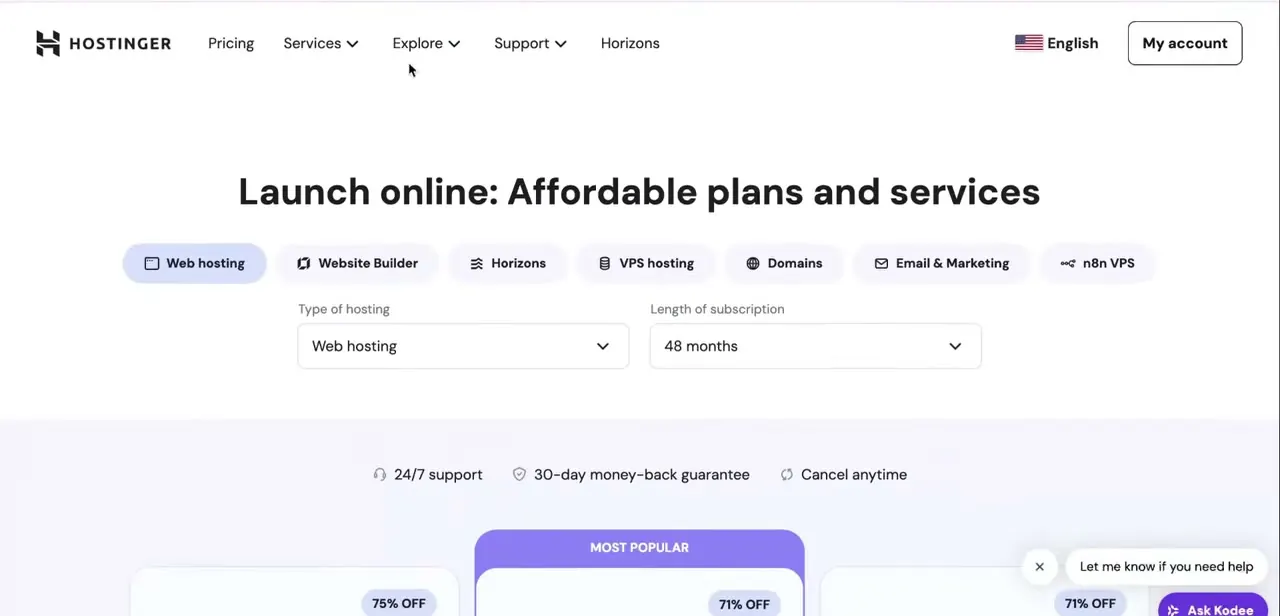
Go to hostinger.com and click Log in at the top right of the homepage. The marketing homepage changes with whatever promotion is running, but the Log in button stays in the same spot regardless. Enter your account email and password to land in hPanel, Hostinger's control panel for everything tied to your account.

02Open your website's dashboard
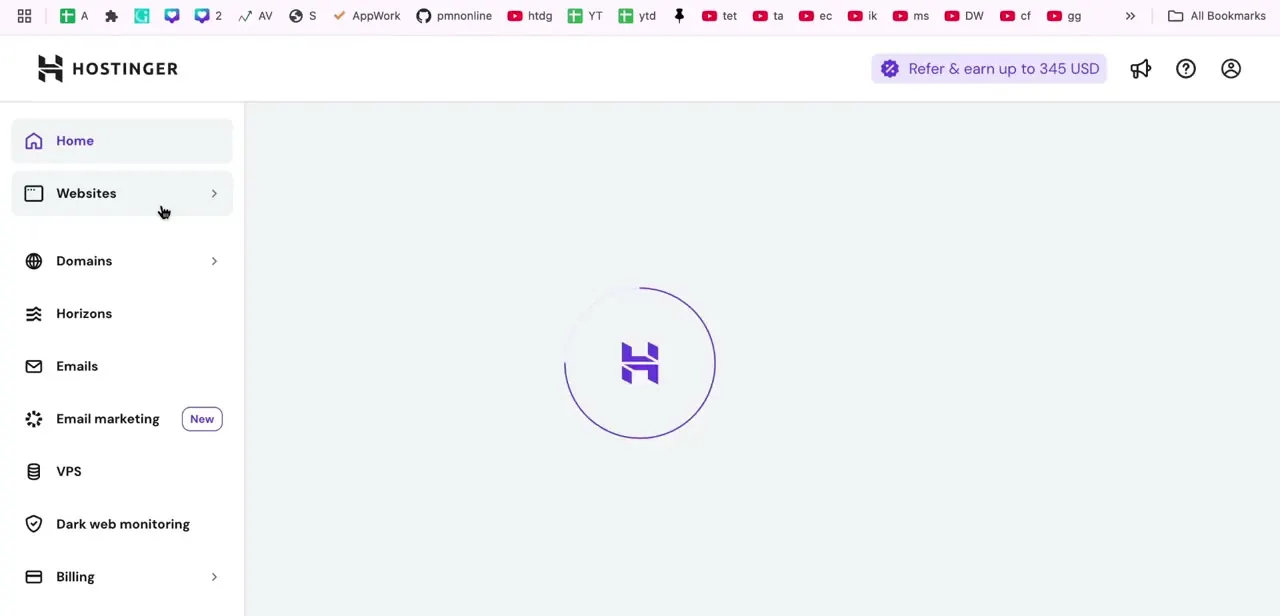
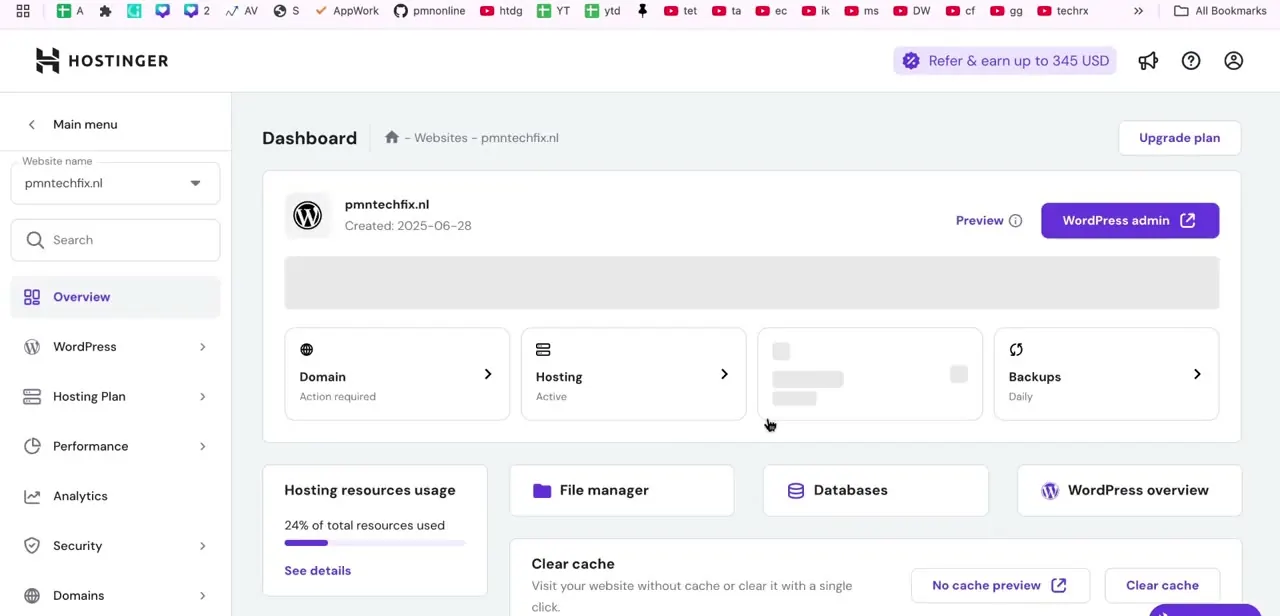
Once inside hPanel, select the website you're working on from the Websites list. This drops you into that site's own Dashboard, which shows an overview card for the site, its WordPress admin link if applicable, creation date, and quick-access tiles for Domain, Hosting, Backups, File manager, and Databases. Check the Domain tile first; it often flags "Action required" when the domain isn't yet connected, which is exactly what a nameserver change fixes.
03Open the DNS / Nameservers section
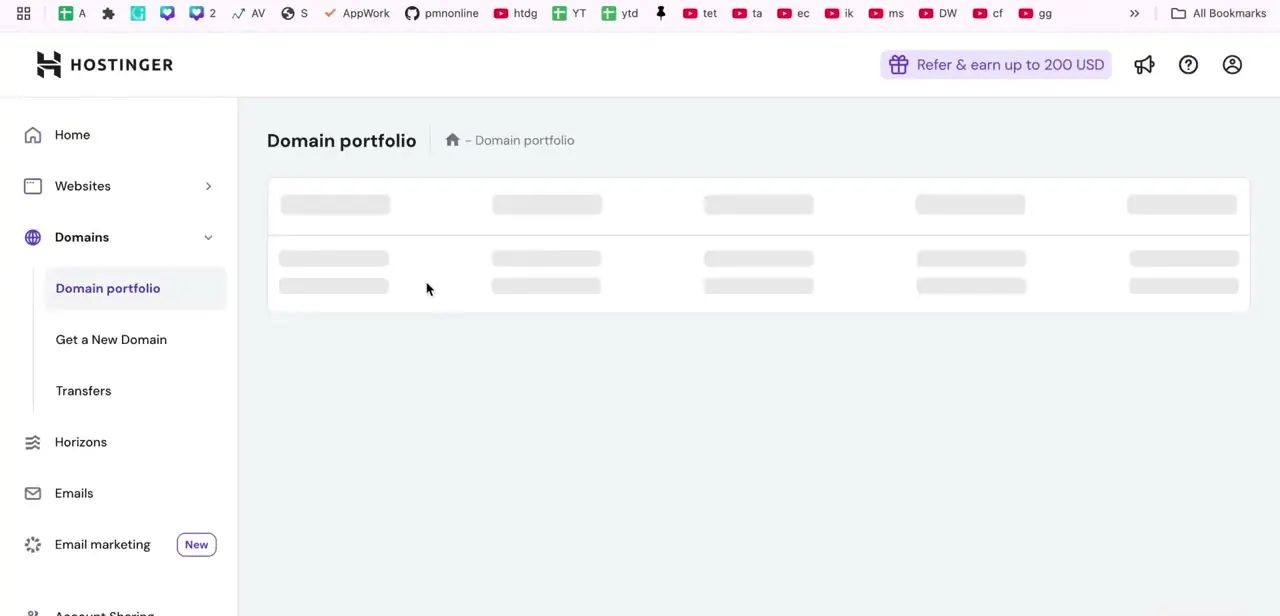
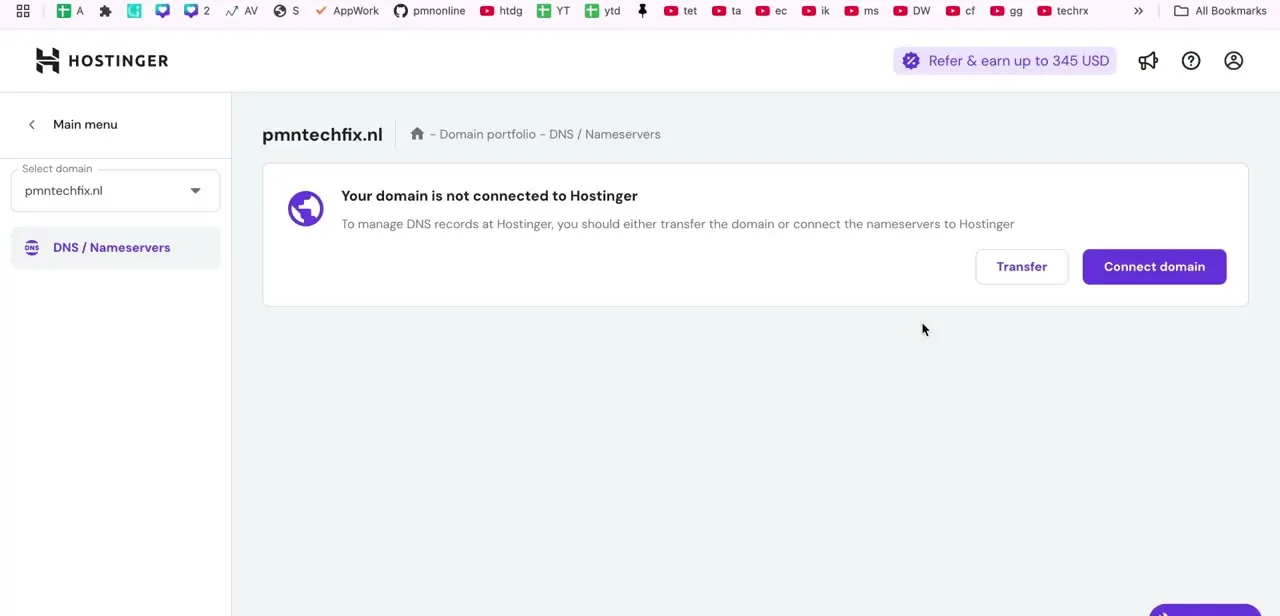
From the left-hand menu, expand Domains and select DNS / Nameservers for your domain. If the domain was registered outside Hostinger and hasn't been pointed here yet, the page says plainly that it isn't connected, with two options: Transfer the domain entirely, or Connect it by updating nameservers at your current registrar.
For most people who bought the domain elsewhere and just want to host it on Hostinger, Connect domain is the path that leads to the nameserver values. This screen sits under Website and Cloud hosting; VPS plans keep the equivalent under VPS > Manage > DNS Manager, and legacy cPanel accounts list nameservers under Manage > Nameservers and IP address.
04Copy the nameserver addresses
Choosing Connect domain surfaces Hostinger's nameservers for your account. These are commonly ns1.dns-parking.com and ns2.dns-parking.com, though Hostinger is explicit that the exact values can vary by account and hosting type.
Copy what's actually shown on your own DNS/Nameservers page instead of assuming the two addresses above always apply. Nameserver values are unforgiving of typos, and a single dropped character will keep the domain from resolving to Hostinger's servers.
05Paste them into your domain registrar
Log in to wherever the domain itself is registered, such as GoDaddy or Namecheap, and find that registrar's nameserver settings, usually under the domain's DNS or Nameservers section. Replace the existing entries with Hostinger's two addresses and save.
Propagation is not instant. It can take anywhere from a few minutes up to 24 hours to take effect globally, so don't assume something is wrong if the site doesn't switch over right away.
06Verify the connection back in hPanel
Once propagation completes, return to the DNS / Nameservers page in hPanel. The "not connected" message should be replaced with confirmation that the domain is active, and the Domain tile on your dashboard should stop flagging action required. If it still shows disconnected after a full day, double-check the nameserver values at your registrar for typos before contacting support.
When it doesn't work
The DNS/Nameservers page won't show any nameserver values
Why: Temporary or trial domains can't be managed this way; their DNS records aren't editable the way a fully registered domain's are.
Fix: Register the domain properly, with Hostinger or elsewhere, before trying to point it.
The nameservers on my account don't match ns1/ns2.dns-parking.com
Why: Hostinger's exact nameserver addresses can differ by account and hosting plan.
Fix: Copy the values shown on your own DNS/Nameservers page instead of assuming the commonly cited pair applies.
Still shows "not connected" after 24+ hours
Why: Either a typo in the values entered at the registrar, or the registrar hasn't fully applied the change on its end.
Fix: Re-check the two nameserver values character by character at the registrar. If they're correct, contact the registrar's support, since Hostinger is waiting on the change from that side.
Frequently asked questions
What are Hostinger's default nameservers?
Commonly ns1.dns-parking.com and ns2.dns-parking.com, but Hostinger notes this can vary by account and hosting type, so confirm the exact values on your own DNS/Nameservers page before copying them.
Why do I need my nameservers?
To point a domain registered with another provider, such as GoDaddy or Namecheap, at your Hostinger hosting so it can serve your site.
How do I know if my domain still needs connecting?
The DNS / Nameservers page in hPanel says "Your domain is not connected to Hostinger" and offers Transfer or Connect domain options until the nameservers are updated and have propagated.
What happens if I copy the nameservers incorrectly?
Even a small typo can break the domain connection, so copy them exactly as shown in your hPanel dashboard instead of typing them from memory.
How long does it take for nameserver changes to work?
Propagation can take anywhere from a few minutes up to 24 hours, so give it time before assuming something is wrong.
Is this the same screen for VPS hosting?
No. VPS plans manage nameservers under VPS > Manage > DNS Manager instead of the Websites dashboard's DNS/Nameservers page.
Sources and last check
Click path and screens come from a walkthrough recorded in August 2025, covering Hostinger's Website/Cloud hosting dashboard. Nameserver values, the temporary-domain limitation, and the VPS/legacy-cPanel path differences were checked against three of Hostinger's official pages in September 2026. The note that exact nameservers can vary by account was added because Hostinger's own documentation is explicit about that and doesn't commit to a single universal pair.
About the author

Impran M N
I've been hooked on technology for as long as I can remember — especially the new tools and AI apps that seem to land every other week. Easy Tech Tuts is where I write up whatever I've just worked out: I do the task in the real product, record the screen, and turn it into the guide I wish I'd found first.