Easy Tech Tuts
How to Delete Mail in Hostinger 2026, Remove Webmail Easily
By Impran M NLast checked against official docs
Hostinger gives you two different ways to deal with unwanted email, and mixing them up can cost you data you meant to keep. You can delete an entire mailbox from hPanel, or leave the account active and just clear out messages through Webmail.
This guide covers both, plus a detail most people never check: deleting a mailbox in hPanel is not instant or final. Hostinger holds the data for 30 days before it's gone for good.
Before you start
- A Hostinger account with at least one email account already set up on a domain
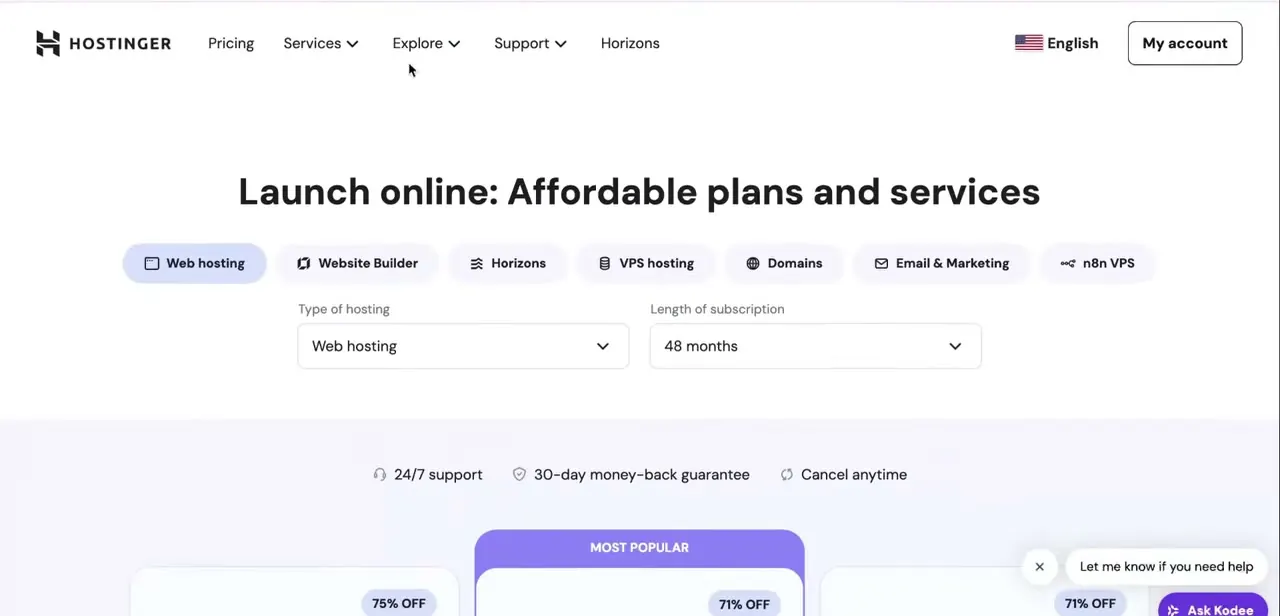
01Log in to hPanel and open Emails
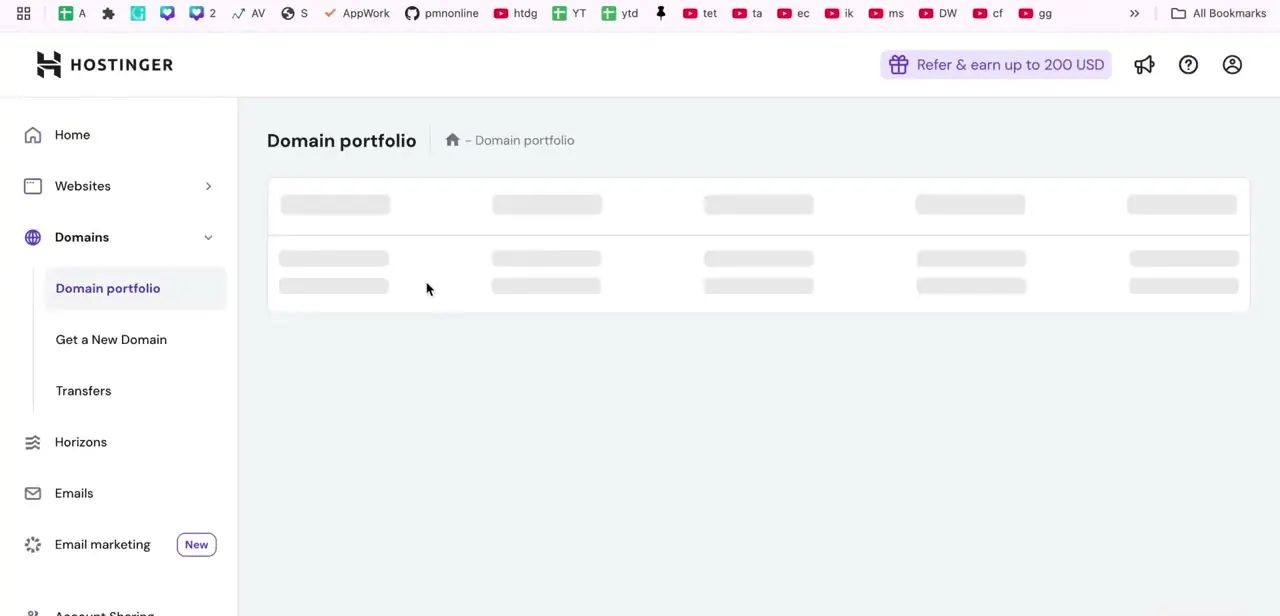
Go to the Hostinger website, log in, and from your hPanel dashboard click Emails. Find the domain tied to the mailbox you want to manage and click Manage to open its email settings. That lands you on the Mailboxes page, which lists every address on that domain along with its status and storage usage.
02Delete a mailbox, and know you have 30 days to undo it
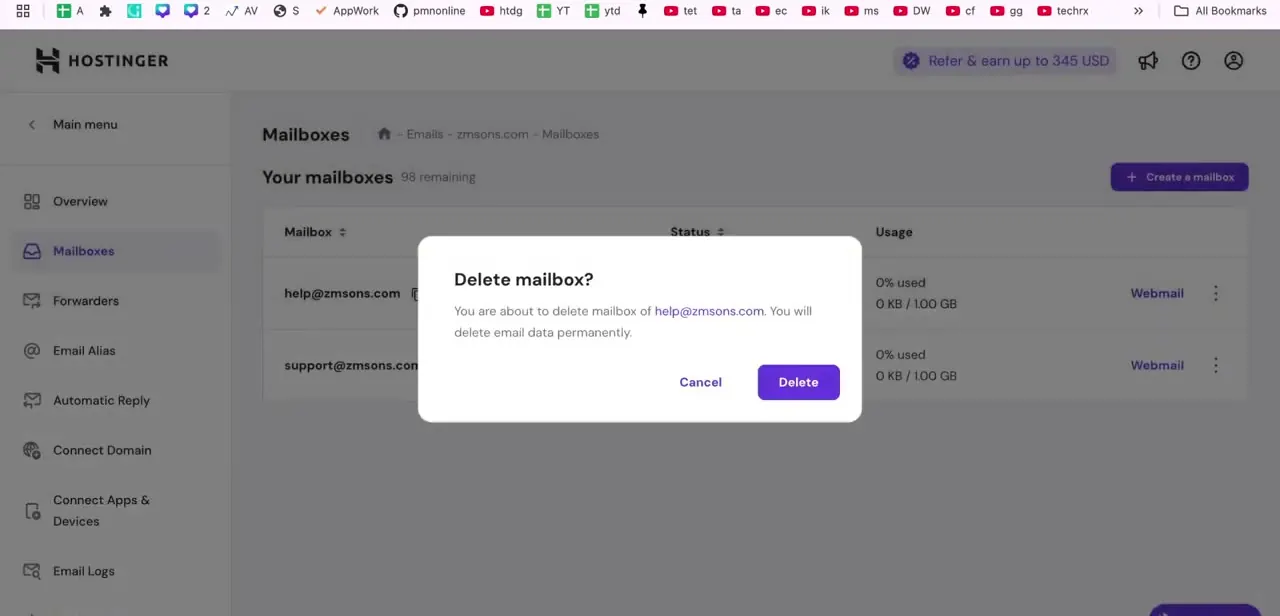
On the Mailboxes page, find the address you want to remove, click the three-dot Options menu next to it, and choose Delete account. A confirmation dialog warns that the mailbox and its data will be removed.
Click Delete again to confirm, or Cancel if you meant to just clear the inbox instead of removing the whole account. That warning makes deletion sound final, but Hostinger's own documentation says otherwise.
Recreate a mailbox with the exact same name within 15 minutes of deleting it and the data restores on its own. Beyond that, up to 30 days after deletion, you can still get it back: recreate the mailbox with the original name, then contact Hostinger's Customer Success team to have the messages restored manually. Only after 30 days is the data permanently expunged and unrecoverable.
03Open Webmail instead for a lighter cleanup
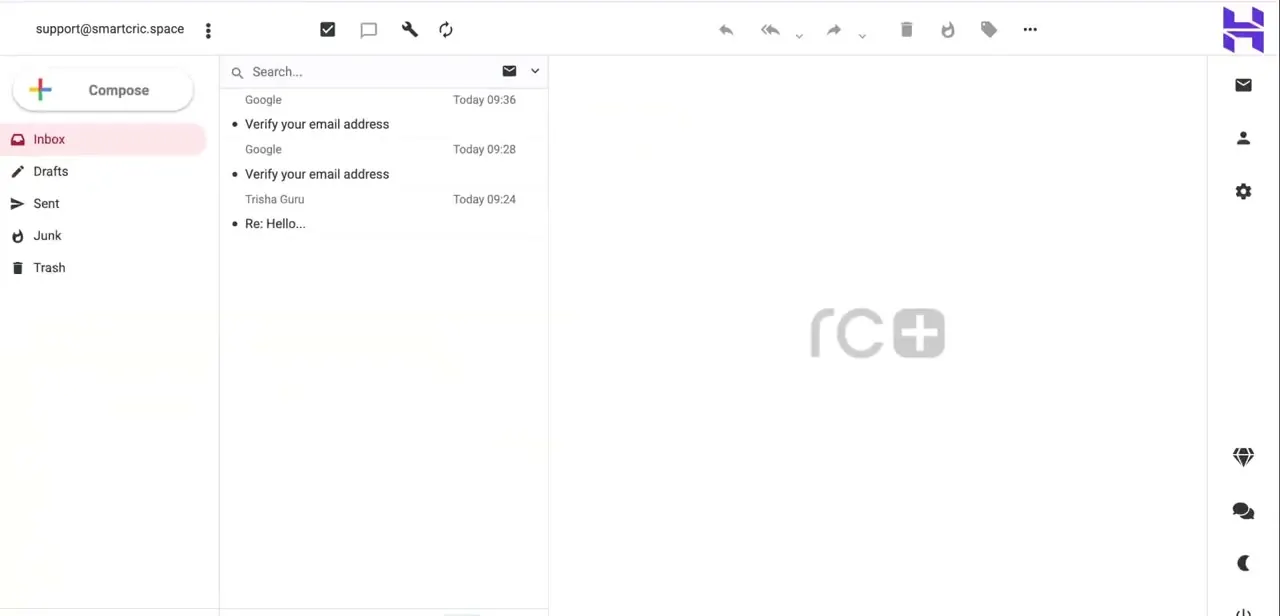
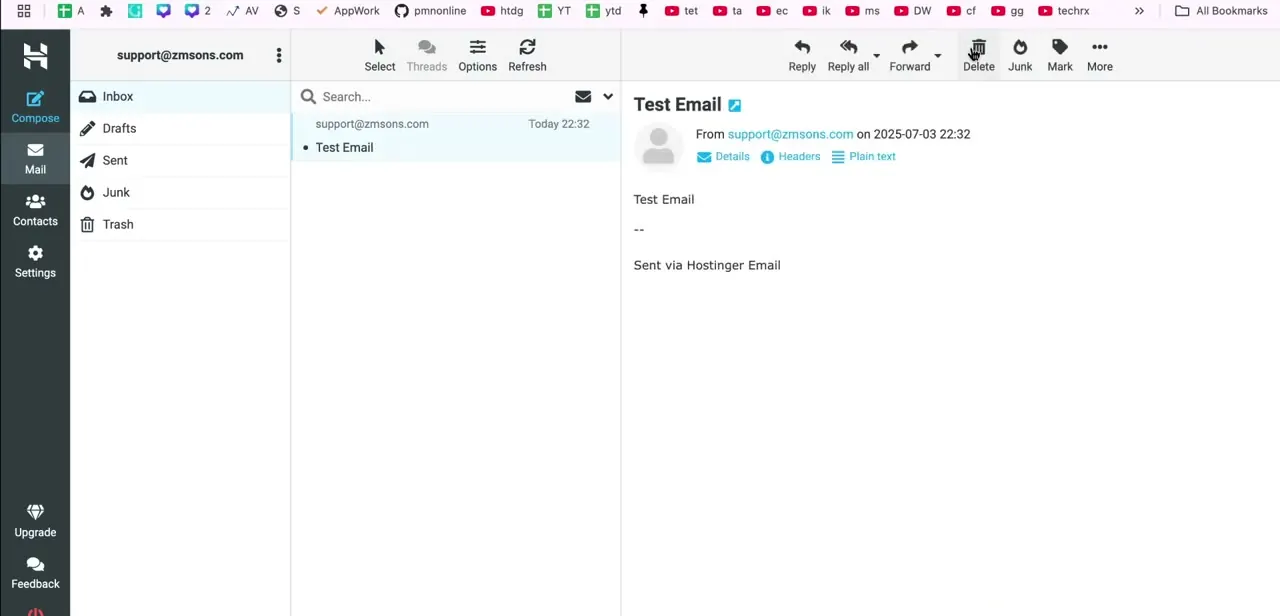
If the goal is a tidier inbox instead of removing the account entirely, click Webmail next to the mailbox in hPanel. This opens the full email client for that address: Inbox, Drafts, Sent, Junk, and Trash down the left side, with the message list and reading pane on the right.
04Select and delete individual messages
Inside Webmail, click into a message and delete it, or use Select in the toolbar to check several at once, then click Delete. Deleted messages move to Trash instead of disappearing. Hostinger keeps them there for up to 30 days, and you can pull one back with the Restore icon, or by moving it to another folder, before that window closes.
05Empty Trash if you want the storage back now
Messages sitting in Trash still count toward your mailbox's storage quota. Hostinger clears them automatically after 30 days, but if you're deleting to free up space right away, open Trash from the left sidebar, select the messages, and delete them a second time to clear them for good.
When it doesn't work
I deleted a mailbox and need it back
Why: Hostinger doesn't purge mailbox data immediately on deletion.
Fix: Recreate the mailbox with the identical address within 15 minutes and the data restores automatically. Within 30 days, recreate the address and contact Hostinger's Customer Success team to restore the messages manually. Past 30 days, the data is gone.
A message I deleted in Webmail is missing
Why: It's sitting in Trash, or Trash was emptied (manually or by Hostinger's 30-day auto-purge).
Fix: Check Trash first and use Restore. If more than 30 days have passed since it landed there, it can't be recovered.
Mailbox storage stays full after deleting messages
Why: Deleted messages remain in Trash and still count against your storage quota until Trash is emptied.
Fix: Open Trash and delete the messages a second time instead of waiting for the automatic 30-day purge.
Frequently asked questions
Is deleting an email account in Hostinger permanent?
Not right away. Hostinger's documentation gives you a 30-day window to restore a deleted mailbox before the data is permanently expunged, though getting it back after the first 15 minutes needs help from Hostinger's support team.
What's the difference between deleting an email account and cleaning up an inbox?
Deleting the mailbox in hPanel removes the account and starts a 30-day recovery clock; cleaning up through Webmail just moves messages to Trash, where they sit for up to 30 days, and the account stays active the whole time.
Where do I manage email accounts in Hostinger?
Go to the Emails section in hPanel, find your domain, and click Manage to see the Mailboxes page. The delete option is under the three-dot Options menu next to each address, labeled Delete account.
Can I recover a message I deleted in Webmail?
Yes, for up to 30 days. Open Trash and use the Restore icon, or move the message to another folder. After 30 days, or after Trash is emptied manually, it's gone.
What happens if I recreate a deleted mailbox with the same name?
If you do it within 15 minutes of deleting it, Hostinger restores the old data automatically. After that, recreating the address is still the first step to getting it back, but you'll need to contact support to restore the actual messages.
How do I open Webmail for a specific address?
Click the Webmail link next to that email address on hPanel's Mailboxes page. It opens the email client for that account directly in your browser.
Sources and last check
Click path and screens come from a recorded walkthrough. The claim that mailbox deletion is immediate and unrecoverable was re-checked against Hostinger's official documentation in September 2026 and corrected: Hostinger keeps deleted mailbox data for 30 days, with automatic restoration inside the first 15 minutes. Trash retention for individual messages (30 days) was verified the same way.
About the author

Impran M N
I've been hooked on technology for as long as I can remember — especially the new tools and AI apps that seem to land every other week. Easy Tech Tuts is where I write up whatever I've just worked out: I do the task in the real product, record the screen, and turn it into the guide I wish I'd found first.