Easy Tech Tuts
How to Change Hostinger Domain Name 2025 for Free Easily
By Impran M NLast checked against official docs
Rebranding a project or swapping a placeholder domain for the real one doesn't require a new hosting plan on Hostinger. You can point your existing website at a new domain name from inside hPanel in a few clicks.
The one catch is that the switch resets anything tied to the old domain, including your email inboxes and any backups, so it pays to know exactly what the confirmation screen is telling you before you click through it. This guide follows the process screen by screen: finding the setting, reading the warning correctly, and completing the change.
Before you start
- The new domain name already registered, either through Hostinger or another registrar. A domain bought through Hostinger shows up automatically in the change-domain picker; one bought elsewhere still works, but you type it in manually and it needs to be pointed at Hostinger's nameservers to actually resolve once the change is made.
01Log in and open the Websites list
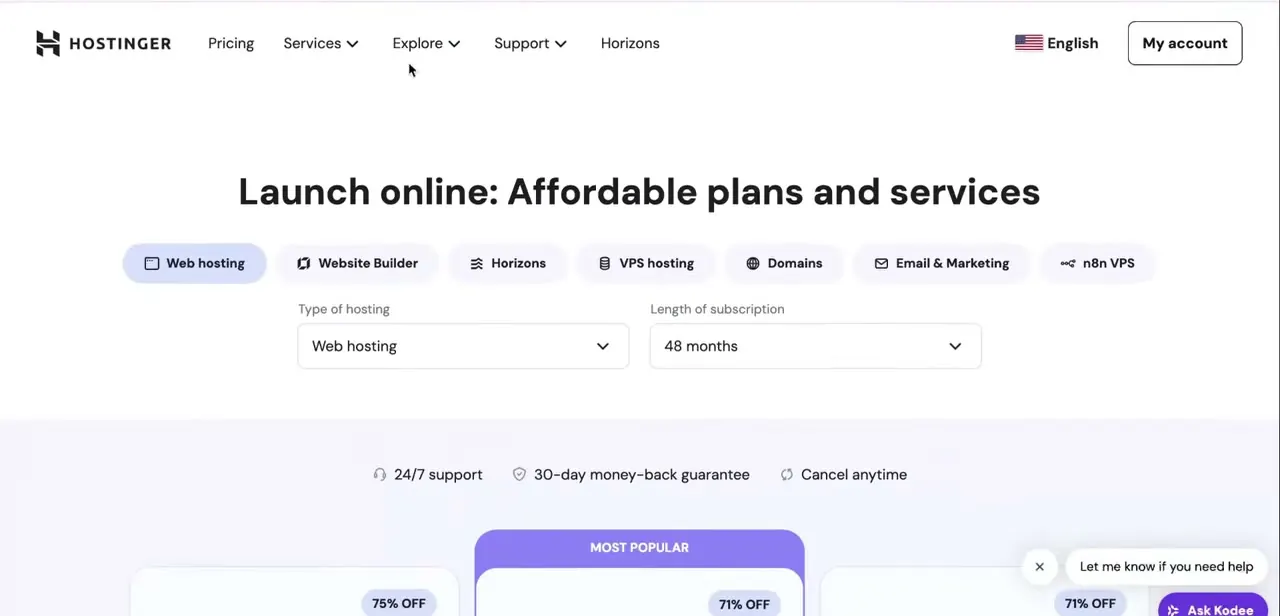
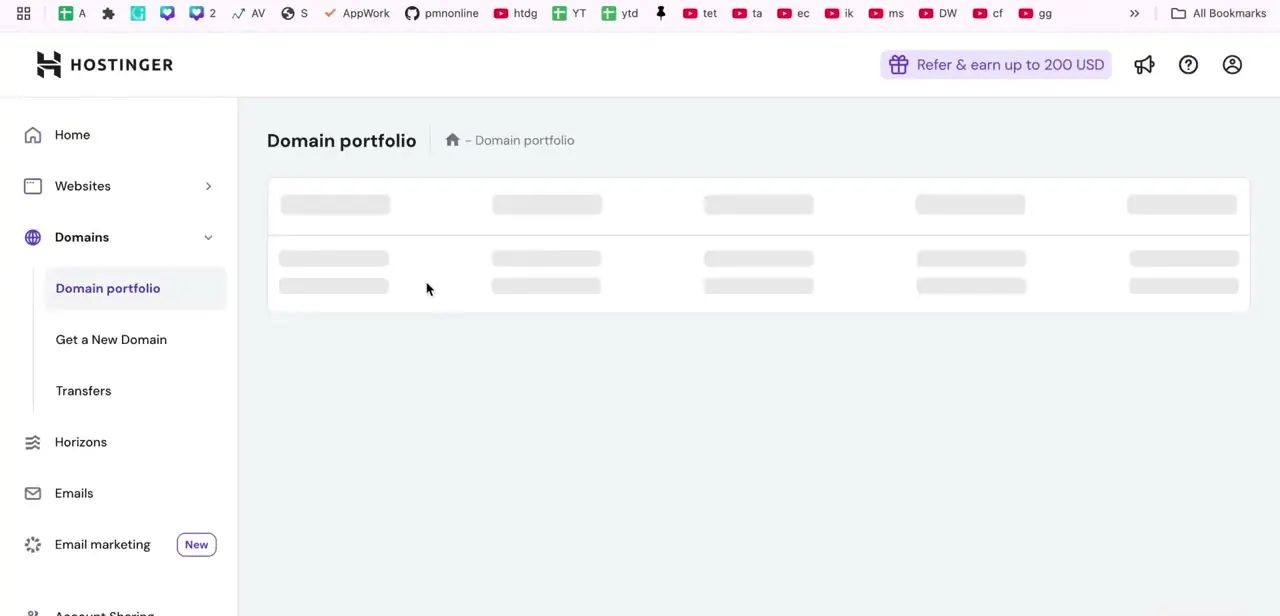
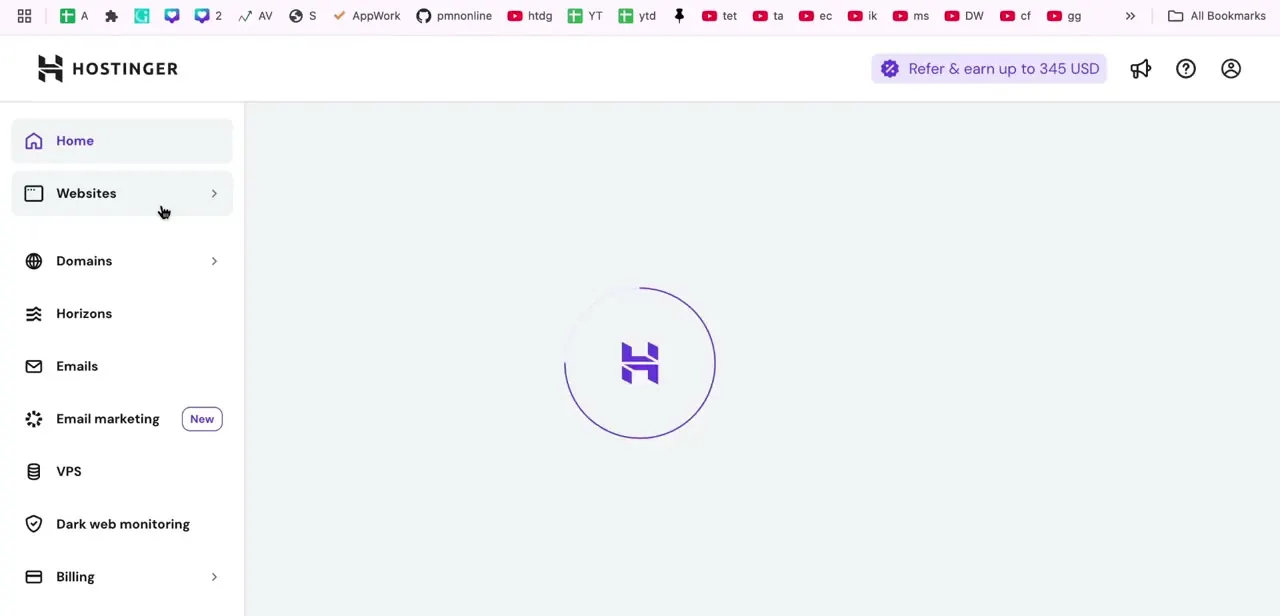
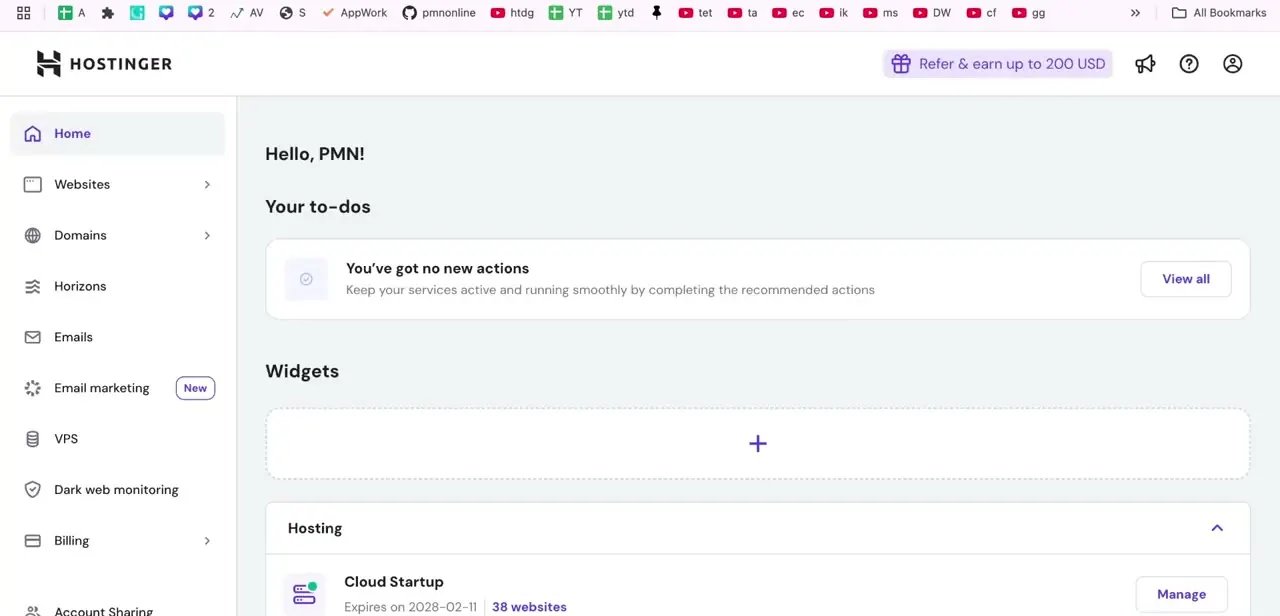
Go to Hostinger's website and use the login button in the top right to sign in with your account email and password; the login form has a reset link if you've forgotten it. Hostinger drops you straight into hPanel, the control panel where every hosting, domain, and email setting for your account lives. The left sidebar is the main navigation for the rest of this process: Websites, Domains, Emails, and Billing all sit here.
02Open Websites and find the right site
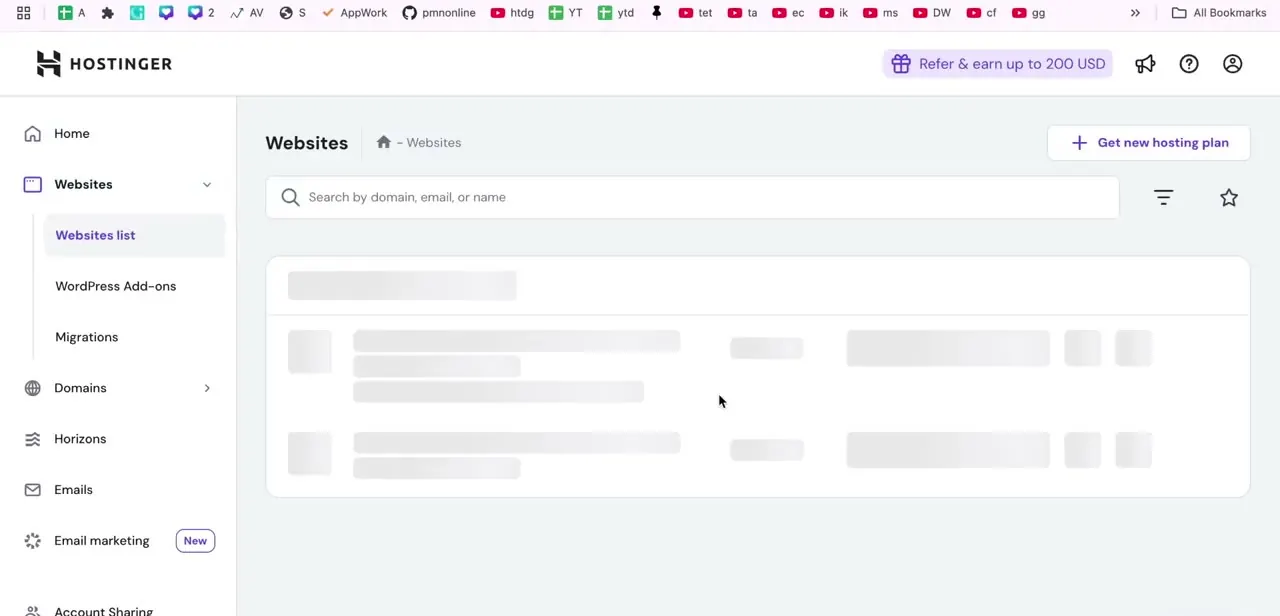
Click Websites in the sidebar to see every site attached to your hosting account, each listed with its current domain, plan, and quick-action buttons for tools, WP Admin, and its dashboard. If you manage more than one site, use the search bar at the top to filter by domain or name instead of scrolling the full list. Confirm you've found the correct entry before continuing, since the domain change only applies to the site you select here.
03Open the three-dot menu and select Change domain
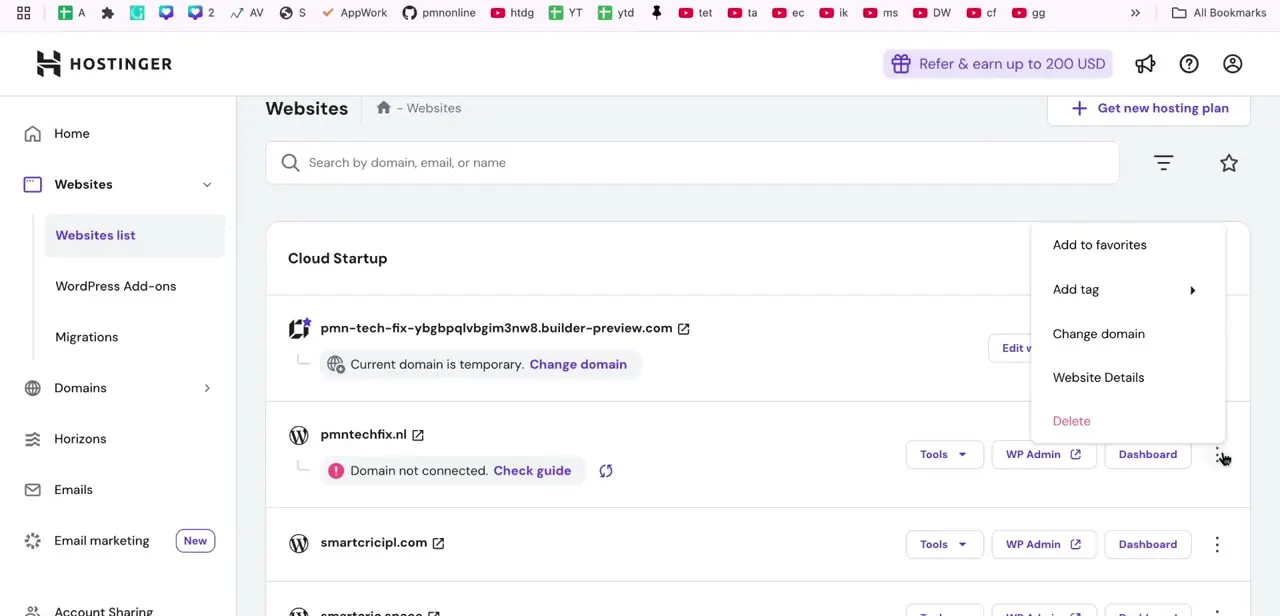
Each website row ends with a three-dot icon that opens a menu of extra actions: Add to favorites, Add tag, Change domain, Website Details, and Delete. Click Change domain. If the site is still running on a temporary Hostinger-assigned address, you'll also see a banner right on the row itself reading "Current domain is temporary," with the same Change domain link; either path gets you to the same place.
04Read the warning and confirm you understand it
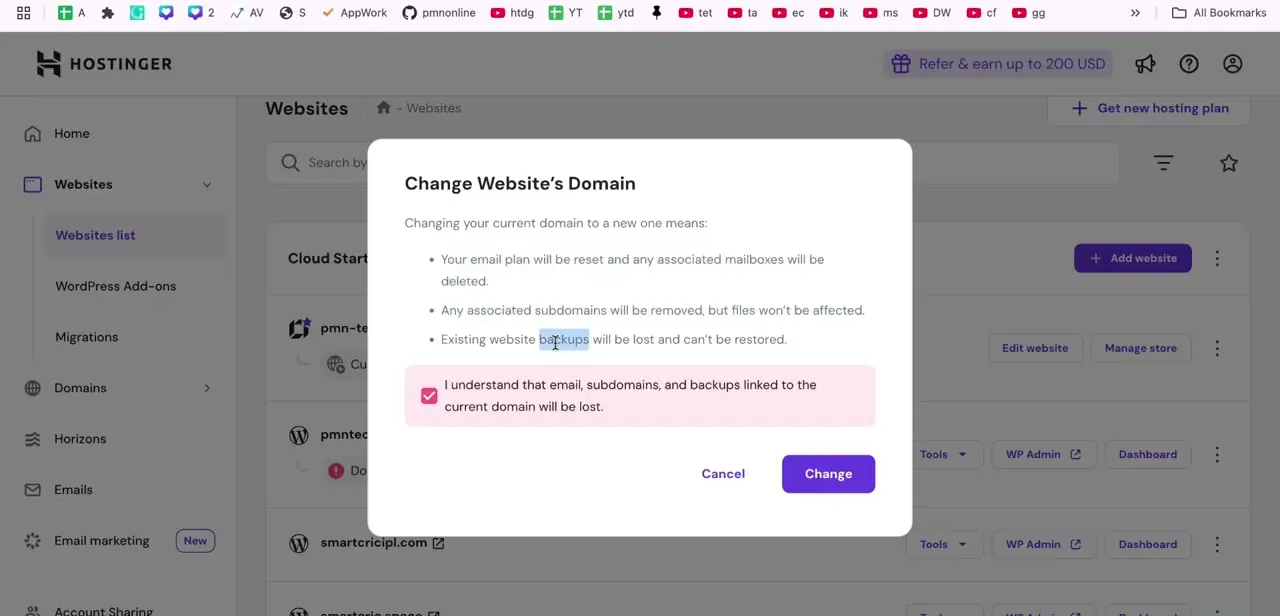
This is the step that trips people up. The Change Website's Domain dialog spells out three consequences before it lets you proceed: your email plan resets and mailboxes on the current domain are deleted, associated subdomains are removed, and existing website backups tied to the current domain are lost and can't be restored.
Hostinger's own support documentation confirms all three in plain terms. Export any email you need and note down anything backup-related before you tick the checkbox confirming you understand; there's no undo once you click Change.
05Enter your new domain and finish the switch
After confirming, you're prompted to enter the new domain name; pick it from the dropdown if it was bought through Hostinger, or type it in if it's registered elsewhere. Enter it carefully; a typo here means repeating the whole process.
Click Next to complete the change. Hostinger's documentation puts nameserver propagation at up to 24 hours, often faster, though a full worldwide update can occasionally run longer, so don't panic if the new address doesn't resolve everywhere immediately. If it still looks wrong after a day, contact Hostinger's support team to check the DNS records on their end.
When it doesn't work
The new domain doesn't load the site after the change completes
Why: A domain bought outside Hostinger isn't automatically pointed at Hostinger's nameservers; the in-panel Change Domain action updates the website's record, but the domain itself still needs its nameservers set at the registrar.
Fix: Check the domain's DNS/nameserver settings in hPanel and point it to Hostinger's nameservers if that hasn't been done, then allow up to 24 hours for propagation.
Email accounts on the old domain are gone after switching
Why: This is expected, not a bug. Hostinger's confirmation dialog and support documentation both state the email plan resets and mailboxes tied to the previous domain are deleted as part of the change.
Fix: Recreate the mailboxes you need under the new domain in the Emails section. There's no recovery path for the old ones once the change is confirmed, so back up anything important beforehand.
Frequently asked questions
Will changing my domain delete my email data?
Yes. Hostinger's own documentation states that your email plan resets and mailboxes tied to the current domain are deleted, so export anything important before you confirm the change.
Are my website files and backups affected?
Existing backups linked to the current domain are lost and can't be restored once you switch. Subdomains attached to the old domain are also removed.
Does the new domain need to already be registered?
Yes. A domain bought through Hostinger appears automatically in the picker during the change; one bought elsewhere can be typed in, but it needs to be pointed at Hostinger's nameservers separately for the site to actually load there.
How long does it take for the new domain to work everywhere?
Hostinger's documentation puts nameserver propagation at up to 24 hours, often less. Give it that long before assuming something's broken.
Where do I find the Change Domain option?
Go to Websites in hPanel, find your site, and click the three-dot icon at the end of its row. Change domain is listed there, and it also appears as a banner link if the site is still on a temporary domain.
Sources and last check
Click path and screens come from a walkthrough recorded in 2025. The email/subdomain/backup warning, the domain-registration prerequisite, and the propagation window were re-checked against Hostinger's official support documentation in September 2026, which tightened the propagation estimate from this guide's original 'a few minutes to a couple of days' to Hostinger's own stated 'up to 24 hours' and added the requirement that a domain bought outside Hostinger still needs its nameservers pointed separately.
About the author

Impran M N
I've been hooked on technology for as long as I can remember — especially the new tools and AI apps that seem to land every other week. Easy Tech Tuts is where I write up whatever I've just worked out: I do the task in the real product, record the screen, and turn it into the guide I wish I'd found first.