Easy Tech Tuts
How to Add Favicon in Hostinger Website Builder 2026
By Impran M NLast checked against official docs
The favicon is the small icon in the browser tab next to your site's name. On Hostinger's website builder there's no code involved, but the setting is filed somewhere most people don't look, and the upload quietly rejects the one file format everybody expects to use.
This guide covers the click path, the format rule that catches people out, and the two reasons a favicon appears not to change after you've saved it. The upload itself takes under a minute. Making an icon that stays legible at 32 pixels is the part worth spending time on.
Before you start
- A Hostinger account with a site already created in Website Builder
- A square image saved as PNG, JPG or JPEG — see the format note below before you export it
01Open your site in the builder
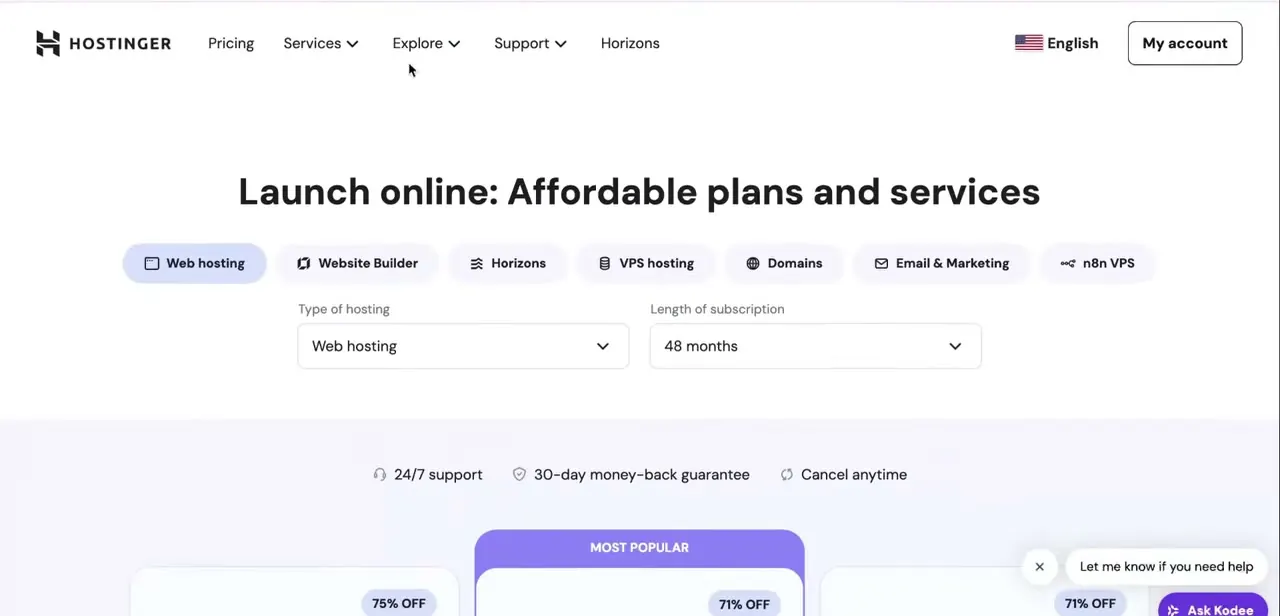
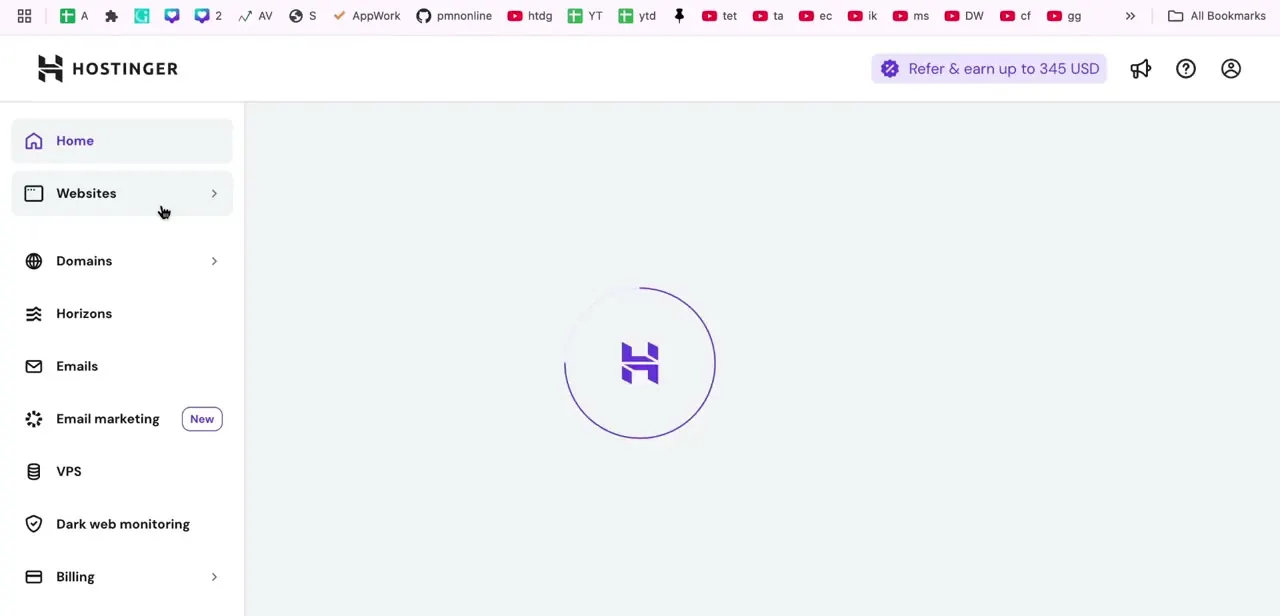
Sign in at hostinger.com and you land on hPanel, Hostinger's control panel for hosting, domains, and email. The credentials are for your Hostinger account, not your site's own admin or your domain registrar — worth flagging if you bought hosting and the domain in separate places.
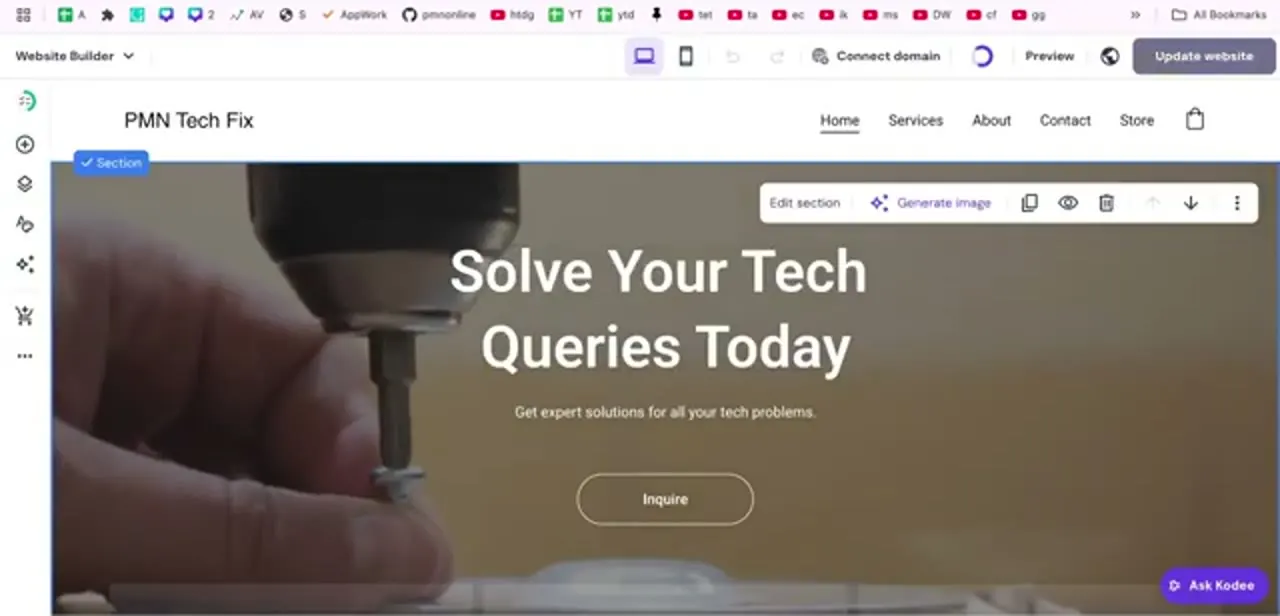
Find your site on the Home tab and click Edit Website. The builder opens with the page canvas in the middle, a narrow icon rail down the left edge, and the purple Update website button top right. Clicking a section on the canvas brings up that section's own toolbar, none of which touches the favicon: the icon is a site-wide property, not part of any one section.
02Find the setting under the three-dot menu
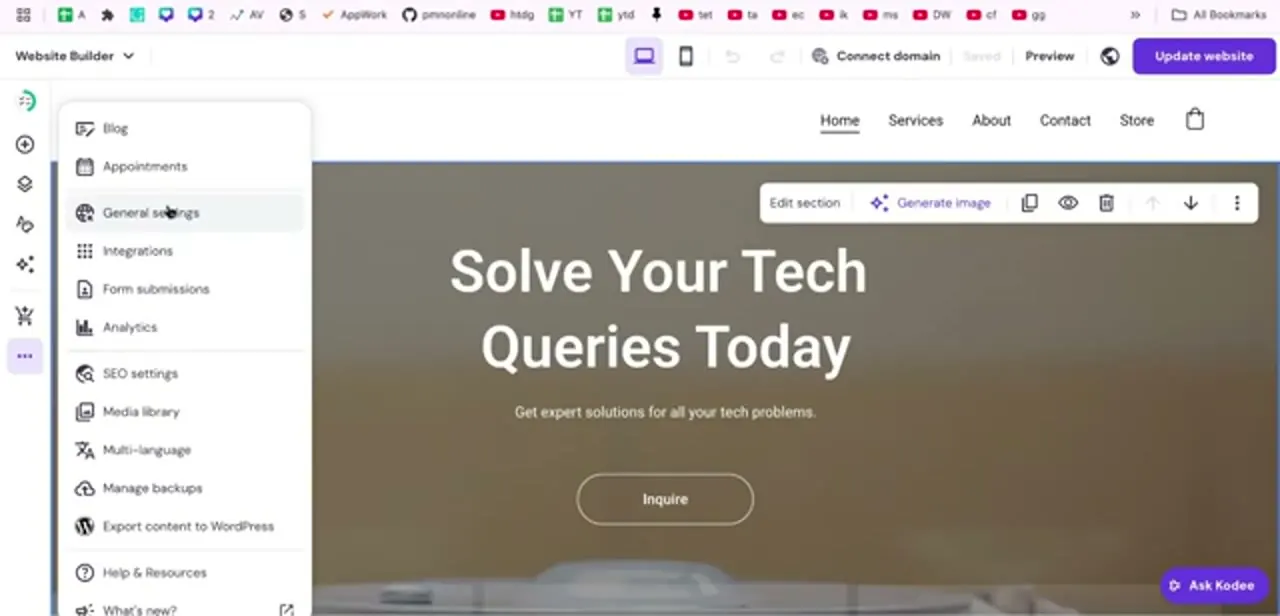
The favicon lives behind the three-dot icon at the bottom of the left rail. Opening it lists Blog, Appointments, General settings, Integrations, Form submissions, Analytics, SEO settings, Media library, Multi-language, Manage backups, and Export content to WordPress.
Choose General settings. The favicon is filed as a general site property, so SEO settings — sitting in the same menu, and the obvious guess — is the wrong turn. Inside General settings, expand the Favicon section and click Add image (or Replace image if one is already set).
03Export the file in a format Hostinger accepts
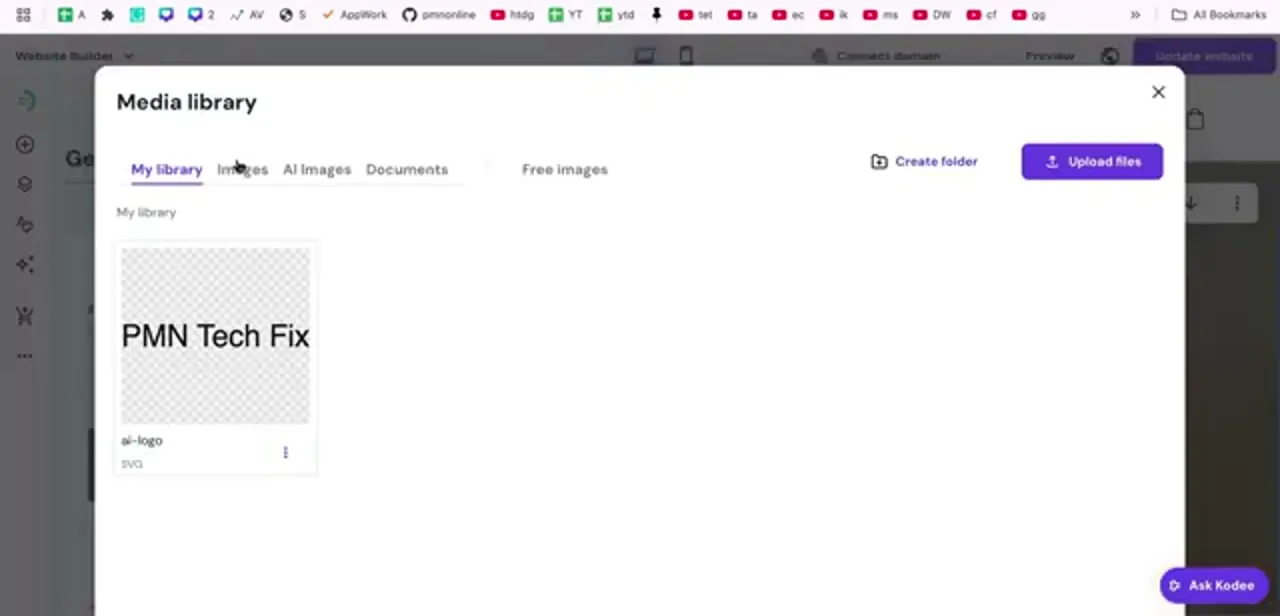
Hostinger's builder accepts PNG, JPG and JPEG. It does not accept .ico, which is the format most favicon generators hand you by default and the one most guides tell you to use.
If your file is .ico, re-export it as a PNG before uploading or the media library will reject it. Hostinger recommends 32×32 pixels.
Browsers render tab icons at roughly 16 or 32 pixels either way, so design for that size instead of scaling down a wide wordmark, which turns into a grey smudge. If your logo has a distinctive symbol, crop to just the symbol. Keep contrast high and detail minimal, and if you use a transparent PNG, check it against a dark browser theme — a dark mark on transparency vanishes in a dark tab strip.
04Save, then publish
Click Save changes on the Favicon card and watch for the Saved indicator. Hostinger shows a small mock browser tab beside the upload area, which is the quickest way to catch an icon that's too detailed before anyone else sees it.
Then click Update website. Saving a builder setting and publishing the site are two separate actions, and stopping after the first is the single most common reason people conclude the favicon didn't work.
When it doesn't work
The media library refuses the file
Why: The file is .ico. Hostinger's builder accepts PNG, JPG and JPEG only, and most favicon generators export .ico by default.
Fix: Re-export the same artwork as a 32×32 PNG and upload that.
The site still shows the old icon after saving
Why: Either the change was saved in the builder but never published, or the browser is serving a cached icon. Hostinger notes that tab icons take some time to refresh.
Fix: Click Update website first. If it still looks stale, hard-refresh or open the live URL in a private window, which bypasses the cached copy.
The icon looks like an unreadable blur
Why: A full horizontal wordmark scaled down to tab size.
Fix: Crop to the single most recognisable element of the logo and re-upload at 32×32.
Frequently asked questions
Does Hostinger's website builder accept .ico favicons?
No. Hostinger's documentation lists PNG, JPG and JPEG as the supported formats for the builder's favicon field. Convert .ico files to PNG before uploading.
What size should the file be?
Hostinger recommends 32×32 pixels. Browsers display tab icons at roughly 16 to 32 pixels, so design specifically for that size rather than shrinking a larger logo.
Why hasn't my favicon changed on the live site?
Most often because Save changes was clicked but Update website wasn't — saving and publishing are separate. Failing that, it's browser caching; check in a private window.
Do I need to touch any code?
No. The builder writes the HTML link tag for you. Hand-writing a favicon tag is only necessary on sites you host yourself.
Sources and last check
Click path and screens come from a walkthrough recorded in July 2025. Formats, the 32×32 recommendation and the cache behaviour were re-checked against Hostinger's official documentation in September 2026 — that check is what corrected the .ico advice this guide previously carried.
About the author

Impran M N
I've been hooked on technology for as long as I can remember — especially the new tools and AI apps that seem to land every other week. Easy Tech Tuts is where I write up whatever I've just worked out: I do the task in the real product, record the screen, and turn it into the guide I wish I'd found first.