Easy Tech Tuts
How to Add Adsense ads.txt File in Hostinger Wordpress Site in File Manager & Website Builder Easily
By Impran M NLast checked against official docs
An "Earnings at risk" warning in AdSense almost always comes down to one thing: ads.txt isn't sitting where Google's crawler expects it, or the line inside it doesn't match what AdSense generated. The fix takes a couple of minutes once you know the right location on Hostinger, but that location and the ID format both depend on details people get wrong constantly. This guide covers the WordPress and Website Builder paths, the ID prefix that trips up more publishers than anything else, and how long Google actually takes to clear the warning once the file is fixed.
Before you start
- An AdSense account with your site added under Sites, so Google has generated your publisher ID
- Access to hPanel File Manager (classic WordPress) or the Website Builder's Integrations settings, depending on which one runs your site
01Get the ads.txt line from your AdSense account
Log into AdSense and open the Sites section, where Google generates the exact ads.txt entry tied to your account. It follows a fixed structure: a domain, your publisher ID, a relationship type (DIRECT or RESELLER), and a certification authority ID, for example google.com, pub-XXXXXXXXXXXXXXXX, DIRECT, f08c47fec0942fa0.
The ID here uses the pub- prefix, not ca-pub-. The ca-pub- version is what shows up in your AdSense ad code and script tags; Google's own ads.txt guidance says to strip that ca- prefix and keep only pub- plus the 16-digit number.
Pasting the ad-code version in by mistake is one of the most common reasons the file still gets flagged after upload. Copy the line AdSense gives you rather than retyping it from your ad code.
02Check whether your site is classic WordPress or Website Builder
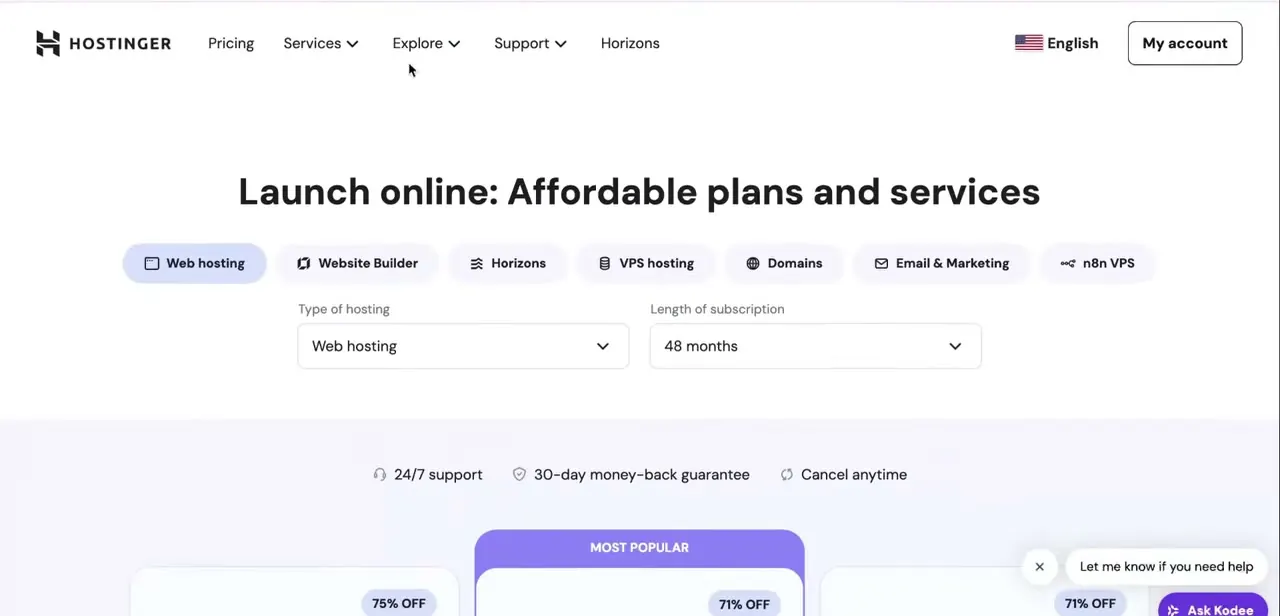
The two products store site files differently, so the upload method differs too. A WordPress site set up through hPanel keeps its files in a normal folder structure reachable through File Manager. A site built with Hostinger's drag-and-drop Website Builder has no file system to browse; ads.txt goes in through a setting inside the builder instead.
03Upload ads.txt through File Manager on classic WordPress
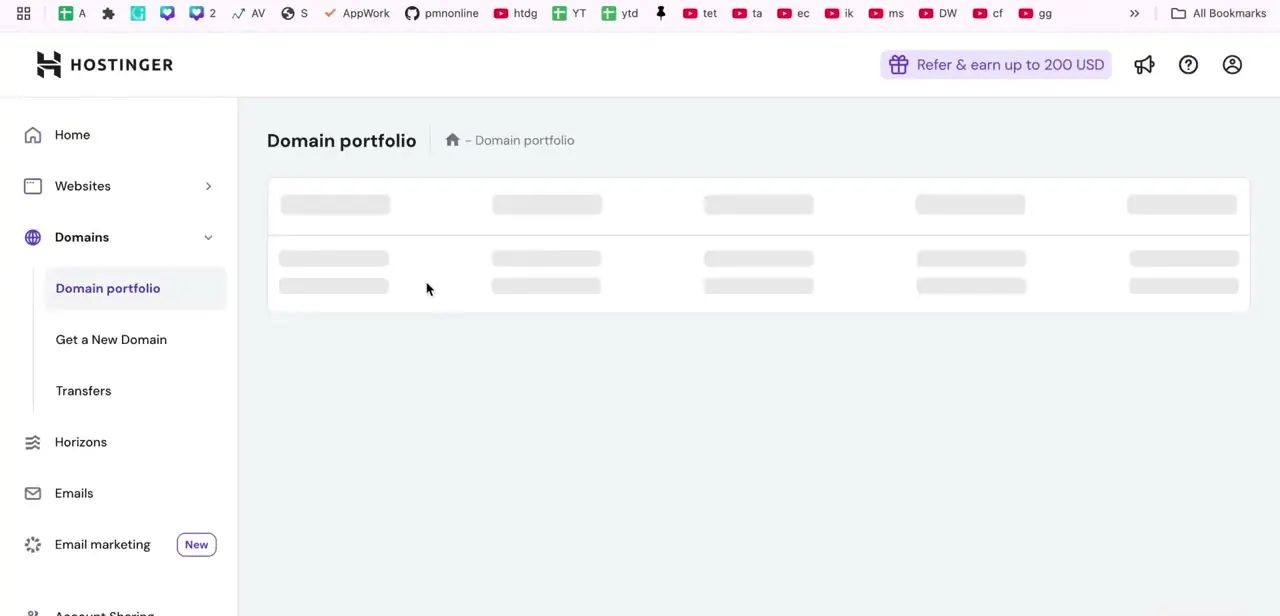
In hPanel, open File Manager and go into your domain's root folder, usually public_html, or public_html/yourdomain.com when several domains share the account. This is the same folder that holds wp-config.php and wp-content, a useful landmark if you're unsure you're in the right place. Upload ads.txt directly into that root, not a subfolder: Google's crawler checks yourdomain.com/ads.txt specifically.
04Add ads.txt through Website Builder
Website Builder has no file manager, so ads.txt content goes in through Integrations settings instead of a file upload. Open your site in the builder, go to Integrations settings, and paste the line from step 1 into the Google AdSense field there.
Hostinger's own instructions describe this field specifically for ads.txt content, not a general-purpose custom code box, so it is worth locating that exact field rather than pasting into a script/embed field meant for other integrations. Save changes, then update your website so the change publishes.
05Confirm it's live, then wait for AdSense to clear the warning
Visit yourdomain.com/ads.txt directly in a browser before checking back with AdSense. You should see the plain-text line, not a 404, not your theme wrapped around it, and not a redirect to the homepage.
If it doesn't load as plain text at that exact URL, the file isn't in the true root and needs to move. Once it's confirmed live, Google's own ads.txt guidance says the warning can take a few days to clear, and up to a month on a site that doesn't get many ad requests yet.
That is longer than the 24-48 hours some guides quote. If it's still flagged well past a month, recheck the line character-for-character against what AdSense generated, including the pub- prefix from step 1.
| Site type | Where the file lives | How you add it |
|---|---|---|
| Classic WordPress (hPanel) | public_html (or public_html/yourdomain.com) | Upload ads.txt directly via File Manager |
| Website Builder | Generated by the builder itself | Paste the ads.txt line into the Google AdSense field under Integrations settings |
When it doesn't work
The warning stays even after uploading the file
Why: The publisher ID was copied from the AdSense ad code (ca-pub-...) instead of the ads.txt-specific format. Google's ads.txt guidance requires the ca- prefix to be dropped, leaving just pub- plus the 16-digit number.
Fix: Re-copy the line directly from AdSense's Sites section rather than your ad code, and confirm it reads pub- not ca-pub-.
yourdomain.com/ads.txt shows a 404 or your homepage instead of plain text
Why: The file was uploaded into a subfolder, or (on Website Builder) it was pasted into the wrong integrations field.
Fix: On WordPress, confirm the file sits in public_html itself, alongside wp-config.php. On Website Builder, confirm the line is in the dedicated Google AdSense field, then republish.
The file is correct and live, but AdSense still shows the warning after a few days
Why: Google states the recrawl can take up to a month on sites that don't yet generate much ad traffic, not just a day or two.
Fix: Wait out the longer window before assuming something is wrong. Only re-check the file contents if the warning persists past a month.
Frequently asked questions
Why does AdSense show an 'Earnings at risk' error?
The warning appears when ads.txt is missing, unreachable, or doesn't match what AdSense generated, so Google's crawler can't verify who's authorized to sell ads on the site.
Where exactly should ads.txt be uploaded?
Directly in the site's root, the same folder as wp-config.php on WordPress, so it's reachable at yourdomain.com/ads.txt with no subfolder in the path. On Website Builder there's no folder at all; the line goes into the Google AdSense field under Integrations settings instead.
Should the publisher ID in ads.txt start with pub- or ca-pub-?
pub-, not ca-pub-. Google's ads.txt guidance says to strip the ca- prefix that appears in AdSense's ad code and keep only pub- followed by the 16-digit ID. Using the ca-pub- version is a common reason the file gets rejected.
Does the process differ between WordPress and Website Builder?
Yes. Classic WordPress sites upload the file into public_html via File Manager. Website Builder sites paste the same line into the Google AdSense field in Integrations settings, since there's no file browser.
How long does it take for the warning to clear?
Google's own guidance says a few days typically, and up to a month if the site isn't generating much ad traffic yet. It is not usually a same-day fix.
Sources and last check
Click paths for File Manager and Website Builder are unchanged from the original walkthrough. The publisher ID format, the Website Builder upload mechanism, and the recrawl timeline were re-checked against Hostinger's and Google's official documentation in September 2026. That check corrected two things this guide previously got wrong: it recommended the ca-pub- ID (ads.txt needs pub-), and it quoted a 24-48 hour recrawl window where Google's own guidance says a few days, up to a month on low-traffic sites.
About the author

Impran M N
I've been hooked on technology for as long as I can remember — especially the new tools and AI apps that seem to land every other week. Easy Tech Tuts is where I write up whatever I've just worked out: I do the task in the real product, record the screen, and turn it into the guide I wish I'd found first.