Easy Tech Tuts
How to Add a Calendar to Hostinger Website Easily 2026
By Impran M NLast checked against official docs
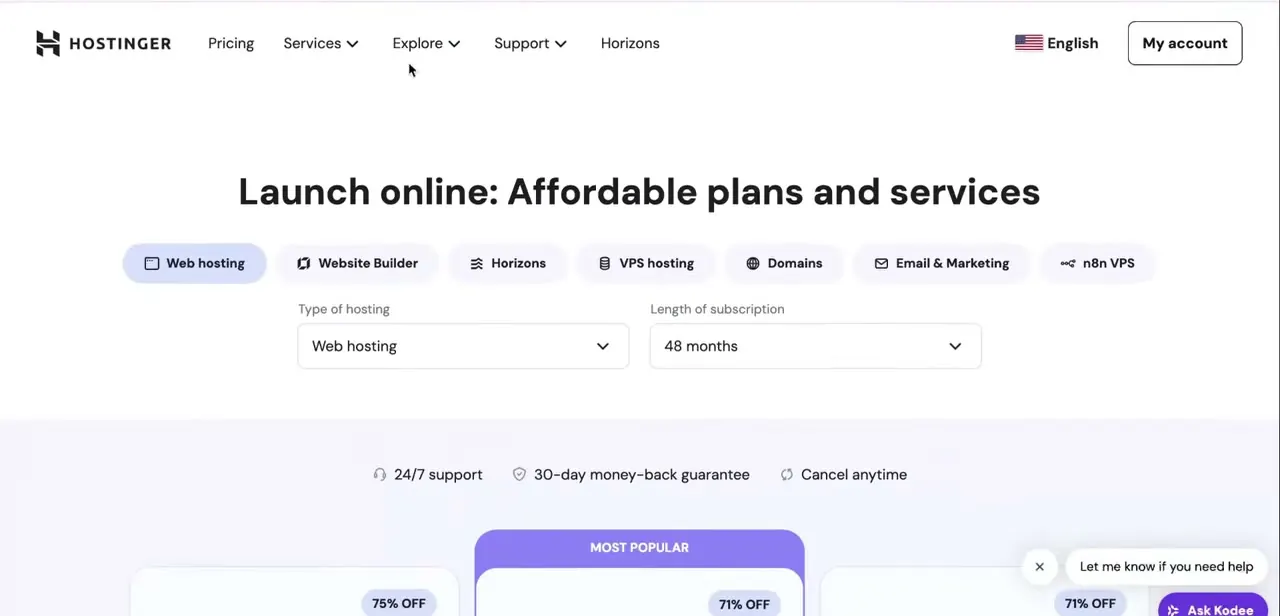
Hostinger's Website Builder has no dedicated calendar block. What it has is an embed code element that accepts a block of code from an outside service, and Google Calendar is the simplest source for that code. This guide covers getting from your Hostinger dashboard into the builder's element panel, generating the embed code on Google Calendar's side, and the one setting on the Google Calendar side that determines whether visitors see anything at all.
Before you start
- A Hostinger account with a site already open in Website Builder
- A Google Calendar (or other service) set to public, or shared with anyone who has the link — a private calendar's embed code renders as a blank box to site visitors
01Open your site in Website Builder
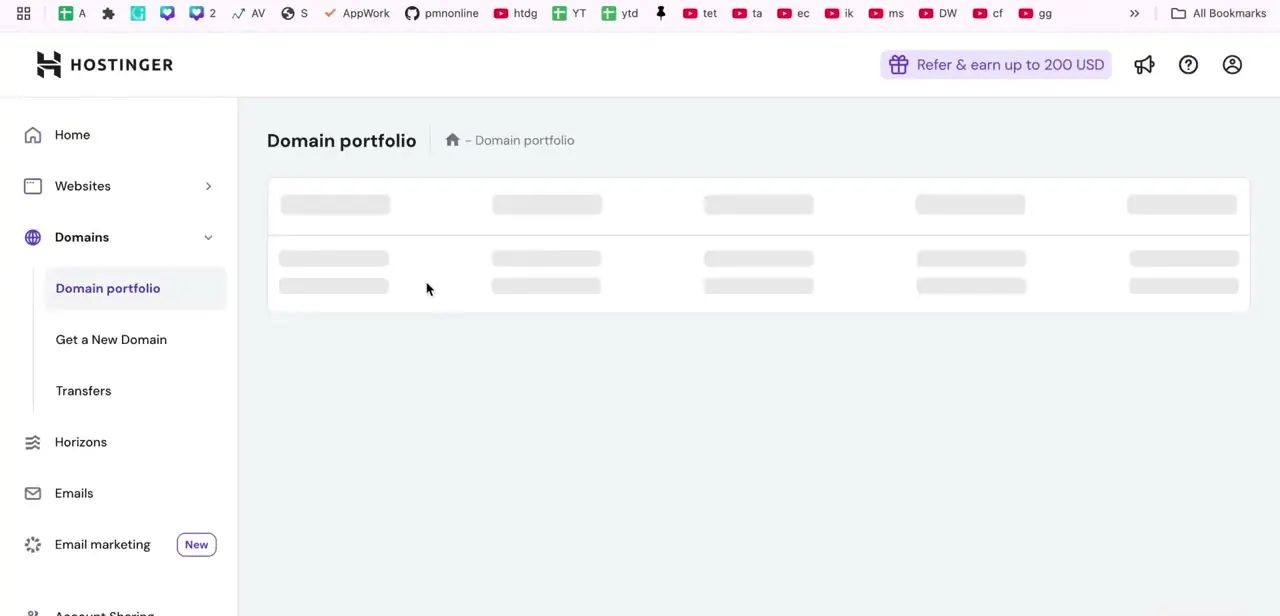
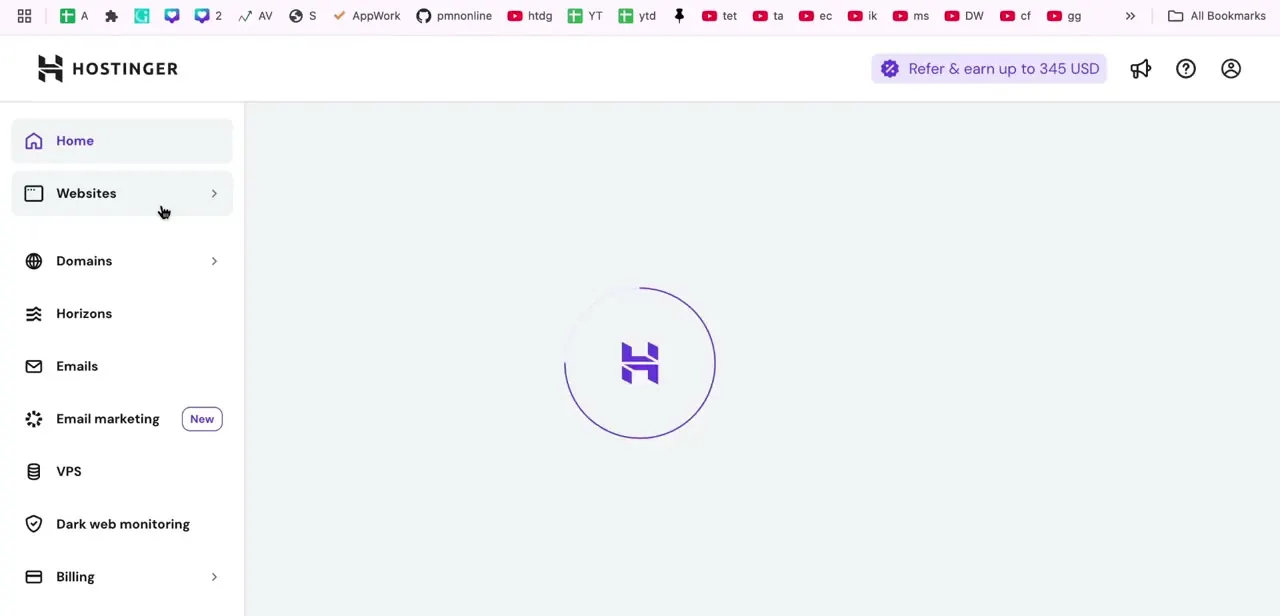
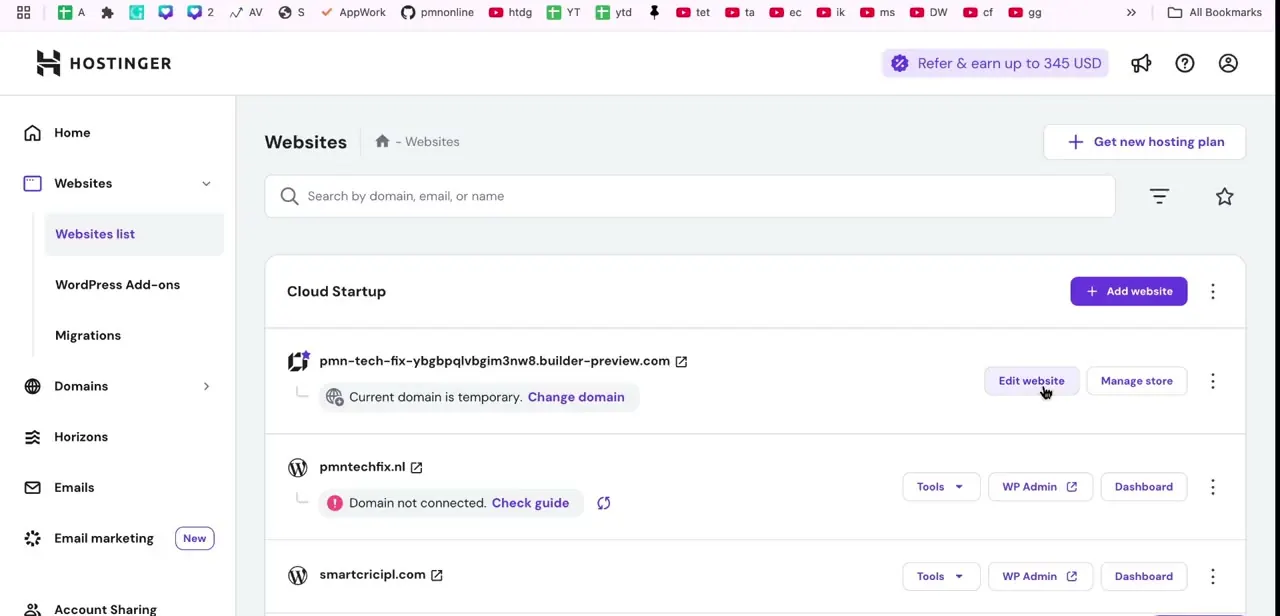
After logging in, hPanel's Websites list shows every site tied to your account, each with its own status. A domain flagged "Domain not connected" is worth resolving before you build anything on top of it, since visitors won't reach a page on a domain that isn't live. Find the right site and click Edit website.
02Open the embed code element
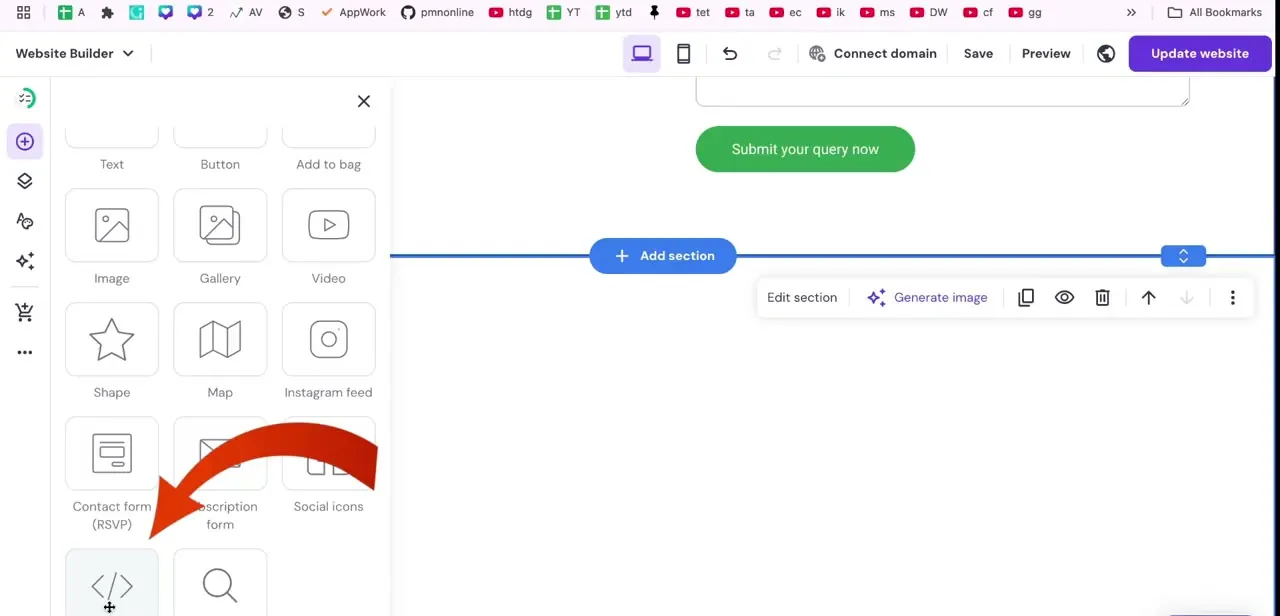
Inside the builder, open the elements panel to see the blocks you can drop onto the page: Text, Button, Image, Gallery, Video, Shape, Map, Instagram feed, Contact form, Subscription form, Social icons, and an embed code element near the bottom. That last one is what you want. Hostinger's own documentation for it describes the same click path: drag the element onto the page, then use its Enter code option once you have something to paste.
03Make the calendar public and copy its embed code
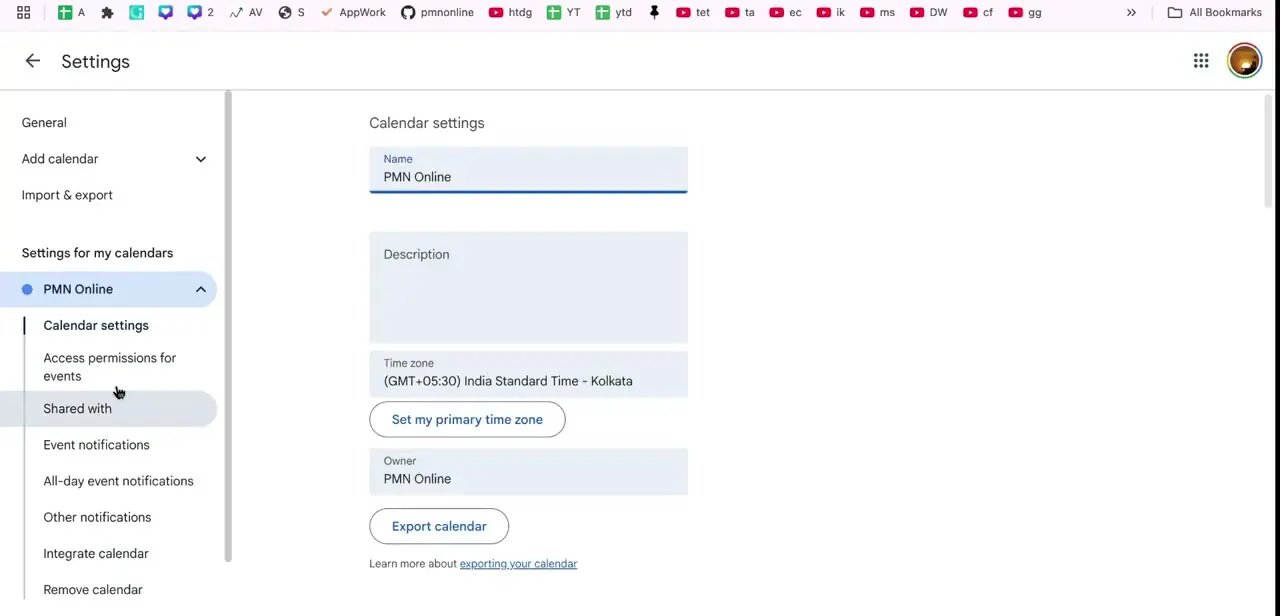
In Google Calendar's own Settings, select the calendar you want to display and open Integrate calendar. Under Embed code, click Customize to set dimensions (Google requires at least 500 by 500) and pick which controls show, then copy the code.
Before you leave this screen, check Access permissions for this calendar. Google Calendar embeds are visible only to people the calendar is shared with; a calendar that isn't set to public, or at least shared with anyone who has the link, will embed successfully but show blank to every visitor who isn't already on the guest list.
04Paste the code and resize the block
Back in the builder, place the embed element where you want the calendar, click Enter code, and paste what you copied. It renders as a live, interactive component, not a static image, so drag its edges to resize it or move the whole block if it doesn't fit where you first put it.
A full-width placement near the top of a booking or events page tends to work better than a narrow sidebar. The same element accepts embed codes from Apple Calendar, Outlook Calendar, or booking widgets like Calendly, since they all hand you a similar block of code.
05Save, publish, and check the live page
Save keeps your progress inside the builder; Update website pushes it to your actual domain, which is a separate step people skip and then wonder why nothing changed. Preview on both desktop and mobile, since embedded calendars can render narrower than expected on small screens. If your domain was still showing as temporary or not connected back in step one, get that fixed now: a calendar embedded on a builder-preview URL isn't visible to anyone browsing your real domain.
When it doesn't work
Hostinger rejects the code with "Error: embed code is too large"
Why: The code contains an inline image using the data:image… format instead of a normal image URL. The builder doesn't support that format.
Fix: Edit the source code to reference a hosted image URL instead of an inline data URI, or use the calendar service's plain iframe embed code, which doesn't carry inline images.
The calendar block is empty or shows an access message to visitors
Why: The Google Calendar behind the embed hasn't been made public or shared with anyone who has the link. Google Calendar only shows the embed to people the calendar is shared with.
Fix: In Google Calendar's settings for that calendar, open Access permissions and enable public access (or share it with anyone who has the link), then reload the live page.
The widget doesn't show up after clicking Update website
Why: The browser is serving a cached version of the page.
Fix: Hard-refresh the live URL or open it in a private window.
Linked images or buttons inside the embedded widget don't load
Why: The embed code references an http:// link instead of https://, or a URL containing spaces. Hostinger's builder blocks non-HTTPS resources and rejects spaces in URLs.
Fix: Edit the embed code to use https:// links with no spaces before pasting it back in.
Frequently asked questions
Which calendar services can I embed in Hostinger?
Google Calendar, Apple Calendar, Outlook Calendar, and booking tools like Calendly all work through the same embed code element in Website Builder, since each one hands you a similar block of code to paste.
Do I need coding skills to add a calendar?
No. You copy the embed code from the calendar service's own settings and paste it into Hostinger's embed code element without writing anything yourself.
Does my Google Calendar need to be public?
Yes, or at least shared with anyone who has the link. A private calendar generates an embed code just fine, but visitors who aren't already shared on it will see a blank box instead of your events.
Can visitors book appointments through the embedded calendar?
It depends on the tool. A plain Google Calendar embed is for viewing availability only; booking widgets like Calendly support interactive scheduling directly through the embedded widget.
Why did Hostinger reject my embed code?
Most often because the code contains an inline image in data:image… format instead of a URL. Replace it with a hosted image link, or use the service's plain iframe embed code.
What if the calendar doesn't show up after publishing?
Check three things in order: the domain is fully connected (not a temporary preview URL), the source calendar is public or shared with anyone who has the link, and the browser isn't serving a cached copy of the page.
Sources and last check
Click path and screens come from a recorded walkthrough. The embed element's behavior and error conditions were checked against Hostinger's official documentation, and the calendar-sharing requirement against Google Calendar's official help page, in September 2026. The public-sharing requirement was missing from the original guide and is added here as the most common reason an embedded calendar shows nothing.
About the author

Impran M N
I've been hooked on technology for as long as I can remember — especially the new tools and AI apps that seem to land every other week. Easy Tech Tuts is where I write up whatever I've just worked out: I do the task in the real product, record the screen, and turn it into the guide I wish I'd found first.