 Easy Tech Tuts
How to Use Google Workspace as a CRM with Streak & Copper CRM 2026 Easily
By Impran M NLast checked against official docs
Streak and Copper are still separate, paid CRM products. What they do differently is surface entirely inside Gmail instead of a standalone app you have to open.
Both install through the Google Workspace Marketplace and hook straight into your inbox, so your pipeline lives next to the emails that move deals forward instead of in a browser tab you have to remember to check. This guide walks through finding both tools in the Marketplace, installing them the right way for your account type, what each one costs once you're past the free tier, and setting up a working sales pipeline in Streak.
Before you start
- A Google Workspace or personal Gmail account, plus Marketplace install permission (rolling an app out to an entire organization requires being signed in as a super administrator)
- A separate paid subscription to Streak or Copper; neither offers a free CRM tier (Streak's free plan is email tools only, with no pipeline)
01Find Streak and Copper in the Workspace Marketplace
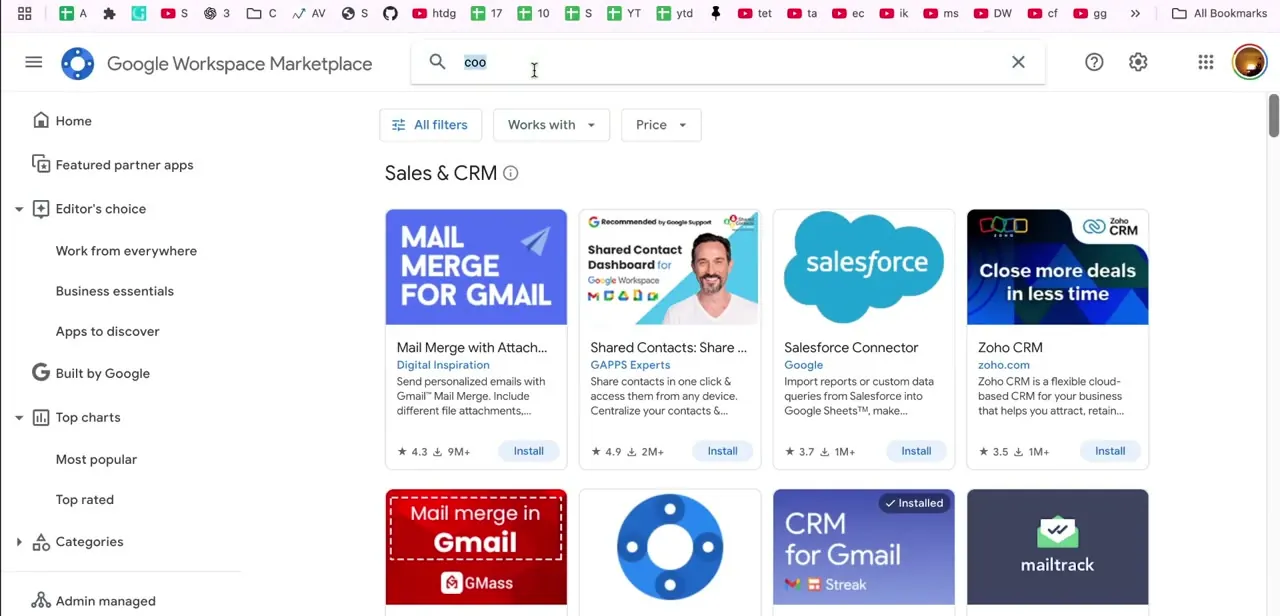
Open the Google Workspace Marketplace and search for the CRM you want. Searching a partial name like "coo" for Copper surfaces the whole Sales & CRM category, including Streak, Salesforce Connector, and Zoho CRM alongside it, each with its install count and star rating visible before you commit. This is useful even if you already know which tool you want, since the category view shows how each one is positioned and rated relative to the others, and whether a tool like Streak already shows as "Installed" on your account.
02Install Copper the right way for your organization
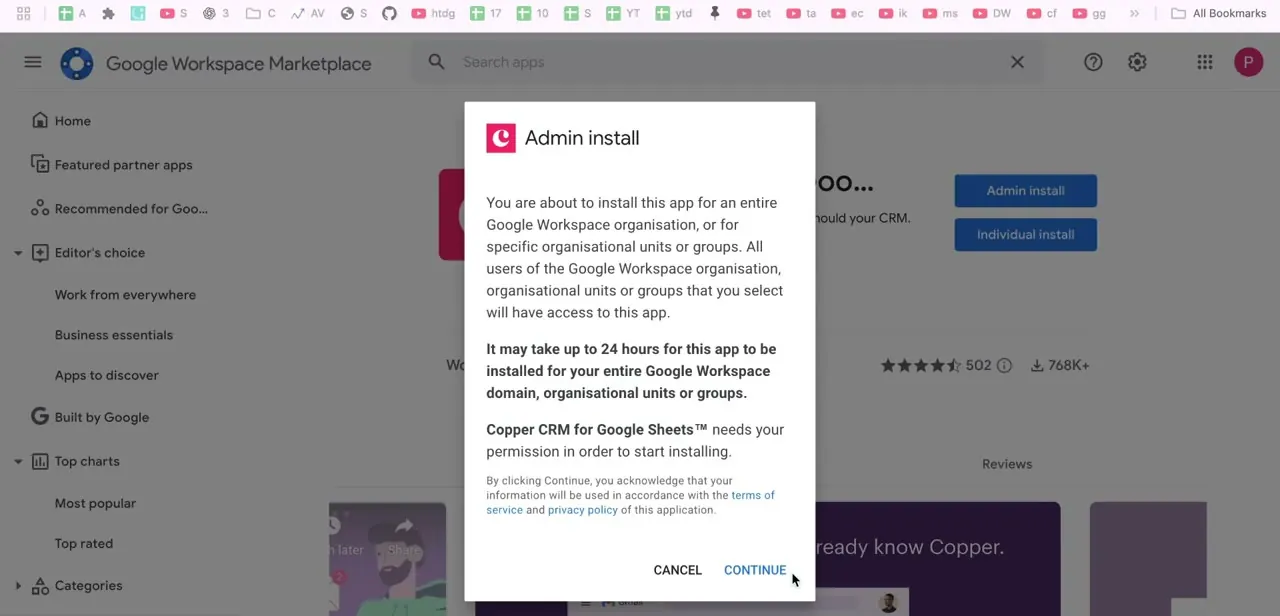
When you install Copper from the Marketplace, it asks whether you want an Admin install or an Individual install. Admin install rolls the app out to your entire Google Workspace organization, or to specific organizational units or groups you choose, and requires being signed in as a super administrator.
Google's own documentation notes this kind of organization-wide change can take up to 24 hours to fully propagate, though it's usually faster. Individual install just adds it to your own account. Pick Admin install if you're setting this up for a team that needs shared pipeline visibility; pick Individual if you're the only one who'll use it for now.
03Let Streak set up inside your Gmail inbox
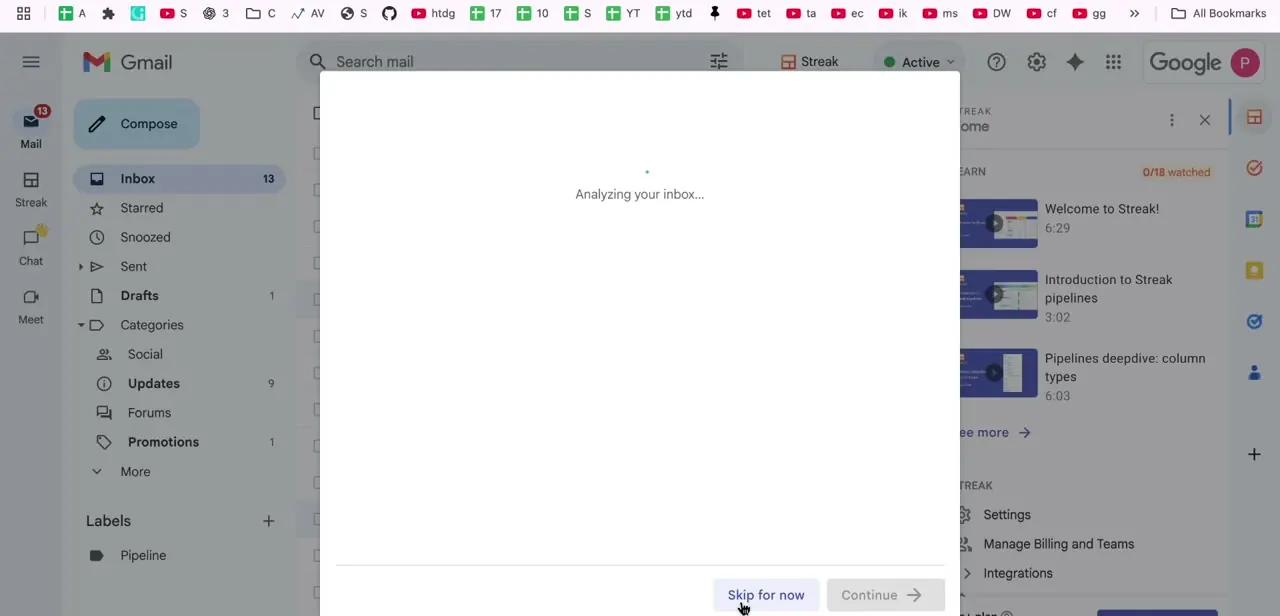
Once Streak is added, it launches its onboarding directly inside Gmail instead of a separate app, with a brief "Analyzing your inbox" step before you land on your pipeline. You can skip this analysis to start from a blank pipeline, or let it continue for a suggested setup based on your existing email activity.
Streak's whole interface lives as a panel inside Gmail itself; there's no separate CRM tab to switch to, which is the core of its pitch over a standalone tool. It's also the reason its CRM tier isn't free: that Gmail-native panel is the paid product, not an add-on to it.
04Build your first pipeline from a template
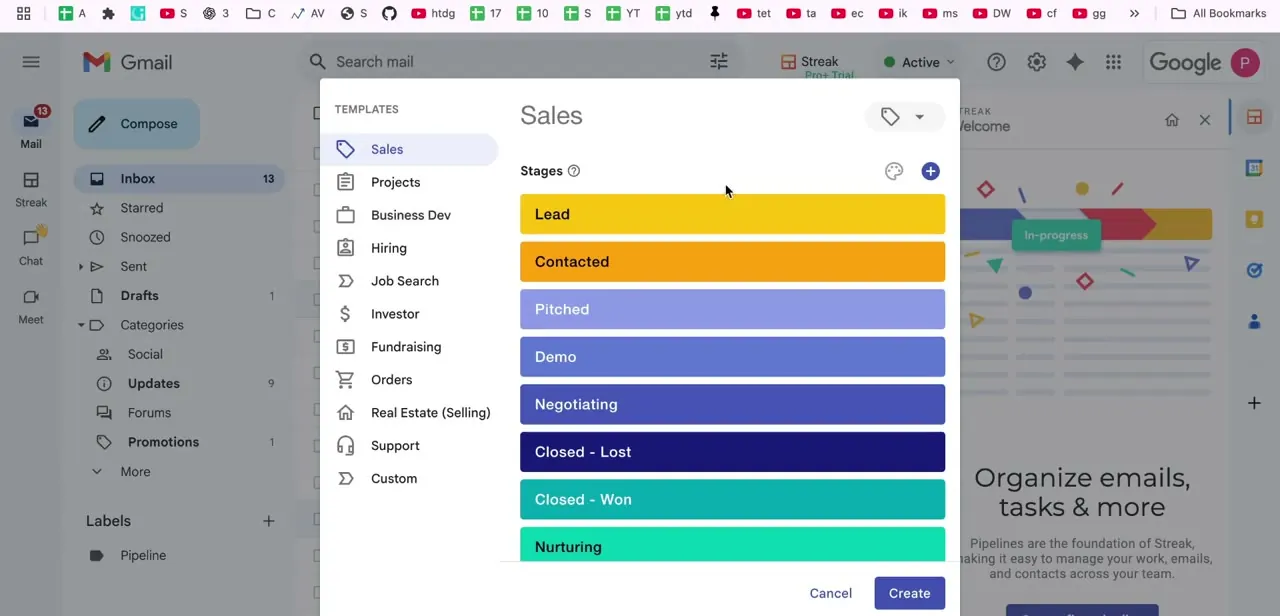
Streak's pipeline creation screen offers templates for Sales, Projects, Business Dev, Hiring, Job Search, Investor, Fundraising, and more, each pre-loaded with stages that match that use case. The Sales template comes with Lead, Contacted, Pitched, Demo, Negotiating, Closed - Lost, Closed - Won, and Nurturing as color-coded stages, which you can rename, reorder, or delete once the pipeline exists. Starting from a template instead of a blank pipeline saves the time of deciding stage names from scratch, and you can add a custom pipeline later for a workflow that doesn't fit the presets.
05Track leads, set follow-ups, and sync your data
With a pipeline in place, each email thread relevant to a deal gets added as a box you drag between stages, and both tools let you set reminders that surface automatically when a lead has gone quiet. Instead of relying on memory to know a lead hasn't heard back in a week, the tool resurfaces it in your inbox at the right time, which is the point of running a CRM through Gmail instead of a disconnected app.
Both Streak and Copper also offer export or live-sync options into Google Sheets, useful once you want a report or chart the CRM's own dashboard doesn't cover. Copper's tighter Google Contacts integration means client details updated in one place show up in the other, so a customer's information isn't duplicated across tools.
| Tool | Plan | Roughly per user/month | Includes a CRM pipeline? |
|---|---|---|---|
| Streak | Free | $0 | No: email tools only |
| Streak | Pro | $49-59 | Yes: core CRM, shared pipelines |
| Streak | Pro+ | $69-89 | Yes: adds automations, integrations, reporting |
| Copper | Basic | $23-29 | Yes: pipelines, Google Workspace integration |
| Copper | Professional | $59-69 | Yes: adds automation, bulk email, third-party integrations |
From each vendor's own pricing page, checked September 2026. Ranges reflect monthly vs. annual billing; treat the exact numbers as approximate and check the live pricing pages before budgeting.
When it doesn't work
An Admin install finished, but some teammates still don't see the app
Why: Google's documentation states organization-wide Marketplace deployments can take up to 24 hours to fully propagate.
Fix: Wait out the 24-hour window before troubleshooting individual accounts.
Streak's CRM pipeline features aren't available, or it's asking to pay when a guide implied it was free
Why: Streak removed CRM pipeline access from its free plan; the free tier is now limited to email tools like tracking and mail merge.
Fix: Budget for the Pro plan, Streak's cheapest CRM tier, or compare Copper's Basic plan before assuming there's a free workaround.
Only part of the organization got Copper or Streak after an Admin install
Why: Admin install can target Everyone at your organization or Certain groups and organizational units specifically, and it's easy to pick the narrower option by mistake.
Fix: Recheck the group/OU selection in the install dialog and reinstall for Everyone if that was the intent.
Frequently asked questions
Is Streak or Copper better for a small business?
Streak is often preferred by solopreneurs and small teams for its simplicity inside Gmail, while Copper suits businesses that need more automation, admin-level rollout, and reporting.
Can I install one of these tools just for myself without rolling it out to my whole team?
Yes. Both tools' Marketplace listings offer an Individual install alongside the org-wide Admin install, which only adds the app to your own account and needs no administrator privileges.
Does Streak have a free plan for CRM use?
No. Streak's free tier covers email tools only, tracking, mail merge, and snippets. CRM pipelines require the paid Pro plan, which runs roughly $49-59 per user per month depending on monthly or annual billing.
How much does Copper cost?
Copper's Basic plan runs roughly $23-29 per seat per month depending on billing term, with Professional and Business tiers above it. Google Workspace integration is included on every tier.
What's the difference between an Admin install and an Individual install for Copper?
Admin install rolls the app out to your whole Google Workspace organization or selected groups, requires super administrator access, and can take up to 24 hours to finish. Individual install only adds it to your own account.
Can I manage my entire sales pipeline without leaving Gmail?
Yes, that's the main appeal of Streak specifically. Pipelines, deal tracking, and follow-ups can all be managed from a panel inside your Gmail inbox.
Do Streak and Copper work with Google Calendar?
Yes, both integrate with Google Calendar and Contacts to help schedule and track follow-ups and appointments tied to your CRM pipeline.
Sources and last check
Click path and screens come from a recorded walkthrough. Pricing for both tools and the Google Workspace 24-hour deployment window were checked against each vendor's own site in September 2026. That check found Streak's free tier no longer includes CRM pipeline features at all, only email tools, which the previous version of this guide didn't state; the pricing table, cost note, and one troubleshooting entry were added to correct that.
About the author

Impran M N
I've been hooked on technology for as long as I can remember — especially the new tools and AI apps that seem to land every other week. Easy Tech Tuts is where I write up whatever I've just worked out: I do the task in the real product, record the screen, and turn it into the guide I wish I'd found first.



