Easy Tech Tuts
How to Reactivate Suspended User Account in Google Workspace Easily 2026
By Impran M NLast checked against official docs
A suspended Workspace account is locked out of Gmail, Drive, Meet and Calendar, and incoming mail and calendar invitations are blocked while it stays that way. Lifting the suspension is a two-click job in the Admin console.
The part that matters more is reading the status line first. Google's Users list distinguishes several kinds of suspension, and one of them cannot be undone by any administrator.
Clicking around looking for a Reactivate option that will never appear is a common way to waste an afternoon. Two other things are worth knowing before you start.
The control is called Reactivate, not Restore or Unsuspend. And a suspended account is still being charged at the full rate, which changes the calculus on accounts nobody intends to bring back.
01Sign in with an administrator account
Go to admin.google.com. The sign-in screen states plainly that an administrator account for a managed service such as Google Workspace or Cloud Identity is required; an ordinary user login stops here.
If your organization runs more than one admin identity, pick the right one from the account chooser before continuing. Signing in under the wrong domain shows you a Users list that looks correct and does not contain the person you are looking for.

02Open Directory, then Users
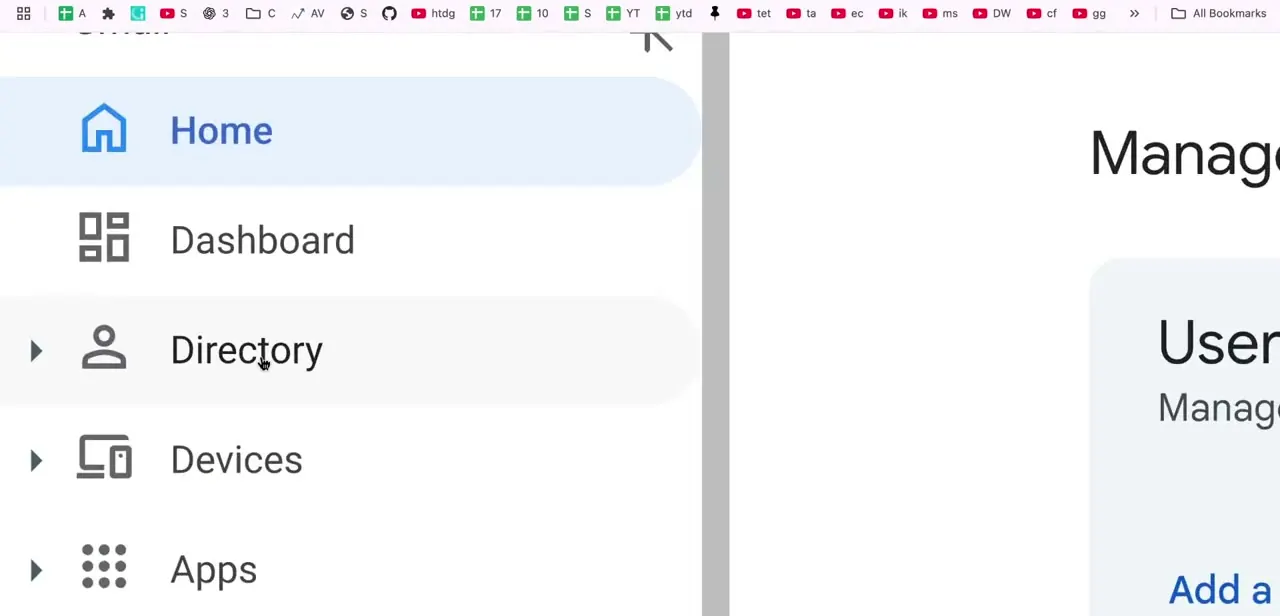
The Admin console home shows Users and Billing summary cards, with Directory, Devices, Apps, Security, Data and Reporting down the left. Expand Directory and click Users. Every account on the domain lives here, active and suspended together, and it is the same page used for adding, deleting and bulk-editing accounts.
03Read the status before you touch anything
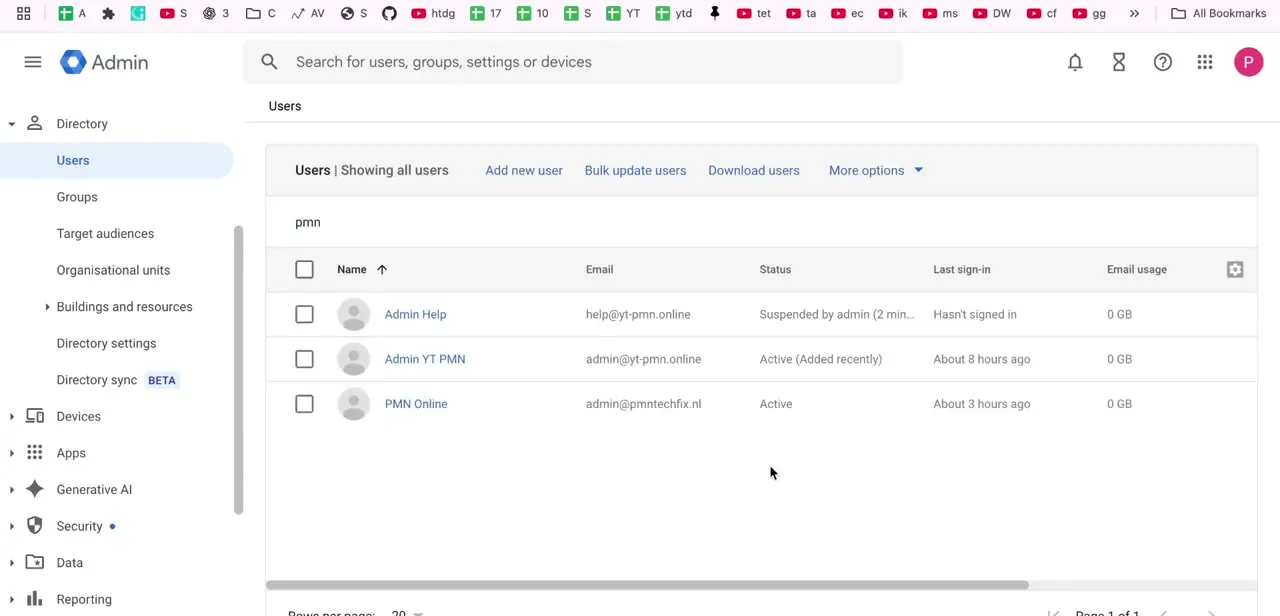
The Users table carries Name, Email, Status, Last sign-in and Email usage. Suspended rows say so in the Status column, often as "Suspended by admin" with a timestamp, sitting next to accounts marked Active.
On a large directory, skip the search box and use Add a filter, then User status, then Suspended, then Apply. That gives you every suspended account at once, which is how you find the three you had forgotten about.
Now read the exact wording. Google uses different statuses for different causes, and they are not interchangeable.
An administrator can reactivate an account suspended by an admin, one automatically suspended because the user might be at risk, one suspended as underage, and one suspended for an unverified sign-in. An account showing "Automatically suspended: Didn't follow Google Terms of Service" is a different matter.
Google describes those as unrecoverable, and no administrator can restore one. The table below lays the five out.
04Reactivate the account
On the suspended user's row, open More options and choose Reactivate, then confirm. The same action appears as a Reactivate button in the upper right of the user's own account page if you prefer to open the record first.
The word matters, because guides written from memory tend to call this Restore or Unsuspend and neither string appears in the interface. Once it goes through, Google's documentation is unambiguous about what the user gets back: they can sign in and reach all their services and data.
Reactivation is not a rebuild, so mail, files and calendars are as they were. One exception on underage suspensions. Fixing the birth date on the account is part of the job there, otherwise the same automatic check can catch it again.
05Deal with the cause, not just the symptom
If several accounts went down together, look past the user records. A Workspace subscription can be suspended in its own right, and Google's causes include a payment it could not charge and 30 days passing without a fix, a trial that ended without billing set up, an unrenewed annual contract, a domain registration that expired, and storage over the subscription's limit.
There is a deadline on that one. Google warns that a subscription suspended for more than 60 days might be cancelled, with the loss of associated user data.
Fix the payment method or the renewal first; reactivating individual users under a suspended subscription solves nothing. For a single account suspended because it looked at risk, the trigger was suspicious sign-in activity. Reset the password and check the recovery details before you reactivate, or you are handing the account back in the state that flagged it.
| Status shown in the Users list | Cause | Can an admin reactivate it? |
|---|---|---|
| Suspended by admin | Someone in your organization suspended the account | Yes |
| Automatically suspended: The user might be at risk | Suspicious sign-in activity | Yes, after securing the account |
| Automatically suspended: Underage | An incorrect birth date on the account | Yes, and the birth date needs correcting |
| Automatically suspended: Unverified sign-in | Mass account additions or suspected abuse | Yes |
| Automatically suspended: Didn't follow Google Terms of Service | Terms of Service breach | No. Google describes these as unrecoverable. |
Wording and outcomes from Google's Workspace admin documentation on restoring a suspended user, checked September 2026.
When it doesn't work
There is no Reactivate option on the user's row
Why: The account was suspended for a Terms of Service breach. That status cannot be lifted by an administrator.
Fix: Read the exact status text. If it names the Terms of Service, treat the account as gone: create a replacement user and recover shared data through the files other people still have access to.
You are looking for Restore or Unsuspend and cannot find it
Why: Neither string is in the interface. Google labels the action Reactivate.
Fix: Use More options on the user's row, then Reactivate, or the Reactivate button at the top right of the account page.
Everyone in the organization is suspended at once
Why: The subscription is suspended, not the individual users. Google lists a failed payment left unfixed for 30 days, an expired trial, an unrenewed annual contract, an expired domain registration, or exceeded storage.
Fix: Restore the subscription from the billing section. Do it promptly: Google warns that a subscription suspended over 60 days might be cancelled, with loss of user data.
Mail sent to the user during the suspension never arrived
Why: New email and calendar invitations are blocked while an account is suspended. They do not sit in a queue waiting for reactivation.
Fix: Nothing recovers blocked mail after the fact. If a suspension is planned and the address needs to keep receiving, set up routing or a delegate before you suspend.
Frequently asked questions
Does email keep arriving while an account is suspended?
No. Google's documentation states that new email and calendar invitations are blocked for a suspended account. Existing data stays intact, and collaborators keep their access to documents that were already shared with them, but incoming mail during the suspension is not held for later delivery.
Am I still paying for a suspended user?
Yes. Suspended accounts are charged at the same rate as active accounts on both the Annual and Flexible plans. Deleting the account is what stops the charge.
What if the status mentions the Google Terms of Service?
That suspension is not reversible by an administrator. Google describes accounts auto-suspended for not following the Terms of Service as unrecoverable. Every other status in the Users list can be reactivated from the Admin console.
Sources and last check
Screens and click path come from a walkthrough recorded in the Admin console. In September 2026 the procedure was re-checked against Google's official Workspace admin documentation on restoring a suspended user, suspending a user temporarily, and restoring a suspended subscription. That check corrected the action name this guide previously gave, which was "Restore user" or "Unsuspend" when the interface says Reactivate, and it added three things the earlier version left out: the five distinct suspension statuses and the one an administrator cannot lift, the fact that suspended accounts are billed at the full rate, and the blocking of incoming mail and calendar invitations during a suspension.
About the author

Impran M N
I've been hooked on technology for as long as I can remember — especially the new tools and AI apps that seem to land every other week. Easy Tech Tuts is where I write up whatever I've just worked out: I do the task in the real product, record the screen, and turn it into the guide I wish I'd found first.