Easy Tech Tuts
How to Transfer Email From One Google Workspace Account to Another with Data Migration & Forwarding
By Impran M NLast checked against official docs
Switching domains, merging two companies, or retiring an old Workspace tenant all end at the same question: how do the mailboxes come across? Google's answer is a built-in tool in the Admin console that copies mail from one Workspace account into another, in the cloud, with no client software and no mailbox exports.
Two things about it trip people up. It has been renamed, so the menu item in most existing guides no longer matches what is on screen.
And it is an email tool. Drive files, Calendar and Contacts are not part of the job. This guide covers the current click path, the mapping file and its limits, and the two situations where forwarding or routing beats a migration outright.
Before you start
- Super administrator sign-in on the target Workspace account. Google's documentation states that a super admin must set up and run the import, and that resellers cannot import data for customer accounts.
- Cooperation from a super admin on the source account, who has to approve an authorization request by email
- A user account already created in the target organization for every person being imported. The tool only imports into accounts that already exist.
- Gmail turned on and a licence assigned for each of those users
- On the Essentials edition, a verified domain before you begin. Other editions can verify before or after.
01Find the tool under its current name
Everything happens at admin.google.com, not in Gmail. Sign in with an administrator account and the Home screen shows Users and Billing up front, with Directory, Devices, Apps, Security and Data down the left.
The path Google documents today is Menu, then Data, then Data import and export, then Data import. From there you pick Business Gmail as the source and click Import.
Older guides, this one included until recently, describe the same feature as Data migration or Data migration (new). Google has since settled on "the data import tool", and its documentation moved off support.google.com onto a separate Workspace knowledge site.
If the sidebar shows Data import where you expected Data migration, nothing is broken and you are in the right place. Two neighbours in the same menu do different jobs: Data Export archives your own organization's data, and Google Takeout is the consumer download tool.

02Get the source account to authorize the transfer
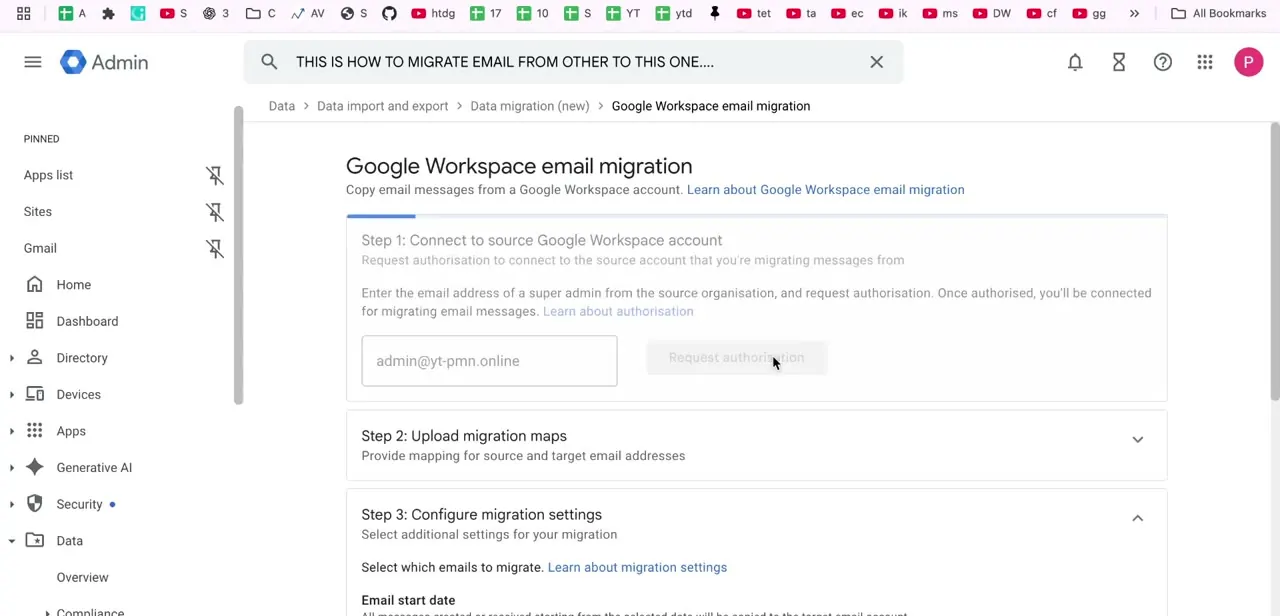
The first stage asks for the email address of a super administrator on the account you are copying from, then sends that person an authorization request. Nothing moves until they approve it, and the request expires after 24 hours.
Approving it generates a client ID on the source side and switches on domain-wide delegation, which is how the target account is granted read access to those mailboxes. If the window lapses, send a fresh request; there is no way to extend one.
The consequence of that design is useful to know in advance. A migration cannot be run against a Workspace account you do not control, and it cannot be run quietly. Someone with super admin on the old tenant has to act, so line that up before you book a cutover date.
03Map old mailboxes to new ones with a CSV
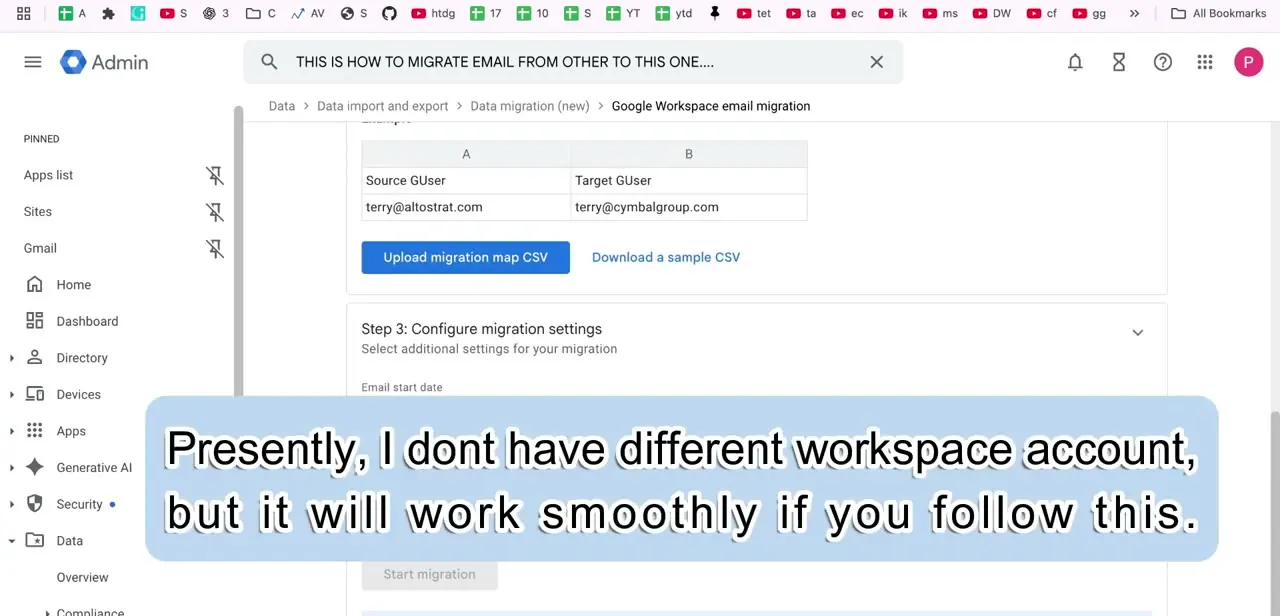
Next you tell Google which mailbox becomes which. The mapping is a CSV with two columns, Source GUser and Target GUser, one row per person: terry@altostrat.com in the first column, terry@cymbalgroup.com in the second.
Google offers a sample file in the correct format, and starting from it avoids the malformed header row that causes most rejected uploads. Three limits govern the file.
No more than 1,000 source users, no larger than 128 MB, and no source user mapped to more than one target user. A one-to-many split is not something the tool will do, so a shared mailbox that needs to land in two places has to be handled another way.
Those 1,000 users are per import, and the ceiling depends on where the mail is coming from. Google documents the same 1,000 for Microsoft Exchange Online, 100 for an IMAP server, and exactly one for a single Gmail account.
04Set the date range and options, then start
You choose a start date, and the tool imports messages from that date up to the moment the import begins. Anything older is left behind, which is how you avoid duplicating a decade of mail nobody has opened since 2014.
Three options sit alongside it: import deleted messages, import messages marked as spam, and exclude specific labels. Sublabels in the exclusion list are written with a forward slash, so a rule against Archive also needs Archive/2019 spelled out if that is what you mean.
From a Workspace source, the import carries email messages including drafts and sent mail, labels and sublabels, stars, and read or unread state. Individual messages larger than 25 MB with attachments do not come across, and Gmail's usual block on executable attachments applies to imported mail too.
Start it and close the tab if you like. The job runs in the cloud, the status page reports items discovered, warnings, failures, skipped messages and users processed as it goes, and Google emails a report when it finishes.
05Know when an import is the wrong tool
The import copies history. It does nothing about mail that arrives at the old address tomorrow, and the two problems get confused constantly.
For mail that keeps landing on the old address, forwarding in that user's Gmail settings sends it on. For a permanent domain-level change affecting a whole organization, Gmail routing rules in the Admin console handle it centrally instead of one mailbox at a time.
Also be clear on scope with anyone signing off the migration. This tool moves email.
Google's import tooling handles files separately and only from OneDrive, so Drive contents, Calendar events and Contacts from a Workspace source need their own plan. Discovering that on cutover weekend is a bad afternoon.
When it doesn't work
The source admin never got to the authorization link in time
Why: Authorization requests expire 24 hours after they are sent.
Fix: Send a new request and agree a window with them first. The expiry cannot be extended.
The mapping file is rejected
Why: Usually a header row that does not match Source GUser and Target GUser, more than 1,000 rows, a file over 128 MB, or a source address repeated against two targets.
Fix: Start from Google's sample CSV, keep it under both limits, and split shared-mailbox cases out of the file. One source user maps to exactly one target user.
Some users are skipped entirely
Why: The tool imports only into accounts that already exist, with Gmail turned on and a licence assigned.
Fix: Create and licence the missing target users, then re-run the import for just those rows.
A handful of large messages are missing afterwards
Why: Messages over 25 MB including attachments are not imported, and Gmail blocks certain attachment types such as executables.
Fix: Identify them on the source account and move those specific messages by hand, or store the attachments in Drive and link to them.
Frequently asked questions
Why can't I find "Data migration" in the Admin console?
It was renamed. Google's current documentation describes the data import tool at Menu, then Data, then Data import and export, then Data import, with Business Gmail as the source. The help articles also moved off support.google.com to a separate Workspace knowledge site, so old bookmarks redirect.
Does this move Drive files, Calendar and Contacts as well?
No. This is an email import. Google's import tooling covers email, chat, and files from Microsoft OneDrive; Drive contents, calendars and contacts from another Workspace account are a separate exercise.
What exactly comes across from a Workspace source?
Email messages including drafts and sent mail, labels and sublabels, stars, and read or unread status. Deleted and spam messages are optional toggles. Messages over 25 MB with attachments are left behind.
Does anything get deleted from the old account?
No. The tool copies mail into the target account and leaves the source mailbox as it was. The start date option limits how far back the copy reaches, and nothing outside that range is touched on either side.
Do the new mailboxes need to exist before I start?
Yes. Google's prerequisites state that data is imported only into accounts of existing users, with Gmail turned on and a licence assigned. Create and licence everyone first, then build the mapping file.
Sources and last check
Screens and click path come from a walkthrough recorded in the Admin console. In September 2026 the procedure was re-checked against Google's official Workspace admin documentation, which corrected the menu path this guide previously gave: Google now documents the feature as the data import tool at Data, Data import and export, Data import, with Business Gmail as the source, and has moved those help articles from support.google.com to knowledge.workspace.google.com. The same check supplied the 24-hour authorization expiry, the 1,000-user and 128 MB mapping-file limits, the per-source user maximums, the 25 MB message ceiling, and the list of what an import carries, none of which the earlier version stated.
About the author

Impran M N
I've been hooked on technology for as long as I can remember — especially the new tools and AI apps that seem to land every other week. Easy Tech Tuts is where I write up whatever I've just worked out: I do the task in the real product, record the screen, and turn it into the guide I wish I'd found first.