 Easy Tech Tuts
How to use Copper CRM in Google Workspace, Gmail, Gogole Sheet, Calendar with Brief Guide 2026
By Impran M NLast checked against official docs
Copper is a CRM built specifically around Google Workspace, which is why it asks you to sign in with Google instead of creating yet another password. That design decision shapes everything about it: your contacts, your email history, and your calendar are already the raw material, so the setup work is mostly about deciding how your pipeline should be shaped, not importing data.
This guide takes you from the sign-up page through your first pipeline and your first opportunity, then covers the parts of Copper that save time day to day: tracked emails, tasks, and reporting, including which of those sit behind a paid tier once the trial ends. A workable setup takes about twenty minutes.
Before you start
- A Google account you're willing to sign in with (Copper's sign-up page offers only "Continue with Google" and states plainly that "Copper only works with Gmail & Google Workspace")
- A rough idea of the process you want to track, since a pipeline is what makes the rest of Copper useful
01Start the trial with your Google account
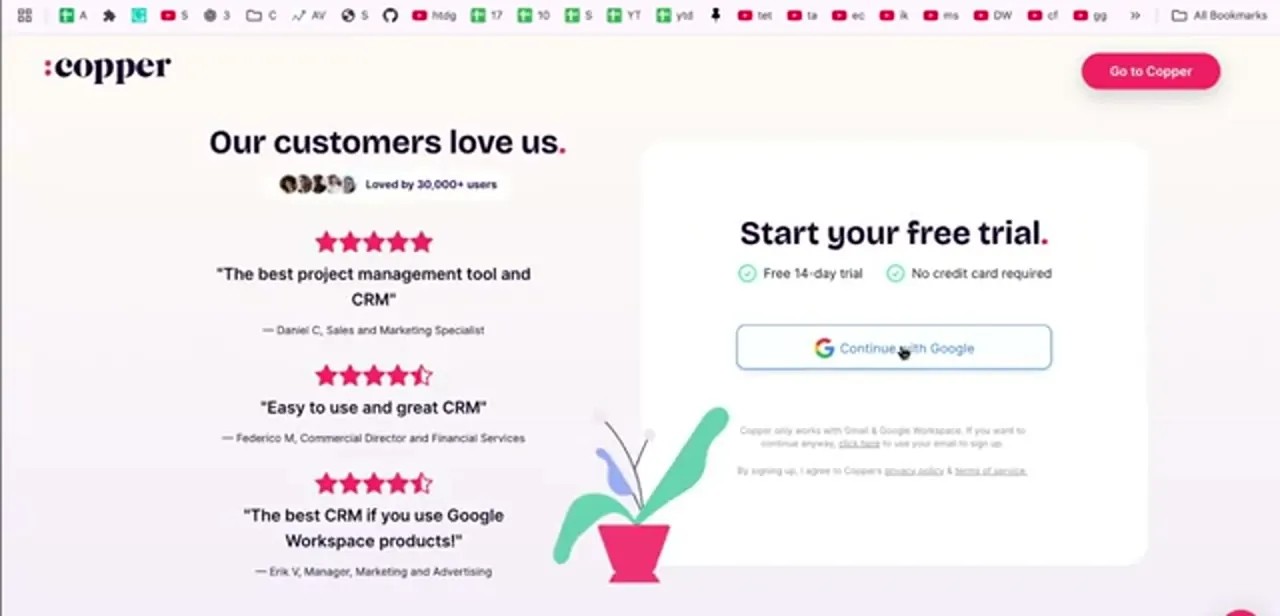
Copper's sign-up offers a 14-day free trial with no card required, and the only way in is a single "Continue with Google" button. Copper states this directly on the sign-up page: "Copper only works with Gmail & Google Workspace." That isn't just a convenience shortcut.
Copper is built around Gmail and Google Workspace, and signing in this way is what lets it read your mail activity and calendar later. Use the Google account you send business email from, not a personal one, since the account you pick here determines whose inbox Copper can see. There's no separate password to create and nothing else to remember.
02Get your bearings on the Feed
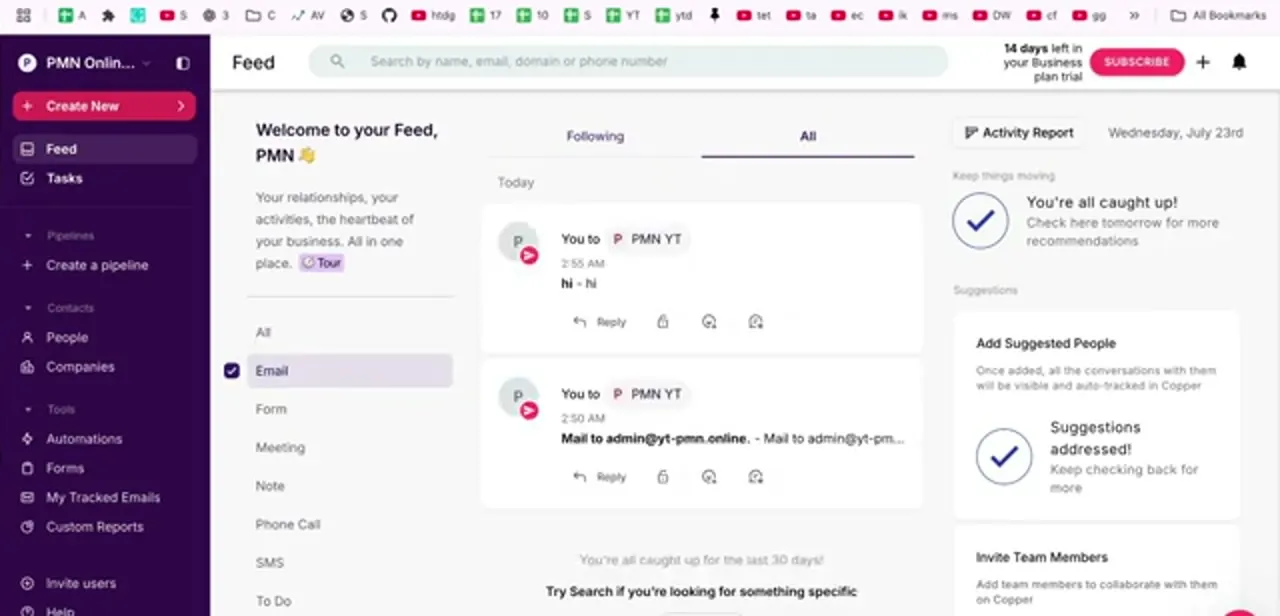
You land on the Feed, Copper's activity stream, not a dashboard of charts. It shows recent interactions grouped by type: email, form, meeting, note, phone call, SMS, to-do, with filters down the left so you can narrow to one kind.
The right-hand column carries an activity report plus suggestions, including prompts to add people Copper has spotted in your mail so their conversations get tracked automatically. The left sidebar is the real map of the product: Pipelines, Contacts split into People and Companies, and a Tools group holding Automations, Forms, My Tracked Emails, and Custom Reports.
03Create your first pipeline from a template
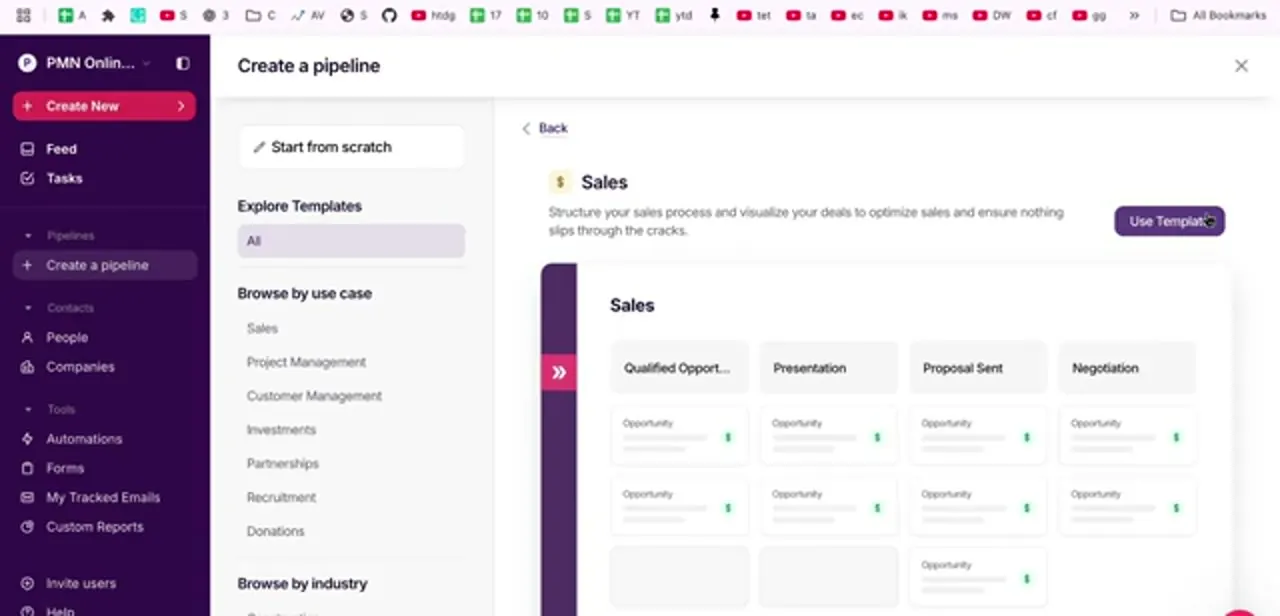
Nothing else in Copper does much until a pipeline exists; a pipeline is what turns loose contacts into a process. Click "Create a pipeline" and choose between starting from scratch and using a template, with templates browsable by use case (Sales, Project Management, Customer Management, Investments, Partnerships, Recruitment, Donations) and by industry.
Take the Sales template on your first pass even if it isn't a perfect fit. It arrives with sensible stages like Qualified Opportunity, Presentation, Proposal Sent and Negotiation, and renaming a stage later is far easier than inventing one from a blank page. The preview on the right shows exactly what you'll get before you commit.
04Add opportunities and fill in the fields that matter
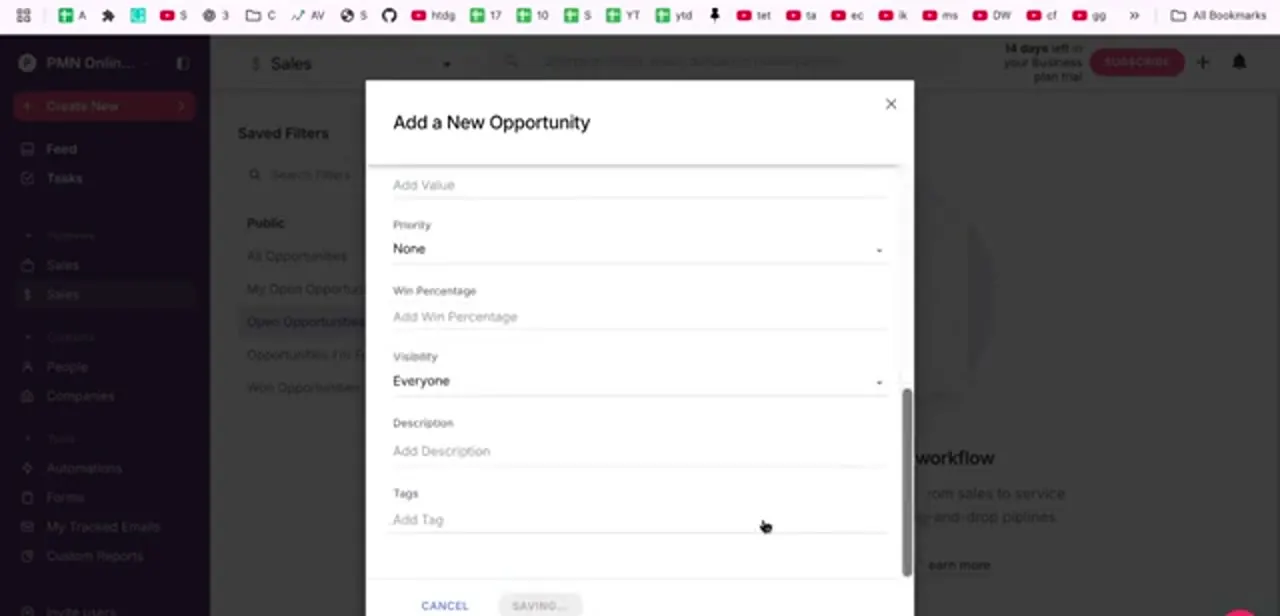
With a pipeline in place, "Add a New Opportunity" is how a deal enters it. The form asks for a value, a priority, a win percentage, a visibility setting, a description, and tags.
Most people fill in the name and value and skip the rest, which skips the two fields with the most payoff: win percentage is what makes a weighted forecast possible, and tags are what make your later reports sliceable by source or region. Visibility defaults to Everyone, which usually suits a small team but is worth changing on sensitive deals. Copper saves as you go, so there's no separate save step to forget.
05Work from Gmail and Calendar without switching tabs
The strongest argument for Copper over a general CRM is that you rarely have to visit it. Install Copper's Google Workspace add-on and a sidebar appears inside Gmail, showing the CRM record for whoever you're emailing: their past interactions, the deals they're attached to, and controls to log activity or add a note without leaving the message.
Because you signed in with Google, Copper matches the sender to an existing person automatically, and the Feed's suggestions nudge you to add people who keep appearing in your mail but aren't in the CRM yet. Follow-ups live in Tasks, directly under Feed in the sidebar.
Create a task from a person record or an opportunity and it stays attached to that record, so the next person to open the deal can see what was promised and when. Copper also syncs with Google Calendar: meetings with a known contact get tied back to their record, so the interaction history stays complete without anyone logging it by hand. Set a due date on every follow-up instead of trusting memory.
06Report on it, and know what's gated behind a paid plan
Once you have a few weeks of real activity, Custom Reports in the Tools section turns the pipeline into numbers you can act on, and My Tracked Emails shows which of your sent messages have been opened. Copper's pricing page shows this isn't available on every tier.
Custom Reports sits on the Business plan, while general Reporting and bulk email start one tier down, on Professional. The Basic plan covers pipelines, task automation, and the Gmail and Calendar sync for up to 2,500 contacts, with none of the reporting layer.
All three tiers run on the same 14-day trial, so you can try the reporting tools before deciding what to pay for. For anything Copper's own reporting doesn't cover, export the data into Google Sheets and build the pivot or chart you want there, then share it with people who don't have a Copper seat. Because it's the same Google account throughout, that export-and-share loop costs nothing extra to set up.
| Plan | Price (per seat/month, billed annually) | Contact limit | Adds |
|---|---|---|---|
| Basic | $23 | 2,500 | Pipelines, task automation, contact enrichment |
| Professional | $59 | 15,000 | Bulk email, workflow automation, reporting, integrations |
| Business | $99 | Unlimited | Custom reports, multi-currency, email series, premium support |
Prices are from Copper's own pricing page in September 2026 and are lower than its listed month-to-month rates. All three tiers share the same 14-day free trial with no card required.
Frequently asked questions
Do I need a separate Copper login from my Google account?
No. Copper's sign-up only offers a "Continue with Google" button, and it states directly that it "only works with Gmail & Google Workspace." That Google account becomes your Copper login.
Which Google account should I sign up with?
The one you send business email from. The account you choose determines which inbox and calendar Copper can see, and changing it later means starting the connection over.
Should I build a pipeline from scratch or use a template?
Use a template on your first pipeline. Copper ships templates by use case, sales, project management, recruitment, donations and more, and renaming a stage later is far easier than designing a process from an empty board.
Can I see Copper inside Gmail?
Yes. Copper's Google Workspace add-on puts a sidebar in Gmail showing the contact's CRM record, related deals, and controls to log activity, so you can update the CRM without leaving the message.
How long is the free trial?
Fourteen days, with no credit card required at sign-up, confirmed on Copper's own sign-up page.
Do I need a paid plan to use Custom Reports?
Yes, eventually. Custom Reports sits on Copper's Business plan, and general Reporting and bulk email start on the Professional tier below it. The 14-day trial lets you use them regardless of which plan you pick at sign-up.
Sources and last check
Click path and screens come from a walkthrough recorded in July 2025. The sign-up flow and plan details were re-checked directly against Copper's own sign-up and pricing pages in September 2026. That check found Copper's sign-up now shows only a "Continue with Google" button and states plainly that "Copper only works with Gmail & Google Workspace"; this guide previously mentioned a non-Google sign-up fallback that no longer appears on the page. It also surfaced that Custom Reports specifically requires the Business plan, not just any paid tier, which the original draft didn't distinguish.
About the author

Impran M N
I've been hooked on technology for as long as I can remember — especially the new tools and AI apps that seem to land every other week. Easy Tech Tuts is where I write up whatever I've just worked out: I do the task in the real product, record the screen, and turn it into the guide I wish I'd found first.



