 Easy Tech Tuts
How to Transfer Google Workspace Google Drive Files to Another Gmail Account 2026 Easily
By Impran M NLast checked against official docs
Leaving a job, closing a Workspace subscription, or consolidating accounts all raise the same problem: documents live inside a Google Workspace account that's about to go away. Google's admin console has a built-in tool for handing one user's Drive files to another user without re-uploading anything, but it only moves files between accounts inside the same Workspace organization.
Google's own documentation states it can't transfer ownership to or from an external user, personal Google accounts included. This guide covers where that setting actually lives, what it can and can't do, and the two paths that do work for getting files into a personal Gmail account.
Before you start
- Admin access to the Workspace domain, specifically the Drive & Docs administrator privilege
- For the direct transfer path: both the current and new owner must be accounts inside the same Workspace organization; a personal Gmail address doesn't qualify
01Sign in to the Google Admin console
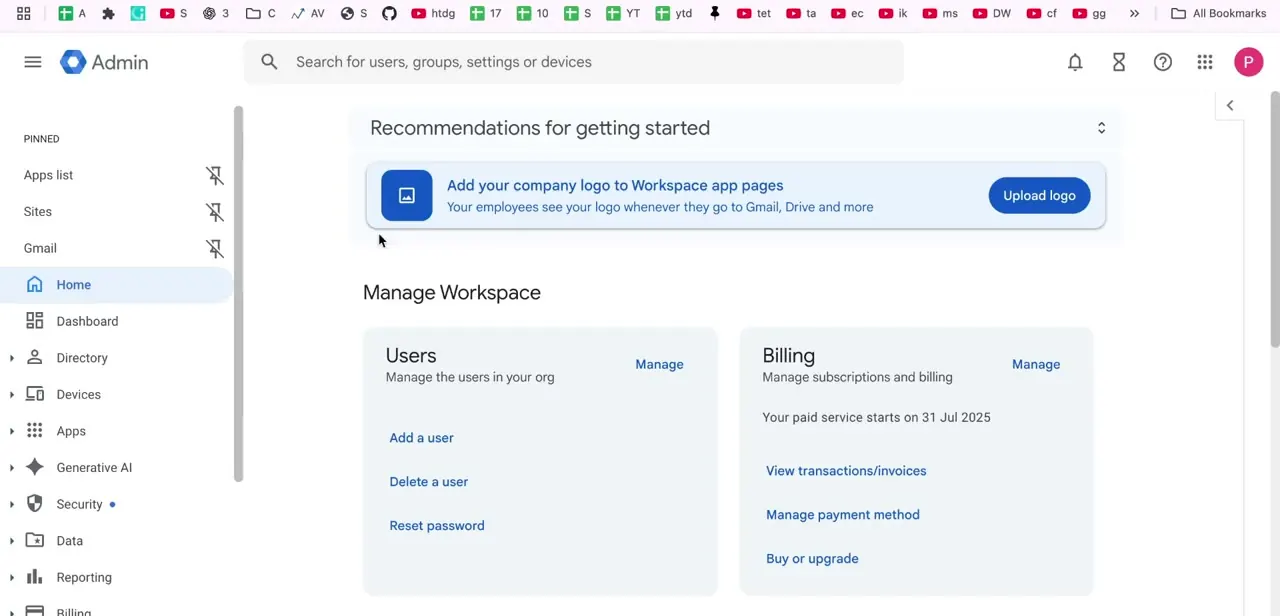
Ownership transfer is an admin-level action, not something a regular Workspace user can do from their own Drive. Sign in at admin.google.com with an account that has admin rights on the Workspace domain the files currently live in. The admin home page gives you the full left-hand menu: Directory, Devices, Apps, Security, and more, which is also where billing and user management sit if this is part of shutting the account down entirely.
02Open Apps, then Google Workspace, then Drive and Docs
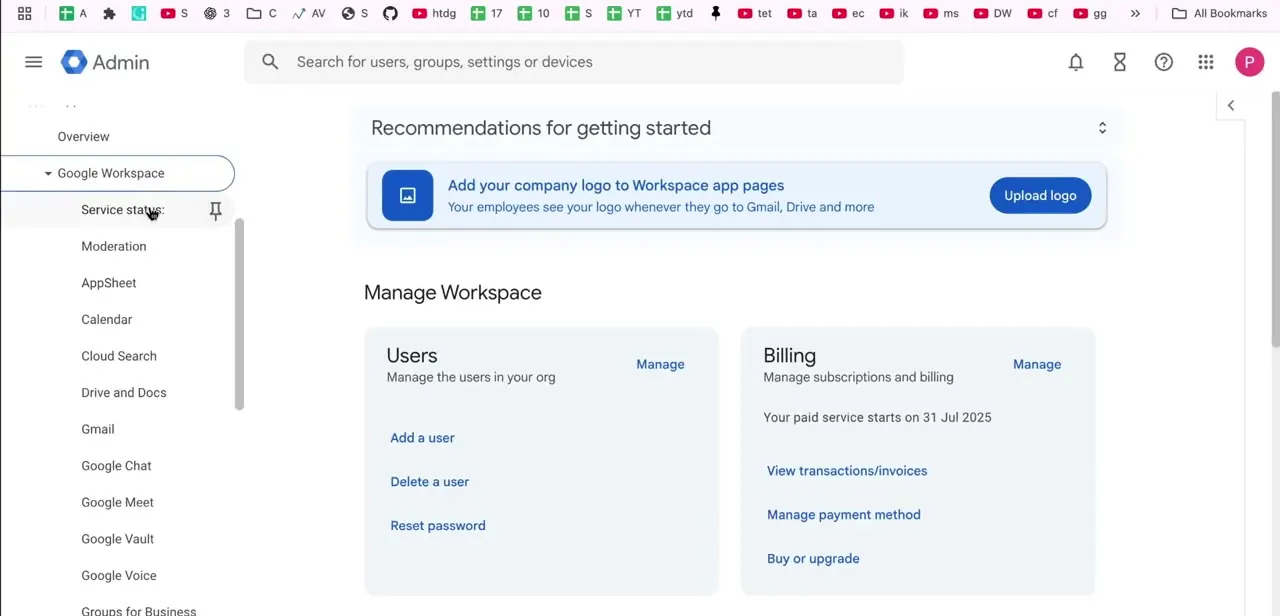
From the left menu, drill into Apps and expand Google Workspace to see the individual services: Calendar, Gmail, Google Chat, Google Meet, and Drive and Docs among them. Click Drive and Docs, the settings hub for everything related to how Drive behaves across your organization, including sharing rules, migration settings, and the ownership tools needed here. It's easy to go looking for a "transfer" option under Users or Devices instead, so it's worth remembering the setting is filed under the app itself.
03Find Transfer ownership in the Drive and Docs settings
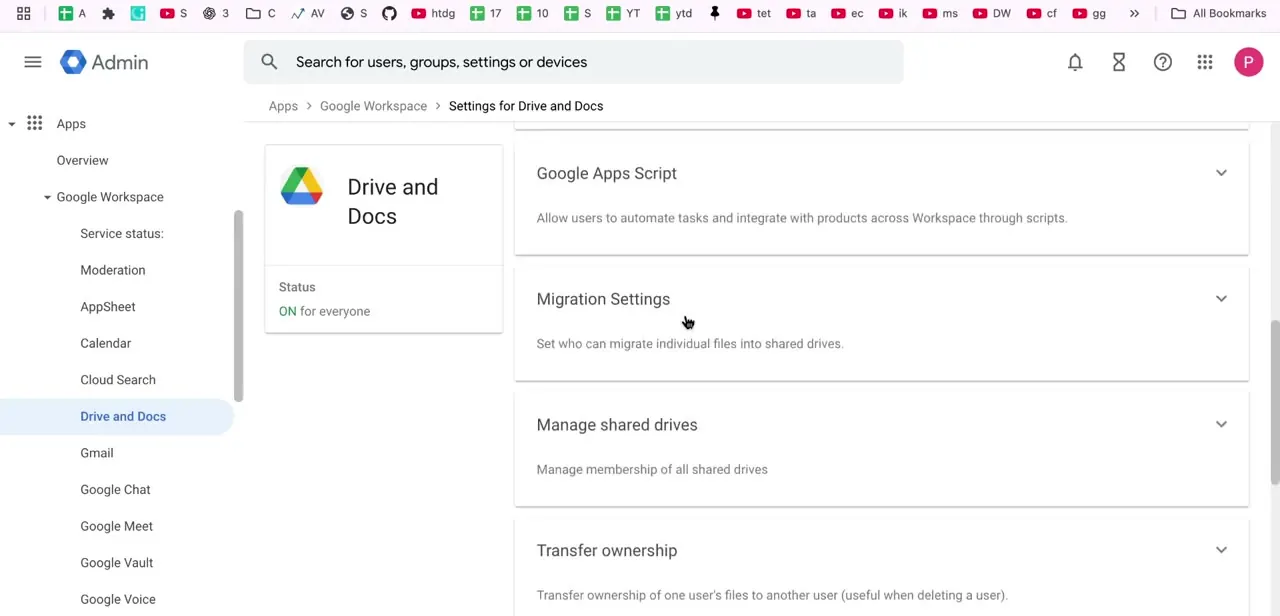
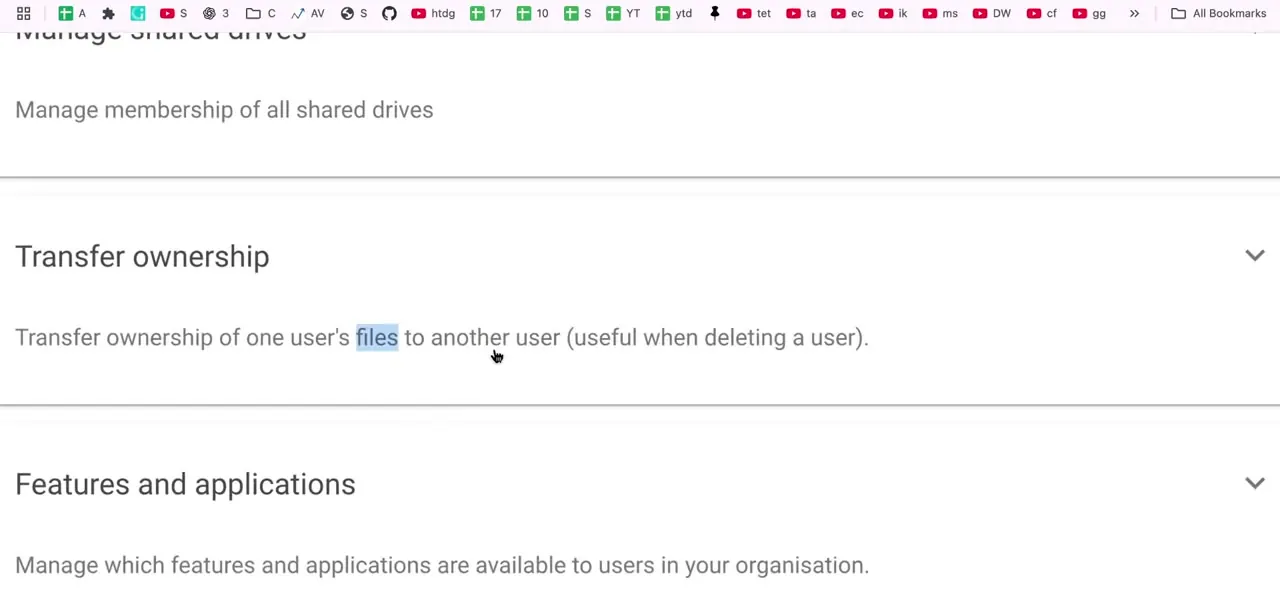
The Drive and Docs settings page is organized as a stack of expandable sections: Google Apps Script, Migration Settings, Manage shared drives, and then Transfer ownership. Each one collapses to a single line describing what it does, so scroll until you see "Transfer ownership of one user's files to another user (useful when deleting a user)." That description is the giveaway that this feature was built for offboarding: moving a departing employee's files to a manager before their Workspace login is deactivated.
04Know the limit before you rely on this tool
Expanding the Transfer ownership section confirms what it's built for: moving one user's files to another before that user's account is deleted, typically during offboarding. Google's documentation is explicit about the limit that matters here: transfers only work between accounts inside your organization, and "you can't transfer ownership to or from an external user, such as a personal Google Account or a user in another organization." That's a fixed rule, not a setting a domain administrator can switch on. If the destination is a personal Gmail address, this tool was never going to reach it, whatever else your domain's policies allow.
05Use share-and-copy or Google Takeout instead
For a personal Gmail destination, two paths work. Share the relevant folders with that Gmail address from the source Drive, then have the receiving account make its own copies; this creates a second copy instead of moving the original, but it preserves the content.
For a full account's worth of data, Google Takeout is the better tool: it packages your Drive, or any subset of Workspace services you choose, into a downloadable archive to re-upload into the personal account. Takeout handles large volumes more reliably than sharing and copying dozens of items by hand, and it's the standard route when the whole Workspace account is closing rather than just changing who can reach a few files.
06Confirm everything landed before the old account goes
Open the personal Gmail account's Drive and check that folder structures, file counts, and anything specifically needed are all present before the Workspace account is deleted or deactivated. Google notes that a bulk transfer of an entire user's files, run ahead of deleting them, can take up to 36 hours to finish, and that certain items, Google Maps' own custom maps among them, don't transfer at all. Once the source account is gone, there's no route back to grab what didn't make it across.
| Method | Works for a personal Gmail address? | What happens to the files | Best for |
|---|---|---|---|
| Admin ownership transfer | No, Workspace accounts only | Moved in place; nothing re-uploaded | Offboarding within the same organization |
| Share, then copy | Yes | Creates a second copy owned by the new account | A handful of specific folders or files |
| Google Takeout | Yes | Downloadable archive, re-uploaded by the new account | A full account export before the domain is closed |
Confirmed against Google's Workspace admin help documentation in September 2026.
When it doesn't work
Transfer ownership won't accept a personal Gmail address
Why: This is a hard platform restriction: the admin console's ownership transfer only works between accounts in the same Workspace organization.
Fix: Use share-and-copy or Google Takeout instead. Neither depends on domain policy.
A bulk offboarding transfer is stuck or looks incomplete
Why: Google states bulk transfers ahead of account deletion can take up to 36 hours, and files still in Trash or under litigation hold are skipped.
Fix: Empty Trash first, confirm there's no litigation hold on the account, and wait out the full window before assuming it failed.
Some files are missing from the personal account after a Takeout export
Why: Certain file types, including Google Maps' own custom maps, aren't included in a Takeout export or a transfer.
Fix: Check the Takeout export summary against what's expected, and manually re-save anything unsupported before the source account closes.
Frequently asked questions
Can I transfer Drive files directly between a Workspace and personal Gmail account?
No. Google's admin console tool only moves files between accounts inside the same Workspace organization; it can't target or receive from a personal Gmail address, regardless of the domain's other settings. Share-and-copy or Google Takeout are the two paths that do reach a personal account.
What is Google Takeout used for in this process?
Takeout exports Drive data as a downloadable archive, useful for transferring large volumes of files or wanting a full backup of an account rather than a selective ownership transfer.
Will transferring files change their sharing permissions?
No. Google's documentation states that transferring ownership doesn't change who already has access to a file. What changes is who owns it, which matters for storage quota and for what survives after the original account is deleted.
Why is the Transfer ownership option greyed out for me?
Most often because the signed-in account doesn't hold the Drive & Docs administrator privilege specifically. It also won't work at all if either account sits outside the Workspace organization; that's not something the setting itself can be switched to allow.
Is there a size limit to how much I can transfer at once?
No published item-count or size limit for the ownership-transfer tool itself, but Google notes a bulk transfer of an entire user's files ahead of deleting their account can take up to 36 hours. Large Takeout exports are also better run in batches by service than as one export covering everything.
Sources and last check
Click path and screens come from a recorded admin-console walkthrough. Re-checked against Google's official Workspace admin documentation in September 2026, which corrected two things this guide previously got wrong: that transferring to a personal Gmail address is a hard platform restriction rather than a domain policy setting, and that an ownership transfer does not change who already has access to a file.
About the author

Impran M N
I've been hooked on technology for as long as I can remember — especially the new tools and AI apps that seem to land every other week. Easy Tech Tuts is where I write up whatever I've just worked out: I do the task in the real product, record the screen, and turn it into the guide I wish I'd found first.



