 Easy Tech Tuts
How to Fix Your Profile Picture is Managed by Your Organization & Change it in Google Workspace 2026
By Impran M NLast checked against official docs
If you've opened your Google Account settings and found a message saying you can't change your profile picture because it's managed by your organization, the fix isn't on your end. It's an admin-level setting, not something wrong with your account.
This guide shows exactly where that restriction lives in the Google Admin console, how to find the specific toggle controlling it, and how to flip it so users can set their own photo again. It also covers what to check first if you're not the admin yourself, so you're not stuck waiting on a support ticket for a one-click setting.
Before you start
- Admin access to your organization's Google Admin console (super admin, or a delegated admin with user-management privileges). A regular user can't change this from their own account.
- Optional but useful: knowing which organizational unit or configuration group the affected user belongs to, if you want to scope the fix narrowly instead of opening it for the whole domain.
01Spot the 'managed by your organization' message
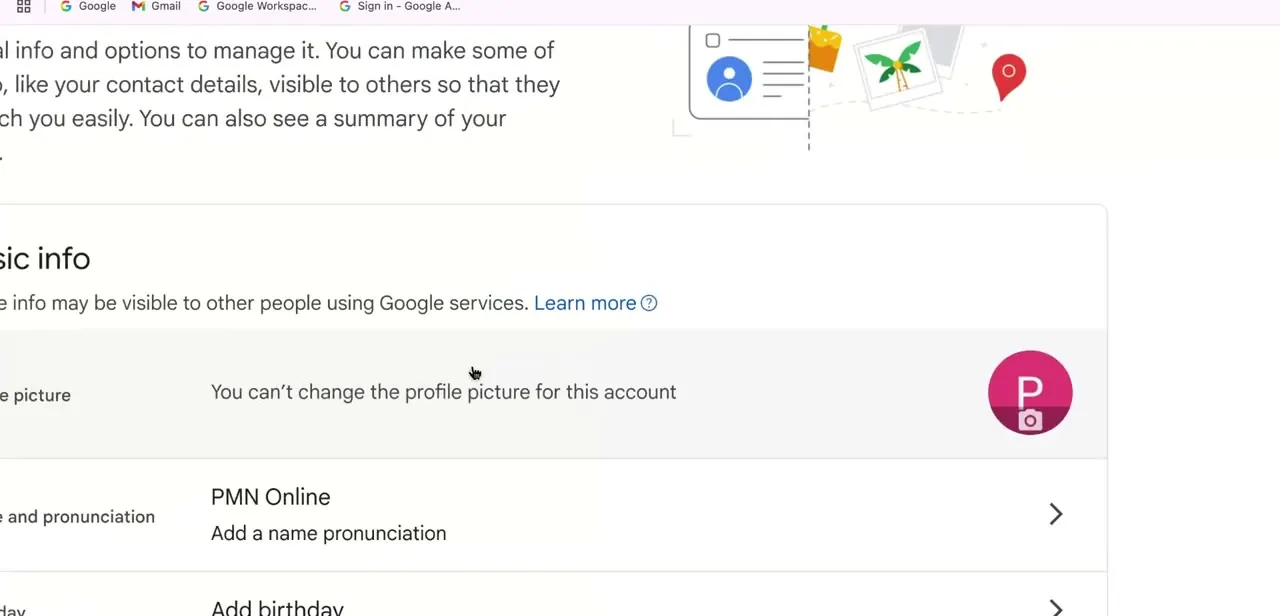
The block shows up right on the Basic info section of your Google Account, next to the profile picture row: "You can't change the profile picture for this account," with your current avatar shown next to it. This confirms the restriction comes from a Workspace-level policy, not a bug or a temporary glitch on your account. It's the first thing to check before troubleshooting further: the message itself says this needs an admin change, not a user-side workaround.
02Sign in to the Google Admin console
Only a Workspace super admin, or a delegated admin with user-management privileges, can lift this restriction. You'll need to log in at admin.google.com with an admin account, not the affected user's own login.
If you're not an admin yourself, this is the point to loop in whoever manages your organization's Workspace instead of hunting further through personal account settings. The setting simply isn't there to find on a regular user's side.
03Open Allow users to edit profile from the Users list
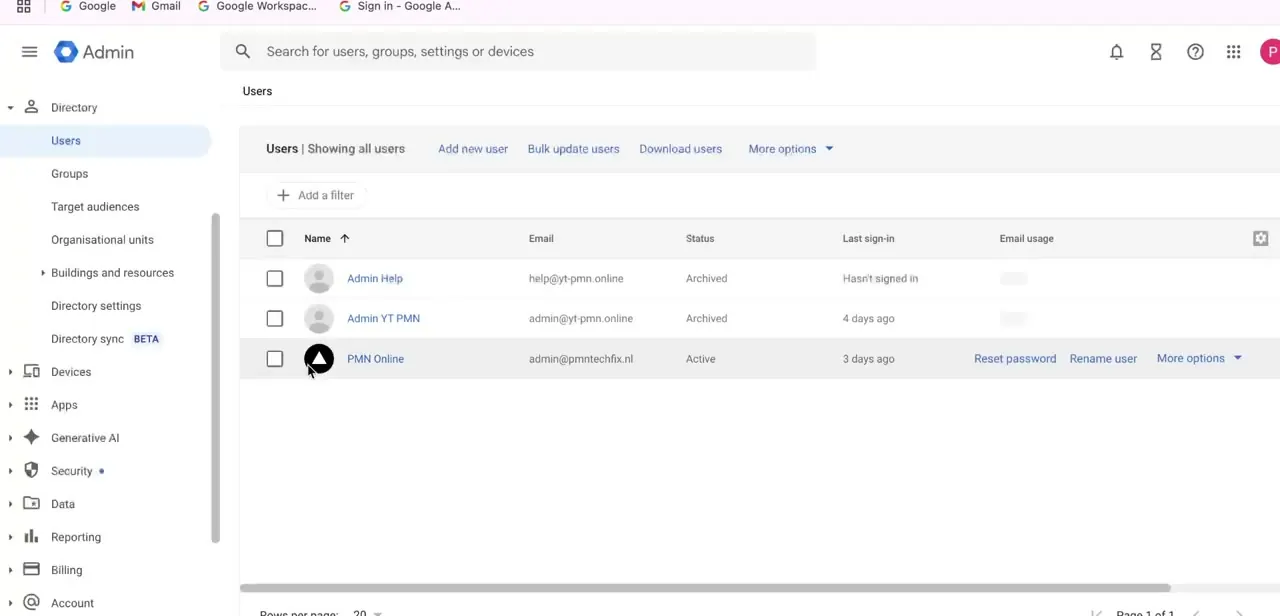
From the Admin console, go to Directory, then Users. This step trips people up: the setting isn't tucked inside any one person's account page.
At the top of the Users list, next to Add new user and Bulk update users, click More options, then select Allow users to edit profile. That opens a panel where you also choose the scope: everyone in the organization by default, or narrowed down to one organizational unit or a configuration group, so you can loosen the restriction for a single team without opening it domain-wide.
04Check the Profile picture box
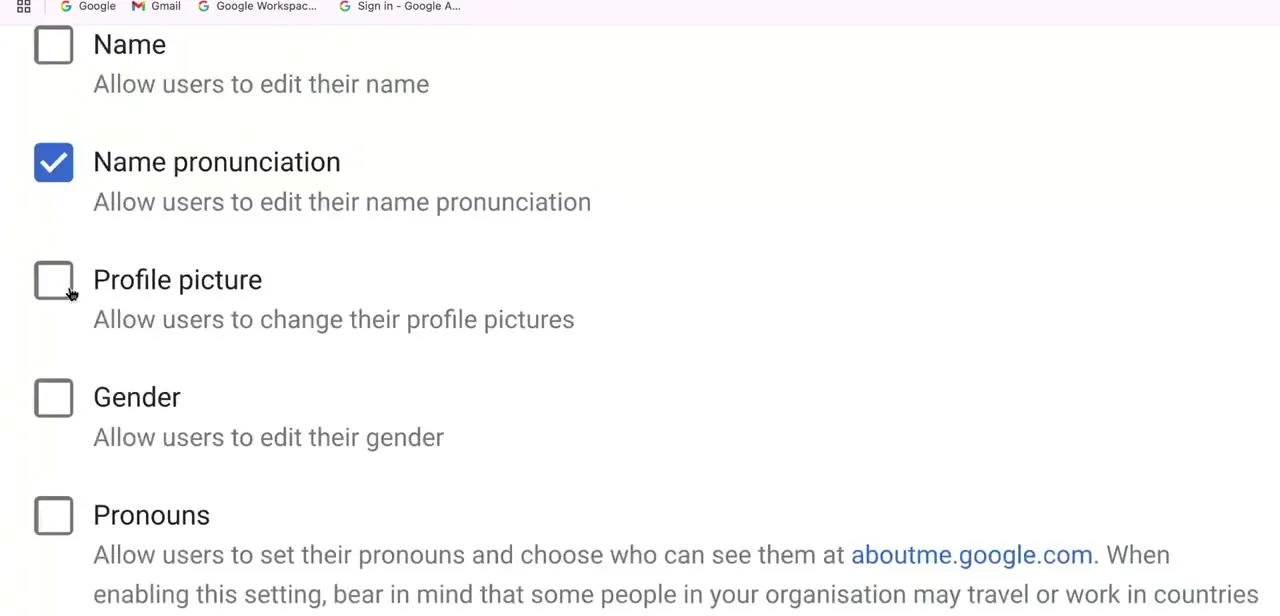
The panel lists a checkbox for each editable field: Name, Name pronunciation, Profile picture, Gender, Pronouns, and a few others depending on your Workspace edition. Profile picture is labeled "Allow users to change their profile pictures" and sits unchecked by default in a locked-down organization.
Check it, leave the rest as they were unless you mean to open those too, and save. The restriction lifts for everyone in whichever scope was picked in the previous step, not only the person you were originally troubleshooting.
05Confirm the change took effect
Have the affected user log back into Google Account settings and try uploading a new photo. Google's own documentation says changes can take up to 24 hours to propagate, though it's usually faster.
Check the new picture in more than one place, Gmail and Google Meet, not just the account settings page, since some apps cache the old avatar for a while after a change. If nothing has updated after a full day, the setting itself is the thing to re-check, not propagation delay.
06Decide whether to leave the setting open
Some organizations lock profile pictures on purpose, to keep a consistent look across every employee's account, so before leaving the toggle enabled long-term, check whether there was a reason it was restricted in the first place. If this was a one-time fix for a specific person, scope the setting to just that organizational unit instead of the whole domain, and consider re-locking it once the immediate issue is resolved.
When it doesn't work
The org unit setting is on, but one person still can't change their photo
Why: A configuration group's profile-editing settings override organizational-unit settings. If that user belongs to a group with its own, more restrictive rule, the group wins.
Fix: Check the Admin console's configuration groups for one containing that user, and update the group's Profile picture setting directly instead of relying on the org unit alone.
The photo hasn't updated hours after the setting was saved
Why: Google's documentation states changes can take up to 24 hours to propagate across all Workspace apps, even though it usually happens much faster.
Fix: Wait it out, and check more than one app (Gmail, Meet) since caching varies. If a full day passes with no change, treat it as a setting problem, not a delay, and re-check step 3.
A user's photo upload fails or won't save
Why: Google only accepts JPEG or PNG files up to 5 MB and 20 million pixels for profile photos.
Fix: Re-export the image within those limits. It doesn't need to be square; Google scales it automatically.
The user's own upload never shows, even though editing is allowed
Why: If an admin has set a photo for that user directly from the Admin console, Google's documentation notes it overrides whatever the user uploads themselves.
Fix: Remove the admin-set photo for that user if the goal is to let them choose their own.
Frequently asked questions
Why does Google say my profile picture is managed by my organization?
This message appears when a Workspace admin has left the Profile picture option unchecked in the Admin console's profile-editing settings, either for the whole organization or for the organizational unit or group your account belongs to.
Where exactly does an admin turn this setting back on?
In the Admin console, under Directory > Users, via More options at the top of the Users list, then Allow users to edit profile. It's not on any individual user's own page.
Can this be limited to one team instead of opening it for the whole company?
Yes. The Allow users to edit profile panel lets an admin scope the change to a single organizational unit or configuration group instead of the entire domain.
Will enabling this also let users change their name or gender?
Only if those boxes are checked too. Profile picture, Name, Name pronunciation, Gender, and Pronouns are separate checkboxes in the same panel, so an admin can unlock exactly the fields they mean to and leave the rest alone.
How long does the change take to show up after saving?
Google's documentation says up to 24 hours, though it's usually much quicker. Check the photo in more than one app, since some cache the old one briefly.
Sources and last check
Click path and screens come from a recorded walkthrough. Navigation, propagation time, and photo requirements were re-checked against Google's official Workspace admin help articles in September 2026. That check corrected one step: the Profile picture toggle isn't opened from inside a specific organizational unit's own page, as this guide previously described. It's reached through More options on the Users list, which then lets you pick the organizational unit or group scope. The checkbox panel itself (Name, Name pronunciation, Profile picture, Gender, Pronouns), visible in the screenshots, matches what the current documentation describes.
About the author

Impran M N
I've been hooked on technology for as long as I can remember — especially the new tools and AI apps that seem to land every other week. Easy Tech Tuts is where I write up whatever I've just worked out: I do the task in the real product, record the screen, and turn it into the guide I wish I'd found first.



