 Easy Tech Tuts
How to Sync Google Workspace to Outlook, Connect Email with Microsoft Outlook 365 Easily 2026
By Impran M NLast checked against official docs
There are two real ways to get a Google Workspace account talking to Outlook 365: install a Marketplace connector that handles contacts and directory data, or connect Outlook to Gmail directly for mail. This guide covers the connector route first, since it is what a growing number of admins reach for to keep contacts synced with no server settings to get wrong, then covers connecting Outlook to Gmail directly.
One thing has changed since older guides on this topic were written: Google Workspace stopped accepting plain username-and-password sign-ins from third-party mail apps on May 1, 2025. Outlook now needs to connect through OAuth, or through an app password as a narrower fallback. Both are covered below.
Before you start
- Admin access to the Google Workspace Admin console, either to install the Marketplace connector or to turn on IMAP access for a direct Outlook connection.
- A modern version of Outlook (Microsoft 365, Outlook 2019, or Outlook 2016) if you want to sign in with OAuth instead of an app password.
01Start from the Google Admin console
Sign in as a Workspace admin and land on the Admin console's home dashboard, which surfaces quick links for managing users and billing along with setup recommendations for the domain. Nothing needs to change here. This is the jumping-off point before heading into the Google Workspace Marketplace, where the sync connector lives, or into Gmail's end-user access settings if you're connecting Outlook directly instead.
02Install a Marketplace connector instead of hand-configuring IMAP
In the Google Workspace Marketplace, an app such as sync.blue is built to keep contact data synced between Google Workspace and other platforms, including Outlook. The listing shows what it does plainly, "Keeps your contacts in sync between countless apps," along with its rating, download count, and permissions before you install. This trades a few minutes of manual setup for an authorization flow the app walks you through, and it's the better fit if you want contacts and directory info staying in sync on an ongoing basis instead of doing a one-time import.
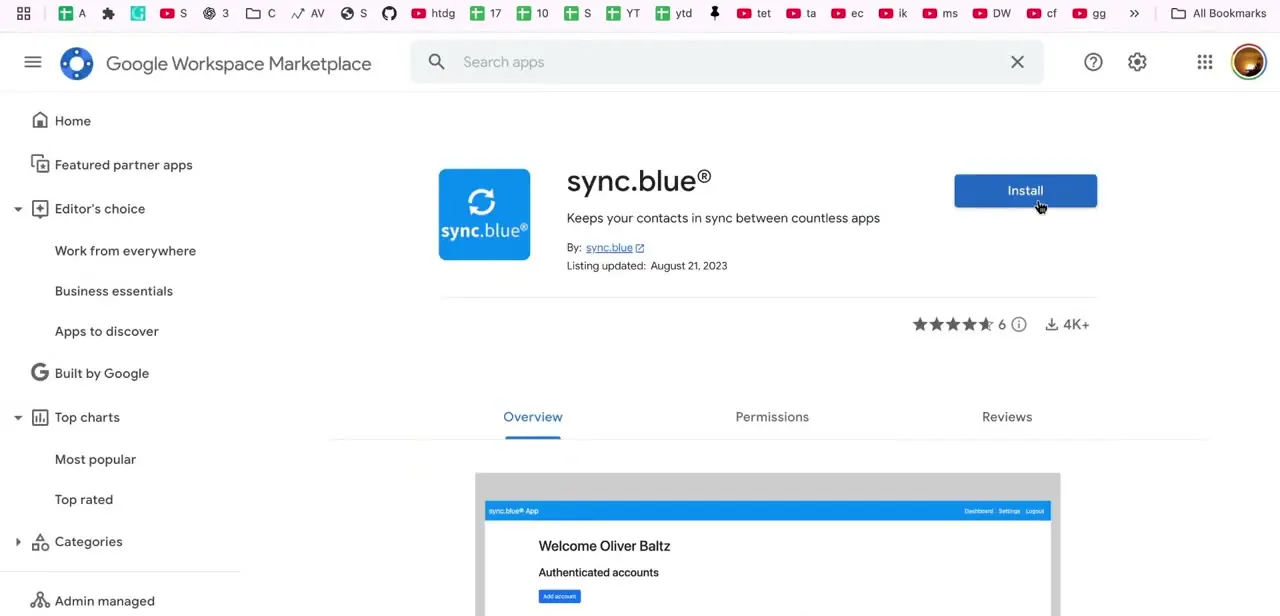
03Create a connection between the two accounts
Once installed and activated, the app's own dashboard opens to a "My connections" page that explains the model plainly: one connection syncs data between exactly two accounts, and you can create as many connections as you need. Click Create connection to start linking your Google Workspace account to the Outlook side. This step replaces manually entering incoming and outgoing mail server details, since the app handles the authorization handshake with both platforms.
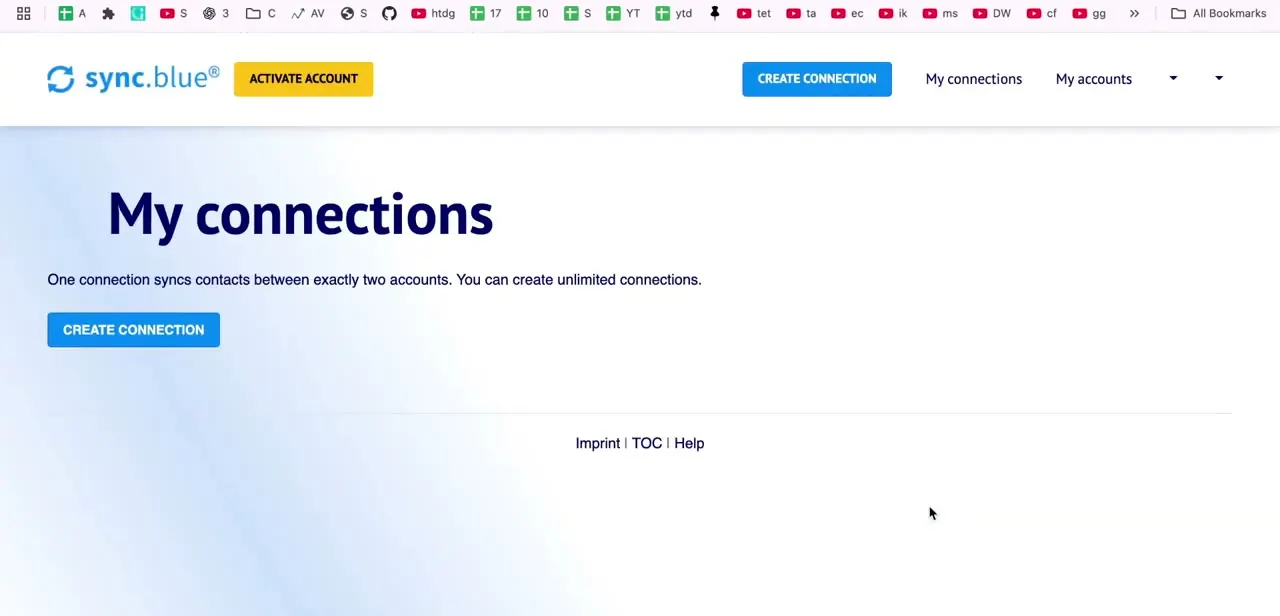
04Select Google Workspace as your source app
The connection wizard runs through three labeled stages, Choose your apps, Authorize your apps, and Configure connection, starting with a search box where you pick the source. Typing "google workspace" surfaces specific options, including Google Workspace Domain Shared Contacts and Google Workspace Directory, so you can pick the exact dataset you want flowing out of Workspace instead of a generic "Google" option that might pull in more than you intend.
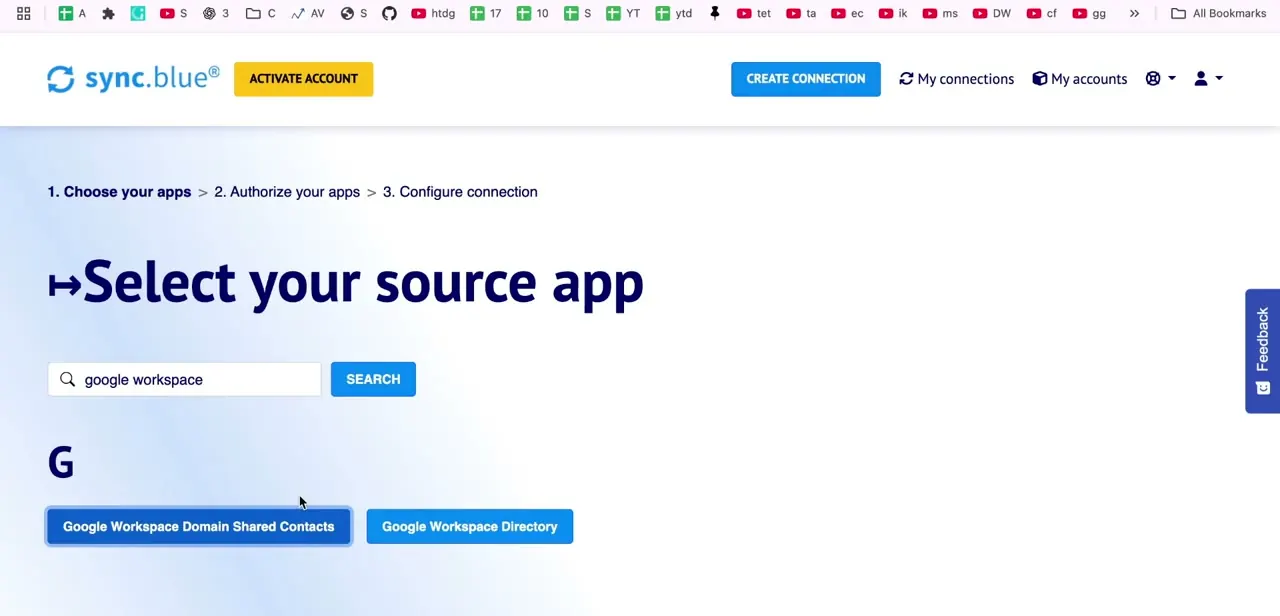
05Authorize both accounts and finish the connection
After picking the Workspace source, the wizard moves to step 2 and asks you to sign in and grant permission on the Google side, then repeats the process for Outlook as the destination app. Each platform's own OAuth consent screen is what grants access, not a password typed into the connector. Step 3, Configure connection, is where you set sync direction and frequency before the two accounts start exchanging data on their own.
06Or sign Outlook in to Gmail directly, OAuth first
If you'd rather not add a Marketplace app and only need mail, modern Outlook (Microsoft 365, Outlook 2019, or Outlook 2016) can add a Google Workspace account directly through Google's own OAuth sign-in screen. Choose Add Account in Outlook, enter the Workspace email address, and Outlook hands off to a Google sign-in and consent page instead of asking for a password itself.
No app password, no manual server settings, and no separate IMAP toggle needed for this path. Google recommends this route specifically. Since May 1, 2025, Workspace accounts no longer accept the older style of sign-in where a third-party app asks for your Google username and password directly.
07Fall back to manual IMAP only if OAuth isn't available
Older Outlook builds that don't support OAuth still need the legacy path, and it has two extra requirements this guide previously skipped. First, a Workspace admin has to turn on IMAP access for the account: in the Admin console, go to Apps > Google Workspace > Gmail > End User Access, then enable POP and IMAP access for the relevant organizational unit.
Second, because plain passwords are no longer accepted, you need an app password: turn on 2-Step Verification for the account, generate an app password, and enter that 16-character string in Outlook in place of the normal login. The server settings are imap.gmail.com on port 993 (SSL) for incoming and smtp.gmail.com on port 587 (TLS) or 465 (SSL) for outgoing. This route only handles mail; it won't sync contacts or calendar the way a dedicated connector does.
08Confirm everything landed correctly
Whichever method you use, check Outlook after the initial sync to confirm mail, contacts, or calendar events (depending on what you connected) show up and update when something changes on the Workspace side. A connector-based sync runs on its own schedule, so give it a few minutes after setup before assuming something is broken if a contact hasn't appeared yet.
When it doesn't work
Outlook rejects the account with a sign-in error instead of connecting
Why: Since May 1, 2025, Google Workspace no longer accepts a plain username and password from a third-party mail app. An older Outlook trying to sign in the old way will be turned away.
Fix: Update to a version of Outlook that supports OAuth (Microsoft 365, Outlook 2019, or Outlook 2016) and sign in through Google's consent screen instead. If the Outlook build genuinely can't do OAuth, use an app password instead of the account password.
IMAP is turned on in Gmail's own settings but Outlook still can't connect
Why: Turning IMAP on inside a personal Gmail account is a user-level setting, but on Google Workspace, an admin also has to enable POP and IMAP access for the organizational unit before it works for anyone in that unit.
Fix: Have the Workspace admin check Apps > Google Workspace > Gmail > End User Access > POP and IMAP access, and confirm it's enabled for the affected organizational unit.
Contacts or mail haven't shown up right after setup
Why: A connector-based sync, and in some cases the initial IMAP sync, runs on a schedule instead of instantly.
Fix: Wait a few minutes and check again before assuming the connection failed.
Frequently asked questions
Do I need an app password to connect Gmail to Outlook?
Only if you're on an older Outlook version that doesn't support OAuth. Modern Outlook (Microsoft 365, Outlook 2019, or Outlook 2016) signs in with the Google account directly through OAuth, no app password needed. A Marketplace connector like sync.blue also uses OAuth.
Does my Workspace admin need to do anything first?
For the Marketplace connector or OAuth sign-in, usually not beyond allowing the app or the OAuth scope. For the legacy IMAP fallback specifically, yes: an admin has to turn on POP and IMAP access for the account's organizational unit in the Admin console before it will work.
What happened to signing in with just a username and password?
Google discontinued it for Workspace accounts on May 1, 2025. Third-party apps and devices now need OAuth, with app passwords kept as a narrower fallback for clients that genuinely can't support OAuth.
Will syncing to Outlook affect my Gmail account directly?
No. Both the direct OAuth connection and a Marketplace connector read and sync existing Workspace data; neither changes anything on the Google side beyond what you explicitly authorize.
Can I sync my Google Calendar to Outlook as well?
With a dedicated connector app, often yes, depending on which data sources it supports. The direct mail connection, OAuth or IMAP, only handles email, so calendar sync needs either a connector or a separate calendar-specific setup.
Is a Marketplace connector app secure to use for this?
Reputable connector apps use OAuth to authorize access instead of asking for a password, and the Marketplace listing shows the app's permissions and reviews before install. Check both before granting access to a domain's contacts or directory.
Which method should I use?
If Outlook only needs email and supports OAuth, sign in directly, it's the simplest and most current path. If contacts or directory data need to stay in sync too, add a connector like sync.blue. Fall back to manual IMAP and an app password only on an Outlook build that can't do OAuth.
Sources and last check
Click path and screenshots for the sync.blue connector come from a recorded walkthrough. The Outlook connection method was re-checked against Google Workspace's official Admin Help in September 2026, which surfaced a change this guide didn't previously reflect: as of May 1, 2025, Workspace accounts no longer accept plain username-and-password sign-in from third-party mail apps, OAuth is now the primary path for modern Outlook, and the manual IMAP route additionally requires an admin to turn on IMAP access at the organizational-unit level before an app password will work.
About the author

Impran M N
I've been hooked on technology for as long as I can remember — especially the new tools and AI apps that seem to land every other week. Easy Tech Tuts is where I write up whatever I've just worked out: I do the task in the real product, record the screen, and turn it into the guide I wish I'd found first.



