 Easy Tech Tuts
How to Setup Your Google Workspace Domain, Add New Domain & do Set Up 2026 Easily
By Impran M NLast checked against official docs
Adding a domain to Google Workspace isn't just typing a name into a box. Google asks you to pick between two genuinely different setups on the same screen, and choosing wrong means redoing the work later, or paying for user licenses you didn't intend to create. This guide walks through the actual Admin console flow: getting from the Home dashboard to the Add a domain screen, and understanding the choice between a secondary domain and a user alias domain before you commit to either one.
Before you start
- Admin access to the Google Workspace account (a super admin role, or one granted domain-management privileges)
- Access to the domain's DNS settings at its registrar, to add a verification TXT record
01Start from the Admin console Home
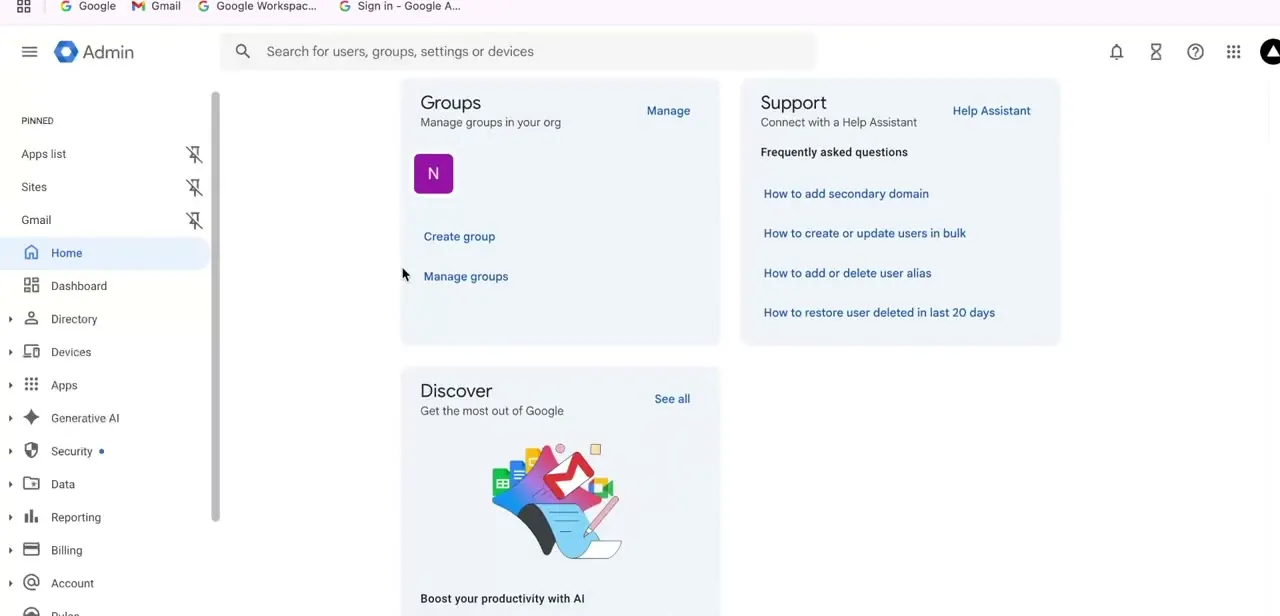
Sign in at admin.google.com with an account that has admin permissions, and you land on the Home dashboard. This page surfaces the things admins reach for most: a Groups panel for managing organization groups, a Support panel with frequently asked questions like "How to add secondary domain" and "How to create or update users in bulk," and a Discover panel pointing at other productivity tips.
The left sidebar holds the main navigation: Directory, Devices, Apps, Security, Data, Reporting, Billing, and Account. Domain settings live under Account, not under Directory or Apps, which is easy to miss the first time.
02Open Add a domain
From Account settings, choose Domains, then Manage domains, and click Add a domain. Google's own documentation lists this same path: Account > Domains > Manage domains > Add a domain.
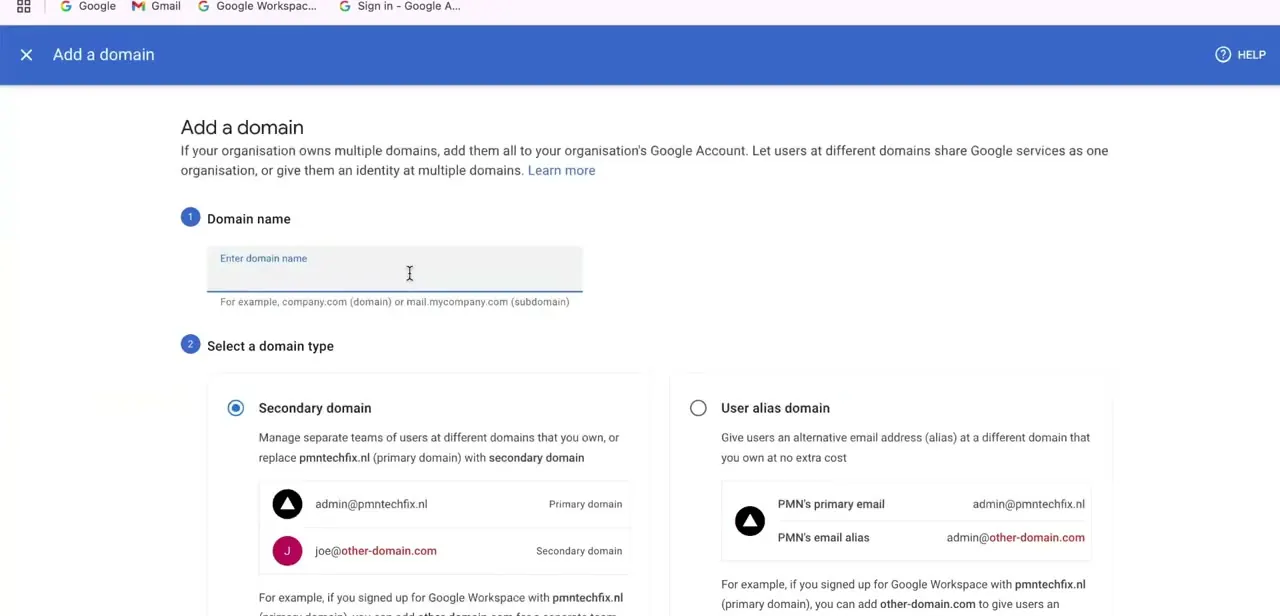
The screen that opens explains the purpose plainly: "If your organisation owns multiple domains, add them all to your organisation's Google Account. Let users at different domains share Google services as one organisation, or give them an identity at multiple domains." Step 1 on this screen is a Domain name field with placeholder guidance: company.com for a full domain, or mail.mycompany.com for a subdomain. Type the exact domain you registered with your provider, matching capitalization and spelling precisely.
03Choose Secondary domain or User alias domain
Step 2 on the same screen is the decision that matters most. Secondary domain treats the new domain as its own space: it can replace your primary domain in a user's address, and the screen's own example shows admin@pmntechfix.nl (primary) alongside joe@other-domain.com (secondary), separate identities for separate people or teams.
User alias domain instead gives existing users an additional email address at the new domain, shown as admin@pmntechfix.nl paired with admin@other-domain.com: the same person, reachable at two addresses, and the Admin console itself labels this option "at no extra cost." That phrase only tells half the story. A secondary domain isn't free once you use it: every person you add under it needs a licensed Workspace user account, the same as any other user, except on Education and Nonprofit editions. Pick secondary domain if you're managing genuinely separate teams or brands and are prepared to license users on it; pick user alias domain if you just want existing people reachable at a second address at no added cost.
04Verify domain ownership
After choosing a domain type and continuing, Google requires proof you control the domain: typically a DNS TXT record added at your domain registrar, or in some flows an HTML file uploaded to the domain's web root. This step exists to stop someone from adding a domain they don't own to their Workspace account, so it can't be skipped regardless of which domain type you picked in the previous step.
05Wait for DNS propagation, then confirm
Once the verification record is in place, return to the Admin console and confirm verification. This can succeed within minutes or take up to 48 hours depending on how quickly your registrar's DNS changes propagate. If verification fails immediately after adding the record, that's usually propagation lag rather than a mistake in the record itself, so it's worth retrying after a longer wait before assuming something is wrong.
06Review the domain's final settings
With the domain added and verified, it appears in your Domains list alongside your primary domain, and any users or aliases you set up on it become active. Check MX records separately if you plan to route email through this domain: domain verification and email routing are two different steps, and a verified domain doesn't mean mail is flowing until the MX records point at Google's mail servers too.
| Secondary domain | User alias domain | |
|---|---|---|
| Cost | A licensed user account for every person added under it (Education and Nonprofit editions excluded) | No extra cost per user |
| Identities | Separate: a user's address on it doesn't need to match any other address they hold | Same person, second address: existing users keep their account and gain another address |
| Typical use | Separate brands, subsidiaries, or teams under one Workspace account | One organization that owns more than one domain name and wants every address to reach the same people |
From Google's official domain-management documentation, September 2026.
When it doesn't work
Verification fails right after adding the TXT record
Why: DNS propagation lag; the record hasn't reached Google's resolvers yet even though it's correctly set at the registrar.
Fix: Wait, up to 48 hours in slow cases, then click confirm again without changing the record.
The domain shows as verified but no mail arrives at addresses on it
Why: Verification only proves ownership. It doesn't route mail: the domain's MX records may still point elsewhere, or nowhere.
Fix: Add or update the domain's MX records to point at Google's mail servers after verification, as a separate step.
Add a domain isn't visible, or the option is greyed out
Why: The signed-in account has a delegated admin role without domain-management privileges.
Fix: Sign in with a super admin account, or have one grant domain-management privileges to your role.
Frequently asked questions
What's the difference between a secondary domain and a user alias domain?
A secondary domain gives you a separate identity space, and each person on it needs a licensed user account, priced the same as any Workspace seat (Education and Nonprofit editions excluded). A user alias domain just adds a second email address at the new domain for existing users, at no extra cost.
How long does domain verification take in Google Workspace?
Verification is often quick once the DNS record is added, but propagation can take anywhere from a few minutes to 48 hours depending on your registrar.
Can I add more than one domain to Google Workspace?
Yes. Workspace supports adding multiple domains and domain aliases under the same account, mixing secondary domains and user alias domains as needed.
Do I need to change my domain registrar to use Google Workspace?
No. You can keep your existing registrar and just add the DNS records Google requires for verification and, later, email routing.
Does a user alias domain really cost nothing extra?
For the domain and the alias address, yes, the Admin console itself says so. What can still cost money is anything unrelated to the alias, such as adding brand-new users to your account for other reasons.
Sources and last check
Click path and screens come from a recorded Admin console walkthrough. The Add a domain screen's wording (including the "at no extra cost" label on user alias domain) was checked directly against the screenshots. The menu path and the cost difference between secondary domains and user alias domains were re-checked against Google's official Workspace Admin Help in September 2026, which added the missing "Manage domains" step and the per-user licensing cost for secondary domains that this article previously left out.
About the author

Impran M N
I've been hooked on technology for as long as I can remember — especially the new tools and AI apps that seem to land every other week. Easy Tech Tuts is where I write up whatever I've just worked out: I do the task in the real product, record the screen, and turn it into the guide I wish I'd found first.



